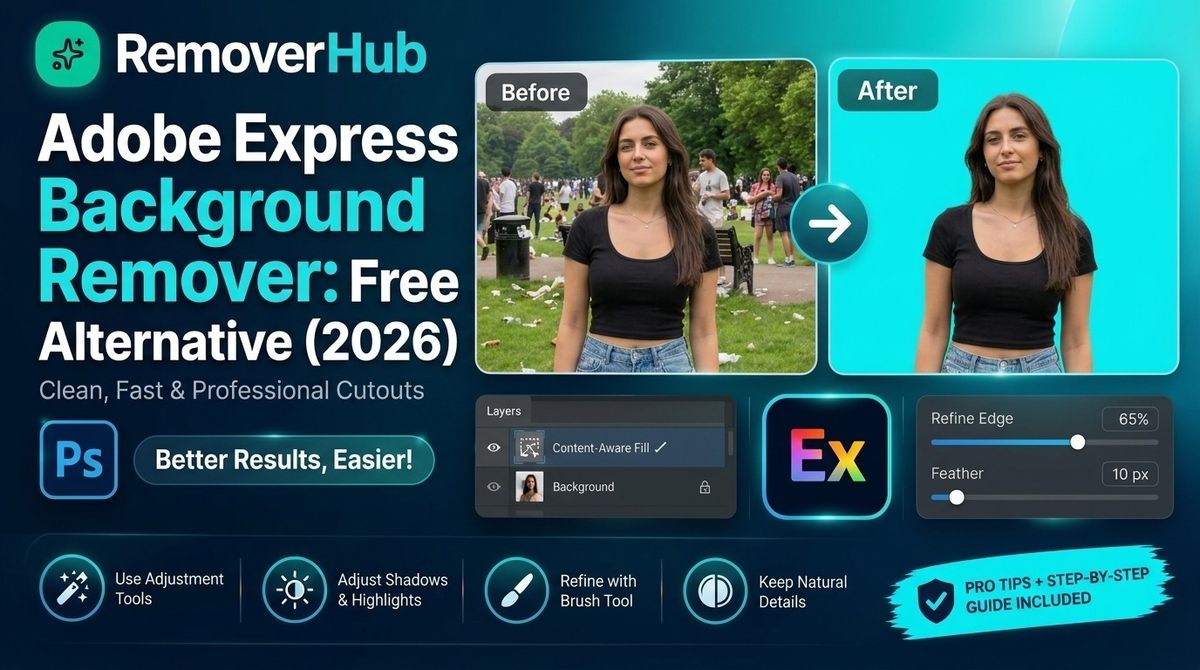
Adobe Express Background Remover: Free Alternative
If you want a free, one-click alternative, use a dedicated online background remover that works in your browser, gives you a transparent PNG and doesn't require design software. Our own AI background remover is one option, and tools such as remove.bg, Photoroom, Pixelcut and Canva are others.
The right choice depends on your image:
- Simple portrait or product on a plain background: Adobe Express and most free tools do well.
- Hair, fur, glass or low-contrast edges: compare two or three tools on your own image before you commit.
- Many product photos at once: pick a tool with batch support. See our guide to batch background removal.
- Pixel-level control: use Photoshop or GIMP with manual masking.
Adobe itself says its tool may remove fine details or low-contrast areas and tells users to review the cutout. That advice applies to every automatic remover, including ours.
Why People Look for an Adobe Express Alternative
Adobe Express is a capable design tool, and its one-click background remover is popular. So why do people search for alternatives?
Usually it comes down to a few practical reasons: they don't want to sign in, they aren't sure which features are free, they only need a cutout and don't want a full design app, or the edges on a tricky photo didn't come out clean. Sometimes they just want a second opinion.
This guide is a fair look at both sides. You'll see exactly what Adobe Express does, how to get a transparent PNG from it, where it can struggle and which free options are worth testing. We also give you a simple test you can run on any background remover, so you don't have to rely on anyone's marketing, including ours. If you want a broader roundup first, see our best background remover tools in 2026.
What the Adobe Express Background Remover Does
Adobe's Help Center describes the tool this way: it automatically identifies your subject and removes the background to create a clean cutout, and it may also remove fine details or low-contrast areas.
How It Works in Plain English
The tool uses AI to separate the foreground (your subject) from the background. Technically this is called image segmentation: the software decides, pixel by pixel, which parts belong to the subject. The result is a mask, and everything outside the mask becomes transparent.
The Official Steps (Web)
Per Adobe's Help Center guide:
Open a design in the Adobe Express editor.
Select the image you want to edit.
In the left Image panel, choose Remove Background.
To restore the background, select the image and choose Remove Background again.
The Mobile Steps
On the app, Adobe's mobile guide says to select the image, tap Remove background and use Restore background to undo it.
The Standalone Tool
Adobe also offers a standalone background remover page where you upload a file and download the result. At the time of our check, that page listed JPEG, PNG and WebP files up to 50 MB and said the result downloads as a PNG. Limits on other Adobe pages may differ, so check the page that matches the workflow you use.
Is the Adobe Express Background Remover Free?
This is the question behind most searches, and the honest answer is it depends on the workflow and the day you check.
What Adobe Says
Adobe's standalone background remover page presents the tool as free, and an Adobe landing page for PNG background removal says a free plan is available to anyone. Adobe's Help Center describes what a free Express membership includes, such as templates, fonts and standard editing tools.
Where It Gets Confusing
Adobe's plan documentation has listed background removal among features associated with the paid Premium plan in some contexts, and third-party articles disagree with each other. Some say there's no meaningful limit on the free tier. Others say Premium adds extra refinement tools.
What We Recommend
- Don't assume. Test the exact workflow you plan to use while you're signed in (or signed out) the way you normally would.
- Check the Adobe Express pricing page the day you publish or buy.
- Write down which plan you tested and the date.
If a free promise matters to you, for example for a client project, take a screenshot of the plan page.
Limits to Know About Before You Rely on It
No automatic background remover is perfect. Here's what to watch for with Adobe Express and with any similar tool.
Fine Details and Low-Contrast Edges
Adobe says directly that the tool may remove fine details or low-contrast areas and that you should review the cutout and restore anything important. In practice, that means:
- Wispy or flyaway hair
- Fur and feathers
- Thin straps, chains or wires
- Subjects whose color is close to the background
- Transparent or reflective objects such as glass
Shadows
Many tools remove the background but also remove the soft shadow under a product, which makes it look like it's floating. If you want a natural shadow, add it back afterward.
File Size and Format Limits
Limits vary by Adobe workflow. We saw 50 MB on the standalone tool page, and other Adobe pages and third-party summaries mention different figures for the editor. Check the limit on the page for the workflow you use.
Account and Sign-In
Whether you need to sign in can vary by tool and by time. Check the screen you actually see.
Output Format
For a transparent result, you need a format that supports transparency, which brings us to PNG.
How to Get a Transparent PNG From Adobe Express
According to Adobe's Help Center, to download an image with a transparent background you click outside the canvas, select Background in the left panel, choose No fill, and then choose Transparent PNG as the file format when you download. The mobile steps are similar: choose the Background color icon, select No fill and pick Transparent PNG.
Why PNG and Not JPEG?
PNG supports an alpha channel, which stores how transparent each pixel is. The W3C PNG specification covers transparency and alpha information in detail. JPEG has no alpha channel, so a transparent area turns into a solid color, usually white or black.
| Format | Supports transparency | Good for |
|---|---|---|
| PNG | Yes | Cutouts, logos, stickers, overlays |
| WebP | Yes | Web use where smaller files matter |
| JPEG | No | Photos with a solid background |
For a deeper comparison, read our JPEG vs PNG format guide. Our transparent image maker and guides on turning a photo into a transparent PNG and making an image transparent online free cover the export side too.
Our own guides cover several of these: how to remove a background in Canva, Photoshop vs RemoverHub for transparent images and whether Canva can make images transparent.
A Disclosure Worth Repeating
We build and promote RemoverHub, so weigh our opinion accordingly. That's why the next section shows you how to run your own test.
How to Test Any Background Remover (5 Images, 10 Minutes)
Don't judge a tool on its marketing sample. Test it on your own hard cases.
The Five Test Images
Portrait with loose hair against a mid-tone wall
Product on a white or light surface (low contrast)
Object with transparent or glassy parts, such as a bottle
Subject with a strong shadow on the floor
Busy background with similar colors to the subject
What to Check on Each Result
| Check | What good looks like |
|---|---|
| Hair and fine edges | Natural, not crunchy or chopped |
| Holes in the subject | None, or easy to fix |
| Leftover background | Little or none |
| Edge halo | No white or colored fringe |
| Resolution | Same size as the original |
| Shadow handling | You can keep or remove it |
| File export | A real transparent PNG, not a checkerboard picture |
How to Score It
Give each test a 1 to 5 score for edge quality, then add up. Test at least two tools on the same five images. Note the date and plan you used.
Experience-based tip: hair against a similar-colored background is the toughest test. If a tool passes that, simple product shots will be easy.
Step-by-Step: Remove a Background With RemoverHub
You can follow the same pattern with most online removers. Menus and options on our tool page can change, so check the tool page for the current limits, sign-in rules and export choices.
Open the tool. Go to the AI background remover. For larger files, try the HD background remover, and for ecommerce images the product photo background remover.
Upload your image. Use a JPEG, PNG or WebP of the highest quality you have.
Let the AI remove the background. Wait for the preview.
Check the edges at 100% zoom. Look at hair, corners and thin parts.
Download as PNG so the transparency is preserved.
Test the result on a dark and a light background to reveal halos.
For tips on quality, read how to remove a background in HD without pixelation and free HD background remover.
Tips for Cleaner Cutouts With Any Tool
Start With a Better Photo
- Use even, soft lighting.
- Keep the subject sharp and in focus.
- Avoid backgrounds that match the subject's color.
- Shoot at the highest resolution you can.
Handle Hair and Fur
Automatic tools often cut hair too hard. If the edge looks crunchy, try one of these:
- Test another tool on the same image.
- Soften the edge by a pixel or two in an editor.
- Replace the background with a similar color rather than pure white or black, so small halos blend in.
Fix Shadows
If the tool removed a shadow you want, add a soft, low-opacity shadow back in an editor. If you want to remove an unwanted shadow, see our guides on removing shadows from photos and our shadow remover.
Fix Jewelry and Reflective Objects
Shiny objects need special care. Read our guide on removing backgrounds from jewelry photos.
Fix Softness After Cutting
A cutout can look slightly soft. Use the image sharpener or our guides on sharpening a blurry image online free and best AI image sharpener tools.
Background Removal for Ecommerce and Product Photos
Product sellers have stricter needs than casual users: consistent backgrounds, correct sizes and marketplace rules.
What to Check
- Marketplace rules: Amazon, Walmart and eBay each have their own image requirements. See our guides to Amazon product image requirements, Walmart image requirements and eBay product photos.
- White backgrounds: learn how to make a product photo background white and the best background color for product photos.
- Amazon FBA: read about background removal for FBA listings.
- Etsy and Shopify: see background removers for Etsy and Shopify.
- Bundles: our guide to product bundle photography covers multi-item shots.
- Print catalogs: read enhancing product photos for print catalogs.
- Other tools: compare free product photo editing tools.
Batch Workflows
If you have dozens of photos, a one-by-one editor is slow. Our batch background removal guide explains how to speed up repeat work.
Background Removal for Profiles, Passports and Presentations
- LinkedIn and profile photos: see LinkedIn photo backgrounds.
- Passport and ID photos: read passport photo background remover. Always follow the official photo rules of the issuing authority.
- PowerPoint and Google Slides: see making a PowerPoint image background transparent and making an image transparent in Google Slides.
- Logos: read removing the background from a logo.
- General transparency: see photo background transparent guide.
On a Phone: Removing Backgrounds on Mobile
Adobe Express has a mobile app with a Remove background button, per Adobe's mobile guide. Online tools in a mobile browser also work.
Mobile Tips
Use the highest-quality original from your gallery, not a screenshot.
Zoom in on the preview to check edges.
Download as PNG, then check that it saved to your Photos or Files app with transparency.
If the app compresses the file, try the browser version.
Real-World Examples
These are illustrative scenarios, not real clients.
Example 1: The Etsy Seller
Hira sells ceramic mugs. Adobe Express gave her a clean cutout of a white mug on a cream table, but the thin handle edge was slightly chopped. She tested a second tool, which kept the handle intact, and then added a soft shadow to ground the mug.
Lesson: Test your trickiest item, not your easiest.
Example 2: The Freelance Designer
Omar designs in Express all day, so he stays in the editor for quick cutouts. When a client sent a photo of a person with curly hair, he exported it and compared a dedicated tool and Photoshop's manual refinement before choosing.
Lesson: Stay in your workflow for simple jobs and switch for hard ones.
Example 3: The Student Presenter
Ayesha needed a transparent logo for slides. She removed the background, downloaded a PNG and placed it on a dark slide to check for halos. There was a white fringe, so she cleaned the edge before presenting.
Lesson: Always preview on the background you'll actually use.
Example 4: The Online Reseller
Sana lists second-hand clothing and processes about 40 photos a week. She switched to a tool with batch support after realizing one-by-one editing cost her hours.
Lesson: Volume changes the best tool.
Common Mistakes to Avoid
Assuming "free" means the same thing everywhere. Check the exact workflow and plan.
Downloading as JPEG. You lose transparency.
Judging the cutout at thumbnail size. Zoom to 100%.
Ignoring halos. Test on dark and light backgrounds.
Cutting images you don't have rights to edit. Use your own photos or ones you have permission to edit.
Skipping marketplace rules. A clean cutout can still violate a listing requirement.
Using low-resolution sources. The cutout can't be sharper than the original.
Trusting accuracy claims. Nobody can promise perfect hair edges on every image.
Not saving the original. Keep an untouched copy.
How to Learn More (Free and Paid Resources)
Free
- Adobe's official help: Remove background in Adobe Express (web), mobile guide and the Photoshop user guide for manual masking
- Standards: the W3C PNG specification for how transparency works
- RemoverHub guides: our blog library and AI object remover vs clone stamp
Paid
- Photography and retouching courses
- Photoshop training for masking and compositing
- Ecommerce photography workshops
A Simple Practice Plan
Week 1: Run the five-image test on two tools.
Week 2: Practice fixing hair and shadows.
Week 3: Learn your marketplace's image rules.
Week 4: Build a batch workflow for your most common photo type.
Why Choose RemoverHub for Background Removal and Cleanup?
Background removal is usually one step in a longer photo workflow. You may also need to remove an object, text, a logo or a watermark.
Why choose RemoverHub:
- Many cleanup tools in one place. Browse the full tools library, including the AI object remover, AI text remover and logo remover.
- Guides built from testing. Our blog library explains cutouts, transparency and quality fixes in plain language.
- Honest limits. We tell you when another tool, or manual editing, will do better.
Explore advanced RemoverHub tools for faster jobs, or contact our team with a question.
Frequently Asked Questions
Is the Adobe Express background remover free?
Adobe presents its standalone background remover as free, but plan details can vary by workflow, and Adobe's plan documentation has associated background removal with Premium in some contexts. Test the exact workflow you plan to use and check Adobe's pricing page on the day you use it.
What is the best free alternative to Adobe Express for background removal?
It depends on your image. Test two or three tools, including a dedicated online remover such as our AI background remover, on your hardest photo.
Can I remove an image background without Adobe Express?
Yes. Online tools, Canva, Photoshop and GIMP can all remove backgrounds. Many online tools work in a browser without installing software.
How do I get a transparent PNG from Adobe Express?
Per Adobe's Help Center, click outside the canvas, choose Background, select No fill and then download as a Transparent PNG.
Why does my cutout have rough or missing edges?
Automatic tools can remove fine details and low-contrast areas, as Adobe notes. Try a higher-quality source photo, a plainer background or a second tool, and review the edges at 100% zoom.
Which background remover is best for product photos?
Choose one that handles your product's edges and supports your volume. Check marketplace rules too, and test with your trickiest product.
Can AI remove the background from any photo?
It can handle many photos, but accuracy varies with lighting, edge contrast, hair, glass and shadows. No tool is perfect on every image.
Do free background removers reduce image quality?
Some tools limit the output size or compress files, and some keep full resolution. Compare the output dimensions with your original.
Can I remove a background from a PNG?
Yes. A PNG can be processed like any other image, and the output should stay a PNG to keep transparency.
Can I remove backgrounds on my phone?
Yes. Adobe Express has a mobile app, and online tools work in a mobile browser.
What file formats keep a transparent background?
PNG and WebP support transparency, while JPEG does not.
Should I use Photoshop instead?
Use Photoshop when you need maximum control over edges and masks. For quick jobs, a one-click tool is usually faster.
Conclusion:
Adobe Express is a good option when you're already designing in it, and its Help Center is clear about how to get a transparent PNG. A free alternative makes sense when you want a simpler workflow, don't want a design app or find the edges on a hard photo don't come out clean.
Here's what to do next:
Check Adobe's current plan details on the day you use the tool.
Run the five-image test on two tools with your own photos.
Zoom to 100% and check hair, edges and halos.
Download as PNG and preview on dark and light backgrounds.
Add a soft shadow back if your product looks like it's floating.
Follow marketplace image rules before you upload.
Keep the original file and edit only images you have rights to use.
To speed up your next batch of photos, book a seat at Advance Free Tools offered by RemoverHub, then try the AI background remover and explore the full toolkit.