Background Remover for Etsy & Shopify: Complete Guide
If your Etsy or Shopify photos still show carpet fibers, shadows, or a cluttered kitchen counter behind your product, you're losing sales before a shopper even reads your title. A clean, consistent background — usually pure white or a transparent PNG — signals professionalism instantly, and that's exactly why a background remover for Etsy and Shopify product listings has become one of the most searched tools among online sellers this year. It strips away distracting backdrops in seconds, gives every photo in your shop the same polished look, and helps your listings meet each platform's technical image standards. In this guide, you'll learn exactly how to remove backgrounds correctly, which format each platform actually wants, and how to avoid the mistakes that quietly hurt conversion rates.
Why Background Removal Matters So Much for Etsy and Shopify Sellers
Buyers judge a listing in under two seconds. Before they read a single word of your description, their eyes register whether the photo looks like it belongs on a real storefront or on someone's phone camera roll.
A messy or inconsistent background does three things to your shop, all bad:
- It breaks visual trust. Shoppers subconsciously associate clean, uniform photography with established, reliable sellers.
- It makes your shop grid look chaotic. When ten listings each have a different background color, texture, or lighting setup, your storefront looks unplanned rather than curated.
- It buries the product itself. Busy backgrounds compete for attention with the item you're actually trying to sell.
Removing the background — and replacing it with a clean white, transparent, or brand-consistent backdrop — fixes all three problems at once. It's not about vanity; it's about making the product the obvious, uncontested focus of every photo in your listing.
What Actually Happens When You Remove a Background
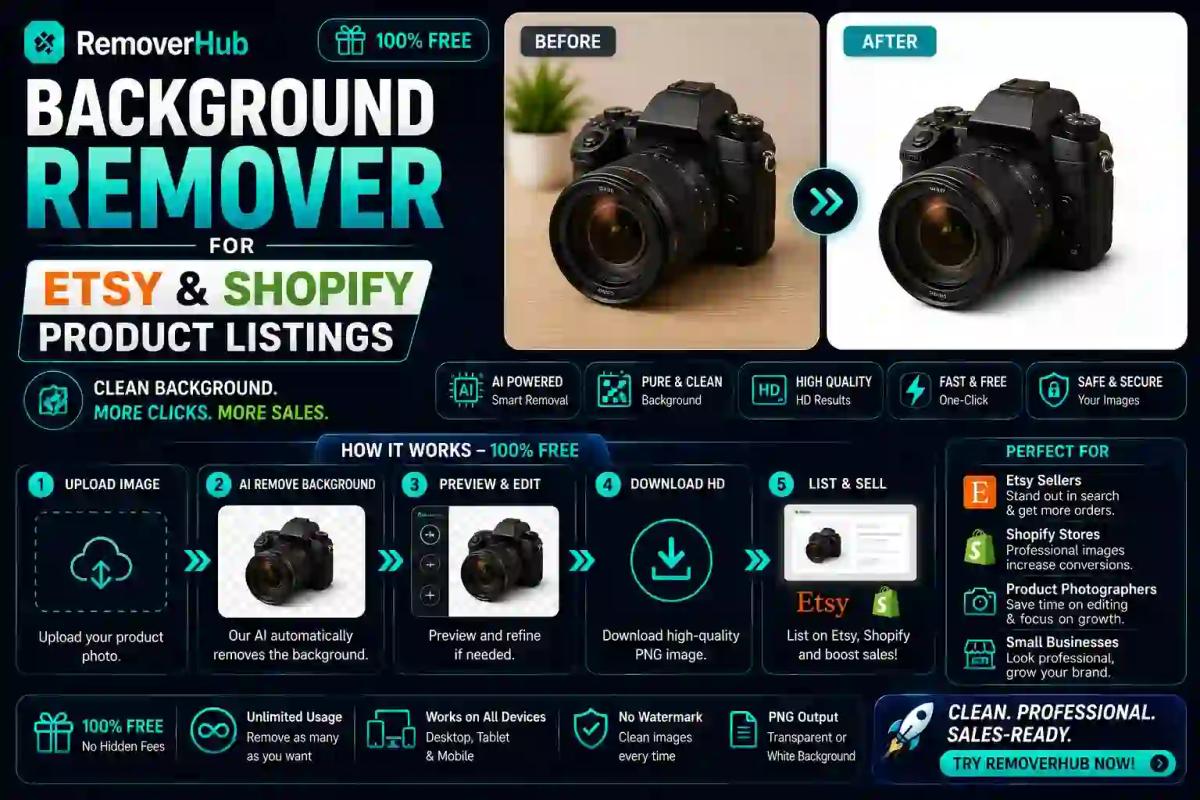
A background remover uses AI-based image segmentation to detect the edges of your product and separate it from everything behind it. Older manual methods relied on the magic wand or pen tool in Photoshop, which took real skill and a lot of patience, especially around fine details like jewelry chains, fabric texture, or hair-thin edges.
Modern AI tools handle this automatically. You upload a photo, the algorithm detects the subject, and it outputs either:
- A transparent PNG, where the background is fully removed and see-through, or
- A solid white (or custom color) background layered behind the cutout.
If you want to try this yourself on a real product photo, ReemoverHub's AI background remover does exactly this in-browser, and their dedicated background remover for product photos is tuned specifically for e-commerce catalog shots rather than portraits or general images.
Step-by-Step: How to Remove a Background and Get a Listing-Ready Photo
Here's the actual workflow sellers use to go from a raw product photo to something ready to upload.
Shoot on a neutral, evenly lit surface. A plain white poster board or foam core under diffused light (natural window light works fine) gives the AI a clean edge to detect, which produces a cleaner cutout.
Upload the photo to a background remover. Drop the image into a tool like removerhub's AI background remover and let the AI isolate the product automatically.
Check the edges closely. Zoom in around fine details — rings, chains, lace, fringe — since this is where AI cutouts most often leave small artifacts.
Choose your output: transparent or white. Decide whether the platform or your brand style needs a see-through PNG or a solid white JPG (more on this below).
Correct color and lighting if needed. If the product looks flat or dull after background removal, a quick brightness or contrast adjustment helps it pop against the new background.
If the photo still shows dust or a stray shadow after removal, run it through an AI object remover to clean up leftover artifacts without redoing the shot.
Export at the correct resolution and format for your platform. This is the step sellers skip most often — and it's the one that determines whether your image looks sharp or pixelated once it's live.
Upload directly to your Etsy or Shopify listing and preview it on both desktop and mobile before publishing, since thumbnails crop differently across devices.
That's the entire pipeline. The AI does the technical cutting; you're responsible for quality control and matching the file to platform specs.
White Background vs. Transparent PNG: Which One Do You Actually Need?
This is the single most common point of confusion among Etsy and Shopify sellers, and the answer depends on what you're using the photo for.
Use a white background when:
- It's your primary or "hero" listing photo — the first image shoppers see in search results.
- You want the image to look like a finished, professional catalog shot rather than a floating cutout.
- You're uploading to Etsy, since Etsy does not support transparent PNGs in listings — more on this below.
Use a transparent PNG when:
- You're placing the product into a mockup, banner, social media graphic, or marketing collage.
- You need to layer the product over different colored backgrounds for different ad creatives.
- You're building print-on-demand designs, Pinterest graphics, or email marketing images where flexibility matters more than a finished look.
If you only need one output, default to white. If you're building a full marketing kit around the product — ads, banners, email graphics — keep a transparent version on hand too, and removerhub's transparent image maker is built specifically for generating that layered PNG version.
Etsy vs. Shopify: Platform-Specific Photo Requirements
This is where accuracy really matters, because getting these specs wrong can mean blurry thumbnails or images that fail to upload. Here's how the two platforms actually differ.
| Platform | Recommended Background | Ideal Image Size | Format |
|---|---|---|---|
| Etsy | White or neutral solid (transparent PNGs are not supported — Etsy renders transparent areas as black) | At least 2000 pixels on the shortest side; first photo should be at least 635px wide | JPG, PNG, GIF, SVG, or HEIC — under 1MB per file |
| Shopify | White, transparent, or brand-consistent color (Shopify does support transparent PNGs) | 2048 x 2048px square recommended; up to 4472 x 4472px for high-resolution 4K display support | JPG (uncompressed) preferred for photos; PNG when transparency is needed |
The Etsy detail trips up a lot of sellers: if you upload a transparent PNG expecting a clean look, Etsy will actually fill that transparent space with solid black once it's live on the listing page. According to Etsy's own guidance on image requirements, animated GIF files and transparent PNG files are not supported, and if a file contains transparency, the transparent parts of the image will appear black on Etsy. So for Etsy, always flatten your background to solid white (or another color) before uploading — never leave it transparent.
Shopify is more flexible. Shopify recommends square dimensions like 2048 x 2048 pixels, and for higher-resolution monitors suggests using images up to 4472 x 4472 pixels, noting that high-resolution photos look more polished and professional to customers. A 1:1 ratio works best for both product pages and collection pages, with acceptable sizes ranging from 1200x1200 up to 4472x4472, and Shopify recommends saving images in uncompressed JPG format.
For Etsy sizing specifically, Etsy recommends listing photos have a width and height of at least 2000 pixels or more, while the first listing photo should be at least 635 pixels wide and tall to avoid ranking lower in search results. Because Etsy has adjusted these numbers more than once over the past few years, it's worth checking the current Etsy Seller Handbook image guidelines directly before a big photo batch, since specs like these do shift periodically.
Does a Clean Background Actually Improve Sales?
Sellers ask this constantly, and the honest answer is: yes, but it's one piece of a bigger picture, not a magic switch.
A clean background improves the perceived quality of a listing, which affects click-through rate and buyer trust — two things that do directly influence conversion. When two nearly identical products are listed side by side, the one with a crisp, well-lit, background-free photo will almost always outperform the one photographed on a cluttered desk.
That said, background alone won't rescue a listing with poor lighting, a blurry shot, or an unflattering angle. Think of background removal as removing a distraction, not adding a selling point on its own. The real conversion drivers, in rough order of impact, are:
Sharp focus and accurate color representation of the actual product
Good lighting that shows texture and true-to-life detail
A clean, consistent background (this is where background removal comes in)
Multiple angles, including scale references and lifestyle shots
Consistency across your entire shop grid
Background removal earns its place at #3, not #1 — but it's also the fastest and cheapest fix on that list, which is exactly why it's worth doing for every listing.
Keeping Product Photos Consistent Across an Entire Shop
One background remover trick most new sellers miss: consistency matters more than perfection on any single photo. A shop where every listing has the exact same white tone, the same lighting angle, and the same crop ratio reads as far more professional than a shop with ten technically "good" but visually mismatched photos.
Practical ways to keep things consistent:
- Save your background remover output settings (white shade, canvas size) and reuse them for every batch.
- Shoot all products under the same light source and time of day when possible, since natural light shifts color temperature throughout the day.
- Standardize your crop ratio — pick either square (1:1) or a fixed rectangle and stick with it shop-wide.
- Batch-process photos together rather than editing one at a time across different sessions, which naturally introduces small inconsistencies.
If you're editing dozens of listings at once, look for a tool built for bulk background removal rather than dragging images in one by one — it saves hours and keeps the output uniform.
Background Removal for Specific Product Types
Not every category is equally easy for AI to process. Here's what to expect by product type.
Jewelry: Thin chains, small gemstones, and reflective metal are the hardest edge cases for AI segmentation. Shoot on a solid, high-contrast backdrop and check zoomed-in edges after removal — this is where cutouts most often leave faint outlines.
Clothing and apparel: Flat-lay shots generally process cleanly. Ghost mannequin or worn-model shots are trickier around arm and neck gaps; a manual touch-up pass after AI removal is common for these.
Handmade and craft items: Textured materials like yarn, wood grain, or ceramic glaze usually cut out well, but irregular, organic shapes (think dried flowers or raw clay pieces) may need a second pass with an AI object remover to clean up stray fibers left in the frame.
Vintage items: Worn edges, tarnish, or fabric fraying are part of the product's appeal — don't over-smooth these during editing. Focus the cleanup on the background only, not the item's authentic texture.
Print-on-demand mockups: These typically start from transparent PNG source files layered onto a mockup template, making removerhub's transparent image maker the more relevant tool than a white-background export.
Free vs. Paid Background Remover Tools: What's the Real Difference
Most sellers start with free tools, and for basic single-image edits, that's usually fine. The differences show up at scale:
- Free tools typically cap resolution output, watermark images, or limit you to a handful of edits per day — workable for a small shop uploading a few new listings a month.
- Paid tools generally unlock full-resolution exports (important for meeting Etsy's 2000px recommendation), batch processing for sellers with large catalogs, and finer edge-detection controls for tricky items like jewelry or fine fabric.
If you're running a small shop with occasional new listings, a free background remover for e-commerce is usually enough. Once you're processing dozens of SKUs regularly, the time saved by batch tools tends to pay for itself quickly.
File Formats and Compression: The Technical Details Sellers Skip
Getting the visual edit right is only half the job — the file format and compression settings determine how that photo actually loads and displays.
- JPG is the standard for finished product photos with a solid background. It compresses well without a huge quality loss, keeping file sizes manageable for fast uploads.
- PNG is necessary any time you need transparency, but file sizes run larger, which matters on Etsy's 1MB upload cap.
- WEBP offers strong compression with good quality retention and is increasingly supported across e-commerce platforms, though it's still worth double-checking platform compatibility before switching your whole catalog over.
For mobile shoppers — who make up the majority of Etsy and Shopify traffic — smaller, well-compressed files also mean faster page loads, which is itself a ranking and conversion factor on both platforms.
Frequently Asked Questions
Do Etsy product photos need a white background? Not strictly required, but strongly recommended for your primary photo. Etsy doesn't support transparent PNGs — they display as black — so a clean white or neutral backdrop is the safest, most professional-looking choice for listing images.
What is the best background remover for product photos? The best tool depends on your volume. For occasional single-image edits, a free AI tool like removerhub's background remover for product photos works well. For large catalogs, look for one that supports batch processing and full-resolution export.
How do I make my Etsy photos look more professional? Shoot on a plain, evenly lit surface, remove the background for a clean white backdrop, keep lighting and crop consistent across all listings, and include at least one scale-reference or lifestyle photo per listing.
What image size does Shopify recommend for products? Shopify recommends 2048 x 2048 pixels for standard use, with sizes up to 4472 x 4472 pixels supported for high-resolution 4K displays. A 1:1 square ratio performs best on both product and collection pages.
Can I remove backgrounds from photos for free? Yes. Free AI background removers handle most standard product shots well. Paid versions typically add higher-resolution exports and batch editing, which matter more as your catalog grows.
Does a clean background improve sales on Etsy or Shopify? It improves perceived quality and buyer trust, which supports conversion — but it works best combined with good lighting, sharp focus, and consistent photography across your shop, not as a standalone fix.
Final Takeaway
A background remover won't fix a poorly lit or blurry photo, but it will instantly make an already-decent product shot look like it belongs on a professional storefront — and it's one of the fastest, cheapest upgrades available to any Etsy or Shopify seller. Start with your best-selling listings, standardize a white background across your primary photos, keep a transparent PNG version on hand for Shopify and marketing use, and double-check your export size against each platform's current specs before you upload. If you're ready to clean up a whole catalog at once, removerhub's AI background remover and product photo background remover are built to handle exactly this kind of batch work — try one listing first, compare it against your current photos, and you'll likely see the difference immediately.