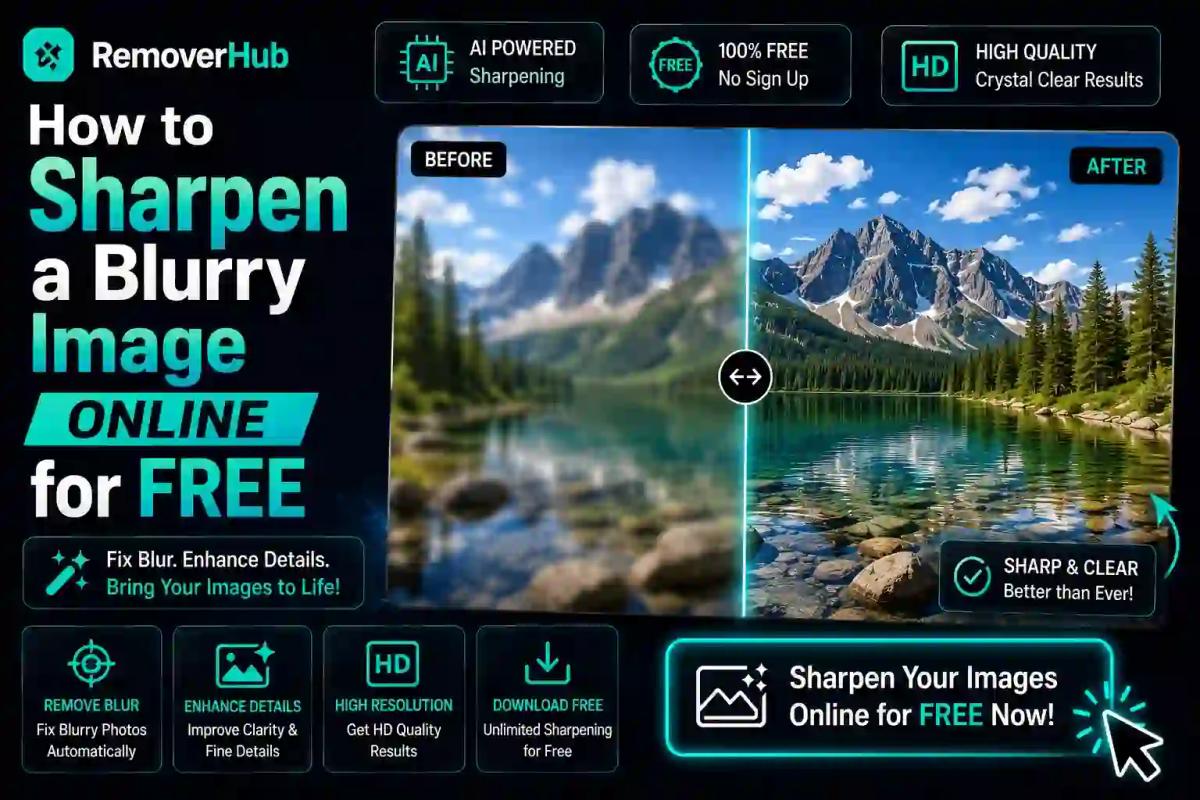
How to Sharpen a Blurry Image Online for Free
A blurry photo doesn't have to stay that way. You can sharpen a blurry image online for free using AI-powered tools that analyze edges, rebuild fine detail, and reduce noise — no Photoshop, no downloads, no editing experience required. For mild to moderate blur, results can look genuinely sharp within seconds. For severe motion blur or very low-resolution images, tools can improve clarity noticeably, though they can't recreate detail that was never captured in the first place.
This guide walks through exactly how online image sharpening works, the different types of blur you might be dealing with, a simple step-by-step process to fix your photo, and what to realistically expect from free tools versus paid ones. Whether you're rescuing an old family photo, cleaning up a product shot, or fixing a screenshot, you'll find a practical path forward here.
What Does It Mean to "Sharpen" a Blurry Image?
Sharpening is the process of enhancing the edges and fine details in a photo so it appears crisper and more defined. Technically, there are two different approaches:
- Sharpening filters (like the classic "unsharp mask" technique) work by increasing contrast along edges in the image. This makes existing detail look more defined but can't add detail that isn't there.
- AI-based deblurring and upscaling uses machine learning models trained on millions of images to predict and reconstruct what fine detail likely looked like, even in areas that are genuinely blurry or low-resolution. This is why modern AI tools can do far more than traditional sharpening filters.
Understanding this distinction matters because it sets realistic expectations. A slightly soft photo taken with a shaky hand can often be made to look genuinely sharp with the right tool. A severely out-of-focus or heavily pixelated image can be improved, but it may still show some softness — sharpening reveals detail that exists; it can't invent detail that was never recorded.
Why Photos End Up Blurry in the First Place
Before fixing a blurry photo, it helps to know what caused the blur, since different causes respond differently to sharpening:
- Motion blur — caused by camera shake or a moving subject, showing up as streaking or ghosting.
- Out-of-focus blur — the camera focused on the wrong point, leaving the whole image soft.
- Low resolution — the image was captured or saved at a small size and looks blurry when enlarged.
- Compression artifacts — heavy JPEG compression, common with images shared repeatedly on social media or messaging apps, softens detail and introduces blockiness.
- Old or scanned photos — physical wear, low original resolution, or poor scanning can all contribute to a soft, blurry result.
AI sharpening tools generally handle out-of-focus blur, low resolution, and compression artifacts well. Heavy motion blur is the hardest type to fix, since the actual visual information has been smeared across the frame rather than simply softened.
How to Sharpen a Blurry Image Online: Step-by-Step
Here's the general process most free AI sharpening tools follow:
Upload your photo. Most tools accept common formats like JPG, PNG, and WEBP directly from your device or cloud storage.
Let the AI analyze the image. The tool scans for edges, textures, and areas of blur, and determines how much enhancement each area needs.
Apply sharpening or enhancement. The AI reconstructs edges and fine detail, often alongside noise reduction so the result doesn't look grainy or artificial.
Preview and adjust intensity. Many tools let you compare before-and-after or fine-tune the strength of the effect, since over-sharpening can introduce halos or an unnatural look.
Download the result. Save the sharpened image, ideally checking the resolution and file size match what you need for your intended use (print, web, social media, etc.).
If you want to try this directly, ReleverHub's AI Blur Remover handles this entire process automatically — upload a blurry photo and the tool analyzes and sharpens it without any manual adjustment needed. For photos that are more generally soft rather than heavily blurred, the Image Sharpener tool is built specifically for quick clarity enhancement.
Comparing Your Options: Which Method Fits Your Photo?
Method: AI blur remover (online)
Best For: Out-of-focus photos, general softness, old photos
Free Version Limitations: Resolution caps, watermarks, or limited monthly uses on some platforms
Typical Result: Strong improvement, natural-looking detail
Method: Basic sharpening filter (unsharp mask)
Best For: Mildly soft images with already-decent detail
Free Version Limitations: Requires manual adjustment; can't fix real blur
Typical Result: Modest improvement, risk of over-sharpening
Method: Mobile editing apps
Best For: Quick touch-ups on the go
Free Version Limitations: Often less powerful than dedicated AI tools
Typical Result: Light improvement
Method: Desktop software (Photoshop, GIMP)
Best For: Full manual control, professional results
Free Version Limitations: GIMP is free but has a learning curve; Photoshop requires a subscription
Typical Result: Best control, but time and skill required
For most everyday needs — a blurry vacation photo, a slightly soft product shot, or an old scanned picture — a free online AI tool offers the best balance of speed and quality without needing any editing skill.
Tips for Getting the Best Results
- Start with the highest-resolution version of the photo you have. Sharpening a screenshot of a screenshot will always give worse results than working from the original file.
- Don't over-sharpen. Pushing the effect too far introduces visible halos around edges and an unnatural, "crunchy" texture — especially noticeable on faces.
- Address noise before or during sharpening. Grainy, low-light photos can look worse if sharpened without noise reduction, since sharpening tends to emphasize noise along with detail.
- Try more than one tool if your first result isn't great. Different AI models are trained differently, and one tool may handle your specific type of blur better than another.
- Combine sharpening with other fixes if needed. A blurry photo that also has a busy or distracting background might benefit from pairing sharpening with a tool like an AI Background Remover to clean up the full image.
Free vs. Paid Sharpening Tools: What's the Real Difference?
Free online tools are genuinely capable for most everyday sharpening needs, but it's worth knowing where the limitations usually show up:
- Resolution caps — free tiers often limit output resolution, which matters if you need a large print or high-res file.
- Watermarks — some free tools add a small watermark unless you upgrade.
- Batch processing — sharpening many images at once is often a paid-only feature.
- Processing priority — paid versions may process faster or offer higher-quality AI models.
For a single photo or occasional use, free tools are usually all you need. If you're regularly processing large batches of images for business or professional use, it's worth checking whether a paid tier removes limitations that actually affect your workflow.
Common Mistakes to Avoid
- Trying to sharpen an image that's fundamentally too small. If a photo is only a few hundred pixels wide, no amount of sharpening will make it print-quality large.
- Sharpening a screenshot instead of the original file, when the original is still available — always work from the best source you have.
- Ignoring compression. Re-saving a sharpened image as a heavily compressed JPEG can undo much of the improvement. Export at the highest quality setting your use case allows.
- Expecting motion blur to fully disappear. AI tools can reduce the appearance of motion blur, but severe cases (a fast-moving subject in low light, for example) have real limits.
Frequently Asked Questions
How can I sharpen a blurry image for free? Upload your photo to a free AI-based tool like an online blur remover or image sharpener, let it analyze and enhance the image automatically, then download the result. No software installation is required.
What is the best free tool to fix a blurry photo? AI-powered online tools tend to outperform basic sharpening filters because they reconstruct detail rather than just increasing edge contrast. Look for a tool designed specifically for blur removal rather than a general photo editor.
Can a blurry photo be made clear again? Often, yes — especially for out-of-focus, low-resolution, or slightly soft images. Severe motion blur is harder to fully correct, since the original detail has been visually smeared rather than simply softened.
Does sharpening a photo reduce its quality? Sharpening itself doesn't reduce quality, but over-sharpening can introduce visible artifacts like halos around edges. Using a moderate setting and previewing the result before downloading helps avoid this.
Can AI fix an extremely blurry image? AI tools can significantly improve extremely blurry images, but there's a limit — if the original detail was never captured (severe motion blur or very low resolution), the tool can only approximate what the detail likely looked like, not recover it exactly.
How do I sharpen a photo on my phone without an app? Most free online sharpening tools work directly through your phone's browser, so you can upload a photo, sharpen it, and download the result without installing a separate app.
The Bottom Line
Fixing a blurry photo used to require editing software and real skill — now it takes a browser tab and a few seconds. Free AI-based tools handle most everyday blur well, from soft focus to old scanned photos to compressed social media images. The key is matching your expectations to the type of blur you're dealing with: mild to moderate blur can look genuinely sharp again, while severe motion blur or extremely low-resolution images will improve but may not become perfectly crisp.
Ready to try it? Upload your photo to ReleverHub's AI Blur Remover for an automatic fix, or use the Image Sharpener if your photo just needs a bit more definition. Both are free to use directly in your browser — no downloads, no editing experience needed.
Source: General image processing principles — techniques like unsharp masking and AI super-resolution are widely documented in digital image processing literature.