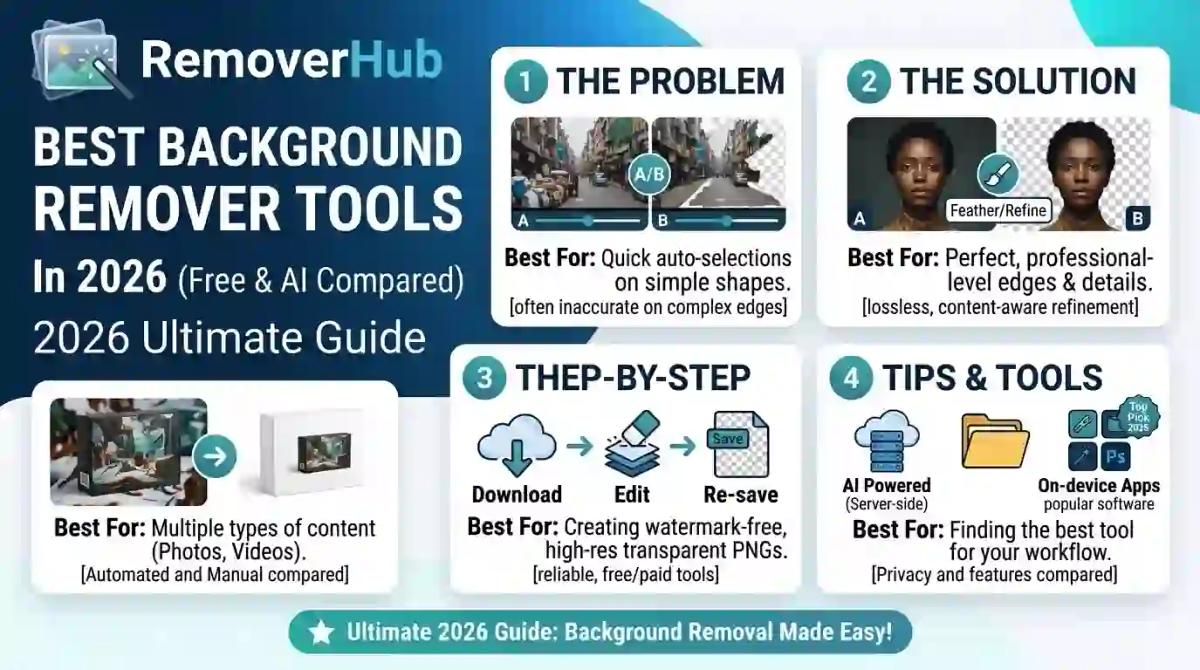
Best Background Remover Tools in 2026 (Free & AI Compared)
You don't need Photoshop skills to get a clean cutout anymore. You do need the right tool, because they behave very differently on a portrait, a glass bottle, and a fluffy dog.
This guide compares the best background remover tools in 2026. It covers free and paid options, hair and product-photo quality, transparent PNG export, batch processing, and API access. You'll also get a simple way to test any tool yourself.
Want a quick result first? Try our free AI Background Remover, then come back to compare.
What Is the Best Background Remover in 2026?
There is no single best background remover for everyone. Photoroom and Pixelcut suit e-commerce and mobile work, Canva and Adobe Express suit quick design tasks, Photoshop suits difficult manual edits, and free browser tools suit occasional use.
| If you need... | Look at... |
|---|---|
| Product photos at volume | Photoroom, Pixelcut, RemoverHub |
| Quick social graphics | Canva, Adobe Express |
| Maximum control on tricky edges | Adobe Photoshop |
| A free one-off cutout | RemoverHub, Fotor, Pixlr, Clipdrop |
| Developer integration | Photoroom API, Clipdrop API, open-source models |
Pick by use case, not by a "#1" label. The rest of this guide shows how.
Important 2026 Update: remove.bg Is Moving Into Canva
If you've used remove.bg for years, read this first. According to remove.bg's own FAQ, its standalone service is being folded into Canva, and the standalone site is scheduled to shut down on December 1, 2026. Verify the current status on the official remove.bg site before you build any workflow around it.
What that means in practice:
- Casual users: Canva becomes the natural home for that workflow. Its background remover sits behind a paid plan, according to Canva's documentation, so check Canva for current details. If you're wondering how Canva handles transparency, read can Canva make images transparent.
- API users: Read remove.bg's migration notes now, not at the deadline.
- Bulk sellers: Test an alternative on your real catalog images this month.
Many older "best background remover" lists still treat remove.bg as permanent. That's a good reason to trust only comparisons dated 2026.
Best Background Remover Tools Compared (2026 Overview)
Use this table as a shortlist and confirm details on each vendor's page, since limits change.
Disclosure: RemoverHub is our own product. We list it beside competitors and apply the same criteria to it. Where another tool fits your job better, we say so.
What Is a Background Remover, and How Does AI Do It?
A background remover separates the subject from everything behind it. The output is usually a transparent PNG or an image on a new background.
Modern tools combine a few techniques:
- Image segmentation: the AI labels each pixel as subject or background. Models like Meta's Segment Anything Model made this far more flexible.
- Image matting: it estimates partial transparency, which rescues wispy hair and soft edges.
- Alpha channel output: transparency is stored per pixel, so the subject can sit on any background.
- Edge refinement: a final pass cleans halos, fringes, and leftover background color.
Segmentation gives a hard yes/no mask. Matting gives a soft gradient at the edges. That's why a tool can look perfect on a jacket and fall apart on curly hair.
The W3C PNG specification explains how PNG stores transparency, which is why PNG is the standard export for cutouts.
How We Evaluate Background Remover Tools
A tool that wins on one photo can lose on the next. To compare fairly, use the same image set and score every tool on the same criteria.
The test set:
A portrait with straight hair against a plain wall
A portrait with curly or flyaway hair against a busy background
A pet with fur against grass or fabric
A product on a white table (mug, shoe, bottle)
A glass or semi-transparent object
A low-contrast image, such as a white product on a light background
A logo or graphic with hard edges
Jewelry with small, reflective details
The criteria:
- Edge quality and halo control
- Hair, fur, and fine-detail preservation
- Handling of transparent and reflective objects
- Output resolution and file format
- Speed and ease of use
- Batch and API options
- Watermarks and account requirements
- Privacy and commercial-use terms
Try it yourself. Upload the same eight images to two tools and zoom to 300% on the edges. Differences that vanish at thumbnail size become obvious fast.
What Makes a Good AI Background Remover?
Edge Quality
Edges decide whether a cutout looks professional. Look for clean outlines with no jagged steps, no white or colored halo, and no chewed-off corners.
Hair and Fur
This is the hardest everyday test. Good tools keep individual strands and soft transitions. Weak tools produce a helmet-like blob.
Transparent and Reflective Objects
Glass, water, sheer fabric, and shiny metal confuse most models. Expect to touch up results, even with strong tools.
Output Resolution
Some free plans cap export size, which matters for print and zoomable product images. As one published example, Fotor documents support for JPG, PNG, HEIC, and WebP files up to 60 MB and 8192 × 8192 pixels for its remover. Confirm on Fotor's site, because limits change.
If sharpness is your priority, read our free HD background remover guide and the walkthrough on removing backgrounds in HD without pixelation. Our HD Background Remover is built for detail-heavy images.
PNG Transparency
You want a true alpha channel, not a fake checkerboard baked into the image. To understand the trade-offs between formats, read the JPEG vs PNG format guide.
Speed and Batch Processing
One image in three seconds is nice. Two hundred images in ten minutes is a business tool. Our batch background removal guide explains workflows and pitfalls.
Watermarks and Sign-Up Walls
Some free tools add watermarks or demand an account before download. Check before you spend time editing.
Privacy and Commercial Use
Most online tools upload your image to a cloud server. Read the privacy policy for client work or unreleased products. Free doesn't always mean free for business, so confirm the license before using cutouts in ads or listings.
The Best Background Remover Tools in 2026 (Reviews)
1. Photoroom: Best for E-Commerce Workflows
Photoroom is built around product photography. It pairs background removal with backdrops, shadows, and batch editing, and it offers mobile apps and an API. According to its pricing page, Background Remover is among the core tools in paid plans.
Strengths: a strong cutout-to-listing workflow, batch editing and API for scale, and a polished mobile app.
Watch out for: the best features sit behind paid plans, and costs can climb at high volume.
Best for: online sellers who produce product images every week.
2. Canva: Best for Designers and Social Content
Canva puts the cutout tool inside a full design editor, so you can remove a background and drop the subject onto a poster, story, or presentation in one place. Canva states that Background Remover is available through Canva Pro, Teams, and Education plans.
Strengths: one workspace for cutout and layout, a huge template library, and an easy learning curve.
Watch out for: it isn't the cheapest option for cutout-only jobs, and you get less control on tricky edges.
Best for: marketers and creators who design right after cutting out.
3. Adobe Photoshop: Best for Complex and Professional Edits
Photoshop remains the most controllable option. One-click subject selection gives a quick start, then layer masks and refine tools let you fix hair, glass, and shadows by hand.
Strengths: precise masking, non-destructive layers, and ideal retouching and compositing.
Watch out for: a learning curve, a subscription cost, and slow going on volume work.
Best for: photographers and retouchers who need full control. We compare it directly in Photoshop vs RemoverHub for transparent images.
4. Adobe Express: Best for Quick Adobe-Style Edits
Adobe Express brings simpler editing to browser and mobile. Adobe's documentation identifies background removal as a premium feature there, so confirm your plan includes it. Adobe's generative tools such as Firefly matter if you want to generate a new background after removal.
Best for: beginners who want Adobe's ecosystem without Photoshop's complexity.
5. Pixelcut: Best for Mobile-First Sellers
Pixelcut is popular with sellers who edit on their phones. It offers background removal, backdrops, and batch-related features across plans. Its pricing page documents free and paid capabilities and batch-export limits, so check current terms.
Strengths: a fast mobile workflow, batch and API options, and a good fit for marketplace listings.
Watch out for: free-tier limits. Watermarks may apply on free exports, so verify.
Best for: Etsy, Shopify, and marketplace sellers who shoot and edit on a phone.
6. Fotor: Best for Free Casual Use
Fotor combines a photo editor with a free-to-try background remover, plus mobile access and API options. It publishes clear file-format and size support, which makes planning easy.
Best for: casual users who want cutouts and quick edits in one tool.
7. Clipdrop: Best for Fast Web Cutouts and Developers
Clipdrop offers quick web-based removal and API access, which suits developers who want a simple integration.
Best for: quick cutouts and light developer use.
8. Pixlr: Best for Browser-Based Editing
Pixlr is a browser editor with AI cutout tools. It works well if you want layers and adjustments without installing software.
Best for: users who want a lightweight, Photoshop-style editor in the browser.
9. remove.bg: Check the Migration Before You Commit
remove.bg made one-click removal mainstream and still serves API users. Given the Canva migration noted above, treat any new commitment carefully and confirm the timeline on its official site.
Best for: existing API users planning a migration.
10. RemoverHub: Best Free Everyday Option From Our Side
RemoverHub gives you a free browser workflow with tools for different background jobs. The AI Background Remover handles general cutouts, and the Transparent Image Maker exports clean PNGs. The Background Remover for Product Photos is tuned for sellers, and the Green Screen Remover handles chroma-key backgrounds.
Best for: free everyday cutouts, quick product edits, and people who want related tools in one place.
Open-Source and Developer Options
If you're building your own workflow, you don't have to buy a service. Open-source models give you control over cost and privacy.
- rembg: a popular open-source tool that runs locally.
- BiRefNet: a high-detail segmentation model on Hugging Face.
- BRIA RMBG: another model family on Hugging Face. Read its license carefully, since terms differ between versions and may restrict commercial use.
- OpenCV: a computer-vision library for custom pipelines.
Running models locally keeps images on your machine. The trade-off is setup effort and the need for a decent GPU for big batches. Read each model's license and documentation directly instead of trusting third-party accuracy claims.
Best Background Remover for Each Use Case
Best for Beginners
Choose a browser tool with one-click removal and no sign-up, such as our AI Background Remover. Canva and Adobe Express are also friendly if you already use them.
Best for E-Commerce
Photoroom, Pixelcut, and RemoverHub's product photo remover fit here. Marketplaces have strict image rules, so read Amazon product image requirements first. Then see how to handle Amazon FBA background removal, Etsy and Shopify backgrounds, and eBay product photos.
Best for Product Photos
You need clean edges, natural shadows, and consistent backgrounds. Start with how to make a product photo background white, then choose a shade using our guide to the best background color for product photos. For more editing options, browse free product photo editing tools.
Best for Designers
Photoshop for control, Canva for speed. Export as PNG and keep the original file for later edits.
Best for Mobile
Photoroom and Pixelcut have strong apps. Browser tools also work well on modern phones.
Best for Batch Processing
Look for consistent output across dozens or hundreds of files. Our batch background removal guide walks through it.
Best for Developers
Photoroom API, Clipdrop API, or open-source models like rembg and BiRefNet. Choose by cost, privacy needs, and required accuracy.
Best for Free Use
RemoverHub, Fotor, Pixlr, and Clipdrop all have free access with different limits. Our roundup of the best transparent image maker tools compares more options.
Free vs Paid Background Removers
Free tools are good enough for many jobs. Paid tools earn their price when volume, quality, or licensing matters.
Free tools usually offer:
- Basic one-click removal
- Lower export resolution or daily limits
- Occasional watermarks or sign-up prompts
Paid tools usually add:
- Full-resolution export
- Batch processing and API access
- Faster processing
- Clear commercial licensing
- Extra editing features
A simple rule: if you clean up a handful of images a month, start free. If you process catalogs or client work weekly, a paid plan often pays for itself in saved hours.
One caution: free tools that quietly lower your resolution can wreck print or zoomable images. Always zoom in on the download, not the preview.
AI Background Removal vs Photoshop: Which Should You Use?
They aren't rivals. They fit different image types.
| Situation | Better choice |
|---|---|
| Simple subject, plain background | AI remover |
| 100+ images in the same style | AI remover with batch |
| Curly hair, lace, glass | Photoshop, or AI plus manual touch-up |
| Composite with shadows and reflections | Photoshop |
| Speed matters most | AI remover |
A smart workflow combines both. Let AI do the first 90% in seconds, then fix remaining edges by hand only when the image deserves it.
Hard Cases: Hair, Glass, Jewelry, Logos, and Portraits
Hair and Fur
Use the highest-resolution original you have. Shoot against a backdrop that contrasts with the hair color. After removal, place the subject on a similar-tone background to hide leftover fringing.
Glass and Transparent Objects
Most tools struggle here. Shoot on a plain backdrop and expect to fix transparency manually. Don't count on a one-click result.
Jewelry
Tiny details and reflections make edges tricky. Our guide to removing backgrounds from jewelry photos gives a practical approach.
Logos and Graphics
Hard edges usually cut cleanly, but compression artifacts add noise. See how to remove a background from a logo for the details.
Passport and Profile Photos
Follow the official background rules for the document you're applying for. Start with our passport photo background remover guide, and for professional profiles, see LinkedIn photo background tips.
Transparent PNG: Getting the Export Right
Transparency is the whole point of many cutouts, so the export deserves attention.
- Use PNG when you need transparency. JPEG doesn't support it.
- Keep an untouched original so you can redo the cutout later.
- Check edges on light and dark backgrounds to catch halos.
- Watch file size. Large transparent PNGs can slow websites, so compress after final approval.
- Consider WebP for web pages if your platform supports it.
For step-by-step help, read how to turn a photo into a transparent PNG, how to make a photo background transparent, or how to make an image transparent online for free.
Using the image in a presentation? We've covered transparent images in PowerPoint and in Google Slides.
If you'll publish cutouts on the web, Google's image best practices cover file names, alt text, and formats.
How to Remove a Background From an Image (Step by Step)
Start with a good original. Higher resolution and sharper edges produce better cutouts.
Upload it. Use the AI Background Remover for general photos or the HD Background Remover for fine detail.
Review the edges. Zoom in on hair, corners, and small details.
Refine if needed. Restore or erase small areas with brush tools.
Choose the background. Keep it transparent with the Transparent Image Maker, use white, or pick a color.
Export as PNG. Use JPEG only if you've added a solid background.
Test on light and dark backgrounds before publishing.
Working with a green-screen image? The Green Screen Remover is built for that.
Common Mistakes That Ruin Cutouts
- Judging at thumbnail size. Always zoom to 200%–300%.
- Starting with a low-resolution image. No AI can invent detail it never had.
- Ignoring halos. A white fringe looks fine on white but ugly on dark backgrounds.
- Skipping shadows. A floating product looks fake. Add a soft shadow after removal.
- Editing the only copy. Keep an untouched original.
- Trusting "unlimited" without reading the fine print. Check resolution, batch, and licensing terms.
- Mixing styles across a catalog. Consistency builds trust in a store more than perfection does.
Privacy, Watermarks, and Commercial Use
Before uploading anything sensitive, ask three questions:
Where does the image go? Cloud tools process files on their servers. Local or open-source tools keep files on your device.
How long is it stored? Read the retention policy.
Can I use the output commercially? Licenses differ by plan and by tool.
If a tool adds a watermark on free exports, decide whether the upgrade is worth it or whether another free option fits better.
How to Choose a Background Remover: A Simple Checklist
Answer these five questions and your choice usually becomes obvious:
How many images do you edit? A few a month means free is fine. Hundreds means batch and paid.
How hard are your images? Simple products need less than hair, glass, or jewelry.
Where will you use them? Marketplaces, print, web, and slides each have different needs.
Do you need a workflow or just a cutout? Canva and Photoroom bundle editing. Others focus on removal.
Do you care about privacy or licensing? If yes, read the policies or consider local tools.
Then test two candidates with your own eight-image set and compare the zoomed edges. Fifteen minutes of testing beats hours of reading reviews.
Why Choose RemoverHub?
Plenty of tools promise clean cutouts. Here's what we focus on:
- Free, browser-based tools you can try without design experience
- Specialized tools for HD output, product photos, transparent PNGs, and green screens
- Practical guides that explain how to fix problems, not just what to click
Learn more about our approach in why choose RemoverHub. When you're ready for more, explore advanced RemoverHub tools. Have a question? Contact us.
Frequently Asked Questions
What is the best background remover in 2026?
It depends on your use case. Photoroom and Pixelcut fit e-commerce, Canva fits design work, Photoshop fits complex edits, and free browser tools like the AI Background Remover fit occasional use.
Is there a completely free background remover?
Yes, several tools offer free use, but limits vary. Common restrictions include lower resolution, daily caps, watermarks, or required sign-ups. Check current free-plan terms before you rely on one.
Can AI remove a background automatically?
Yes. AI models detect the subject and separate it from the background in seconds. Results are strong on clear subjects and weaker on hair, glass, and low-contrast scenes.
Which background remover works best for hair?
Tools with strong matting handle hair better, and Photoshop offers the most control. Test any tool on your own hair photos and zoom in on the edges before deciding.
Can I remove a background without Photoshop?
Yes. Browser and mobile tools handle most everyday jobs. See our Photoshop comparison for when each makes sense.
Can I remove backgrounds from many images at once?
Yes, if the tool supports batch processing. Our batch background removal guide covers limits and workflow tips.
Should I export as PNG or JPEG?
Use PNG for a transparent background. Use JPEG only after adding a solid background, since JPEG can't store transparency.
Is remove.bg shutting down?
Per remove.bg's own FAQ, the standalone service is moving into Canva, with the standalone site scheduled to close on December 1, 2026. Confirm the latest status on its official site.
Sources and Methodology
- Official product sites for Photoroom, Canva, Adobe Photoshop, Adobe Express, Pixelcut, Fotor, Clipdrop, Pixlr, and remove.bg
- W3C PNG specification for transparency and alpha channels
- Segment Anything Model, rembg, BiRefNet, and OpenCV for technical background
- Google Search image guidance for publishing images on the web
Methodology note: Comparisons use the same eight-image test set and the criteria listed above. Vendor features, prices, and limits come from official pages at the time of writing and can change without notice.
Conclusion: Your Next Step
The best background remover is the one that matches your images, volume, and budget. Start free for occasional work. Move to a paid or batch-ready tool when speed and consistency matter. Keep Photoshop for the stubborn edges.
Here's your action plan for today:
Collect five to eight of your real images, including one hard case.
Run them through two tools, starting with the AI Background Remover.
Zoom to 300% and check hair, corners, and halos.
Export the winner as PNG and test it on light and dark backgrounds.
If you sell online, follow up with the product photo remover.