How to Remove a LinkedIn Photo Background (2026)
Your LinkedIn photo shrinks to roughly 56 pixels in comment threads and search results — smaller than a thumbnail. At that size, a cluttered background, a random doorway, or someone else's shoulder in the frame doesn't just look unprofessional; it actively competes with your face for attention in a space that's barely visible to begin with.
Cleaning up that background is one of the fastest, highest-impact edits you can make to your profile, and you don't need a photographer or expensive software to do it. This guide walks through exactly how to remove and replace your LinkedIn photo background for free, which colors actually work best, and the official size specs so your final upload looks sharp everywhere LinkedIn displays it.
Is It Okay to Edit Your LinkedIn Photo Background?
Yes, and it's standard practice rather than something to feel uneasy about. LinkedIn's own guidance allows AI-assisted photo enhancement as long as the final result still genuinely reflects your likeness — the distinction that matters is between correcting the background (fine) and altering your actual face or identity (not fine, and against LinkedIn's photo policy).
Think of it the same way you'd think of choosing a clean meeting room over a messy one for an important call — you're controlling the setting, not changing who's in it. Removing a distracting background and replacing it with a plain, professional one is exactly the kind of edit LinkedIn's policy has no issue with.
How to Remove Background from a LinkedIn Profile Photo: Step-by-Step
Start with a decent base photo — good lighting on your face, looking directly at the camera, with your head and shoulders clearly visible.
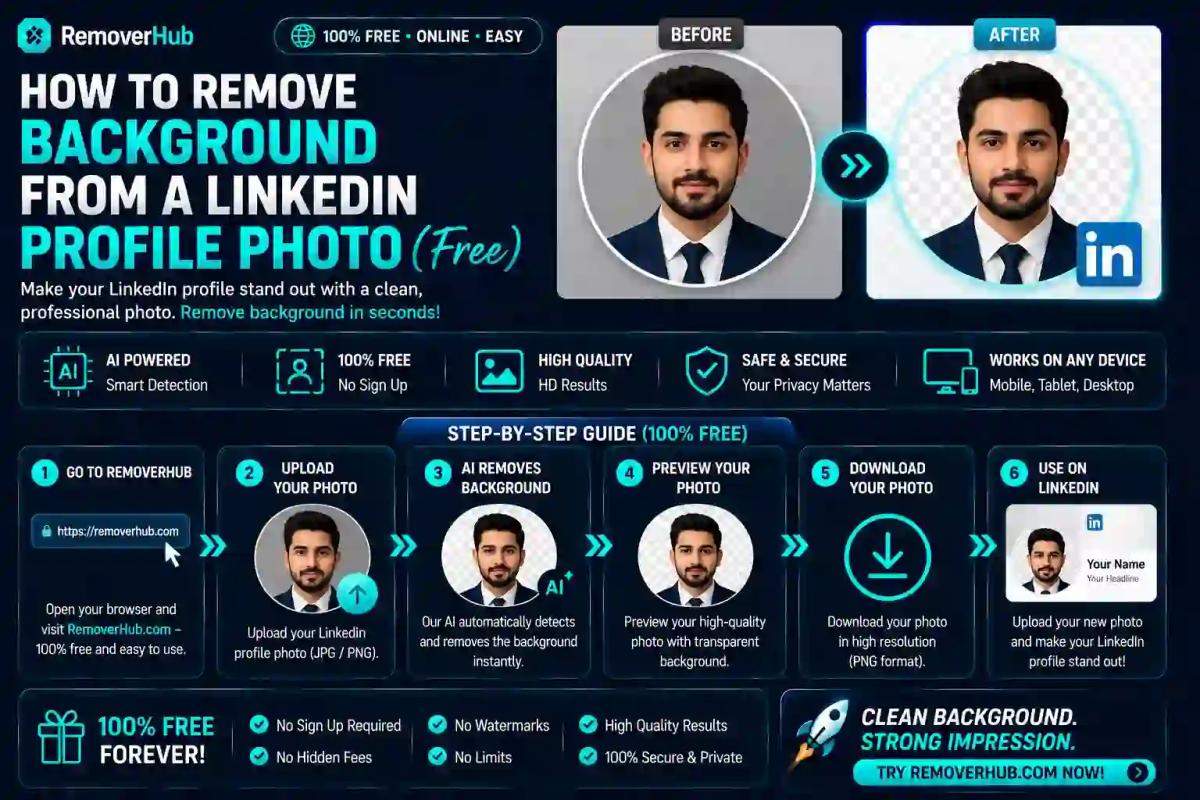
Upload the photo to a background remover tool, such as ReMoverHub's AI Background Remover, which automatically detects and isolates you from the existing background.
Choose a replacement background — a solid color or a soft blur, based on your industry and the tone you want to convey (more on which colors work best below).
Check the edges around your hair and shoulders for any rough spots or fringing, which is the most common giveaway of a poorly done background swap.
Crop to a square (1:1) aspect ratio, since LinkedIn displays profile photos as a circle cropped from a square upload.
Export at 800x800 pixels for a sharp result across every place LinkedIn shows your photo, from full profile view down to the tiny 56-pixel comment thumbnail.
Preview at small size before uploading — shrink the image down on your screen to roughly the size of a thumbnail to confirm your face still reads clearly.
Best Background Colors for a LinkedIn Profile Photo
Not every background choice works equally well once your photo gets cropped into LinkedIn's small circular frame. Here's how the most common options actually perform:
| Background Style | Best For | Notes |
|---|---|---|
| Solid grey (light-medium) | Almost any industry | Most versatile and widely recommended professional default |
| Solid blue (light-medium) | Almost any industry | Second most common choice, reads as trustworthy and calm |
| Soft blur (natural setting) | Creative fields, consultants | Adds depth without distraction, mimics a professional portrait lens |
| Pure white | Rarely ideal | Can visually merge with LinkedIn's white interface, making your shoulders disappear into the page |
Solid grey remains the safest, most broadly professional default across industries, while light blue is a close second for corporate and tech-adjacent roles. Pure white is worth avoiding specifically because LinkedIn's own interface is white — your photo can end up looking like a floating head with no visible shoulders once it's placed on the page.
Should I Blur or Replace My LinkedIn Photo Background?
Both are legitimate choices, and the right one depends on what your original photo looked like. If the original background was reasonably clean but slightly distracting (a home office, a plain wall with minor clutter), a blur is often enough and looks more natural than a fully swapped solid color. If the background was genuinely busy, low quality, or inconsistent with a professional tone, a full solid-color replacement gives a cleaner, more consistent result.
What Size Should a LinkedIn Profile Picture Be?
LinkedIn's official specification sets a minimum of 400x400 pixels, with 800x800 pixels recommended for sharp display across high-resolution screens, up to a maximum of 7,680x4,320 pixels at 8MB, in a square 1:1 aspect ratio saved as JPG or PNG. Uploading below the recommended size risks LinkedIn stretching the image to fit its display frames, which is often the real cause of a blurry-looking profile photo that people mistakenly blame on "LinkedIn's compression."
Why Your Face Size in the Frame Matters More Than People Realize
Beyond the background itself, how much of the frame your face occupies directly affects how recognizable you remain at LinkedIn's smallest display sizes. Aim for your face filling roughly 60-70% of the frame, leaving a small margin around the head and shoulders so LinkedIn's automatic circular crop doesn't clip the top of your head or the edges of your shoulders.
This matters because the same uploaded file gets displayed at wildly different sizes — full-width on your profile page, medium in the main feed, and shrunk to roughly 56 pixels in comment threads and search results. A photo composed with too much background and too little face looks fine on your profile page but becomes an unrecognizable blur at comment-thumbnail size.
Does LinkedIn Photo Background Affect Profile Views?
Not directly through any specific algorithm signal, but indirectly, yes — LinkedIn has reported that profiles with a photo receive significantly more views and connection requests than those without one, and a clean, professional-looking photo is far more likely to earn a second look from a recruiter or potential connection than one with a distracting or unprofessional background. The background itself isn't a ranking factor, but it's a meaningful factor in whether someone actually clicks through or reaches out after seeing your photo.
Can I Use AI to Edit My LinkedIn Profile Photo?
Yes, within a clear boundary: AI-assisted enhancement is acceptable as long as the result still authentically reflects your likeness. Background replacement, lighting correction, and minor sharpening all fall well within that boundary. What crosses the line is anything that meaningfully alters your actual facial features, skin, or identity to the point where you'd look noticeably different from how you actually appear in person — LinkedIn's photo policy exists specifically to keep profile photos representative of real people.
Common LinkedIn Photo Background Mistakes
- Using a background color too close to your clothing, causing you to visually blend into it rather than stand out
- Choosing pure white, which can wash out against LinkedIn's own white interface
- Leaving visible artifacts around hair or glasses from a rushed background removal job
- Cropping too tight, leaving no margin before LinkedIn's circular crop clips part of your head or shoulders
- Using a background that doesn't match your industry tone — a bright, casual color for a formal executive role, for instance, sends a mismatched signal
How to Take a Professional LinkedIn Photo at Home
You don't need a studio to get a usable base photo before editing the background:
Stand near a window with natural light facing you, rather than behind you
Use any plain wall as a temporary backdrop — the background remover will replace it anyway
Hold your phone at eye level, roughly arm's length away, or have someone else take the shot
Wear what you'd normally wear to work, since clothing still shows in the frame even with a swapped background
Take several shots with a natural, relaxed expression and pick the sharpest one before editing
Frequently Asked Questions
How do I remove the background from my LinkedIn photo for free? Upload your photo to a free background remover tool, which isolates you from the original background so you can replace it with a solid color or blur, then crop to a square format before uploading to LinkedIn.
What is the best background color for a LinkedIn profile picture? Solid light-to-medium grey is the most versatile and widely recommended choice, with light blue as a close second for corporate and tech-related roles.
Should I blur or replace my LinkedIn photo background? Blur works well if your original background was only mildly distracting; a full solid-color replacement is better if the original was genuinely busy or inconsistent with a professional tone.
Does LinkedIn allow edited profile photos? Yes, AI-assisted editing including background replacement is allowed, as long as the final photo still authentically reflects your actual appearance.
What size should a LinkedIn profile picture be? The recommended size is 800x800 pixels in a square 1:1 format, with 400x400 pixels as the minimum and 7,680x4,320 pixels as the maximum, under 8MB.
Can I use AI to edit my LinkedIn profile photo? Yes, for background changes, lighting correction, and similar enhancements, provided the result still looks genuinely like you rather than an altered version of your appearance.
What background makes a LinkedIn photo look more professional? A plain, solid background — grey or light blue — consistently reads as more professional than a busy or cluttered real-world setting, since it keeps visual attention on your face.
How do I remove a background without losing photo quality? Start with a high-resolution original photo (at least 800x800 pixels), use a quality AI background remover, and export at the same resolution rather than a heavily compressed smaller size.
Final Takeaway
A clean, well-chosen background is one of the simplest edits with an outsized effect on how your LinkedIn photo reads, especially once it shrinks down to a 56-pixel thumbnail in someone's feed or search results. Start with a decently lit base photo, swap the background for a solid grey or blue using a tool like ReMoverHub's AI Background Remover, crop to a square at 800x800 pixels, and check how it looks at thumbnail size before you upload.
If you're preparing photos for more than just LinkedIn, our guide on passport photo background removal covers a related but stricter set of background rules worth knowing if you're editing photos for official documents at the same time.
For LinkedIn's official, current photo specifications, always check LinkedIn's Help Center directly, since platform specs and policies can be updated periodically.