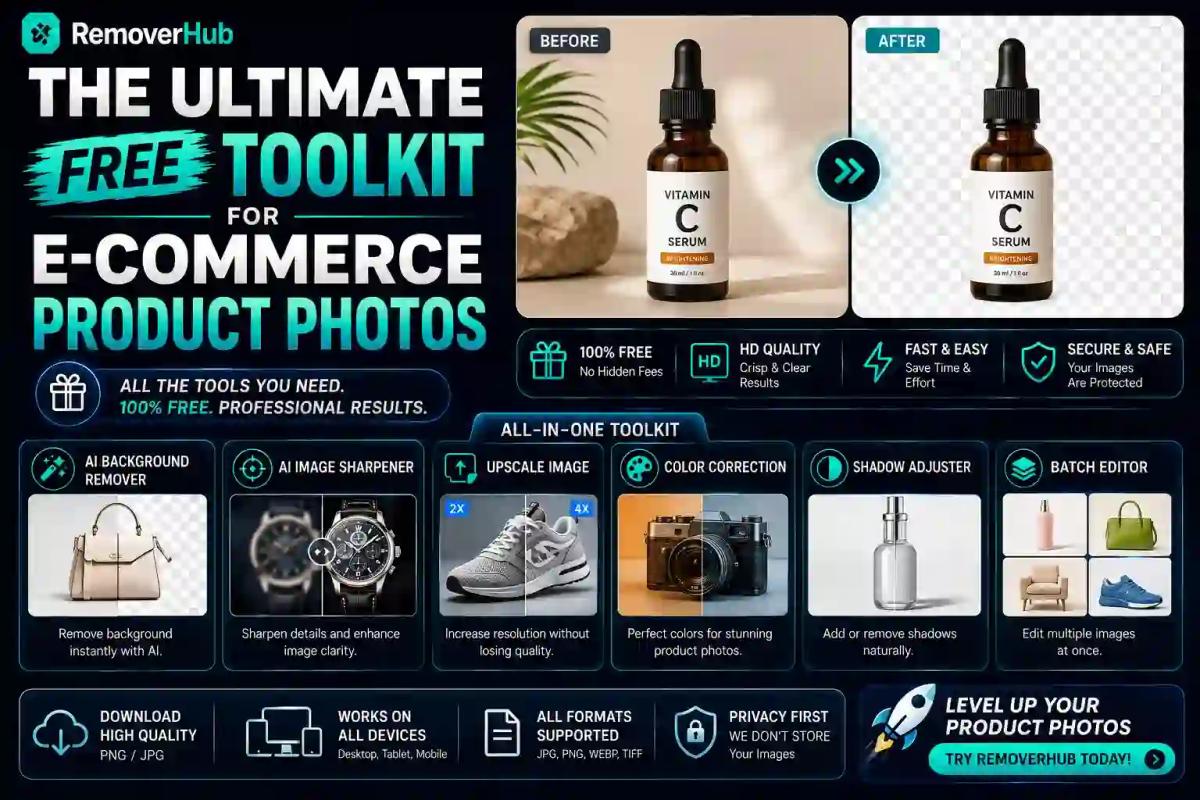
Free Product Photo Editing: Remove Background, Resize & Compress
You don't need a photo studio or expensive software to get your product photos marketplace-ready. A background remover, an image resizer, a sharpener, and a compressor — used in the right order — cover roughly 90% of what Amazon, Shopify, and Etsy actually require, and every one of these tools now has genuinely capable free versions. This guide walks through the exact workflow, the platform-specific specs you need to hit, and which free tools handle each step without leaving you with a watermark or a downgraded resolution file.
Why Product Photo Quality Actually Affects Sales
Before the toolkit, it's worth being clear on why this matters beyond just "looking professional." Marketplace algorithms and shoppers both penalize weak product images — Amazon's own conversion data has long shown that listings with clean, compliant main images outperform inconsistent ones, and Shopify merchants routinely see cart abandonment tied directly to product photos that look amateurish, blurry, or inconsistently styled across a catalog.
The good news is that the technical requirements aren't complicated once you understand them. Most of what separates a "professional-looking" product photo from an amateur one comes down to four things: a clean background, correct dimensions for the platform, sharp focus, and a reasonable file size that doesn't slow down page load. None of these require a studio — they require the right free tools applied in the right sequence.
Platform Requirements: What Each Marketplace Actually Wants
Before editing anything, know your target. Each platform has slightly different technical expectations, and getting this wrong is one of the most common reasons listings get flagged or rejected.
| Platform | Recommended Size | Background | File Format |
|---|---|---|---|
| Amazon | 1000×1000px minimum (2000×2000px+ recommended for zoom) | Pure white (RGB 255,255,255) for main image | JPEG, PNG, GIF, TIFF (JPEG most common) |
| Shopify | 2048×2048px recommended | Flexible, white or transparent common | JPG or PNG |
| Etsy | Minimum 2000px on the shortest side | Flexible, styled/lifestyle common | JPG, PNG, GIF |
These are current guidelines rather than permanently fixed rules — marketplaces periodically update size and format specs, so it's worth checking Amazon Seller Central or Shopify's official documentation directly before a major catalog upload if you haven't touched your image settings in a while.
The most important distinction to internalize: Amazon's main image requires a pure white background, no exceptions, while Shopify and Etsy give you far more creative flexibility — lifestyle shots, styled backgrounds, and contextual photography are not just allowed but often perform better on those platforms. This single difference is why sellers running the same product across multiple marketplaces usually need at least two versions of every core photo.
The Free Product Photo Editing Workflow
Here's the sequence that actually works, step by step, rather than jumping between tools in a random order.
Step 1 — Remove the background. This is almost always the first move, since everything downstream (resizing, color correction, compositing onto a white or lifestyle background) depends on having a clean cutout to work with. A background remover built specifically for product photography handles reflective and semi-transparent materials — glass, jewelry, clear packaging — far more reliably than a general-purpose tool. Our background remover for product photos is built for exactly this use case, and if you want to understand the technical difference between a genuinely HD result and a downscaled one before you commit to a workflow, our breakdown of whether free HD background removers are actually high quality is worth reading first — it explains what to check before trusting any tool's output for commercial use.
Step 2 — Resize for your target platform. Once the background is clean, resize to your platform's exact specification rather than uploading whatever dimensions your camera produced. Undersized images get rejected outright on Amazon; oversized ones just slow down page load unnecessarily on Shopify and Etsy.
Step 3 — Sharpen and color correct. Product photos shot on a phone or with a modest camera setup often come out slightly soft, especially after background removal, which can introduce minor edge softness. Running the image through a sharpening pass restores crisp detail — this matters more than people expect, since a soft product photo reads as low-quality even when the underlying product is fine. Our image sharpener handles this cleanly, and our guide on the best free AI image sharpener tools compares options if you want to see how different approaches handle fine product detail like fabric texture or metallic surfaces.
Step 4 — Compress without losing quality. A crisp, correctly-sized image that's needlessly large in file size still hurts you — slow-loading product pages directly hurt both SEO and conversion rates. The goal is finding the compression sweet spot where file size drops meaningfully without visible quality loss, which is a different skill than simply cranking compression to the maximum setting.
Step 5 — Export and check against platform specs. Before uploading, double-check the final file against your target platform's requirements table above — dimensions, format, and background color, since even one mismatched spec can trigger a rejection or a lower-quality auto-resize by the platform itself.
Free Background Removal for Product Photos: What to Actually Check
Background removal is the step where free tools vary most in real-world quality, so it deserves its own closer look. The core question isn't whether a tool is free — it's whether it processes your image at full resolution or silently downscales it for a faster preview.
A few things worth verifying with any free background remover before relying on it for a full catalog:
- Does the exported file match your original resolution? If your 3000×4000px photo comes back at 1200×1600px, the tool downscaled during processing — a common way "free" tiers limit output without stating it upfront.
- Is there a watermark? Check the full image at 100% zoom, including corners, since some free tools add subtle watermarks that are easy to miss on a quick glance.
- How clean are the edges on reflective or transparent products? Glass bottles, jewelry, and clear plastic packaging are genuinely harder for AI segmentation to handle cleanly than solid opaque objects, and this is where tool quality differences show up most visibly.
If you're processing product photography specifically — as opposed to portraits or general images — a tool tuned for that use case tends to handle these edge cases better than a general-purpose background remover. This distinction is covered in more depth in our comparison of Photoshop versus automated tools for transparent product images, which walks through exactly where manual editing still outperforms AI and where it doesn't.
Batch Processing: Editing Your Whole Catalog Without Repeating Steps 50 Times
If you're managing more than a handful of SKUs, editing images one at a time isn't realistic. A few practical points on batch work specifically:
- Test your workflow on 3–5 images before running a full batch. Some free tools apply more aggressive compression settings during bulk processing to speed things up, meaning a single-image test can look noticeably better than what comes out of a 100-image batch run.
- Keep your background removal and resizing steps separate rather than expecting one tool to do everything simultaneously — chaining single-purpose tools together in a consistent order is generally more reliable than depending on an all-in-one batch feature that may compromise quality at one particular step to save processing time.
- Standardize your file naming and folder structure before you start, since bulk edits across Shopify, WooCommerce, or Amazon catalogs get chaotic fast without a clear system for which processed image maps to which original product listing.
White Background Product Photos: Why This Specific Requirement Exists
Amazon's insistence on pure white backgrounds for main product images isn't arbitrary — it's a deliberate consistency standard that makes search results and category pages visually scannable, letting shoppers compare products quickly without background clutter competing for attention.
Getting a genuinely pure white background (not off-white, not a light gray that looks white on some monitors) requires either shooting against an actual white backdrop or using background removal followed by compositing onto a true white fill — RGB 255, 255, 255 exactly. This is one of the more common rejection reasons for new Amazon sellers, since a background that looks "close enough to white" on a phone screen often isn't actually pure white once checked against the exact RGB value the platform expects.
PNG vs JPG for Product Listings: Which Format Actually Matters Here
This comes up constantly and the answer is genuinely situational rather than one-size-fits-all:
- Use PNG when you need transparency preserved — for example, if you're supplying a cutout image to a designer, or your platform (like some Shopify themes) displays products against a custom page background rather than a flat white fill.
- Use JPG for most direct marketplace uploads, since Amazon's main image requirement is a solid white background anyway (transparency isn't needed), and JPG files are typically smaller, which helps page load speed without any visible quality trade-off at reasonable compression settings.
A common mistake is uploading PNG files everywhere by default because "PNG is higher quality" — for a flat-background product shot with no transparency need, this just means unnecessarily larger files with no visible benefit, which works against you on page-load speed.
Lifestyle vs. Studio Product Photos: When to Use Which
Not every product image needs the pure-white, studio-shot treatment. Understanding when each style serves you better makes your editing time far more efficient:
- Studio/white-background shots are non-negotiable for Amazon's main image slot, and generally perform well as the first image across any platform, since they show the product clearly without distraction.
- Lifestyle shots — product in use, in context, styled with props — tend to perform better in secondary image slots and on platforms like Etsy and Shopify, where shoppers respond to seeing how a product fits into a real setting rather than just its isolated appearance.
Most successful listings use both: a clean white-background hero shot first, followed by 3–6 lifestyle or detail images that build context and answer likely buyer questions (scale, material texture, what's included).
Drop Shadows and Subtle Polish: Small Details That Add Perceived Quality
Once your background is clean and your product is correctly sized, a subtle drop shadow beneath the product can meaningfully increase perceived professionalism compared to a flat cutout floating with no grounding. This is a small, often-skipped step, but it's the kind of detail that separates listings that look genuinely studio-shot from ones that look obviously background-removed, even when both used the same underlying editing tools.
The key word is subtle — an overly dark or sharp-edged shadow reads as artificial and dated. A soft, low-opacity shadow that mimics natural light from slightly above tends to look the most convincing without drawing attention to itself.
Frequently Asked Questions
What free tools can I use to edit product photos? A complete free workflow typically includes a background remover, an image resizer, a sharpener, and a compressor, used in that sequence. Tools built specifically for product photography — rather than general-purpose photo editors — tend to handle reflective and transparent materials more reliably.
How do I make my product photos have a white background for free? Use a background remover to create a clean cutout, then composite the product onto a pure white (RGB 255,255,255) background using an image editing tool. Many free background removers let you export directly onto a white fill rather than requiring a separate compositing step.
What size should product photos be for Amazon and Shopify? Amazon requires a minimum of 1000×1000px, with 2000×2000px or larger recommended to enable the zoom feature. Shopify generally recommends around 2048×2048px. Always confirm current specs directly with each platform, since these guidelines are periodically updated.
Can I remove backgrounds from product photos for free? Yes. Free AI-based background removers can produce genuinely high-quality results for most product photography, provided the tool processes at full resolution rather than downscaling for a faster preview. Checking output resolution and watermark presence before relying on any free tool for commercial use is worth the extra minute.
How do I compress product images without losing quality? Use a compressor that targets file size reduction while preserving visual detail, rather than applying maximum compression by default. Testing a few compression levels against the same image and comparing at 100% zoom helps find the point where file size drops meaningfully without visible quality loss.
Do product photos need to be a specific file format? JPG works well for most standard marketplace uploads, particularly for solid white-background shots where transparency isn't needed. PNG is worth using when you need transparency preserved, such as supplying cutout files to a designer or for platforms that composite images against a custom background.
Bottom Line
A genuinely professional product photo workflow doesn't require expensive software or a studio setup — it requires four tools used in the right order: background removal, resizing to platform spec, sharpening, and compression, each done carefully rather than rushed. The technical requirements per platform are specific but not complicated once you have them written down, and free tools handle every step of this workflow to a genuinely commercial-quality standard today, provided you check for the quality pitfalls (downscaling, watermarks, over-compression) covered above.
To put this workflow into practice, start with the background remover for product photos to get a clean cutout, then move through the image sharpener for crisp detail before exporting at your target platform's exact specifications.
For the most current, authoritative image requirements straight from the source, refer to Amazon Seller Central's image guidelines and Shopify's official image specifications, since both platforms update these periodically and their documentation is the definitive reference for compliance.