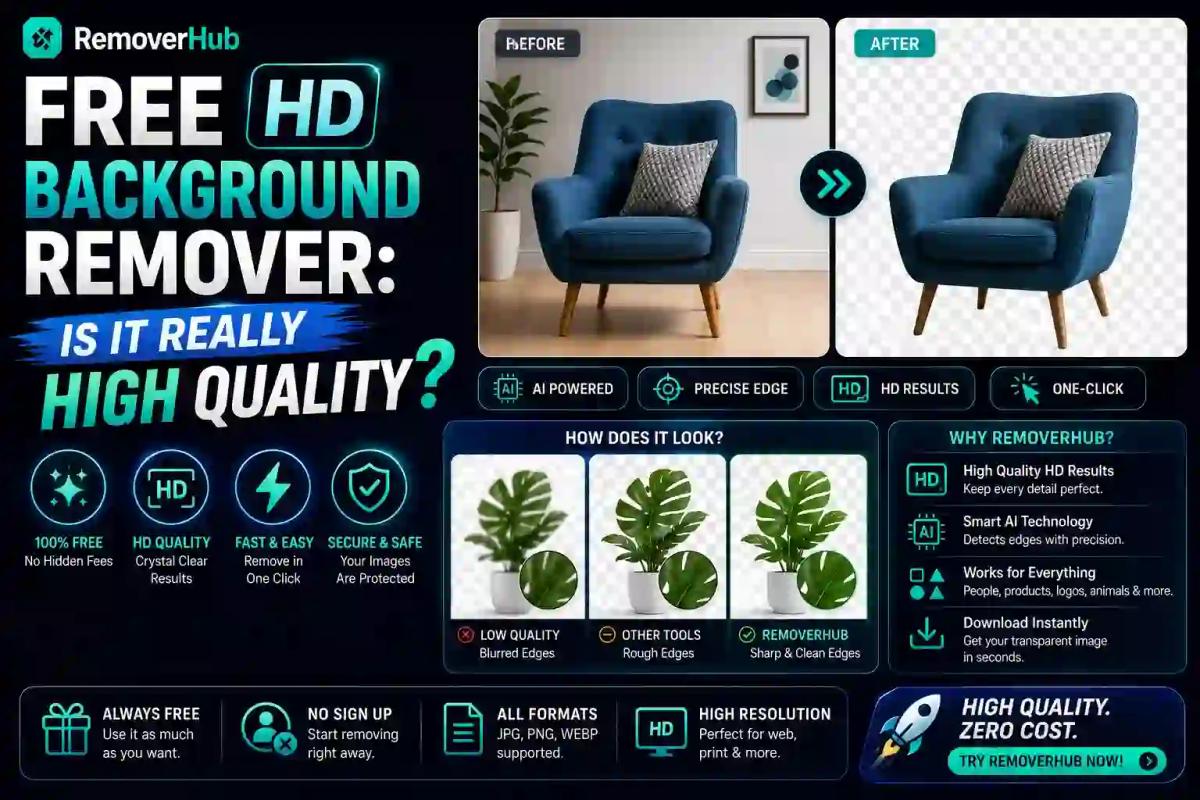
Free HD Background Remover: High-Quality Transparent Images
Type "free HD background remover" into Google and you'll find dozens of tools promising studio-quality results in three seconds flat. Some genuinely deliver. Others quietly shrink your 4000-pixel product photo down to 800 pixels during processing, hand you back a "background-removed" image, and call it HD anyway. The honest answer to whether free background removers are really high quality: it depends entirely on whether the tool processes your image at its original resolution or downscales it for faster preview rendering — and most people never check which one they're actually using. This guide breaks down exactly how to tell the difference, what "HD" should actually mean in this context, and how to get genuinely clean results without paying for software you don't need.
What "HD Background Removal" Actually Means
"HD" gets thrown around loosely in this space, and it's worth pinning down before evaluating any tool. A background remover is genuinely HD if it does three things: preserves your image's original pixel dimensions, maintains fine edge detail (hair strands, fabric texture, semi-transparent objects like glass), and exports without visible compression artifacts around the cutout edge.
A tool that takes your 3000×4000 pixel photo and returns a 1200×1600 pixel PNG hasn't given you an HD result — it's given you a smaller, lower-resolution version with the background gone. This distinction matters enormously for anyone using these images commercially, whether that's e-commerce product photos, marketing graphics, or print materials where resolution loss becomes visibly obvious.
How AI Background Removal Actually Works
Modern background removers rely on AI-based image segmentation, typically using convolutional neural networks (CNNs) trained to distinguish foreground subjects from background pixels. The model analyzes the image, predicts which pixels belong to the subject, and generates what's called an alpha channel mask — essentially a grayscale map where white means "fully visible," black means "fully transparent," and gray values in between represent partial transparency, which is exactly what's needed for realistic hair edges or semi-transparent materials.
This is a meaningfully different (and generally better) approach than older manual tools like the magic wand or quick selection tool in Photoshop, which work by detecting color boundaries rather than understanding what the actual subject is. AI segmentation tends to handle complex edges — flyaway hair, fur, lace, glass — far more gracefully than color-based selection ever could, because it's making a semantic judgment about what's foreground rather than a purely visual one.
The output is then typically exported as a PNG file, since PNG supports the alpha channel transparency needed to actually show a see-through background rather than filling it with a solid color. If a tool exports as JPG instead, you've lost transparency entirely — JPG doesn't support alpha channels — which is worth checking before you assume a "background removed" file is actually usable.
Free vs Paid Background Removers: What Actually Differs
This is where most of the confusion lives. The core AI segmentation technology in many free and paid tools isn't wildly different — the differentiation usually happens in three other areas.
| Factor | Typical Free Tool | Typical Paid Tool |
|---|---|---|
| Resolution output | Often capped (e.g., 1000–2000px) unless upgraded | Full original resolution |
| Watermarks | Common on free tier | None |
| Edge accuracy on complex images | Good to very good | Very good to excellent |
| Batch processing | Usually limited or unavailable | Often included |
| Processing speed at scale | Slower on high volume | Optimized for bulk work |
The resolution cap is the single biggest factor separating a genuinely HD free result from a disappointing one. Many free background removers process your full-resolution image internally but only let you download a downscaled version unless you pay — which is a business model choice, not a technical limitation of AI segmentation itself. Understanding this distinction is the difference between choosing a tool that happens to be free and genuinely gives you HD output, versus one that's free but quietly limits what you can actually use.
Our detailed breakdown on removing backgrounds in HD quality without pixelation goes deeper into exactly which settings and export choices affect final image quality, if you want to troubleshoot a specific case.
The Quality Checklist: How to Verify Your Result Is Actually HD
Rather than trusting a tool's marketing claims, here's how to self-verify quality on any background-removed image:
Check the pixel dimensions. Compare the output file's resolution to your original upload. If they don't match, the tool downscaled your image during processing.
Zoom into hair or fur edges at 200–400%. Genuinely good AI segmentation preserves individual strand detail rather than producing a smooth, slightly-wrong outline around the head.
Look for a semi-transparent halo or hard edge artifact. A visible ring of leftover background color around the subject usually means the alpha channel wasn't calculated cleanly.
Confirm the file format is PNG (or another alpha-supporting format). If it exported as JPG, transparency doesn't exist — you've gotten a background color fill, not a transparent cutout.
Check file size relative to resolution. An unusually small file size for a high pixel-count image often indicates heavy compression was applied during export, which degrades fine detail even if dimensions look correct on paper.
Running your own images through this checklist takes under a minute and tells you far more than any tool's "HD" label does on its own.
Background Remover for Product Photos: A Different Standard
If you're removing backgrounds for e-commerce listings, the quality bar is genuinely higher than for casual social media use. A slightly soft edge on a Instagram story photo is forgivable; the same softness on an Amazon product image, viewed at full zoom by a potential buyer, looks unprofessional and can hurt conversion.
For product photography specifically, edge precision around reflective or transparent materials (glass bottles, jewelry, clear plastic packaging) is where AI segmentation quality varies most between tools. This is a genuinely harder problem than removing the background behind a person or a solid object, since the AI has to make judgment calls about what's "product" versus "background visible through the product." If your work involves this kind of imagery regularly, it's worth testing a tool specifically built with that use case in mind — our background remover for product photos is tuned for exactly this scenario, handling reflective and semi-transparent edges more carefully than a general-purpose tool typically does.
Common Reasons a Background-Removed Image Looks Pixelated
If you've run an image through a background remover and the result looks worse than expected, it's almost always one of these:
- The tool downscaled your image during processing to speed up rendering, and you downloaded the compressed preview rather than a full-resolution export.
- The original image was already low-resolution or JPG-compressed, and no background removal tool can recover detail that wasn't there to begin with — segmentation removes background, it doesn't upscale or restore lost pixels.
- The export step re-compressed the PNG using aggressive compression settings, which can introduce banding or softness around edges even if the underlying resolution is technically preserved.
- The AI struggled with fine edge detail on a genuinely difficult image (very fine hair, motion blur, low contrast between subject and background), producing a rougher cutout than a cleaner source image would have.
If your source photo is already showing softness before you even remove the background, it's worth running it through an image sharpener first — sharpening before segmentation can noticeably improve how cleanly the AI distinguishes edges, since it has more defined contrast to work with.
Photoshop vs Free AI Tools: An Honest Comparison
Manual background removal in Photoshop — using the pen tool, quick selection, or refine edge — still produces the most controllable results for genuinely difficult images, because a skilled human editor can make judgment calls an AI model might get wrong. But this comes at a real cost: time. A careful pen-tool selection on a complex image can take 20–40 minutes even for an experienced editor, versus seconds for an AI tool.
For the vast majority of everyday use cases — product photos, portraits, simple graphics — modern AI segmentation gets close enough to manual quality that the time savings heavily outweigh the marginal quality gap. Where Photoshop's manual tools still meaningfully outperform AI is in genuinely pathological edge cases: extremely fine motion-blurred hair, subjects with colors nearly identical to their background, or intentionally artistic partial-transparency effects that need precise manual control.
We've written a direct comparison covering exactly where each approach wins in Photoshop vs RemoverHub for transparent images, including specific image types where one clearly outperforms the other.
Batch Background Removal Without Losing Quality
If you're processing multiple images — a common need for online sellers listing dozens of products — batch processing introduces its own quality risk. Some tools apply more aggressive compression settings specifically during batch runs to speed up processing time across many files simultaneously, which can mean your single-image test looked great, but a 50-image batch export comes back visibly softer.
When evaluating a tool for batch work, test with a handful of images first rather than assuming batch-mode quality matches single-image quality — this small check saves you from discovering degraded output after you've already processed your entire catalog.
Getting a Genuinely Transparent, Watermark-Free Result
Two separate issues often get confused: transparency and watermarks. A background remover can technically produce a "transparent" image that still has a visible watermark stamped across it, which defeats the purpose if you're using the image commercially. Before relying on any free tool for real work, confirm both:
- The exported PNG genuinely has an alpha channel (open it in an image viewer that supports transparency — it should show a checkered pattern, not a white or colored fill, where the background was).
- No watermark, logo, or branding overlay appears anywhere in the exported file, including small corner stamps that are easy to miss on a quick glance.
If you need a fully transparent, watermark-free result without resolution caps, our transparent image maker and AI background remover are both built to preserve full original resolution on export, which is the specific gap that makes many "free" tools disappointing in practice.
Frequently Asked Questions
Is a free background remover actually high quality? It can be, but it depends entirely on whether the tool processes and exports at your image's original resolution. Many free tools use the same AI segmentation technology as paid ones but cap the downloadable resolution unless you upgrade, which is what actually limits perceived quality.
Does removing the background reduce image resolution? Not inherently — background removal itself doesn't require reducing pixel dimensions. Resolution loss happens when a specific tool downscales your image during processing or applies heavy compression on export, which varies significantly between tools.
Can free background removers handle hair and fine details well? Modern AI-based tools using CNN segmentation generally handle hair and fine edges quite well, often close to manual editing quality. Very fine flyaway hair or motion-blurred edges remain the hardest cases for any automated tool, free or paid.
Do background removers add a watermark? Some free tools do, typically as an incentive to upgrade to a paid tier. Always check the exported file at full size for a corner stamp or overlay before using it commercially — a watermarked "free" result isn't usable for most professional purposes.
What file format should I use after removing a background? PNG is the standard choice since it supports alpha channel transparency, which is required to actually show a see-through background rather than a solid color fill. JPG does not support transparency at all.
Why does my background-removed image look pixelated? The most common cause is that the tool downscaled your image during processing and you downloaded a compressed preview rather than the full-resolution file. Low-quality source images and over-aggressive PNG compression on export are the other frequent culprits.
Bottom Line
"Free" and "HD" aren't mutually exclusive, but they're also not guaranteed together — the quality gap between background removers has far less to do with the underlying AI technology and far more to do with whether a specific tool preserves your original resolution on export. Before trusting any result for real work, run the quick checklist: match the pixel dimensions, zoom into the edges, and confirm genuine PNG transparency rather than taking a tool's "HD" label at face value.
If you're ready to test this on your own images, try the HD background remover for a full-resolution, watermark-free result, or the AI background remover for general-purpose use. For the technical standard behind transparency itself, the W3C PNG specification remains the authoritative reference on how alpha channel transparency works at the file format level.