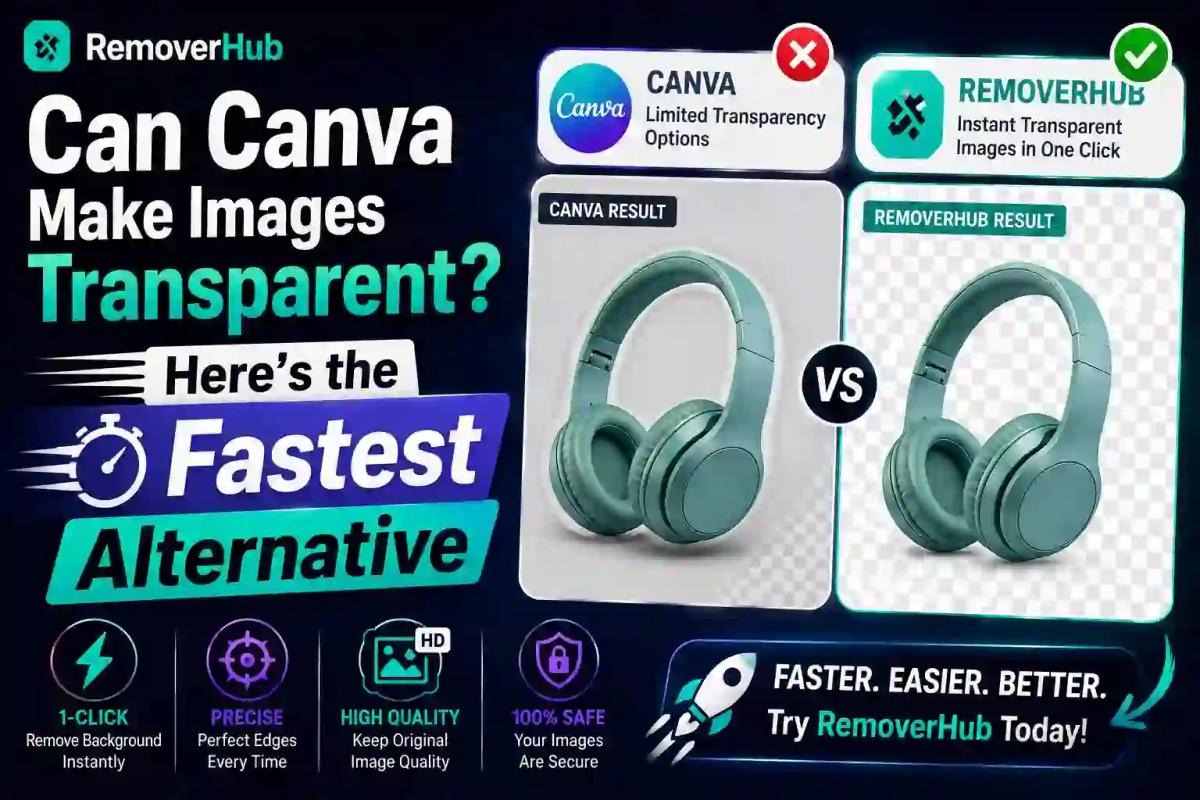
Can Canva Make Images Transparent? Fastest Free Alternative
Canva has become the go-to design tool for millions of people who need quick graphics without a steep learning curve. But when it comes to making an image background transparent, Canva's process isn't always as fast or as free as people expect. If you've ever spent ten minutes hunting through menus trying to figure out how to remove a white background, only to hit a paywall, you're not alone.
So, can Canva make images transparent? Yes, but only partially for free users, and the process has a few limitations worth knowing before you rely on it. In this guide, you'll learn exactly how Canva's transparency feature works, where it falls short, and the fastest free alternative that gets you a clean transparent PNG in seconds.
Can Canva Make an Image Background Transparent?
Yes, Canva can make image backgrounds transparent, but this feature comes with restrictions. Canva's Background Remover tool is officially part of Canva Pro, meaning free users typically only get limited trial access before being asked to upgrade. Once you remove the background, you can download your design as a PNG with a transparent background, since PNG is the only common file format that supports transparency.
The catch is that Canva's background remover works best on simple, well-lit images with a clear subject. Complex images with fine details, like hair strands, transparent glass, or intricate patterns, often come out with rough edges or leftover background pixels.
How to Make an Image Transparent in Canva (Step-by-Step)
If you already have a Canva account, here's the standard process for removing a background:
Upload your image to a Canva design or open an existing project.
Click on the image to select it.
In the top toolbar, click "Edit Photo" or "Background Remover."
Wait a few seconds while Canva's AI processes the image.
Once the background is removed, download your design.
Under "File type," choose PNG, and make sure the transparent background option is checked.
This works well for a quick edit, but it's worth noting that the background remover tool only appears for Canva Pro subscribers on most accounts. Free users often see a "Try it free" prompt that leads directly into a trial or upgrade page.
Why Is My Transparent Image Showing a White Background in Canva?
This is one of the most common frustrations Canva users report. If your image is showing a white background instead of transparency, it usually means one of these three things happened:
- You downloaded the file as JPG instead of PNG (JPG doesn't support transparency at all)
- The "transparent background" checkbox wasn't selected during export
- You're using a Canva template that has a white background layer underneath your image, separate from the photo itself
Double-checking your file format and export settings solves this issue in most cases.
Is Canva's Background Remover Free?
Canva's background remover is not fully free. It's included with Canva Pro, and free-tier users usually get a limited number of uses or a short trial before being asked to subscribe. For occasional use, this might be fine, but if you regularly need transparent images for social media, product photos, or design projects, paying a monthly fee just for background removal isn't practical.
This is exactly why so many people search for a faster, free alternative.
The Fastest Alternative to Canva for Transparent Images
If you want a transparent background without signing up for a subscription, uploading to a design canvas, or waiting for a tutorial to make sense, a dedicated background remover tool is the better choice. Tools built specifically for one job (removing backgrounds) tend to be faster and more accurate than an all-in-one design platform trying to do everything.
This is where a tool like the AI Background Remover from RemoverHub comes in. Instead of navigating through a full design suite, you simply upload your photo, and the AI detects and removes the background automatically, no account, no design skills, and no Pro subscription required.
Why a Dedicated Tool Beats Canva for This Specific Task
Why a Dedicated Tool Beats Canva for This Specific Task
Free background removal — Canva: Limited/trial only — Dedicated Background Remover: Fully free
Account required — Canva: Yes — Dedicated Background Remover: Often not required
Speed — Canva: Multiple steps through a design editor — Dedicated Background Remover: One upload, instant result
Accuracy on complex edges (hair, fur) — Canva: Moderate — Dedicated Background Remover: Often higher, AI-optimized specifically for this
Learning curve — Canva: Requires design interface familiarity — Dedicated Background Remover: None, single-purpose tool
Best for — Canva: Full design projects — Dedicated Background Remover: Quick, one-off transparent images
If your only goal is a transparent PNG, and not a full graphic design, a single-purpose tool is simply faster. You skip the editor entirely and go straight from upload to download.
How to Make an Image Transparent Without Photoshop or Canva Pro
You don't need expensive software to get a clean, professional-looking transparent image. Here's the general process using a dedicated online tool:
Go to the AI Background Remover tool.
Upload your image (JPG, PNG, or WebP formats typically work).
Let the AI automatically detect and remove the background.
Preview the result and download it as a transparent PNG.
That's it, no layers, no manual masking, and no waiting for a subscription trial to activate. For product photography specifically, where clean edges matter most for e-commerce listings, the background remover for product photos is built to handle reflective surfaces and studio lighting more precisely than a general-purpose tool.
Common Reasons People Look for Canva Alternatives
Canva is a fantastic tool for many design tasks, but users consistently run into a few pain points specifically around transparency and background removal:
- Paywall frustration: The background remover being locked behind Canva Pro pushes users to look for free options.
- Overkill for simple tasks: Opening a full design platform just to remove a background feels like using a sledgehammer to crack a nut.
- Accuracy issues: Canva's background remover can struggle with fine details like hair, fur, or semi-transparent objects like glass or smoke.
- Export confusion: Many users don't realize they need to select PNG format specifically, leading to unexpected white backgrounds.
- Batch processing limits: Removing backgrounds from multiple images one at a time in Canva is slow, especially for online sellers managing dozens of product photos.
If you've experienced any of these, a dedicated transparent image tool solves the problem in a fraction of the time.
How to Save a Transparent PNG Correctly
Whether you use Canva or an alternative tool, the file format matters just as much as the removal process. Here's what you need to know:
- PNG supports full transparency and is the standard choice for logos, product photos, and overlays.
- JPG does not support transparency at all, so exporting as JPG will always add a solid background color.
- WebP supports transparency too and often results in smaller file sizes, useful for websites where load speed matters.
- SVG is ideal for vector graphics like logos but isn't suitable for photographic images.
If your final image needs to sit cleanly on top of another design, a website banner, or a video overlay, always confirm you're exporting as PNG or WebP with the transparency setting enabled.
Making Transparent Logos and Overlays
Transparent logos are one of the most common use cases for background removal. A logo with a white box around it looks unprofessional on colored backgrounds, social media banners, or merchandise. Using the Transparent Image Maker tool, you can strip the background from a logo file in seconds and get a clean, ready-to-use PNG that works on any background color.
This same approach applies to:
- Profile pictures for social media
- Product mockups for online stores
- Presentation graphics and slide decks
- Watermark-free overlays for videos and thumbnails
Can I Make an Image Transparent on My Phone?
Yes. Most modern background remover tools, including AI-powered options, work directly in a mobile browser without requiring an app download. Since these tools process the image through the AI model on the server side rather than your device, you don't need a powerful phone or extra storage. Simply upload the photo from your camera roll, let the tool process it, and download the transparent version directly to your phone.
Beyond Backgrounds: Related Image Editing Needs
Making an image transparent is often just one step in a bigger editing process. Depending on your project, you might also need to:
- Remove a watermark from a photo before reusing it, covered in our guide on how to remove a watermark from a photo
- Sharpen a blurry image after resizing, which our image sharpener tool handles automatically
- Remove an unwanted object or person from a photo using the AI object remover
- Clean up green screen footage for video projects with the green screen remover
Having access to a full suite of single-purpose tools, rather than relying on one all-in-one platform, often gets you better results faster, especially when you're doing something as specific as background removal.
Canva vs. Remove.bg vs. RemoverHub: A Quick Comparison
Since Canva isn't the only option out there, it helps to know how it stacks up against other popular tools people search for when looking to make an image transparent.
- Canva: Great for full design projects, but background removal is limited to Pro users, and the process takes several extra steps compared to a dedicated tool.
- Remove.bg: A popular standalone background remover, but free usage is often limited by image resolution, requiring a paid plan for high-resolution downloads.
- RemoverHub: Offers a free, dedicated AI background remover along with related tools like HD background remover for higher-resolution results without the resolution caps some competitors impose.
For a deeper side-by-side breakdown, check out our full comparison in Photoshop vs. RemoverHub for transparent images.
Tips for Getting the Cleanest Transparent Image Results
Regardless of which tool you use, a few habits will noticeably improve your results:
Use well-lit, high-contrast photos. A clear difference between your subject and the background helps AI models detect edges accurately.
Avoid busy or cluttered backgrounds. Simple backgrounds are easier for any tool, Canva included, to remove cleanly.
Check the edges after removal. Zoom in on hair, fur, or fine details to spot any leftover background pixels before finalizing.
Always export as PNG or WebP. JPG will never preserve transparency, no matter which tool you use.
Use HD tools for print or professional work. If your image needs to be used at a large size, choose a tool like the HD background remover to avoid pixelation, a topic we cover in more depth in remove background HD quality without pixelation.
According to Adobe's own design resources, image resolution and lighting contrast are among the biggest factors affecting the accuracy of any AI-based background removal process, which applies whether you're using Canva, Photoshop, or a standalone tool.
Frequently Asked Questions
How do I make an image transparent in Canva? Upload your image, select it, then click "Edit Photo" followed by "Background Remover." Once removed, download the file as a PNG with the transparent background option enabled. Note that this feature is primarily available to Canva Pro subscribers.
Is transparent background free on Canva? Not fully. Canva's background remover is a Pro feature, though free users sometimes get limited trial access. For unlimited free background removal, a dedicated tool like RemoverHub's background remover is a more reliable option.
How do I remove the white background in Canva? Select the image, click "Edit Photo," then "Background Remover," and Canva's AI will automatically detect and remove the white or solid background, replacing it with transparency, provided you have access to the feature.
Can you make a PNG transparent? Yes, PNG is the only common image format that fully supports transparency. You can convert a solid-background image into a transparent PNG using Canva's background remover or a dedicated tool, then export it in PNG format with transparency enabled.
How to make a transparent background in Canva for free? Free users can try Canva's background remover through its limited trial access, but for a completely free and unlimited option, a standalone tool like the AI Background Remover is faster and doesn't require a subscription.
What's the fastest way to make an image transparent? The fastest method is uploading your photo directly to a dedicated background remover tool. Unlike Canva, which requires navigating a full design editor, single-purpose tools process and deliver a transparent PNG in just a few seconds.
Final Thoughts: Choosing the Right Tool for Transparent Images
Canva is a solid choice if you're already building a full design project and want everything in one place. But if your only goal is a clean, transparent background, quickly and without a Pro subscription, a dedicated background remover is simply the faster and more reliable route.
Whether you're prepping product photos for an online store, creating a transparent logo, or just need a quick PNG for a presentation, tools built specifically for background removal consistently outperform general design platforms on speed and accuracy for this one task.
Ready to skip the extra steps? Try the free AI Background Remover at RemoverHub and get a clean, transparent image in seconds, no design skills, no sign-up hassle, and no waiting on a Pro trial. Explore Advanced Tools at RemoverHub to handle watermarks, blur, unwanted objects, and more, all in one place.