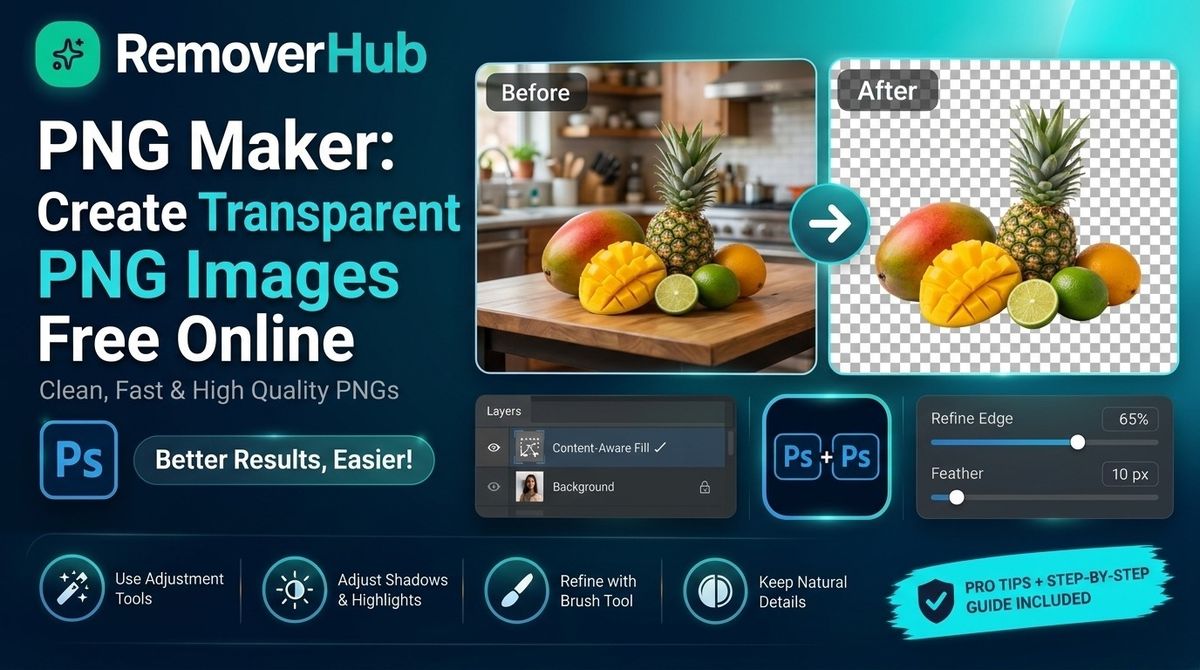
PNG Maker: Create Transparent PNG Images Free Online
This guide covers all three, in the order most people need them: create a PNG, make the background transparent, edit it, convert it, export it, optimize it and then use it. You'll also learn what makes PNG different from JPG, WebP and SVG, and how to avoid the common mistakes, like exporting a "transparent" image that still has a white box behind it.
If you've already read our shorter guides on turning a photo into a transparent PNG or making an image transparent online free, think of this page as the full hub that connects them.
What Is a PNG?
PNG stands for Portable Network Graphics. It is a raster image format, which means it stores an image as a grid of pixels. Two features make it popular:
- Lossless compression. Saving a PNG doesn't throw away image detail the way repeated JPEG saves can.
- Transparency. PNG can store an alpha channel, which records how transparent each pixel is.
The format is defined by the W3C PNG specification, and ISO also publishes it as ISO/IEC 15948. The W3C's Third Edition became a W3C Recommendation in 2025, according to the W3C. The file uses the extension .png and the media type image/png.
What "Transparent PNG" Actually Means
A transparent PNG has some pixels that are fully or partly see-through. Instead of a solid white or black area, you see whatever sits behind the image: a web page, a slide, a colored shape, another photo.
The alpha channel is what makes this possible. It stores a value for each pixel, from fully transparent to fully opaque. That also allows soft edges, such as semi-transparent hair or a gentle shadow.
PNG Types in Simple Terms
| PNG type | What it stores | Good for |
|---|---|---|
| RGBA (truecolor with alpha) | Full color plus per-pixel transparency | Photos and cutouts with soft edges |
| Indexed (palette) | A limited color palette, with simple transparency | Simple graphics, small icons |
| Grayscale | Shades of gray, optionally with alpha | Black-and-white artwork |
Most background-removal tools export RGBA PNGs, because that gives the cleanest edges.
Why PNG Matters (And When You Should Use It)
PNG is not always the best format, but it's often the right one.
Use PNG When You Need
- A transparent background for logos, stickers, product cutouts and overlays
- Sharp edges and text that must stay crisp, such as screenshots and interface graphics
- Lossless quality for graphics you'll edit again
- Layering onto colored backgrounds in presentations and designs
Think Twice About PNG When
- You have a big photograph with no transparency. A JPEG or WebP will usually be much smaller.
- You need a scalable logo that stays sharp at any size. That's an SVG's job.
- You need animation. GIF, WebP or video are more common choices.
For a deeper side-by-side, read our JPEG vs PNG format guide.
Method 1: Make a Transparent PNG From a Photo (Remove the Background)
This is the most common reason people look for a PNG maker. Your photo has a background you don't want, and you need a clean cutout.
Step-by-Step
Open a background remover. Try the AI background remover. For larger files, use the HD background remover. For ecommerce shots, use the product photo background remover.
Upload the best-quality original you have. The cutout can't be sharper than the source.
Wait for the AI result. The tool detects the subject and makes the background transparent.
Zoom to 100% and inspect. Check hair, fingers, corners and thin parts.
Test on both backgrounds. Preview the cutout on a dark and a light color to reveal halos.
Download as PNG. Save it with transparency preserved.
Menus and options differ by tool, and some tools offer extra controls. Check the tool page for current limits, sign-in rules and export choices.
Tips for a Better Cutout
- Use a photo with good separation between subject and background.
- Avoid heavy shadows across the edge you need to keep.
- Shoot in soft, even light.
- Keep the subject sharp. If it's soft, try our image sharpener or read how to sharpen a blurry image online free.
When Automatic Removal Struggles
No tool is perfect on every image. Expect extra work with:
- Wispy hair and fur
- Glass, water and other see-through objects
- Subjects whose colors match the background
- Thin chains, straps and wires
For shiny items, read our guide on removing backgrounds from jewelry photos. For the full process on tricky edges, see removing a background in HD without pixelation and free HD background remover.
Method 2: Convert a JPG (or Another Image) to PNG
Sometimes you don't need transparency. You just need the file to be a PNG.
How to Convert
Open an image converter or any image editor.
Upload your JPG, WebP or other image.
Choose PNG as the output format.
Download the converted file.
What Conversion Does and Doesn't Do
| Myth | Reality |
|---|---|
| "Converting to PNG makes the background transparent." | It doesn't. A white background stays white. |
| "Converting to PNG improves quality." | It doesn't. A JPG's compression artifacts stay. |
| "PNG files are always smaller." | Often larger for photos. |
| "PNG won't lose more quality when saved again." | Mostly true. It's lossless, so it won't degrade the way repeated JPEG saves can. |
When Converting Is Useful
- A website, app or print service requires PNG.
- You plan to edit the file several times and want lossless saves.
- You need to add transparency afterward with a background remover.
If you do need transparency, follow Method 1 after you convert.
Method 3: Create a PNG From Scratch (Logos, Icons and Stickers)
If you're designing something new, you can build it in a design tool and export it with a transparent background.
Step-by-Step
Create a canvas in your design tool with no background fill.
Add your shapes, text or artwork.
Turn off any background layer or color. Most tools show a checkerboard pattern when the background is transparent.
Export as PNG, choosing the option for a transparent background.
Test it on a dark and a light background.
Tools People Commonly Use
Many design apps can export transparent PNGs, including Canva, Figma, Photopea, GIMP and Adobe tools. Features and plan limits vary, and some tools require a paid plan for transparent export. Check the tool's own page. For example, see our guides on whether Canva can make images transparent and how to remove a background in Canva.
Logos
A logo that already exists on a white box needs its background removed. Read how to remove the background from a logo. If a logo is simple and needs to scale to any size, consider keeping a vector (SVG) master as well as a PNG export.
Stickers
For a die-cut sticker look, remove the background, then add a thin white outline in your editor. Export as PNG so the outer edge stays transparent.
Method 4: Make a Transparent PNG on Your Phone
You don't need a computer.
Open your browser and visit an online tool such as our AI background remover.
Upload from your gallery. Use the original, not a screenshot.
Review the result by zooming in.
Download as PNG and confirm it saved with transparency.
Tip: Some phone gallery apps convert transparent PNGs to a black or white background when you preview them. Check the file in an app that shows the checkerboard, or place it onto a colored background to confirm.
Method 5: Use Photoshop or GIMP for Full Control
When you need pixel-level control, such as for hair, fur or complex compositing, desktop editors give you manual masks and edge refinement.
The General Workflow
Select the subject (with a selection tool or an automatic option).
Refine the edge, especially around hair.
Apply a layer mask instead of deleting pixels, so you can fix mistakes.
Export as PNG with transparency preserved.
Adobe documents these workflows in the Photoshop user guide. For a comparison with a one-click tool, read Photoshop vs RemoverHub for transparent images.
When Manual Editing Is Worth It
- High-value images, such as hero banners and print ads
- Hair and fur against similar colors
- Compositing a subject into a new scene
For quick, routine jobs, a one-click tool is faster.
How to Check That Your PNG Is Really Transparent
A common problem: you export a "transparent" PNG and it shows a white box when you place it on a design. Run this quick test.
The Three-Background Test
Place the PNG on a white background. Everything should look normal.
Place it on a black background. Look for white or light fringes around the edges. These are halos.
Place it on a bright color. Check for leftover pieces of the old background.
Other Checks
- Open it in a browser tab with a colored page. The page color should show through.
- Look for a fake checkerboard. Some images contain a real checkerboard pattern as part of the picture. Real transparency is invisible.
- Check the file type. If it ends in .jpg, it isn't transparent.
Why Fake Transparency Happens
- The image was saved as JPG and renamed to .png.
- A screenshot of the checkerboard was saved.
- The editor flattened the layers into a white background before exporting.
How to Optimize a PNG (Keep It Sharp, Make It Smaller)
Transparent PNGs of photos can be large. Here's how to keep them manageable without hurting quality.
1. Resize to the Display Size
If a web page shows an image at 600 pixels wide, a 4000-pixel PNG is wasted bandwidth. Export closer to the size you'll actually use.
2. Crop Empty Space
Trim extra transparent margin around the subject.
3. Consider Reducing Colors for Simple Graphics
Flat logos and icons often work well as indexed PNGs with a smaller palette.
4. Use a Compression Tool
Dedicated PNG compressors can reduce file size without changing how the image looks. Test the result at 100% zoom.
5. Consider WebP for Websites
WebP also supports transparency and is often smaller than PNG for photos. Check browser support on MDN's image format guide before you switch, and keep a PNG fallback if you need one.
Quality Settings
PNG is lossless, so there's no "quality slider" like JPEG's. File size depends on dimensions, color depth, how much detail the image has and the compression tool.
How to Choose
- Transparent cutout of a photo: PNG or WebP.
- Normal photograph: JPG or WebP.
- Logo that must scale: SVG, with a PNG export for places that need one.
- Short looping clip: video or WebP, with GIF as a fallback.
Using Transparent PNGs in the Real World
On Websites
- Use descriptive file names, such as red-running-shoe-cutout.png.
- Write helpful alt text.
- Serve the size you display.
- Follow Google's image guidelines so your images can be crawled and indexed.
On Online Stores
Marketplaces often have strict image rules. Some require a pure white background rather than transparency. See our guides to Amazon product image requirements, Walmart image requirements, eBay product photos, background removal for Etsy and Shopify, making a product photo background white and the best background color for product photos. For more ideas, see free product photo editing tools and product bundle photography.
In Presentations
PowerPoint and Google Slides both handle transparent PNGs well. See making a PowerPoint image background transparent and making an image transparent in Google Slides.
For Profiles and ID Photos
For profile photos, see LinkedIn photo backgrounds. For passport or ID photos, follow the official rules of the issuing authority, and read passport photo background remover.
In Print
Transparent PNGs work for overlays, but print shops often want a high resolution and a specific color mode. Ask your printer which format they prefer. Our guide on enhancing product photos for print catalogs covers print-ready tips.
Is a Free PNG Maker Safe to Use?
Most free tools are fine for ordinary images, but use common sense.
Privacy
- Read the privacy policy before you upload sensitive images, such as ID photos or client work.
- Prefer tools that say how long files are stored.
- Avoid uploading private photos to unknown sites.
Rights
- Only edit images you own or have permission to use.
- Don't remove watermarks from images you don't have the right to edit. See our guide on removing watermarks from photos for responsible use.
Limits
Free tools can limit resolution, file size or daily uses, and these limits change. Don't assume "free" means unlimited. Check the tool page.
Real-World Examples
These are illustrative scenarios, not real clients.
Example 1: The Small Shop Owner
Hira sells handmade candles. She photographed each candle on a table, removed the backgrounds and saved transparent PNGs. She tested them on her shop's cream and charcoal page colors and caught a white halo on one candle before it went live.
Lesson: Always preview on the colors you'll actually use.
Example 2: The Student Designer
Ali needed a transparent logo for a school project. His logo came as a JPG with a white box. He removed the background, exported a PNG and placed it on a dark slide. The edges were clean after he softened them slightly.
Lesson: Converting JPG to PNG wouldn't have removed the white box.
Example 3: The Blogger
Sana's blog loaded slowly because her transparent PNG banners were 4000 pixels wide. She resized them to the display width, cropped the empty margin and compressed them. The pages loaded noticeably faster.
Lesson: Match the image size to how it's shown.
Example 4: The Sticker Seller
Omar turns pet photos into stickers. He removes the background, adds a white outline and exports a PNG. For pets with fluffy fur, he tests two tools and picks the cleaner edge.
Lesson: Fur is the hardest test, so run it on your difficult images first.
Common Mistakes to Avoid
Exporting as JPG and expecting transparency.
Assuming conversion adds transparency or improves quality.
Judging at thumbnail size. Zoom to 100%.
Skipping the dark and light background test.
Saving a screenshot of a checkerboard as a "transparent" image.
Uploading huge PNGs to a website without resizing.
Ignoring marketplace rules. Some require white backgrounds, not transparency.
Editing images you don't have rights to use.
Not keeping the original. Always save an untouched copy.
How to Learn More (Free and Paid Resources)
Free
- Technical references: the W3C PNG specification, MDN's image format guide and the Library of Congress PNG format description
- Search guidance: Google's image best practices
- RemoverHub guides: best transparent image maker tools, photo background transparent and best background remover tools in 2026
Paid
- Photography and retouching courses
- Photoshop training for masks and compositing
- Web performance courses covering image optimization
A Simple Practice Plan
Week 1: Make three transparent PNGs from your own photos.
Week 2: Run the three-background test on each.
Week 3: Optimize them for web size.
Week 4: Compare PNG and WebP on the same images.
Why Choose RemoverHub for PNG Creation and Cleanup?
Making a PNG is usually one step in a longer image workflow. You might also need to remove an object, text, a logo or a watermark.
Why choose RemoverHub:
- One place for many image jobs. Browse the full tools library, including the transparent image maker, AI object remover, AI text remover and logo remover.
- Guides built from testing. Our blog library explains cutouts, transparency and image quality in plain language.
- Honest limits. We tell you when manual editing or a different tool will do better.
Frequently Asked Questions
What is a PNG maker?
A PNG maker is a tool that creates or converts images into PNG files. Some convert other formats, some remove backgrounds to create transparent PNGs and some let you design graphics and export them as PNG.
How do I create a transparent PNG for free?
Upload your image to an online background remover or transparent image maker, let it remove the background, check the edges and download the result as a PNG.
Does PNG support transparent backgrounds?
Yes. PNG supports an alpha channel, which stores how transparent each pixel is. This is described in the W3C PNG specification.
Can I convert JPG to PNG online?
Yes, but conversion only changes the file format. It does not make the background transparent or improve the image quality.
How do I make a PNG background transparent?
Use a background remover to separate the subject, then export as PNG. Test the file on a dark and a light background to check for halos.
Can I create PNG files without Photoshop?
Yes. Online tools, Canva, Figma, GIMP and Photopea can all export PNGs, and browser-based background removers can create transparent PNGs without installing software.
What is the difference between PNG and a transparent PNG?
A PNG is the file format. A transparent PNG is a PNG that contains transparent pixels, usually because the background was removed or never filled in.
Why does my PNG have a white background?
It may have been saved as a JPG, flattened with a white layer before export or exported without the transparency option. Re-export as PNG with transparency enabled.
Why should I use PNG instead of JPG?
Use PNG when you need transparency, sharp edges or lossless quality. Use JPG for photographs where a smaller file matters and transparency doesn't.
Is a free PNG maker safe?
Many are, but read the privacy policy, avoid uploading sensitive images to unknown sites and check the current limits on the tool's page.
How do I make a PNG smaller?
Resize it to the size you'll display, crop empty margins, consider reducing colors for simple graphics and use a PNG compression tool. For websites, WebP is often smaller and also supports transparency.
Can I make a PNG on my phone?
Yes. Use a browser-based tool or an app, upload the original photo, check the result and download it as a PNG.
Conclusion:
A good PNG starts with knowing what you need: a converter, a background remover or a design export. Once you know which, the process is short, and the biggest wins come from testing your result instead of trusting the preview.
Here's what to do next:
Decide your goal: convert, remove a background or create from scratch.
Start with the best-quality original you have.
Remove the background with a one-click tool, or use manual editing for tricky edges.
Zoom to 100% and run the three-background test.
Export as PNG, not JPG.
Optimize the file size before you put it on a website.
Follow marketplace and platform rules, and keep your original.
To speed up your next batch of images, book a seat at Advance Free Tools offered by RemoverHub, then try the transparent image maker and explore the full toolkit.