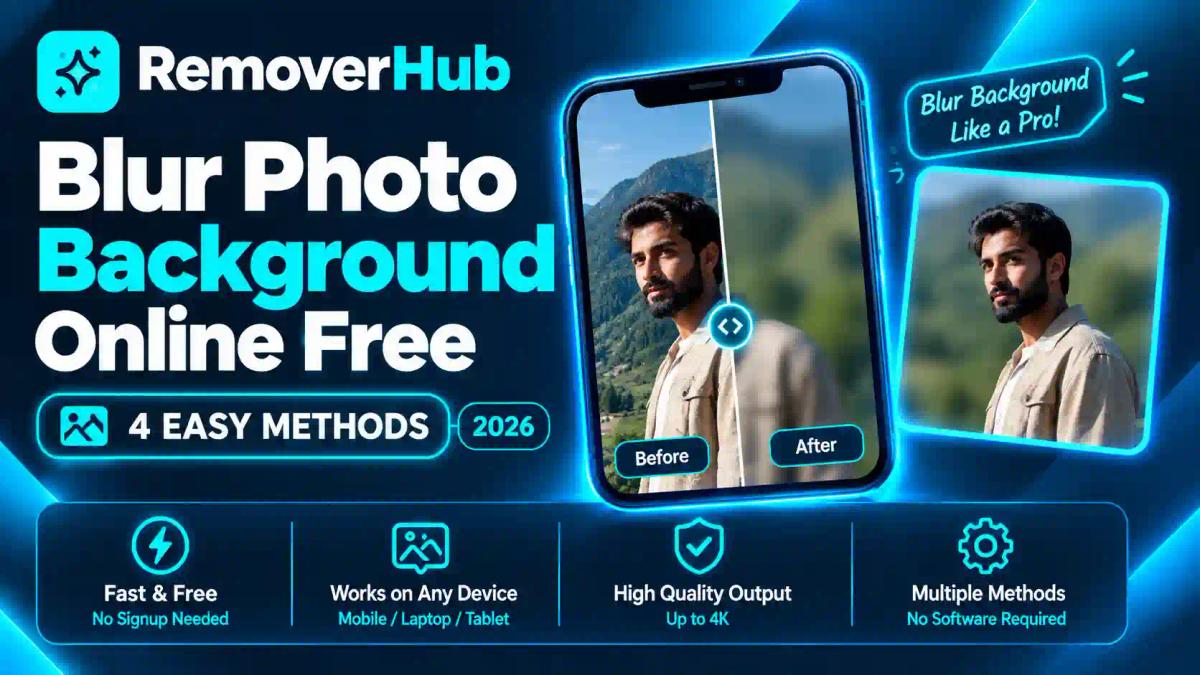
Blur Photo Background Online Free
You took a good photo of a friend, a product, or yourself. The subject looks great, but the background is busy: parked cars, clutter, random people, a messy room. Your eye goes everywhere except where you want it.
A blurred background fixes that. It softens everything behind your subject so the person or product stands out, the way a DSLR camera would do it with a wide aperture. The good news is that you can do this in a browser, for free, after the photo has already been taken.
This guide shows two reliable methods, how to keep hair and edges sharp, how much blur looks natural, and what to do when the result looks fake.
Last verified: October 2026. Free limits, watermarks, supported formats, and privacy terms differ between tools and change over time. Check each provider's official page before relying on a feature.
How Do You Blur a Photo Background Online?
Upload your photo to an online editor with a background-blur feature (such as Canva, Adobe Express, or Fotor), let the AI detect your subject, adjust the blur strength, preview the result, and download the image. If the automatic edges look rough, cut your subject out first with an AI background remover and place the sharp cutout on top of a blurred copy of the original.
Two things decide the quality: how cleanly the tool separates subject from background, and how much blur you apply.
In This Guide
What background blur is, and what it isn't
How AI blurs only the background
Method A: one-tool blur in an online editor
Method B: the layered method for cleaner edges
How much blur looks natural
Keeping hair, glasses, and fine edges sharp
Free tools compared
Blurring backgrounds on a phone
Common problems and fixes
Quality, formats, and privacy
FAQs and next steps
What Is Photo Background Blur?
Photo background blur is an effect that softens everything behind your main subject while the subject stays sharp. In photography, this effect comes from a shallow depth of field: a wide aperture or a long lens keeps only a thin slice of the scene in focus. The soft, out-of-focus highlights it creates are often called bokeh.
When you edit a photo afterward, software can't change the lens. It simulates the look instead. The tool figures out what is subject and what is background, then applies a blur only to the background.
Blur is not background removal
These two get confused often, so it's worth being clear:
| Background blur | Background removal | |
|---|---|---|
| What happens to the background | Softened but still visible | Deleted or replaced |
| Output | Photo with a soft backdrop | Transparent PNG or new background |
| Best for | Portraits, profile photos, travel shots | Product cutouts, stickers, ID photos |
| Your tool | Editor with a blur feature | AI Background Remover |
If you want the background gone completely, see our guide on making a photo background transparent.
Blurring is also not "deblurring"
This is the opposite problem. If your whole photo is soft because the camera missed focus, you need sharpening, not blur. Our guides on fixing an out-of-focus picture and sharpening blurry images online cover that, and the AI Blur Remover works in that direction. This article is about adding a pleasing blur on purpose.
How Does AI Blur Only the Background?
Behind the scenes, the process has three parts.
1. The AI finds your subject
Computer vision models look at the photo and decide which pixels belong to the main subject. This is called subject segmentation, or salient object detection. People, pets, and products with clear outlines are the easiest.
2. It builds a mask
The result is a mask: a shape that says "keep this sharp" for the subject and "blur this" for everything else. Good tools soften the mask edge slightly (feathering) so the transition doesn't look cut out.
3. It blurs the background region
A blur effect, often a Gaussian blur or a lens-style blur, is applied only to the masked-off background. The strength is usually controlled by a slider.
Some advanced tools also estimate depth, so objects farther from the subject get blurrier than those nearby. That's closer to how a real lens behaves.
Why results vary
The whole result depends on step 1. If the mask misses a strand of hair or includes part of the background, the blur will either eat into your subject or leave a sharp halo. That's why edge quality matters more than the blur effect itself.
Method A: Blur the Background in One Online Editor
This is the fastest route, and it works for most everyday photos. Several free editors have a built-in background blur or an auto-focus style feature. Names and menus change, so treat the steps below as the general workflow.
Step 1: Choose a good photo
Start with the original file, not a screenshot. Higher resolution gives the AI cleaner edges. Photos where the subject clearly contrasts with the background work best.
Step 2: Upload it to an editor
Open an online editor with a blur feature, such as Canva's blur background feature, Adobe Express, or Fotor, and upload your image. Check whether the tool needs an account, since this varies.
Step 3: Let the tool detect the subject
Choose the background blur or auto-focus option. The tool usually highlights what it thinks is your subject. Look at the outline before you continue.
Step 4: Adjust the blur strength
Start low and increase gradually. A common mistake is pushing the slider to maximum, which makes the photo look artificial. We cover exact guidance in the next sections.
Step 5: Check the edges
Zoom in around hair, shoulders, hands, and glasses. Look for a sharp halo around the subject or a blurry patch on the subject itself.
Step 6: Download
Download the result as JPG or PNG. Check whether the free version adds a watermark or limits resolution, because policies differ between providers.
If this gave you a clean result, you're done. If the edges look rough, move to Method B.
Method B: The Layered Method for Cleaner Edges
Automatic blur tools sometimes struggle with messy hair, fur, or busy backgrounds. A more controlled approach is to separate the subject first, then build the blur yourself in layers. It takes a few extra minutes but gives you control.
The idea
You make two versions of the same photo:
A sharp cutout of your subject (a transparent PNG with no background)
A blurred copy of the original photo
Then you stack the cutout on top of the blurred copy. The subject stays perfectly sharp, and the background is soft.
Step 1: Cut out the subject
Upload the photo to the AI Background Remover and download the transparent PNG. For fine hair or fur, the HD Background Remover is built to preserve detail. If you want to see how edge quality holds up, read our guide on removing a background in HD without pixelation.
Step 2: Make a blurred copy of the original
Open the original photo in an editor with a blur effect (Canva, Adobe Express, Fotor, or Pixlr). Apply a blur to the entire image. At this stage you don't need subject detection, because the whole picture will sit behind the cutout.
Step 3: Stack the layers
Place the blurred original as the bottom layer. Add your transparent PNG cutout on top and align it exactly with the subject beneath it. Because both images came from the same photo, they should line up when placed at the same position and size.
Step 4: Soften the edge if needed
If you see a faint outline, try these:
- Shrink the cutout by a very small amount
- Apply a slight feather or edge softness if your editor offers it
- Lower the blur on the bottom layer so the transition feels more natural
Step 5: Export
Download a flattened JPG or PNG. If you plan to keep editing, keep the PNG.
When to use Method B
- Subjects with wispy hair, fur, or semi-transparent fabric
- Groups where auto-detection blurs one person by mistake
- Product photos where a sharp, clean edge is essential
- Any photo where Method A leaves a halo
For more cutout workflows, see our guide to background remover tools in 2026.
How Much Blur Looks Natural?
There's no universal number. Blur sliders use different scales in different tools, so 40% in one editor can look different from 40% in another. Think in terms of how the photo should feel.
| Goal | Blur strength (relative) | Why |
|---|---|---|
| Subtle portrait softening | Light | Keeps context, such as a street or cafe |
| Standard portrait or profile photo | Light to medium | Separates subject without looking fake |
| Product highlight | Medium | Draws attention to the item |
| Hide private or messy details | Medium to strong | Makes background shapes unreadable |
| Hide private or messy details | Medium to strong | Makes background shapes unreadable |
| Dramatic, stylized look | Strong | Works for artistic photos, but easy to overdo |
Three rules for a natural look
Keep some context. If you can still tell you're at a beach, in a park, or in a kitchen, the photo feels real. A background that's totally smeared looks edited.
Blur more with distance. In a real photo, things right behind your subject are slightly sharper than things far away. If your tool offers a gradient or depth option, use it.
Match the subject. If the subject itself is a little soft, a very heavy background blur will look mismatched. Sharpen the subject first with the image sharpener if needed.
A quick example
Imagine a profile picture of a woman standing in front of a shelf of books. At a very high blur setting, the shelf turns into a brown smear and the photo looks like a studio backdrop pasted behind her. At a light-to-medium setting, you can still tell it's a bookshelf, but the spines are soft enough that they don't compete with her face. The second version looks like the photographer used a good lens. The first looks like a filter.
How to Keep Hair, Faces, and Fine Edges Sharp
Edges are where most background blur goes wrong. Here's what to watch for and how to fix it.
Hair
Loose strands against a bright or busy background are the hardest part. If the AI misses strands, they get blurred along with the background and the head looks like it has a flat outline. Use Method B with a high-detail cutout, and check the hair at 100% zoom.
Glasses and transparent objects
The lenses of glasses and clear glassware let the background show through, so the AI may blur the whole lens. Check that the frame stays sharp and consider restoring the lens area manually if your editor allows a brush.
Hands and shoulders
Outstretched hands and shoulders are often partly blurred when the mask shrinks too far. Compare the edge with the original photo and correct with a restore brush where possible.
Multiple people
In group photos, auto-detection may treat only the main person as the subject and blur others. If everyone should stay sharp, select all subjects, or use the layered method with a cutout that includes everyone.
Objects the subject holds
A cup, phone, or bag often gets blurred by mistake. Make sure the held item is part of the subject mask.
Which one should you pick?
- Fastest result: one editor with a built-in blur (Method A)
- Cleanest edges: layered method with a cutout (Method B)
- Already shot in Portrait mode on iPhone: use Depth Control, no extra tool needed
- Professional editing: Photoshop, if you already have it
If you work in Canva often, our guide on removing a background in Canva and the Adobe Express background remover walkthrough show how those tools handle cutouts.
How to Blur a Photo Background on Your Phone
Editing in a mobile browser works the same way as on a desktop. Here's how to make it smooth.
On iPhone
If you took the photo in Portrait mode, open it in Photos, tap Edit, and use the depth or aperture control to change the blur. That works because Portrait photos store depth information. For older photos without depth data, use a browser-based editor and follow Method A or B.
On Android
Some phones and Google Photos include portrait blur controls for eligible photos. Availability depends on your device, so check Google Photos Help. Otherwise, open any online editor in Chrome and upload the photo.
Mobile tips
- Pinch to zoom when checking edges. Small screens hide halos.
- Work on Wi-Fi if the photo is large.
- Download the final image and check the file in your gallery before sharing.
- For stories and posts, match the right dimensions. Our Instagram post and story sizes guide lists them.
Real-World Use Cases
Profile and LinkedIn photos
A softened background keeps attention on your face and hides a messy room. For work profiles, keep the blur light so it looks professional. Our LinkedIn photo background guide covers color and tone choices as well.
Product photos
A blurred background can make a product pop, but marketplaces often require plain white backgrounds. Check requirements before editing: see Amazon product image requirements, Walmart image requirements, and eBay product photos. For a clean white backdrop, use the product background remover or read how to make a product photo background white.
Travel and event photos
Crowds behind you in a tourist spot can be softened instead of removed. If you'd rather remove people entirely, see how to remove multiple people from a photo or remove a person without leaving a blur.
Privacy
Blurring a background can hide house numbers, documents, or faces of bystanders. But heavy blur isn't always irreversible, and weak blur can sometimes be partly recovered by software. For truly sensitive details, removal or cropping is safer than blur. For unwanted items, the AI Object Remover is a better fit, and our object removal guide explains the process.
Common Problems and How to Fix Them
The subject looks blurry too
Cause: the mask shrank into the subject, or the whole image was blurred by mistake.
Fix: reduce the blur, restore the subject with a brush, or switch to Method B.
A sharp halo shows around the subject
Cause: the mask is slightly too large and includes a strip of sharp background.
Fix: shrink or feather the mask edge, or lower the blur contrast.
The blur looks fake or flat
Cause: the blur is uniform and too strong.
Fix: reduce strength, keep some background detail, and use a gradient blur if available.
Hair looks cut out
Cause: the AI missed fine strands.
Fix: use a high-detail cutout, then blend the edge.
The image looks lower quality after export
Cause: compression or resizing.
Fix: export at the original size and use PNG for further edits. See our JPEG vs PNG guide.
The subject is soft to begin with
Cause: the original photo was out of focus.
Fix: sharpen first with the image sharpener, or read how to sharpen images online. To improve overall clarity, see how to enhance image quality.
Part of the background stayed sharp
Cause: the AI treated an object as part of the subject (a chair, a railing).
Fix: use the layered method, or adjust the selection manually.
Does Background Blur Reduce Image Quality?
The blur itself doesn't reduce quality in the subject. What can hurt quality is everything around the edit.
- Compression. Saving a JPEG repeatedly adds artifacts each time.
- Resizing. Some tools export at a smaller size on the free plan.
- Watermarks and limits. Free plans may restrict export resolution or add a watermark.
- Source quality. A low-resolution photo gives the AI less to work with.
Before you commit to a tool, do a test export and compare it with the original at 100% zoom. If you need a larger or sharper final file, our guide on upscaling an image without losing quality and the walkthrough on converting a photo to HD can help.
Image formats
- JPG/JPEG: standard for photos, small files
- PNG: lossless and supports transparency, ideal for cutouts and further editing
- WebP: efficient for websites
If you publish edited images online, Google's image best practices cover file names, alt text, and formats.
Privacy: What Happens to Your Photos?
Online editors upload your photo to a server. A few good habits:
- Read the provider's privacy policy for retention and data-use terms.
- Don't assume uploads are deleted instantly or never stored. Look for specific wording.
- Be careful with sensitive photos such as IDs, documents, and children's pictures.
RemoverHub states that uploaded files are processed over encrypted connections and removed from its servers within 24 hours. You can read the details on the RemoverHub privacy page before uploading. For a broader view of privacy practices, the NIST Privacy Framework is a useful reference.
Accessibility Note for Edited Images
If you publish blurred photos on a website, add descriptive alt text so people using screen readers understand the image. The W3C Web Content Accessibility Guidelines (WCAG 2.2) explain how text alternatives support accessibility.
Why Choose RemoverHub
A blur effect is only as good as the edge underneath it. That's where we focus.
- Clean cutouts. Our background tools are built to preserve fine details such as hair and fur, which makes the layered method work.
- Free and browser-based. Core tools are free to use with no installation.
- A full toolkit. Remove objects, people, text, shadows, logos, and backgrounds, all from one place.
- Honest guides. We tell you what a tool can and can't do, so you don't waste time.
Want to know how we approach image tools? Read why choose RemoverHub and explore advanced RemoverHub tools for the full list.
How to Keep Learning
Free
- Official help pages for Canva, Adobe Express, and Google Photos
- The RemoverHub blog for task-specific walkthroughs
- Our roundup of free product photo editing tools
Paid
- Adobe Photoshop or Lightroom for manual depth blur and fine masks
- Photography courses if you want to create real shallow depth of field in-camera
For most people, a free editor plus a clean cutout covers everything they need.
Frequently Asked Questions
Can I blur a photo background online for free?
Yes. Several online editors offer free background blur, and you can also combine a free cutout tool with any editor's blur effect. Check each provider's limits, since free plans may restrict export quality or add a watermark.
How do I blur the background without blurring the subject?
Use an editor with automatic subject detection, or cut out the subject first and place it on top of a blurred copy of the original. Then zoom in on hair and edges to make sure nothing important was softened.
Can AI automatically blur a photo background?
Yes. AI detects the main subject, separates it from the surroundings, and applies a blur only to the background. Results are best with clear subjects and simple outlines, and weaker with fine hair, glass, or crowded scenes.
How much blur should I use?
Use enough to separate the subject without making the image look artificial. For most portraits, a light-to-medium blur looks most natural, because it keeps some context in the scene.
Does background blur reduce photo quality?
Not by itself. Quality loss usually comes from compression, resizing, or a low-resolution source. Export at full size and compare with the original before sharing.
What's the difference between background blur and background removal?
Blur softens the background but keeps it visible. Removal deletes or replaces it. If you want a transparent or white backdrop, use a background remover instead.
Conclusion:
Blurring a photo background is one of the simplest ways to make an ordinary photo look more professional. The effect only works when the edges are clean and the blur is restrained.
Here's your quick plan:
Start with the highest-resolution original.
Try Method A first in a free editor with built-in blur.
Switch to Method B if hair or edges look rough.
Use light-to-medium blur and keep some context.
Zoom in before you download and compare with the original.
Export in the right format for where you'll use the photo.
Ready to try it? Start by creating a clean cutout with the free AI Background Remover, then add the blur in your favorite editor. And if you need more, explore the full RemoverHub tools hub.