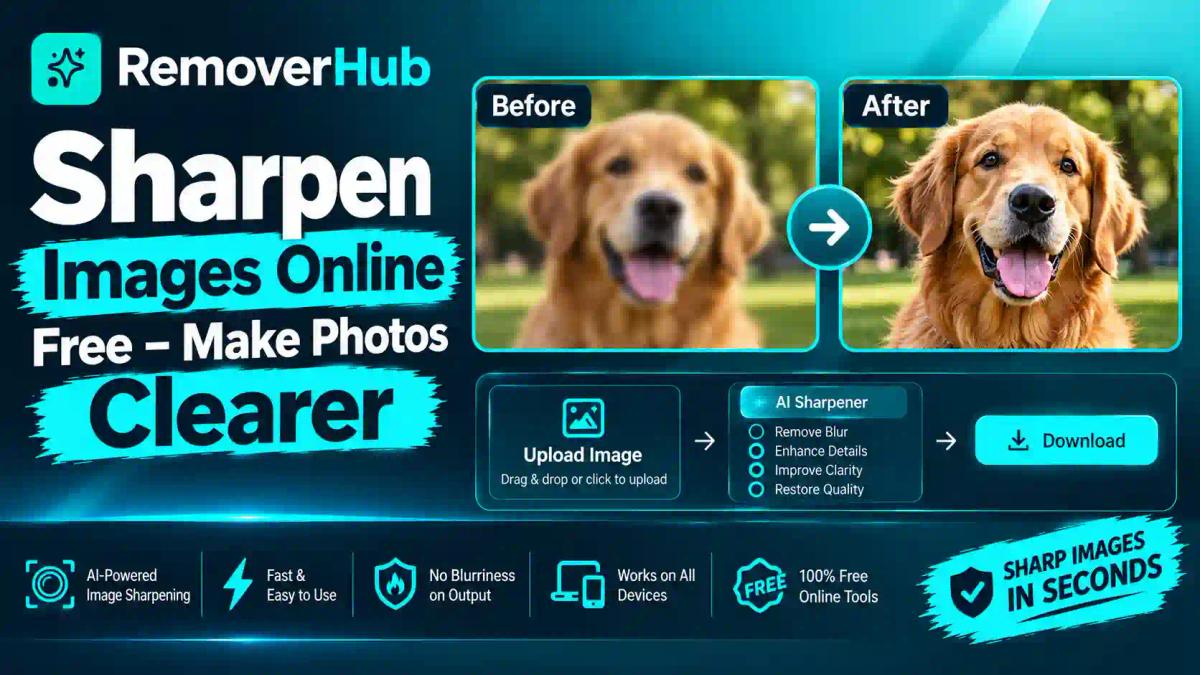
Sharpen Images Online Free – Make Photos Clearer
You take a photo that should have been perfect. The lighting was right and the moment was right, but when you zoom in, the edges look soft and the details have gone mushy. It happens with phone cameras, old scans, screenshots and product shots alike.
The good news is that you can often sharpen images online in under a minute, with no software to install. The honest news is that sharpening has limits, and knowing them is what separates a crisp result from an over-processed mess.
This guide explains how image sharpening works, what it can and cannot fix, and how to get clean results without grain or halos. It also covers settings for portraits, products and screenshots, and the privacy questions worth asking before you upload a photo.
How Do You Sharpen an Image Online?
Upload your photo to an online image sharpener such as the removerhub Image Sharpener.
Apply the sharpening or AI enhancement feature.
Adjust the strength gradually so edges look clean, not crunchy.
Compare the result with your original at 100% zoom.
Download the enhanced version in a suitable format, and keep the original.
Sharpening works best on photos with mild softness that still contain real detail. Heavily blurred images may need deblurring or AI restoration, and no method can guarantee recovery of the exact original scene.
What Does It Mean to Sharpen an Image?
Image sharpening increases perceived edge definition. It does not add new information the camera never captured. Instead, it boosts contrast along edges, which makes transitions between light and dark areas look crisper to the human eye.
Adobe's own sharpening tutorial describes this the same way: sharpening works by increasing contrast at edges. That one idea explains most of what you will see in practice. It is also why sharpening can look wonderful on a lightly soft photo and awful on a badly blurred one.
Sharpness vs Resolution
These two terms get mixed up constantly.
- Sharpness is how clearly edges and fine details read to your eye.
- Resolution is the number of pixels in the image, such as 1920 × 1080.
A high-resolution image can be soft, and a small image can look surprisingly crisp. Sharpening changes the first. Upscaling changes the second. We compare them in detail later.
Where Blur Comes From
Knowing the cause helps you choose the right fix. Common sources include:
- Camera shake, which smears the whole frame in one direction
- Subject motion, where only the moving subject blurs
- Missed focus, which leaves the intended subject soft while something else is sharp
- Lens softness, especially at wide apertures or the edges of a frame
- Heavy compression, which smooths away detail and adds blocky artifacts
- Low-resolution sources, such as small thumbnails stretched larger
- Scanning, where old prints lose fine grain and contrast
For a deeper look at the missed-focus case, read our guide on how to fix an out-of-focus picture.
Why Sharpening Matters
Clear images do real work. A soft product photo loses trust, a blurry profile picture looks careless, and an unreadable screenshot wastes a reader's time. Sharpening is often the quickest, cheapest improvement you can make to an image you already have.
Everyday Benefits
- Product photos look more professional and show texture and stitching clearly
- Portraits gain visible eyelashes, eyes and hair detail
- Social media images survive platform compression better when they start crisp
- Printed photos need extra edge definition because paper absorbs ink
- Screenshots and documents become easier to read
- Old family photos regain some of the definition that scanning removed
If you sell online, sharp images also affect marketplace compliance. Our guides on Amazon product image requirements, Walmart image requirements and eBay product photos show the standards you will be held to.
How Online Image Sharpening Works
Different tools use different engines, and the engine decides how natural your result looks.
Traditional Sharpening: Unsharp Mask
Despite its name, Unsharp Mask (USM) sharpens an image. It blurs a copy of the photo, compares it to the original, and boosts contrast where the two differ most, which is at the edges. Adobe describes three controls for it:
- Amount sets the strength of the effect
- Radius sets how wide the sharpening appears around edges
- Threshold limits sharpening on subtle areas such as grain in a sky
These same ideas appear in many online tools, sometimes under friendlier names like "strength" or "detail."
Smart Sharpen and Edge-Aware Methods
Smart Sharpen-style filters add controls for reducing noise and handling shadows and highlights separately. Technical libraries take related approaches. The OpenCV filtering documentation covers operators like the Laplacian that detect edges, and edge detection is the foundation of many sharpening methods.
Deconvolution and Deblurring
Deconvolution tries to mathematically reverse a known blur, such as a particular motion path. Blind deconvolution estimates the blur first, then reverses it. These methods work best when the blur is simple and uniform. The scikit-image restoration module documents several of these algorithms for developers.
AI Sharpening and Super-Resolution
Modern AI sharpeners use neural networks trained on huge sets of image pairs. They learn what sharp textures usually look like and then predict them. Research projects such as Real-ESRGAN show how this approach can restore detail in degraded images.
There is a crucial point here. AI can generate plausible detail, not guaranteed original detail. A face might look sharper, but the model may have invented some of those eyelashes. For casual photos that is fine. For evidence, identification or documentation, it matters.
What Sharpening Can and Cannot Fix
Setting expectations early saves frustration.
| Problem | Can sharpening help? | What to expect |
|---|---|---|
| Slightly soft photo | Yes | Often a clear improvement |
| Mild lens softness | Yes | Edges and texture look crisper |
| Low-contrast scan | Partly | Better with contrast and denoising too |
| Light motion blur | Sometimes | Deblurring or AI may help partially |
| Strong motion blur | Rarely | Detail is mostly gone; results look artificial |
| Missed focus on the subject | Limited | Edges improve, true focus does not return |
Adobe also cautions that sharpening has limits with out-of-focus content. If the camera never recorded the detail, no slider can bring it back with certainty. Treat dramatic "unblur" demos with healthy skepticism.
Step-by-Step: How to Sharpen Photos Online for Free
The exact buttons vary by tool, but the workflow is consistent. Our walkthrough on how to sharpen a blurry image online for free goes deeper on specific cases.
Step 1: Start With the Best Source File
Use the original photo, not a screenshot or a social media download. Every re-save can add compression artifacts. If you have a RAW or high-quality JPEG, upload that.
Step 2: Pick the Right Tool for the Problem
Use a sharpener for mild softness. Use a blur remover when blur is more severe. On removerhub, the Image Sharpener fits everyday softness, and the AI Blur Remover is the better starting point for stronger blur.
Step 3: Upload and Let the Tool Process
Upload your file and wait for the preview. Most tools process in seconds, but speed depends on image size and your connection.
Step 4: Adjust Intensity in Small Steps
If the tool gives you a strength control, raise it gradually. A common beginner error is pushing it to the maximum because the first change looks dramatic. Stop when edges look clean, not when they look aggressive.
Step 5: Inspect at 100% Zoom
Zoom in on the most detailed area, usually eyes, text or fabric edges. Look for white halos around dark edges, rough grain in flat areas, and strange textures in skin or sky. Adobe's tutorial also recommends judging sharpness at 100% zoom.
Step 6: Check at Real Display Size
Then zoom back out. An image can look slightly over-sharpened at 100% and perfect at the size people will actually view it. This is especially true for web images.
Step 7: Download in the Right Format
Choose the format that fits your purpose. JPEG suits photos and keeps files small. PNG preserves crisp edges for graphics and screenshots. Our JPEG vs PNG format guide explains the trade-offs.
Step 8: Keep the Original
Save your untouched source file. If you need a different level of sharpening later, you can start over without compounding changes.
Sharpening Settings by Photo Type
One strength does not suit every image. Here is how to think about the main categories.
Portraits
People notice faces first, so portraits need restraint. Skin should stay natural. Over-sharpened skin shows pores, blemishes and a plastic texture.
- Aim for crisp eyes, eyelashes and eyebrows
- Keep skin soft, since selective sharpening is better than global sharpening here
- Watch hair edges for halos against bright backgrounds
- Be cautious with AI face enhancement, which may alter features slightly
Landscapes
Landscapes can take more sharpening because they contain fine natural texture, such as leaves, rock and water.
- Moderate sharpening brings out foliage and rock detail
- Avoid pushing smooth skies, where grain and banding appear quickly
- Check horizon lines for halos
Product Photos
Product images reward careful sharpening, because buyers judge quality from fine details like seams, labels and material texture.
- Sharpen edges and textures, not the background
- Keep white backgrounds clean, since sharpening can create faint halos
- Check text on packaging at 100% zoom
- Compare against marketplace image rules
For more, see our tutorials on enhancing product photos for print catalogs and our roundup of free product photo editing tools. If the background needs work too, our background remover for product photos pairs well with sharpening.
Screenshots and Text
Screenshots already have hard edges, so heavy sharpening is rarely needed. Light sharpening can help when the image was resized or compressed. If text is the main issue, save as PNG afterward to avoid fresh compression artifacts.
Old and Scanned Photos
Scans lose contrast and fine grain. A gentle approach works best.
- Sharpen lightly, then check for amplified dust and scratches
- Expect noise to grow if you push too far
- Do not chase "like new" results, since faded originals have limited data
Our broader guide on how to enhance image quality covers restoration steps beyond sharpening.
Sharpening vs Upscaling vs Deblurring vs Denoising
These four terms are related, but they solve different problems. Mixing them up leads to disappointing results.
| Technique | What it does | Best for | Common risk |
|---|---|---|---|
| Sharpening | Boosts edge contrast | Mild softness | Halos, grain |
| Upscaling | Increases pixel dimensions | Small images that need to be bigger | Invented or smeared detail |
| Deblurring | Tries to reverse blur | Motion or focus blur | Ringing, artificial textures |
| Denoising | Reduces grain and speckle | High-ISO or scanned images | Loss of fine detail |
The Order Matters
A sensible workflow for a troubled photo is:
Denoise first, because sharpening amplifies noise
Deblur or restore if blur is the main problem
Upscale if you need larger dimensions
Sharpen last for a final touch at your target size
Sharpening before resizing can undo your work, because resizing softens edges again. Sharpen at the final output size whenever possible.
Does Sharpening Increase Resolution?
No. Sharpening keeps the same pixel dimensions and changes how edges look. Only upscaling changes the number of pixels, and even then AI upscaling adds estimated detail rather than recovered detail.
Online Tools vs Desktop Software
Online tools win on convenience. You need only a browser, the interface is simple, and results arrive quickly. Desktop software wins on precision, batch processing and offline privacy. For one-off fixes, an online sharpener is usually enough.
Common Sharpening Mistakes and How to Avoid Them
Most bad results come from the same few habits.
Over-Sharpening and White Halos
Halos are bright outlines that appear around dark edges when sharpening is too strong or the radius is too wide. Reduce strength, shrink the radius if available, and avoid sharpening high-contrast edges twice.
Grainy, Noisy Results
Sharpening amplifies grain. If your photo was taken in low light, denoise first or sharpen lightly. A higher threshold, where available, helps protect flat areas.
Sharpening an Already Sharp Image
Sharp photos do not need more. Repeated passes create harsh outlines and crunchy textures. If an image looks fine at its viewing size, leave it alone.
Sharpening Low-Resolution Images Beyond Their Limits
A 300-pixel thumbnail cannot become a billboard image. Sharpening may help slightly, but you will hit a ceiling quickly. Start with the largest source you can find.
Ignoring Compression Artifacts
If a JPEG has blocky patches, sharpening makes them more visible. Try a cleaner source or a PNG export of your edits to avoid adding more compression.
Skipping the Original Backup
Save a copy before editing. Overwriting originals is how people lose their best photos.
Real-World Examples
Numbers below are illustrative to show the logic, not benchmark claims.
Example 1: The Soft Phone Portrait
A user shoots a portrait at dusk on a phone. The face looks slightly soft because the camera used a slower shutter. A light AI sharpen restores eye definition, while skin stays natural. Pushing the strength to maximum would make skin look rough and add halos around the hair, so the best result sits around the middle of the range.
Example 2: The Product Listing
A seller photographs a leather wallet. The stitching looks soft at full size. A moderate sharpen brings out thread detail and grain in the leather. A quick check at 100% zoom reveals a faint halo against the white background, so the seller reduces strength slightly. Final image goes live, passing marketplace requirements for clarity.
Example 3: The Scanned Family Photo
A 1980s print scanned at low quality looks flat and soft. Denoising comes first, then a gentle sharpen. The result looks cleaner, but not like a modern digital photo, and that is fine. The goal is faithful, readable memory, not artificial perfection.
Example 4: The Blurry Screenshot of a Receipt
A receipt photo taken at an angle has soft text. Sharpening makes some numbers readable, but a few digits remain ambiguous. This is where caution matters. AI may guess certain characters, so verify important figures against the original document.
Privacy and Safety: What to Check Before You Upload
Photos often contain faces, locations and personal documents, so it is wise to ask a few questions before uploading to any online editor.
- Are uploads stored, and for how long? Check the provider's privacy policy.
- Are images used to train models? Policies differ between services.
- Are files deleted after processing? Look for explicit statements.
- Does the tool embed watermarks or require an account? This varies.
- Does the image contain sensitive data? Remove or crop it first when possible.
You can review removerhub's privacy policy and terms for its current practices. As a general habit, avoid uploading highly sensitive documents such as IDs or medical records to any free online tool unless you have confirmed how it handles data.
Also remember that you should only process images you have the right to edit. Commercial use depends on the image owner's license and the tool's terms.
How to Choose the Best Image Sharpening Tool
Look past the marketing and check these points:
- Supported formats such as JPEG, PNG and WebP
- Maximum file size and resolution
- Output quality, meaning whether it exports at your original dimensions
- Free access and limits, including whether exports are watermarked
- Speed on your device
- Preview and comparison tools for before-and-after checks
- Privacy terms that are clear and current
- Mobile friendliness, if you edit on a phone
Always test a tool on one of your own photos before trusting it with an important batch. A ten-second trial tells you more than any comparison chart.
How to Learn Image Sharpening (Free and Paid Resources)
You do not need a photography degree to get good at this. Here is a practical learning path.
Free Resources
- Adobe's tutorial on how to sharpen a photo is a clear beginner introduction to Amount, Radius and Threshold.
- Documentation for OpenCV and scikit-image helps if you want to understand the technology.
- Project pages such as Real-ESRGAN on GitHub show how AI restoration research works.
- Google's photo tools at Google Photos include built-in editing on supported devices. Feature availability varies by device and account, so check current options.
- Our own guides, starting with how to enhance image quality, build practical skills step by step.
Paid Options
Desktop editors and professional AI enhancement suites offer more control, batch processing and offline use. They make sense if you edit images daily or print at large sizes. For occasional fixes, free browser tools usually cover the need.
Practice Method That Works
Take one soft photo and create three versions: light, medium and strong sharpening. Compare them at 100% zoom and at display size. After a few rounds, you will recognize the moment when "clearer" turns into "overcooked."
The Future of Image Enhancement
AI imaging is moving quickly. Expect better handling of faces, text and motion blur, and more built-in enhancement in cameras and phones. Models will likely get faster and run more often on-device, which helps privacy.
At the same time, the line between "restored" and "generated" will keep blurring. That raises questions of authenticity, especially for news, legal and archival images. A good habit is to label heavily AI-enhanced images when accuracy matters, and to keep the original alongside any enhanced copy.
Frequently Asked Questions
How can I sharpen an image online for free?
Upload your photo to a free online sharpener such as removerhub's Image Sharpener, apply enhancement, adjust strength gradually, compare with the original, and download the result. Check each tool's current free-use limits.
Can AI sharpen a photo automatically?
Yes. AI sharpeners analyze edges and textures and apply enhancement with little input. Results vary with image quality, and AI may generate plausible detail rather than recover the original.
Does sharpening improve image resolution?
No. Sharpening changes edge contrast and keeps the same pixel dimensions. Upscaling increases pixel count, though it cannot guarantee real detail.
Can I fix a very blurry photo?
Sometimes partially. Mild blur often improves. Strong motion blur or badly missed focus usually cannot be fully recovered, because the detail was never captured.
Why does my sharpened photo look grainy?
Sharpening amplifies noise. Denoise first, lower the strength, or protect flat areas with a threshold setting where available.
How do I avoid white halos around edges?
Reduce sharpening strength, use a smaller radius if the tool offers one, and avoid sharpening the same image repeatedly.
Can I sharpen photos on my phone?
Yes. Browser-based tools work on mobile browsers, and many phones include built-in editing. Always check results at full zoom.
Is it safe to upload private photos to online sharpeners?
It depends on the provider. Read the privacy policy for storage, deletion and model-training practices, and avoid uploading sensitive documents unless you have confirmed how they are handled.
What is the difference between sharpening and upscaling?
Sharpening improves edge clarity at the same size. Upscaling makes the image larger by adding pixels, often using AI to estimate new detail.
Which file format is best for sharpening?
Start from the highest-quality source you have. Use JPEG for photos and PNG when you need crisp edges or want to avoid repeated compression. Our format guide explains more.
Conclusion:
Sharpening is best treated as a finishing touch, not a rescue operation. Start from the best source file, pick the right tool for the type of blur, and increase strength in small steps. Check your work at 100% zoom and at real display size, and always keep the original.
Here is a simple action plan for today:
Choose one soft photo you care about.
Run it through the Image Sharpener, or the AI Blur Remover if the blur is stronger.
Compare three strength levels and keep the most natural one.
Export in the right format and save the original separately.
Want to see why creators use it? Read why choose removerhub for the story behind the tools, then explore Advanced removerhub tools for background removal, watermark cleanup and more.