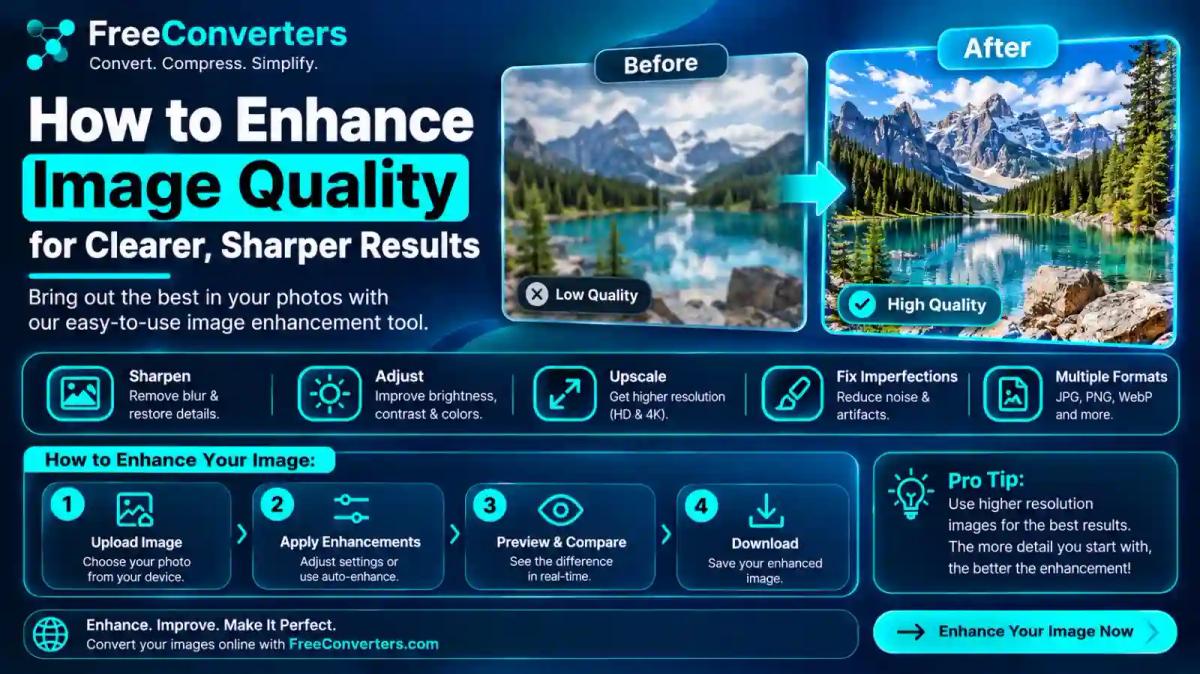
How to Enhance Image Quality: Free Online Steps (2026)
To enhance image quality, first work out what is wrong with the photo. Blur needs sharpening or deblurring. Grain needs denoising. A small or pixelated image needs upscaling. A dark or flat photo needs exposure and contrast edits. Start from the original file, apply one fix at a time, check the result at 100% zoom, and export in the right format. AI tools can make an image look clearer, but they can't guarantee they recover detail the camera never captured.
Why Image Quality Problems Are Not All the Same
"Low quality" is a vague complaint. A photo can look bad for at least five different reasons, and each one has a different fix:
- Blur: the camera missed focus, or the subject or camera moved.
- Noise: random speckles, usually from low light and high ISO.
- Low resolution: there are too few pixels, so the image falls apart when enlarged.
- Compression damage: blocky patches or smeared edges from repeated saving or messaging apps.
- Poor exposure or color: the image is too dark, too bright, flat, or tinted.
Many people apply the wrong tool. They upscale a noisy photo and enlarge the noise. They sharpen a compressed photo and make the blocks louder. Diagnosing first saves time and gives a more natural result.
This guide gives you a clear workflow, explains the main techniques, and shows where free online tools help and where they stop.
Who This Guide Is For
This guide suits bloggers, online sellers, students, small business owners and anyone fixing family photos. You don't need Photoshop or editing skills. A browser and the original file are enough to start.
What "Enhancing" an Image Actually Means
Sharpening
Sharpening increases contrast along edges so details look crisper. It doesn't add real information. It makes existing edges stand out. Too much creates bright halos around objects.
Denoising
Denoising smooths random grain while trying to keep real detail. Adobe's Camera Raw documentation lists Denoise as a separate enhancement from Super Resolution and Raw Details. That is a useful reminder that these are different jobs.
Deblurring
Deblurring tries to reverse blur from motion or focus errors. It is harder than sharpening, because the blur has already mixed detail together. Results vary a lot with how severe the blur is.
Upscaling (Super-Resolution)
Upscaling increases pixel dimensions. Classic methods guess new pixels from neighbors. AI methods predict plausible new detail from patterns learned in training. Adobe documents its Super Resolution as producing an image with twice the width and twice the height, which is four times the pixel count.
Restoration and Retouching
Restoration repairs damage such as fading, scratches and stains. Retouching adjusts appearance, such as skin or color. They overlap with enhancement, but they are not the same job.
Sharpening vs Upscaling vs Denoising: Which One Do You Need?
| Problem you see | Best first fix | What to avoid |
|---|---|---|
| Soft, slightly out-of-focus photo | Sharpening or AI deblurring | Heavy sharpening that creates halos |
| Grainy night photo | Denoising | Sharpening before denoising |
| Small image that looks pixelated when enlarged | Upscaling | Repeated enlarging |
| Blocky, smeared image from messaging apps | Gentle sharpening and denoising | Strong sharpening |
| Dark photo | Brightness and shadow adjustment | Raising brightness only |
If you can name your problem in the left column, you already know your first step. For a deeper look at fixing soft photos, read our guide on how to sharpen a blurry image online free.
Can AI Really Improve a Blurry or Low-Resolution Image?
Yes, often. But the honest answer has limits.
AI enhancers are trained on large sets of images. When they see a soft edge or a tiny face, they predict what a sharper version would look like. The result can look much better. It is still a prediction, not a recovery.
Real-ESRGAN is an open-source example. Its GitHub page describes it as practical algorithms for general image and video restoration, built to upscale with models including a 4× model and an anime-focused variant. That second model shows an important point. Different models are built for different image types. A model made for illustrations may look odd on a portrait.
What AI does well:
- Makes edges and textures look cleaner at normal viewing size.
- Reduces visible grain and compression blocks.
- Enlarges small images with fewer jagged edges than basic resizing.
What AI cannot promise:
- Recovering a license plate, a signature or a face that was never captured clearly.
- Producing exactly the detail that was there in real life.
- Staying faithful to the original in every area.
This matters for trust. If you are enhancing evidence, documents, medical images or news photos, treat AI-generated detail as an approximation. Don't present it as the original record.
How to Enhance Image Quality Online: A Step-by-Step Workflow
This workflow works for most photos and keeps you in control.
Step 1: Start From the Best Original You Have
Find the earliest, largest version of the file. A photo that has been through chat apps, screenshots or social platforms has already lost data. Enhancing a first-generation copy always beats enhancing a copy of a copy.
Step 2: Make a Backup Copy
Never overwrite the original. Work on a duplicate so you can compare results and start again if needed.
Step 3: Diagnose the Main Problem
Zoom to 100% and look carefully. Is it blur, noise, small size, blocks or poor light? Pick the one issue that hurts most. Fix that first.
Step 4: Fix Exposure and Color First
Adjust brightness, shadows, contrast and white balance before sharpening. Sharpening an unbalanced photo can exaggerate its flaws. If your photo is dark, lift shadows gently rather than pushing overall brightness, which can wash out highlights.
Step 5: Reduce Noise Before Sharpening
Noise and sharpening work against each other. Sharpening grainy areas makes grain more obvious. Denoise lightly first, then sharpen.
Step 6: Sharpen or Deblur
Use a sharpening tool for mildly soft images. Our AI image sharpener is a quick option for this step. For heavier blur, read how to fix an out-of-focus picture.
Step 7: Upscale Only If You Need More Pixels
If the image is already large enough for its use, skip upscaling. If you need it bigger for a banner, print or product listing, upscale once, in a single step, rather than repeating the process.
Step 8: Check at 100% Zoom
Compare before and after at full size, not as a thumbnail. Look for waxy skin, odd textures, halos around edges and repeated patterns. These are signs of over-processing.
Step 9: Export in the Right Format and Quality
Pick the format based on use. See the format section below. Keep a lossless master if you may edit again.
A Simple Before-and-After Test
Open the original and the enhanced version side by side. Ask three questions:
Is the subject clearer without looking artificial?
Are faces, text and logos still correct?
Does it hold up at the size where people will actually see it?
If the answer to any is no, reduce the strength and try again.
Choosing a Method: Free Online Tool, Phone App or Desktop Software
| Option | Good for | Watch out for |
|---|---|---|
| Free online enhancer | Quick fixes, no installation | Upload limits, privacy terms, export limits |
| Phone photo app | Fast fixes on the device you shot with | Features vary by device and version |
| Desktop software | Maximum control, batch work, raw files | Learning curve, cost, hardware needs |
| Code libraries | Automation and custom pipelines | Needs programming skill |
Free Online Enhancers
Browser tools are the fastest route. You upload, process and download. Before you use any online service, check its current privacy policy, retention terms and free limits. Those details change, and they matter when photos are personal or client-owned.
Phone Apps
Google Photos offers editing features such as Photo Unblur and lighting and color adjustments. Google's own pages explain what is available. Availability can differ by device, account and region, so check the current Google Photos editing page rather than assuming every feature is on your phone.
Desktop Software
Adobe Camera Raw includes Enhance, with Raw Details and Super Resolution. According to Adobe's documentation, Super Resolution supports raw, JPEG and TIFF files. It creates a new DNG file, and an image can be enhanced only once. It also relies heavily on the GPU. Read the full details in Adobe's Camera Raw Enhance help.
Code Libraries
Developers can use OpenCV or Pillow to resize and filter images in scripts. Real-ESRGAN offers AI upscaling you can run yourself. These are strong options for batches, but they are not necessary for a single photo.
Understanding Resizing: Why Plain Enlarging Looks Bad
When software enlarges an image, it has to invent new pixels. The method it uses decides how the result looks.
The OpenCV documentation lists several interpolation methods:
- Nearest neighbor uses the closest source pixel with no blending. It is fast, and it gives blocky results.
- Bilinear blends the four surrounding pixels.
- Bicubic fits a polynomial over a larger neighborhood, which usually looks smoother.
- Lanczos uses a larger neighborhood still, and the OpenCV reference describes an 8×8 neighborhood for its Lanczos option.
- Area-based resampling is described by OpenCV as preferred for shrinking images, because it avoids moiré patterns.
For enlarging, OpenCV doesn't name a single best option. In practice, smoother methods like bicubic and Lanczos tend to look cleaner than nearest neighbor for photos. Nearest neighbor can still suit pixel art, where hard edges are the goal.
None of these classic methods add genuine new detail. They only smooth the guess. That is the gap AI upscalers try to fill, and why they often look better, along with the risk described earlier.
Does Increasing Image Size Reduce Quality?
Making an image larger doesn't reduce the pixels you already have. It spreads them across a larger area, so each pixel covers more space and flaws become visible. Making an image smaller discards information, but it often looks sharper because fine flaws shrink.
Resolution and pixel density are different ideas. Resolution is the number of pixels. Pixel density describes how tightly they are packed on a screen or print, such as pixels per inch. An image with the same pixel count looks sharper on a small print than on a large one.
For printing, check your printer's or print service's requirements for the pixel dimensions needed at your chosen print size. Don't rely on a single universal number.
Fixing Specific Problems
How to Fix a Blurry Photo
Start with mild sharpening. If the photo is still soft, try an AI deblurring tool. Keep expectations realistic. Slight focus softness often improves well. Strong motion blur rarely returns to full sharpness.
Compare the best options in our roundup of the best AI image sharpener tools.
How to Fix a Pixelated Image
Pixelation means there are too few pixels for the display size. The real fix is a larger source. If you don't have one, use AI upscaling once, then apply light denoising. Avoid strong sharpening, because it exposes the blocks.
How to Fix a Dark Photo Without Losing Detail
Lift shadows and midtones instead of raising overall brightness. Then add a little contrast. If the dark photo is also noisy, denoise after brightening, because brightening reveals hidden noise.
How to Fix an Overexposed Photo
Lower highlights and exposure. Be aware that fully white areas hold no data, so they can't be recovered. A raw file gives you much more room than a JPEG here.
How to Reduce Grain
Use denoising at a low to moderate strength. Heavy denoising removes texture and gives skin and walls a plastic look. Stop before the picture looks painted.
How to Improve Portraits Without Losing Skin Texture
Use gentle settings. Over-smoothing removes pores and makes faces look artificial. Sharpen eyes and hair lightly, and leave skin mostly alone. Check that facial features haven't changed after AI processing.
How to Improve Old or Faded Photos
Scan or photograph the print evenly at the highest quality available. Then correct color cast, restore contrast, and remove noise. AI restoration may add plausible facial detail, so compare against the original before sharing a restored family photo as an accurate record.
How to Improve Screenshots
Screenshots are made of text and hard edges, so they suffer from blur when resized. Take them at native size where possible. If you must enlarge, use a method that keeps edges clean, and don't over-sharpen small text.
Lossy vs lossless: Lossy compression discards some data to make the file smaller. Lossless compression keeps all the data. JPEG is a lossy photo format described in the ISO/IEC 10918 standard family, and PNG is a lossless format specified by the W3C and ISO/IEC 15948. You can read the PNG specification at the W3C and background on JPEG at the JPEG committee site.
Practical rule: Edit and save your working master in a lossless format. Export to JPEG or WebP only as the final step. Don't repeatedly open and re-save a JPEG.
Our JPEG vs PNG guide explains when each format is the better choice.
Improving Images After WhatsApp and Social Media Compression
Messaging apps and social platforms often recompress photos to save bandwidth. That compression can't be reversed. You can only soften the damage.
To get the best results:
Share the original file as a document or file, if the app allows it, rather than as a regular photo.
If you only have the compressed copy, apply light denoising to reduce blocks.
Sharpen lightly afterward.
Don't upload an already-compressed file to another platform if you can avoid it.
For uploads to social platforms, export at the platform's recommended dimensions. Check the platform's current guidelines, since they change.
Enhancing Product Photos for Online Stores
Clear, clean product photos help shoppers trust a listing. A good enhancement routine for sellers:
Shoot at the highest resolution your camera or phone allows.
Fix exposure and white balance so the product color looks accurate.
Clean the background. A tidy white or neutral background keeps attention on the item. See our guide to making a product photo background white.
Sharpen lightly, then export at the marketplace's size and format rules.
Marketplaces set their own requirements. Check our guides for Amazon product image requirements, Walmart image requirements and eBay product photos. For a deeper catalog workflow, read how to enhance product photos for print catalogs.
If your background removal leaves rough edges, our guide to removing a background in HD without pixelation helps keep the cutout clean. You can also try the HD background remover.
Color accuracy matters in ecommerce. Over-saturating a product to make it "pop" can lead to returns when the real item looks different.
Are Free AI Photo Enhancers Safe to Use?
Many are fine, but check before you upload anything private. Look at these points on each service:
- Privacy policy: What happens to your uploaded file?
- Retention: How long is it stored, and can you delete it?
- Training use: Does the service say it uses uploads to train models?
- Limits: Are there daily credits, size caps or watermarks on free exports?
- Source: Is the company easy to identify, with clear terms?
Avoid uploading sensitive documents, IDs or private images to services you don't know. These details change over time, so verify them on the provider's current pages.
Copyright, Authenticity and Responsible Use
Enhancing a photo doesn't give you the right to use it. If you didn't create the image or hold a license, improving it doesn't change who owns it.
Authenticity matters too. AI enhancement may add detail that wasn't in the original scene. For journalism, legal, scientific or medical use, keep the original, say that the image was enhanced, and don't treat generated detail as evidence.
Common Mistakes That Make Photos Look Worse
- Over-sharpening until halos appear around edges.
- Denoising so much that texture disappears.
- Upscaling several times in a row.
- Repeatedly saving a JPEG.
- Enhancing a thumbnail when a larger copy exists.
- Judging the result only on a small preview.
- Pushing saturation instead of correcting white balance.
- Changing faces or text through aggressive AI processing.
Quick Decision Guide
- Slightly soft photo: light sharpening.
- Heavily blurry photo: try AI deblurring, and set expectations low.
- Grainy photo: denoise first, sharpen gently after.
- Tiny image: upscale once with an AI upscaler, then check.
- Blocky chat image: light denoise and light sharpen.
- Dark photo: raise shadows, then denoise.
- Product photo: exposure, color, clean background, correct export size.
Frequently Asked Questions
How can I enhance image quality for free?
Use a free online enhancer or your phone's built-in photo editor. Start with your original file, fix exposure first, then sharpen or upscale as needed. Check each service's free limits and privacy terms.
Can AI improve the quality of a blurry image?
Often, yes, especially for mild blur. AI predicts sharper detail, so the result can look clearer. It can't guarantee it recovers what the camera never captured, and severe blur may not improve much.
How do I increase photo resolution without losing quality?
Upscale once, using an AI upscaler or a smooth method such as bicubic or Lanczos. No method adds true detail, so the goal is to enlarge without obvious jagged edges. Start from the largest original you have.
What is the best way to sharpen a blurry photo?
Apply sharpening in small steps and check at 100% zoom. Reduce noise first if the photo is grainy. Try our AI image sharpener for a quick start.
Can I improve image quality without Photoshop?
Yes. Free online tools, phone apps and open-source software can handle most everyday fixes. Photoshop and Camera Raw give more control, but they aren't required.
How can I make a pixelated image clearer?
Pixelation means there is too little data. Upscale once with AI, then use light denoising. A larger original is always the best fix.
Does an AI image enhancer really work?
It can work well for clarity, noise and small-size problems. It works by predicting detail, so results vary by image and tool. Always compare with the original.
How do I improve the quality of an old photo?
Scan it at a high quality, correct color and contrast, reduce noise, and sharpen lightly. If you use AI restoration, check that faces and details still match the original.
Can I enhance image quality on my phone?
Yes. Many phone photo apps include sharpen, lighting and color tools, and some include AI features. Features differ by device and app version, so check what yours offers.
How can I remove grain from a digital photo?
Use a denoise tool at a low to moderate strength. Denoise before sharpening, and stop before skin and textures look smooth and artificial.
What is the difference between image sharpening and upscaling?
Sharpening makes edges look crisper at the same pixel size. Upscaling increases the number of pixels. They solve different problems and are often used together.
Can a low-resolution image become high resolution?
It can be enlarged to more pixels, and AI can make it look sharper. But the extra detail is predicted, not recovered from the original scene.
How do I improve image quality after compression?
You can't fully reverse it. Use light denoising and sharpening to soften blocks, and go back to the original file if one exists.
Why does my photo look blurry when I zoom in?
Zooming exposes the limited pixel count and any softness. Each pixel is stretched over a larger area, so flaws that were hidden at small size become visible.
How can I improve a dark photo without losing detail?
Lift shadows and midtones rather than only raising brightness. Then reduce noise, since brightening can reveal grain.
Which image format preserves the most visual quality?
Lossless formats such as PNG or TIFF keep all data. JPEG is lossy but works well for photos at high quality settings. Use a lossless master and export a lossy copy last.
Does increasing image size reduce its quality?
Enlarging doesn't delete pixels, but it makes flaws more visible and forces software to guess new pixels. Shrinking discards data.
How can I enhance product images for an online store?
Shoot at high resolution, correct exposure and color, clean the background, sharpen lightly and export to the marketplace's required size and format.
Are free AI photo enhancers safe to use?
Some are, but you should read each privacy policy, retention terms and limits. Avoid uploading sensitive images to unknown services.
Can AI enhancement restore details that were never captured?
No. It can generate plausible detail, but it can't guarantee that detail is accurate. Treat AI-added detail as an approximation.
Why Choose removerhub
Why choose removerhub: removerhub focuses on fast, browser-based image tools for everyday jobs. You can clean backgrounds, sharpen soft photos and prepare product images without installing software. Browse the full set on the tools page, or read more practical guides on the blog.
If you work with transparent images, our transparent image maker and the guide comparing Photoshop and removerhub for transparent images may help.
Explore Advanced removerhub
Ready to try these steps on your own photos? Explore Advanced removerhub to find the right tool for blur, backgrounds, watermarks and more. Start with a quick sharpening test on one image, compare it with your original, and build your workflow from there.