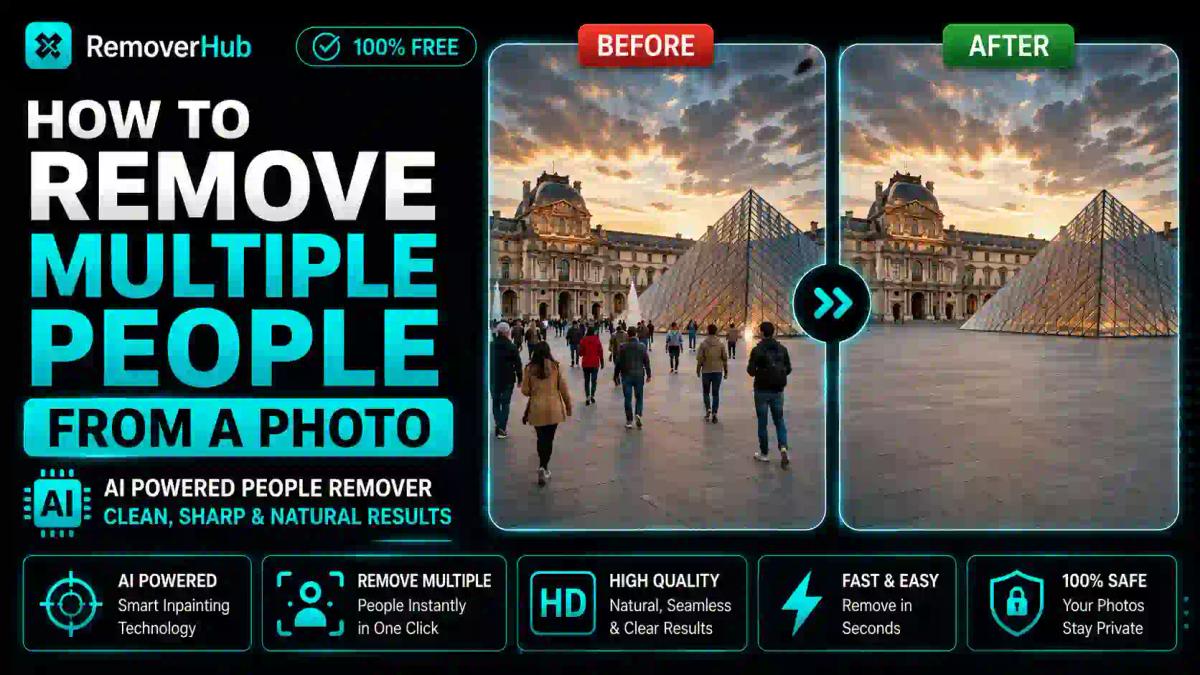
How to Remove Multiple People From a Photo
Removing multiple people from a crowd photo is fastest with an AI-based object removal tool — upload the image, mark the people you want gone, and the AI reconstructs the background behind them in seconds. For photographers who prefer to solve the problem before the shutter even clicks, a long-exposure or burst-mode technique captured in-camera can remove moving crowds entirely without any editing at all.
Both approaches genuinely work, and which one fits depends on whether you're cleaning up a photo you already have or planning a shoot where crowd-free shots matter from the start. This guide walks through both methods in detail, compares the tools worth using, and explains what actually happens technically when you "erase" someone from a photo — including why some removals leave visible artifacts and how to avoid that.
Why This Comes Up So Often in Travel and Event Photography
Anyone who has photographed a popular landmark knows the problem: you frame the perfect shot of a fountain, monument, or building facade, and there are a dozen strangers wandering through it. Real estate photographers deal with the same issue when a listing photo catches a passerby on the sidewalk. Event photographers run into it when a candid shot of the happy couple has three unrelated guests drifting through the background.
None of these are really about erasing people maliciously or misleadingly — they're about restoring a scene to what it would have looked like without incidental foot traffic. That distinction matters, and it's worth keeping in mind as a general framing: this kind of editing is standard practice in travel, real estate, and event photography, not a tool for altering documentary or newsworthy images in misleading ways.
Method 1: AI-Based Object Removal (Fastest, Most Practical)
For a photo you've already taken, AI object removal is by far the most practical option. Modern tools use a technique called inpainting — the AI analyzes the pixels surrounding a selected area and generates new content that blends naturally with the background, effectively reconstructing what would likely be behind the removed object.
How AI People Removal Actually Works
When you mark a person for removal, the AI doesn't just blur or smear the area — it analyzes patterns, textures, and lines in the surrounding pixels (pavement texture, brick patterns, sky gradients) and generates new pixels that continue those patterns convincingly. This is fundamentally different and more sophisticated than older tools like the clone stamp, which simply copy pixels from one part of the image to paste over another.
Step-by-Step: Removing Multiple People With an AI Tool
Upload your photo to an AI people remover tool.
Select each person individually using the brush or selection tool — for multiple people, most tools let you mark them all in one pass rather than processing one at a time.
Review the selection to make sure you've covered the full outline of each person, including shadows they're casting, since a leftover shadow is one of the most common giveaways of a poor removal.
Run the removal. The AI processes the selected areas and reconstructs the background behind each person.
Zoom in and check the results, particularly where people were overlapping or standing against complex backgrounds like patterned walls or busy foliage — these areas are where inpainting is most likely to need a second pass.
Download the final image once you're satisfied with the result.
For photos where several people are removed from a busy background, an AI object remover built specifically for general object removal (not just people) can be more flexible, since it lets you clean up related clutter — bags, signage, stray limbs — in the same pass.
When Multiple People Are Overlapping or Touching
This is the scenario that trips up most tools, AI or otherwise: when two or more people in the crowd are partially overlapping, or standing close enough that their shadows merge. The safest approach is to remove them in careful passes rather than one large blanket selection — select the person furthest from your main subject first, review the result, then move to the next. Trying to remove a tightly packed group in a single selection often gives the AI too little surrounding context to reconstruct a convincing background, leading to smudged or repetitive-looking patches.
Method 2: In-Camera Techniques (No Editing Required)
If you're planning a shoot rather than fixing a photo you already have, you can avoid the removal problem entirely using two classic photography techniques.
Long Exposure Crowd Removal
This works because moving objects — people walking through a scene — don't register clearly in a long exposure, while stationary objects (the building, the monument, the ground) stay sharp. Set your camera to a slow shutter speed (often several seconds, depending on lighting and how much movement is passing through), typically using a tripod and a neutral density filter to avoid overexposing the shot in daylight. People walking through the frame during that exposure simply blur into near-invisibility or vanish entirely if they're not lingering in one spot.
This technique works best with fast-moving foot traffic — a busy plaza or a walkway — and works poorly if people are standing still for long periods, since a stationary person will still register clearly even in a multi-second exposure.
Burst Mode and Median Blend Stacking
This is the more editing-dependent but often more reliable alternative: shoot a burst of several photos (typically 8–20 frames) of the same static scene over 10–30 seconds while people move through it. Because the crowd is constantly shifting position between frames, no single spot in the frame is occupied by a person in every shot.
Software then performs what's called a median blend — for each pixel position, it looks across all the frames and keeps the value that appears most consistently, which is almost always the empty background rather than a person who was only present in a couple of frames. This technique produces remarkably clean results for photographing crowded tourist attractions, and many photography editing suites include a built-in stacking or "remove moving objects" feature that automates the median blend process.
Comparing the Removal Tools: What to Actually Use
Here's how the main tool categories stack up, since the right choice depends heavily on how many photos you're processing and how much control you need.
| Tool Type | Platform | Free/Paid | Best For |
|---|---|---|---|
| AI object/people remover (web-based) | Browser, any device | Free/freemium | Quick single-photo cleanup, no software install |
| Adobe Photoshop (Generative Fill) | Desktop | Paid (subscription) | Complex, high-stakes edits needing manual control |
| Google Photos Magic Eraser | Mobile (Android/iOS) | Free | Fast on-the-go phone edits |
| Samsung Object Eraser | Mobile (Samsung Galaxy) | Free (built-in) | Samsung device users, quick edits |
For most people dealing with a single photo that already has multiple strangers in it, a browser-based AI person remover is the fastest path — no software installation, no subscription, and it handles the inpainting complexity automatically. If you're regularly processing product or event photos and need more control over background reconstruction quality, this comparison of Photoshop vs. AI-based transparent image tools is worth reading before committing to a paid subscription.
Removing People Without Leaving Blur or Artifacts
This is the concern that comes up most often after someone tries their first AI removal: does it leave a smudgy, obviously-edited patch behind? The honest answer is that it can, but the risk is manageable if you know what causes it.
Complex backgrounds are the hardest. A person standing in front of a plain wall or open sky is easy to remove convincingly, since the AI has simple, repetitive patterns to extend. A person standing in front of a detailed mural, a crowd of other people, or overlapping architectural lines gives the AI far less to work with, increasing the chance of a visible seam or repeated texture pattern.
Shadows are frequently missed. People often select the person but forget to include their cast shadow in the selection, leaving a shadow with no corresponding object — a subtle but noticeable inconsistency once you know to look for it.
Overlapping subjects compound errors. As covered above, removing people one at a time in a cluttered crowd produces cleaner results than trying to remove five overlapping people in a single pass.
If you want a deeper technical breakdown of avoiding blur specifically, this guide on removing a person from a photo without blur covers the selection and review techniques that reduce artifact risk. And if the final image still looks slightly soft after removal, running it through an image sharpener afterward can restore some crispness to the reconstructed areas.
Removing People vs. Removing Backgrounds: Two Different Jobs
It's worth being clear about a distinction that trips up a lot of people searching for this topic: removing a person from a scene (object removal, using inpainting to fill the gap) is a completely different task from background removal (isolating a subject and deleting everything behind them, usually to create a transparent or replaceable background).
If your actual goal is isolating one person or product against a clean background — for an e-commerce listing or a portrait — you want a background remover or, for higher-resolution product work, an HD background remover rather than an object removal tool. The two techniques solve opposite problems: one deletes unwanted subjects and reconstructs what's behind them, the other keeps one subject and deletes everything else.
Practical Use Cases Beyond Travel Photos
While tourist and landmark photos are the most common reason people search for this topic, the same technique applies across several other practical situations:
- Real estate listings: removing a passerby, a neighbor's car, or a stray pedestrian from an exterior shot before publishing a listing.
- Wedding and event photography: cleaning up candid shots where unrelated guests wandered into frame during a key moment.
- Social media content: simplifying a busy background so the main subject stands out more clearly.
- Landscape photography: removing hikers or other visitors from a nature shot to emphasize the untouched scene.
- Professional portraits: removing a distracting figure in the background of an otherwise clean headshot.
In every one of these cases, the underlying principle is the same — you're restoring the scene to what it looked like (or would have looked like) without incidental foot traffic, not fabricating a scene that never existed.
Mobile vs. Desktop: Which Should You Use?
If you're editing on the go — cleaning up a photo right after taking it, before posting to social media — mobile tools like Google Photos' Magic Eraser or Samsung's built-in Object Eraser are genuinely fast and require no extra downloads for most Android users. They handle simple removals (one or two isolated people against a clean background) well.
For more demanding edits — several overlapping people, complex backgrounds, or higher-resolution images destined for print or professional use — a desktop-grade tool or a dedicated web-based AI remover generally gives you finer selection control and higher-quality reconstruction, since mobile processing is often more compressed and automated with less room for manual correction.
Frequently Asked Questions
How do I remove multiple people from a photo? Use an AI-based object or people removal tool: upload the photo, select each person (including their shadows), and let the AI reconstruct the background behind them. For tightly overlapping groups, remove people individually in separate passes rather than selecting the whole group at once for cleaner results.
What is the best free app to remove people from photos? Google Photos' Magic Eraser and Samsung's Object Eraser are strong free options for quick mobile edits, while browser-based AI people removers offer more control for desktop editing without requiring a paid subscription.
Can AI remove people from a crowd photo accurately? Yes, in most cases — modern AI inpainting analyzes surrounding textures and patterns to reconstruct a convincing background. Accuracy drops somewhat with complex backgrounds, overlapping subjects, or missed shadows, all of which increase the chance of visible artifacts.
How does content-aware fill work for removing people? Content-aware fill (and modern generative fill) analyzes the pixels surrounding a selected area and generates new content that matches the surrounding patterns, textures, and lighting, effectively filling the gap left by the removed person rather than simply blurring or copying nearby pixels.
Can I remove people from a photo on my phone? Yes. Google Photos' Magic Eraser (Android and iOS) and Samsung's Object Eraser (Galaxy devices) both handle basic people removal directly on your phone, and browser-based AI tools also work fine on mobile through your phone's browser.
Does removing people from a photo reduce image quality? It can, particularly around the reconstructed area, if the background was complex or the selection missed part of the person or their shadow. Reviewing the result at full zoom and running a light sharpening pass afterward usually resolves minor softness.
What is the difference between object removal and background removal? Object removal deletes an unwanted element (like a person) and reconstructs what would be behind it, keeping the rest of the scene intact. Background removal isolates one subject and deletes everything else, typically to create a transparent background — they solve opposite problems.
How do professional photographers remove tourists from landmark photos? Many use in-camera techniques like long exposure or burst-mode stacking to avoid the problem entirely by letting moving people blur out or blend away across multiple frames. For photos already taken, professionals typically use Photoshop's generative fill or similar AI-based inpainting tools for precise, high-quality removal.
Final Takeaway
Removing multiple people from a crowd photo comes down to two real options: fix it after the fact with AI-based object removal, which takes seconds and handles most scenes convincingly, or avoid the problem at capture time with a long-exposure or burst-stacking technique if you're planning the shoot in advance. For the vast majority of people dealing with a photo they've already taken, an AI tool is the faster and more accessible route — just take the extra few seconds to check shadows and complex backgrounds before calling the edit done.
If you've got a crowd photo sitting in your camera roll right now, upload it to the AI people remover and see how clean a single pass gets you before deciding whether it needs manual touch-up.