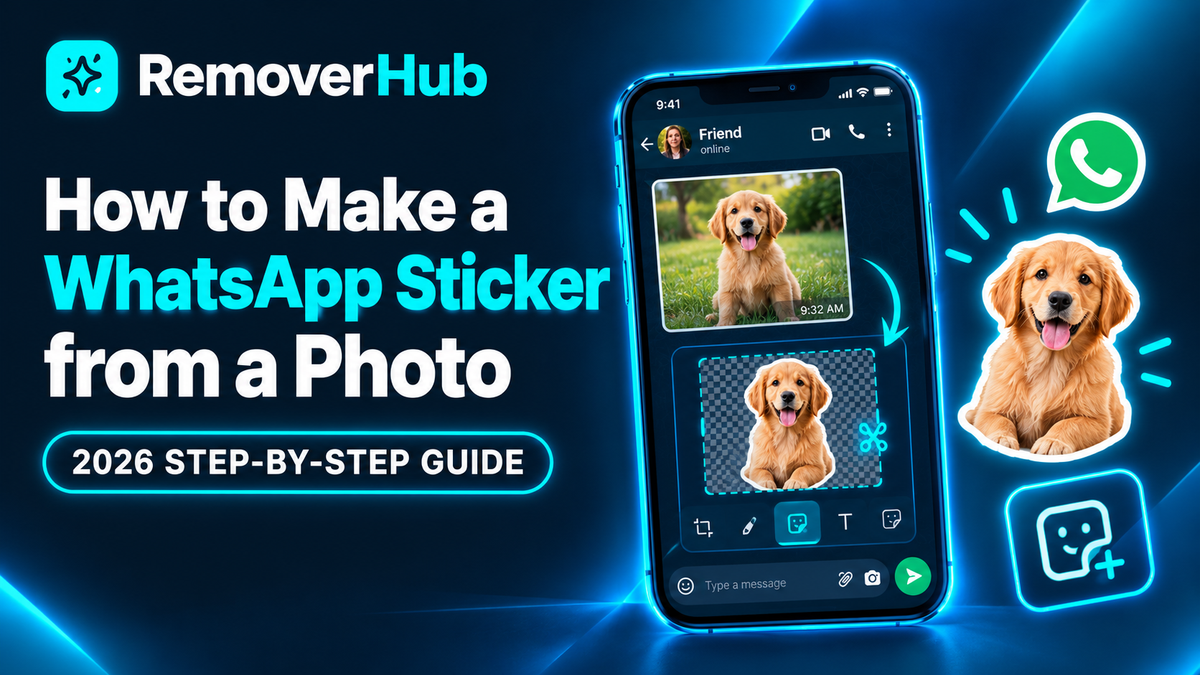
How to Make a WhatsApp Sticker from a Photo
Some photos are too good to stay in your gallery. Your cat's unimpressed face. A friend mid-laugh. A blurry group shot that sums up the whole trip. Turned into stickers, these become the reactions your chats actually need.
The good news is that you rarely need a separate app anymore. WhatsApp has been adding a built-in sticker creator, and your phone's photo app can often cut out the subject for you. This guide walks through every route: WhatsApp's own tool, WhatsApp Web, iPhone and Samsung cutouts, third-party pack apps, and a do-it-yourself file method. You will also learn the technical rules, how to fix blurry or oversized stickers, and how to protect other people's privacy.
How Do You Make a WhatsApp Sticker from a Photo?
In short: Open a chat, tap the sticker icon, choose Create (or the + button), pick a photo, edit it, and send it. WhatsApp saves the sticker to your tray so you can reuse it.
The five steps on most phones:
Open any chat in WhatsApp.
Tap the sticker icon next to the message box.
Tap Create or the + button, then choose a photo.
Edit the cutout: crop, add text, draw or add an emoji.
Tap Send. The sticker is saved to your sticker tray automatically.
Menu names and availability vary by phone, operating system and WhatsApp version, and WhatsApp has rolled the feature out in stages. If you do not see the button, update the app first, then try one of the other methods below.
What Is a WhatsApp Sticker?
A WhatsApp sticker is an image you send like a message, without a background bubble. The best ones have a transparent background, so only the subject shows against the chat color.
Technical specs at a glance
If you use the built-in creator, WhatsApp handles conversion for you. If you build files yourself for a sticker-pack app or a business integration, these are the commonly cited rules:
| Property | Requirement |
|---|---|
| Format | WebP, with transparency |
| Size | Exactly 512 × 512 pixels |
| Static file size | Up to 100 KB |
| Animated file size | Up to 500 KB |
| Pack size | 3 to 30 stickers (third-party packs) |
| Tray icon | 96 × 96 pixels (third-party packs) |
These figures come from Vonage's WhatsApp sticker documentation (512 × 512 pixels, 100 KB static, 500 KB animated) and from sizing guides such as Moda's WhatsApp sticker specs, which add the 3 to 30 pack range and the 96 × 96 tray icon. These are developer and pack-app requirements. They should not be assumed to apply to WhatsApp's newer built-in pack creator, which can apply its own rules.
Built-in vs. third-party stickers
| Route | Best for | Main trade-off |
|---|---|---|
| WhatsApp’s built-in creator | One-off reactions, quick edits | Features vary by version and rollout |
| Phone photo-app cutouts | Clean subject cutouts | Extra copy-and-paste steps |
| Third-party sticker apps | Full packs, animated stickers | Permissions, ads, privacy review |
| DIY files (PNG → WebP) | Full control and batch work | Technical, so you must hit the specs |
Step 0: Choose a Photo That Turns Into a Good Sticker
A sticker is small, so the photo must read instantly.
What works well
- One clear subject: a face, a pet, an object
- Good lighting with no heavy shadows over the face
- Sharp focus on the eyes
- A background that contrasts with the subject
- Strong expression or gesture
- Room around the subject so the cutout does not clip fingers or ears
What works poorly
- Groups with overlapping people
- Busy backgrounds that blend into the subject
- Tiny faces in a wide shot
- Blurry, dark or heavily compressed photos
- Text-heavy screenshots, where the words become unreadable at sticker size
Quick prep
Crop to the subject first.
Fix obvious blur with the image sharpener or our guide to sharpening images online.
Remove distractions with the AI object remover. If a stranger is in the shot, try the AI person remover or our guide to removing multiple people from a photo.
Keep the original photo.
Method 1: Create a Sticker Inside WhatsApp (iPhone and Android)
WhatsApp's own creator is the fastest route when it is available. Reporting from the first rollout, such as Tech Advisor's guide, said the in-app maker arrived first for iPhones running iOS 17 or later and for WhatsApp Web, with Android described as still to come. Later guides, including Guiding Tech, describe the feature on both Android and iPhone. Because rollouts are gradual, treat availability as account-dependent.
Steps
Update WhatsApp from your app store.
Open a chat with any person or group.
Tap the sticker icon beside the text box. On many Android phones, tap the emoji icon first, then the sticker tab.
Tap Create or the + button.
Choose a photo from your gallery. Some versions also let you take a new photo or generate a sticker with AI.
Pick the cutout or the full image. One review of the iPhone tool described getting two options: the whole image or an auto-generated cutout of the main subject.
Edit. Add text, draw, add emoji or place other stickers on top.
Tap Send. Sending also saves the sticker to your tray.
Edit an existing sticker
Long-press a sticker in your tray and choose Edit sticker. This works for stickers you created before.
If the Create button is missing
- Update WhatsApp and restart it.
- Check that your operating system is current.
- Wait a few days, since features roll out gradually.
- Try WhatsApp Web, the iPhone Photos method or a third-party app instead.
Method 2: Make a Sticker in WhatsApp Web or Desktop
WhatsApp Web has a creator too. Android Authority's guide notes that stickers you create on WhatsApp Web are sent to the chat box before being saved.
Steps
Open WhatsApp Web or the desktop app and sign in.
Open a chat.
Click the attachment (paperclip or plus) icon.
Choose Sticker.
Select an image from your computer.
Crop and edit with the tools shown.
Send it.
The desktop route is handy when your best images are on your computer, such as exported memes or edited graphics.
Method 3: Use the iPhone Photos App to Cut Out the Subject
On iPhones, the Photos app can lift a subject from a photo with a long-press. It then lets you copy it or add it as a sticker.
Steps
Open the photo in Photos.
Touch and hold the subject until a white outline appears.
Tap Copy (or Add Sticker, if offered).
Open the WhatsApp chat and paste into the message box, or use the sticker option.
Send.
Why use this method?
- The cutout often has clean edges.
- It works even when you cannot find WhatsApp's creator.
- You can then edit it in WhatsApp.
Menu labels differ across iOS versions, so follow the options on your screen.
Method 4: Use Samsung Gallery or Another Android Cutout Tool
Some Android phones can cut out a subject from the gallery. Guiding Tech describes a Samsung route: open the photo in Samsung Gallery, touch and hold the subject, then choose an option such as Save as a sticker. If long-pressing does not work, tap the pencil (edit) icon and look for a sticker option.
Steps
Open the photo in your gallery.
Touch and hold the subject.
Choose Save as a sticker or Copy.
Open WhatsApp and send or paste it.
Other Android brands may have similar features under different names. Check your gallery or camera app.
Method 5: Use a Third-Party Sticker Maker App
If you want a full pack, animated stickers or more editing tools, a dedicated app can help. Android Authority suggested apps such as Sticker.ly on Android and Top Stickers on iPhone, and AndroidAyuda lists Sticker Maker, Sticker.ly and Wemoji for packs.
A typical workflow
Install the app from the official store.
Create a new sticker pack and name it.
Add photos. Many apps include a cutout tool.
Trim, add text and effects.
Add enough stickers to meet the pack minimum.
Choose Add to WhatsApp.
Safety checklist for these apps
- Check the developer and reviews before installing.
- Review the permissions. A sticker app rarely needs your contacts or location.
- Read the privacy policy. Photos can be uploaded to servers.
- Watch for subscriptions and auto-renewals.
- Avoid apps that ask for your WhatsApp login or ask you to scan a code that links your account.
- Use a separate pack for animated stickers.
Packs created this way follow the third-party rules shown in the specs table: WebP, 512 × 512 pixels, within the file-size limits, and typically between 3 and 30 stickers.
Method 6: The DIY File Method (For Full Control)
If you want the cleanest results or want to batch-make stickers, you can prepare the files yourself and import them into a pack app.
Step 1: Remove the background
Use the AI background remover or the HD background remover to cut out the subject. If you need the output to be transparent, read our guides on making an image transparent online for free, turning a photo into a transparent PNG and the transparent image maker. For a bigger comparison, see the best background remover tools in 2026, and for a batch of photos, see batch background removal.
Step 2: Check the edges
Zoom in. Look for leftover halos, missing hair and cut-off fingers. Our guide on removing a background in HD quality without pixelation explains how to keep edges clean.
Step 3: Put it on a 512 × 512 canvas
Create a square canvas of 512 × 512 pixels. Place the cutout in the center and leave a small margin around it so the edges do not clip in chat.
Step 4: Save with transparency
Keep the editing version as a PNG, which preserves transparency. Our JPEG vs. PNG guide and the guide to the PNG maker explain why.
Step 5: Convert to WebP and check the size
Export the final sticker as a transparent WebP and keep static files within the 100 KB limit. If the file is too large, simplify the artwork, reduce gradients or lower quality slightly instead of changing the canvas size.
Step 6: Import into your pack app
Add the files, set a tray icon and add the pack to WhatsApp.
Add Text, Outlines and Emoji (Pro Tips)
A few small touches make stickers feel professional.
Text
- Keep it to one to four words.
- Use thick, high-contrast fonts.
- Place text away from the face.
- Use an outline so text is readable on light and dark chat backgrounds.
Outlines
A thin white outline around a cutout makes it pop on dark chats. A dark outline works better on light themes. If your pack app offers a sticker-style border, use it.
Emoji and drawings
WhatsApp's creator lets you add emoji, drawings and other stickers on top. Use them sparingly so the face still reads.
Meme-style stickers
- Use a clear reaction face.
- Keep captions short.
- Make sure you have the right to use the image.
If you need to remove existing words from a photo first, try the AI text remover or our guide to removing text from images. If a source image has a stray emoji, the emoji remover can help.
Fix Blurry or Low-Quality Stickers
A sticker is shown small, but blur still shows.
Why stickers look blurry
- The source photo was low resolution or already compressed
- The subject is small in the original frame
- The cutout was scaled up
- The file was compressed too hard to fit the size limit
- WhatsApp or another app recompressed the image
How to fix it
Start from the original photo, not a screenshot or a forwarded copy.
Crop closer to the subject before making the sticker.
Sharpen lightly with the image sharpener or the AI blur remover. Our guide on fixing an out-of-focus picture explains what sharpening can and cannot do.
Improve resolution before cutting out the subject. See our guides to enhancing image quality and upscaling an image without losing quality.
Keep designs simple. Flat colors compress better than gradients.
Avoid repeated edits and re-saves.
For a photo that has damage or age, our guide on restoring old photos online for free can help before you make a sticker. If your photo is tightly cropped and you want more room around the subject, see how to expand an image with AI.
Animated Stickers
Animated stickers use animated WebP. The developer limit cited above is 500 KB at 512 × 512 pixels, and sticker packs generally keep static and animated stickers separate.
Tips
- Keep animations short and looping.
- Limit colors and motion to stay under the size limit.
- Test on a real phone before sharing.
If you use a third-party app, follow its animated-pack instructions. Check the app's current limits, since they can differ from the developer guidance.
Privacy, Consent and Copyright
Stickers are shared and forwarded, so think before you create them.
People in your photos
- Ask permission before turning someone's face into a sticker, especially in group chats.
- Be extra careful with children's photos. Avoid stickers of minors unless a parent or guardian agrees.
- Do not make stickers meant to mock, shame or harass. That can harm people and may break WhatsApp's rules or local law.
Copyright
- Photos, memes, cartoons and celebrity images may be protected by copyright.
- Using an image privately in a chat is different from publishing a sticker pack publicly.
- For public packs, use your own photos, licensed images or work in the public domain.
Your data
- Third-party apps and websites may upload your images.
- Read each app's privacy policy and permissions.
- Avoid apps that ask for your login or account access.
See removerhub's privacy policy and terms for how we handle uploads to our tools.
Real-World Examples
These are illustrative scenarios, not real customers.
The group chat reaction. A friend takes a goofy photo of her roommate making a face. She opens WhatsApp, taps the sticker icon, chooses Create, picks the photo and sends the auto-cutout. Her roommate is delighted. She had the sticker in under a minute.
The pet pack. An owner wants ten stickers of his dog. He removes the backgrounds with a background remover, centers each cutout on a 512 × 512 canvas, exports WebP files and adds them to a pack app. He tests the pack in a chat before sharing it with family.
The small business. A café owner makes a few stickers from her logo and mascot photos for customer chats. She uses a transparent version of the logo and keeps text short.
The old family photo. A woman scans her grandfather's portrait, restores it, cuts out his smile and makes a sticker for a private family group. She checks with relatives first.
The pattern: choose a clear photo, keep the subject centered, check edges, test in a chat, and respect the people in the picture.
Why Choose removerhub
If you want cleaner stickers, removerhub covers the image-prep steps.
- Cutouts and transparency: AI background remover, HD background remover and transparent image maker
- Cleanup: remove objects, people, text and emoji from source photos with the AI object remover, AI people remover, AI text remover and emoji remover
- Quality: sharpen and enhance with the image sharpener
- Guides on transparent PNGs, Canva backgrounds and whether Canva can make images transparent
To be clear, removerhub does not currently offer a WhatsApp sticker maker or a WebP sticker exporter. Our tools prepare the cutout, and you finish the sticker in WhatsApp or a pack app. You can explore advanced removerhub tools, browse our blog library or read more about removerhub.
How to Learn More: Free and Paid Resources
Free resources
- WhatsApp Help Center, for the current built-in sticker steps on your platform
- Android Authority's sticker guide and Guiding Tech's no-app guide for walkthroughs
- Vonage's sticker documentation for the developer size limits
- Moda's WhatsApp sizes reference for quick specs
- Our guides on image formats, image quality and sharpening
Paid or structured learning
- Graphic design and Photoshop courses on platforms such as Coursera, Udemy or Skillshare
- Pro editing apps for animation and vector art
- Illustration and branding workshops if you plan to sell or publish sticker packs
Always check the date on tutorials, because WhatsApp features and menu names change.
What's Next for WhatsApp Stickers?
- More built-in tools. WhatsApp has been adding creation and editing features, including AI-generated stickers, though rollout varies by region and account.
- Easier packs. Custom pack creation inside the app is becoming more common.
- Smarter cutouts. Phone and app cutouts keep improving.
- Clearer rules. Expect more attention to consent, copyright and misuse.
The basics will stay the same: a clear photo, a clean cutout and respect for the people in it.
Frequently Asked Questions
How do I make a WhatsApp sticker from a photo?
Open a chat, tap the sticker icon, choose Create or the plus button, select a photo, edit it and tap Send. WhatsApp saves it to your sticker tray. Menu names and availability vary by phone and WhatsApp version.
Can I make WhatsApp stickers without an app?
Yes, in many cases. WhatsApp's built-in creator, the iPhone Photos cutout, Samsung Gallery's sticker option and WhatsApp Web can all create stickers without a separate app. If your version lacks these, a third-party sticker maker is the fallback.
What size and format should a WhatsApp sticker be?
For third-party packs and developer use, the commonly cited rule is a 512 × 512 pixel WebP with a transparent background, up to 100 KB for static stickers and 500 KB for animated ones. WhatsApp's built-in creator converts images for you, so you do not need to prepare the file.
Why is my WhatsApp sticker blurry?
Usually because the source photo was low resolution or compressed, the subject was small in the frame, or the file was squeezed to fit the size limit. Start from the original photo, crop closer, sharpen lightly and keep the design simple.
Why can't I see the Create sticker option?
The feature may not have reached your account yet, or your WhatsApp or operating system may be out of date. Update the app, restart it, try WhatsApp Web, or use a Photos or Gallery cutout instead.
How do I make a sticker with a transparent background?
Use WhatsApp's auto-cutout, your phone's subject-lift feature, or a background remover. If you build the file yourself, keep a transparent PNG for editing and export a transparent WebP at 512 × 512 pixels for pack apps.
Conclusion:
Making a WhatsApp sticker from a photo takes a minute when the built-in tool is available, and a few extra steps when it is not. The difference between a good sticker and a muddy one is the source photo, the cutout quality and a quick test in a real chat.
Here is your plan for your first sticker:
Pick a sharp photo with one clear subject.
Crop closer and fix blur or distractions.
Try WhatsApp's built-in creator first.
Use a Photos, Gallery or background-remover cutout if it is missing.
Add short, bold text if you want a caption.
Check size and format if you are building a pack.
Test the sticker in a chat, and get consent from the people in it.
Ready for the next step? Book a seat at Advance Free Tools offered by removerhub, and explore advanced removerhub tools.