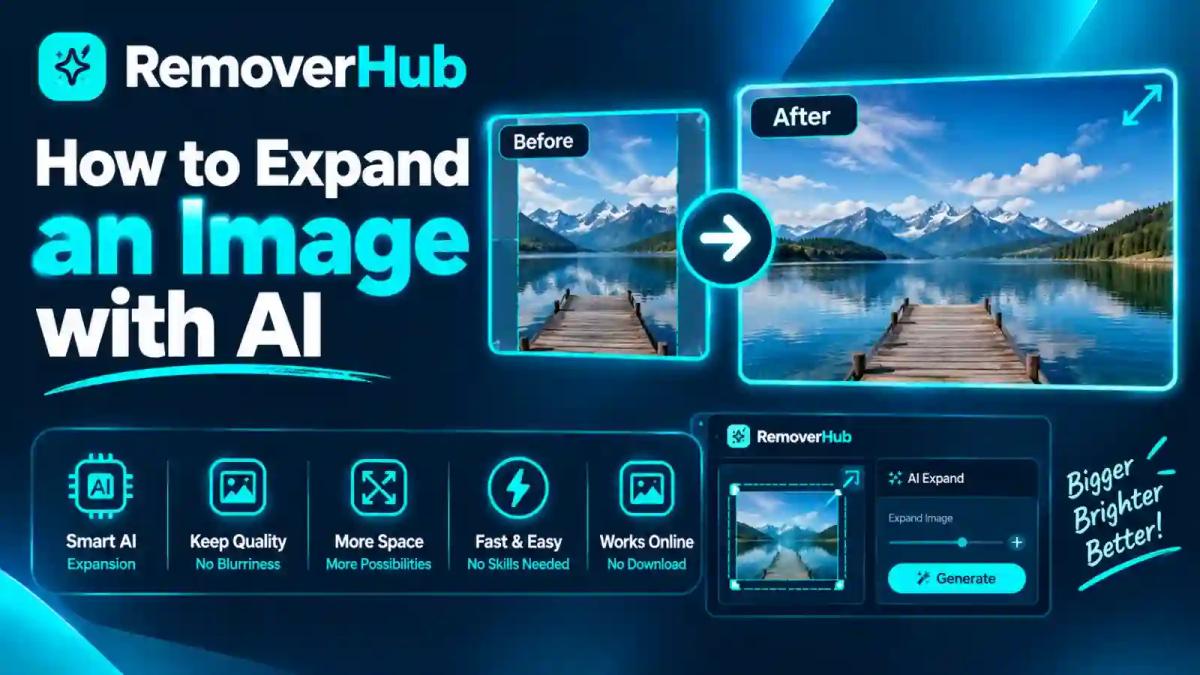
How to Expand an Image with AI (Free Tools)
You have a great photo, but it is the wrong shape. The portrait won't fit a YouTube thumbnail. The square product shot gets chopped on a website banner. Or the subject is cropped so tightly that the picture feels cramped.
You used to have two bad choices: crop away the best parts or stretch the picture until it looked wrong. AI image expansion gives you a third option. It generates new pixels around your photo so the frame can grow in any direction. This guide shows you how to do it step by step, which tools can help, how to write prompts, how to avoid visible seams, and what to check before you publish the result.
Quick Answer: How Do You Expand an Image with AI?
In short: Upload your image to an AI expand tool, choose a new aspect ratio or drag the edges outward, optionally describe what should fill the new space, generate, and check the seams before you export.
The seven-step workflow:
Choose an image with a clear subject and simple surroundings.
Decide the target size or ratio, such as 16:9 or 9:16.
Open an expand tool (Adobe Firefly, Canva, Picsart, Runway or similar).
Drag the edges or pick a preset.
Add a short prompt, or leave it blank.
Generate and compare options.
Inspect seams, then export.
Adobe's Firefly Expand help page describes generative expand as extending an image beyond its original frame while keeping visual consistency. It offers a Freeform option and presets such as 1:1, 4:3, 16:9 and 3:4, and says the prompt box can be left blank so the tool analyzes the image on its own.
What Is AI Image Expansion?
AI image expansion, also called outpainting, extends a picture past its original borders. The model looks at the existing image, predicts what would logically continue beyond the edge, and generates new pixels to fill the added canvas.
Picsart's help center explains the key point: the feature doesn't stretch pixels, it generates new ones to extend the image.
Expansion vs. related techniques
| Technique | What it does | Changes the original pixels? | Best for |
|---|---|---|---|
| AI expansion (outpainting) | Adds new generated content around the image | No (original stays, new area is added) | Changing aspect ratio, adding background |
| Inpainting | Replaces or repairs content inside the image | Yes, in the selected area | Removing objects, fixing damage |
| Upscaling | Increases resolution of the whole image | Yes, by adding detail | Sharper or larger output |
| Cropping | Removes the edges | Yes, by cutting pixels | Tightening composition |
| Stretching | Pulls pixels to fit a new shape | Yes, distorting them | Rarely a good idea |
Expansion adds canvas. Upscaling adds resolution. They solve different problems, and our guide on how to upscale an image without losing quality explains the second one in depth.
How it works, in plain terms
Most modern tools use diffusion-style generative models. You can think of the process like this:
The tool places your original image on a larger canvas.
The empty area is treated as a mask to fill.
The model generates pixels that match nearby colors, textures, lighting and perspective.
The result is blended at the border so the join looks smooth.
The model is guessing, not retrieving. That is why results are best when the scene is simple and predictable, like sky, grass, a wall or a blurred background.
Why Expand an Image?
- Fit a new format without cropping the subject
- Turn a vertical photo into a horizontal one, or the reverse
- Add breathing room above a head or in front of a moving subject
- Create space for text in banners, thumbnails and ads
- Rescue tight crops where the photographer cut off part of the scene
- Reuse one photo across several platforms
Common aspect ratios
Always check each platform's current specs, but these are typical targets.
| Ratio | Typical use |
|---|---|
| 16:9 | YouTube thumbnails and video, web banners, slides |
| 1:1 | Square social posts, profile images, marketplace listings |
| 4:5 | Portrait feed posts |
| 9:16 | Stories, Reels, Shorts and vertical video |
| 4:3 | Presentations and some photo prints |
Do the Math Before You Expand
Knowing how much new content the AI must invent helps you choose a realistic target.
Example 1: Portrait to widescreen
- Original: 1,080 × 1,350 pixels (4:5)
- Target: 16:9 at the same height of 1,350 pixels, giving a width of 2,400 pixels
- New area: 2,400 − 1,080 = 1,320 pixels wide, or 55 percent of the final image
More than half of your final picture would be generated. That is a lot to ask, so expect to try several times or expand in stages.
Example 2: Square to widescreen
- Original: 1,080 × 1,080 pixels (1:1)
- Target: 16:9 at a height of 1,080 pixels, giving a width of 1,920 pixels
- New area: 1,920 − 1,080 = 840 pixels wide, or about 44 percent of the final image
The takeaway
The bigger the share of generated area, the greater the risk of mismatched lighting, odd objects and visible seams. Aim for modest expansions when the content matters.
Step 0: Pick a Good Source Image
Results depend heavily on what you start with.
Images that expand well
- Landscapes, skies, water and beaches
- Walls, fields, forests and other repeating textures
- Portraits with a soft or blurred background
- Studio shots on plain backdrops
- Sharp images with consistent lighting
Images that are harder
- Subjects touching the edge of the frame
- Faces, hands and bodies that need to continue past the border
- Text, signs and logos that run off the edge
- Complex architecture with strong perspective lines
- Crowded scenes
- Very low-resolution or noisy photos
Canva's help page for Magic Expand notes that images with faces, hands or transparent backgrounds may not work well when expanding. That is a good reminder to check these areas first.
Prepare the image
Use the highest-resolution version you have.
Fix obvious blur first with the image sharpener or our guide to fixing an out-of-focus picture.
Remove distracting objects near the edges with the AI object remover.
Keep a copy of the original file.
The Step-by-Step Workflow
Step 1: Upload and set the target
Choose a preset ratio, or drag the edges for a custom canvas. Presets keep the result in a known format. Freeform gives you control.
Step 2: Decide which sides to expand
You do not have to expand every side. If the subject is on the right, expand the left and keep the right unchanged, so the composition stays balanced.
Step 3: Write or skip the prompt
A prompt is optional in many tools. If you leave it blank, the AI continues the scene based on the image alone. If you add a prompt, keep it short and specific.
Step 4: Generate
Wait for the result. Many tools produce several variations. Look at all of them before picking one.
Step 5: Inspect at full size
Zoom in on:
- The seam where the original meets the new content
- Lighting and shadows that should match
- Horizon lines and perspective
- Repeating patterns that look copied
- New objects that look strange or intrusive
Step 6: Try again or refine
If something is off, undo and run it again, expand in smaller steps, or adjust the prompt. Picsart's guidance suggests expanding gradually in smaller increments to give the AI more context.
Step 7: Fix small flaws
Use an object remover for stray objects. Use a sharpener for softness. Use a color adjustment if the new area is slightly different in tone.
Step 8: Export in the right format
Use PNG when you want lossless quality or will edit again, and JPEG for smaller files. Our JPEG vs. PNG guide explains the difference.
Tool Walkthroughs
Feature names, plans and limits change often, so check each provider's help page before relying on any detail.
Adobe Firefly (Generative Expand)
Per Adobe's help page:
On the Firefly homepage, open the Image module and choose Expand background, or generate an image and open the Edit tab, then select Expand.
Upload an image from your device or cloud if you are not expanding a generated one.
Choose Freeform or a preset like 1:1, 4:3, 16:9 or 3:4. The More menu shows additional ratios.
Describe what should fill the new space, or leave the prompt blank.
Select Expand.
Use Reset to clear the boundaries and start again.
Adobe notes that credit consumption varies by model, and you can hover over the credit indicator beside the Expand button to see the cost before you generate. Check your plan for free allowances.
Canva Magic Expand
Canva's help page describes Magic Expand as a way to fix awkward framing, recover what is just outside the frame, or turn a vertical shot into a horizontal one.
Select the photo you want to edit.
In the editor toolbar, select Edit.
Go to Tools, then See All, and choose Magic Expand.
Pick a size or drag a crop handle outward.
Select Expand and wait.
Canva also notes that you can only download the expanded image as a separate file if you download it as part of a design. Plan and AI usage limits can apply, so check Canva's current access rules.
Picsart AI Expand
According to Picsart's help center:
Open the Picsart web editor, or the mobile app on Android or iOS.
Find AI Expand under the Apps section on web, or in the AI tools on mobile.
Drag the image edges to expand the canvas manually, or choose a preset like 16:9 or 9:16.
Select Expand.
Picsart's AI image extender page says free users get a limited number of expansions, so check current limits and any watermark rules.
Runway Expand Image
Runway's help page says Expand Image extends the canvas to a new aspect ratio and fills in the new area to match the original scene. You provide an input image, choose a target aspect ratio, and optionally add directions. The app requires credits to run, and it mentions that it runs on Nano Banana Pro or Nano Banana, selectable from the model menu. Check Runway's current plans before relying on it.
Photoshop and other desktop editors
Photoshop offers generative expansion through its crop and generative tools. The steps differ by version, so use Adobe's current Photoshop documentation for your release. The advantage of desktop editors is layers: you can keep the original untouched on its own layer and mask the generated area.
Midjourney and developer models
Midjourney offers directional and zoom-style extension workflows in its editor. Open-source and API models also support outpainting for developers, such as through the Hugging Face Diffusers library. These options give more control but take more setup.
Free vs. Paid: What "Free" Really Means
| Offer type | What it means for you |
|---|---|
| Free account with daily credits | A few generations per day, with limits |
| Free trial | Time-limited access |
| Freemium | A small number of free expansions, then payment |
| Free with watermark or size cap | You can export, but with restrictions |
| Paid-only feature | Needs a subscription |
Do not assume a free entry point means unlimited, full-resolution or commercially cleared output. Output size can also be capped. A 2025 comparison of AI image extenders notes that some tools restrict output resolution to around 1K or 2K, which can affect large prints.
How to Write Prompts for Image Expansion
Prompts are optional but helpful, especially when the AI needs direction.
Basic principles
Describe what should be there, not what should not.
Match the existing scene. Mention lighting, season and style.
Keep it short. One or two sentences are enough.
Be concrete. "More green hillside with scattered trees" works better than "nice background."
Avoid adding new main subjects unless you want them.
Examples
| Goal | Example prompt |
|---|---|
| Extend a beach photo | “Continue the shoreline and calm blue water, soft afternoon light” |
| Extend a studio portrait | “Plain light gray studio backdrop, soft shadow, no new objects” |
| Extend a street scene | “Continue the sidewalk and brick buildings in the same lighting” |
| Add sky above a subject | “Clear blue sky with a few thin clouds” |
When to leave it blank
If the scene is simple, a blank prompt often keeps the continuation consistent. Try blank first, then add a prompt if you do not like the result.
Aspect Ratio Recipes for Common Jobs
YouTube thumbnail (16:9)
Start from a clear, high-resolution image.
Choose 16:9.
Expand the side that gives room for text, not the side with the main face.
Keep the subject's eyes and face out of the seam area.
Export at the size YouTube currently recommends, often 1280 × 720 pixels.
Instagram without cropping (4:5 or 1:1)
Choose the ratio that matches your feed layout.
Expand just enough to avoid cutting off heads, hands or text.
Check how it looks in the grid preview.
Stories, Reels and Shorts (9:16)
Expand vertically, giving space above and below the subject.
Keep important details away from the top and bottom, where app buttons and captions sit.
Website banner
Choose a wide custom ratio.
Expand the side where your headline will sit.
Keep the area behind text simple, with low contrast, so the text stays readable.
Product listing
Be careful here. Marketplaces have strict image rules, and the product must look accurate.
- Check requirements in our guides to Amazon product image requirements, Walmart image requirements and eBay product photos.
- Use expansion only for the background or canvas, not to alter the product.
- For clean white backgrounds, see how to make a product photo background white and the best background colors for product photos.
Export from a different tool, or upscale afterward
For leftover stray objects, use the AI object remover and our guides on removing objects from photos and AI object remover vs. clone stamp. If a shadow looks mismatched, see how to remove shadows from photos. To tidy text overlays, see removing text from an image while keeping a clean background.
After Expanding: Sharpen, Upscale and Export
Expansion makes the canvas larger. It does not necessarily add resolution to the original part.
Check resolution
- Compare the final pixel dimensions to your needs.
- For print, a common target is about 300 pixels per inch.
- If the result is too small, upscale after expanding. Read about how to enhance image quality and upscaling without losing quality.
Sharpen softly
New areas can look slightly softer than the original. Light sharpening can help. Try the image sharpener, and read our tips on sharpening images online.
Background cleanup
If you want to cut out the subject and place it on a different background after expanding, use the AI background remover. Our guide to making a photo background transparent explains transparent PNG output.
Privacy, Rights and Honest Use
AI expansion adds content that never existed in your photo. That has practical and ethical consequences.
Privacy
- Most online tools upload your photo to a server. Read the privacy policy for storage, deletion and AI-training terms.
- Avoid uploading private or sensitive images to services you have not reviewed.
- Do not assume a provider never stores or reuses your files unless its current policy says so.
Rights
- Make sure you own the photo or have permission to edit it.
- Check each provider's terms for commercial use of AI-generated or AI-extended content.
- Expanding someone else's copyrighted image does not give you new rights to it.
Disclosure and authenticity
- Do not use expansion to mislead viewers in news, evidence, reviews or product claims.
- If you are showing a real scene, remember that the added area is invented.
- Some platforms apply provenance metadata or labels to AI-edited images. If you plan to remove an AI watermark or label, read our guides on removing watermarks from AI-generated images and Gemini watermark rules first, and follow each platform's terms.
Marketplace and ad accuracy
For product photos, the expanded background must not misrepresent the item's size, color, features or condition.
Real-World Examples
These are illustrative scenarios, not real customers.
The YouTube creator. A creator has a vertical selfie that she wants as a thumbnail. She expands it to 16:9 on the side where the headline will go, keeps her face away from the seam, and adds text afterward in a design tool. The first attempt has an odd object in the new area, so she regenerates with a simpler prompt.
The online seller. A seller needs a square photo and a wide banner from one product shot. He expands only the backdrop, keeps the product itself untouched and checks the marketplace's rules before uploading.
The photographer. A wedding photographer realizes a favorite portrait is cropped too tightly for a print order. She expands the top edge in small steps, checks the seam at 100 percent and upscales the result for printing.
The small business owner. A café owner has a great photo of her storefront but needs a wide hero banner. She expands the sky and sidewalk, then sharpens the final image.
The pattern: choose a simple scene, expand in modest steps, inspect the seam and keep the original.
Why Choose removerhub
If you often prepare and clean up images, removerhub gathers focused tools in one place.
- Before expanding: sharpen soft photos with the image sharpener and clean up objects with the AI object remover
- After expanding: fix leftover blemishes, shadows and stray text, or cut out subjects with the AI background remover and HD background remover
- For selling online: guides on AI background removers for ecommerce, free product photo editing tools and enhancing product photos for print catalogs
- Clear explanations of formats, quality and workflows
To be clear, removerhub does not currently offer a dedicated AI image expander. The tools above cover the steps before and after expansion. You can explore advanced removerhub tools, browse our blog library, or read more about removerhub.
How to Learn More: Free and Paid Resources
Free, authoritative sources
- Adobe Firefly: Expand images for steps, ratios and credit notes
- Canva: Magic Expand for steps and limitations
- Picsart: How to use AI Expand and the Picsart AI image extender
- Runway: Expand Image for aspect ratio and credit details
- Hugging Face Diffusers documentation for developers working with diffusion models
- Our guides on enhancing image quality and choosing the right image format
Paid or structured learning
- Photoshop and Firefly courses on platforms such as Coursera, Udemy or Skillshare
- Adobe Creative Cloud, Canva Pro or Picsart Premium for higher limits
- Digital design and photography workshops
Choose resources with recent update dates. AI tools change quickly.
What's Next for AI Image Expansion?
- Better consistency. Models are improving at matching light, perspective and texture.
- Bigger outputs. Resolution caps are loosening, though they vary by tool.
- Built-in resizing. More editors are adding one-click "fit to every format" workflows.
- Provenance and labeling. Expect more content credentials and disclosure rules for AI-edited images.
What stays constant is that the original image, the target ratio and your own review decide the quality.
Frequently Asked Questions
What does it mean to expand an image with AI?
It means extending a picture beyond its original borders by generating new pixels that continue the scene. The technique is also called outpainting. It adds canvas around your photo instead of stretching it or cropping it.
How can I expand an image online for free?
Use a tool that offers a free tier, such as Adobe Firefly, Picsart or Canva, depending on your plan. Upload your image, drag the edges or pick an aspect ratio, optionally add a prompt and generate. Free options usually have daily credits, limited expansions or restrictions, so check current terms.
Can I change a portrait photo to landscape without cropping?
Yes. Choose a landscape ratio such as 16:9 and let the AI generate content to the left and right. Keep your subject away from the seam, and expand in smaller steps if the first result looks off.
Does AI image expansion reduce quality?
It does not stretch your original pixels, but the new area may look softer or slightly different, and some tools cap output size. Check the seam at full size, sharpen lightly and upscale afterward if you need a larger file.
Can I use AI-expanded images for commercial projects?
It depends on the tool's terms, your rights to the original photo and local law. Review the provider's current commercial-use terms, and make sure the expanded image does not mislead customers, especially in product listings.
How do I avoid visible seams?
Start with simple scenes, expand a little at a time, keep lighting consistent, regenerate if the first result looks wrong and blend the border with a soft brush if your editor allows it. Inspect the edge at 100 percent before you export.
Conclusion:
AI image expansion lets you reshape a photo without throwing away the parts you love. The best results come from a good source image, a realistic target ratio, a short clear prompt and a careful look at the seam.
Here is your plan for your next image:
Pick a sharp, high-resolution photo with a simple background.
Decide the ratio and calculate how much new area you need.
Expand in small steps rather than one huge jump.
Keep faces and hands away from the seam.
Compare variations and pick the most natural one.
Clean up, sharpen and upscale if needed.
Keep the original and check the tool's terms before commercial use.
Ready for the next step? Book a seat at Advance Free Tools offered by removerhub, and explore advanced removerhub tools.