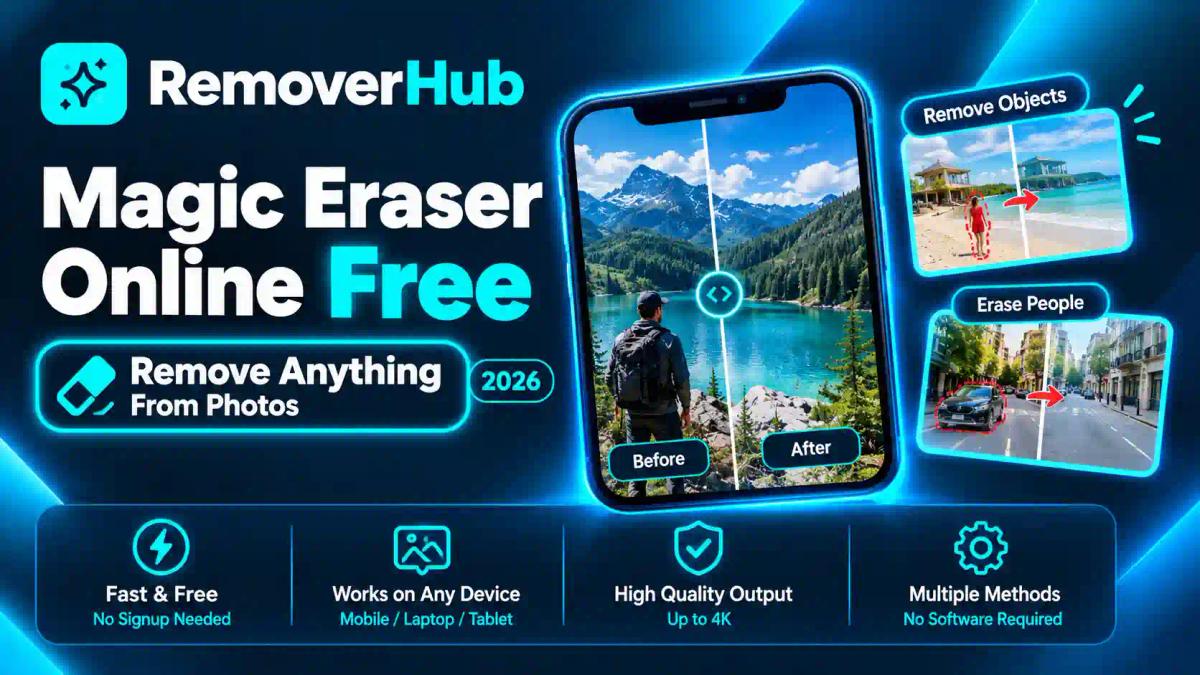
Magic Eraser Online Free: Remove Anything From Photos
You take a great photo, and a stranger walks into the corner of the frame. Or a power line cuts across the sky. Or your product shot has a stray cable on the table. The picture is 95% perfect, and the last 5% is ruining it.
A magic eraser fixes that. You mark the thing you don't want, the AI removes it, and the background is rebuilt where it used to be. With the free AI Object Remover at RemoverHub, you can do it in your browser without installing anything.
This guide explains what a magic eraser is, how it works, how to get natural results, and where it still struggles.
Last updated: October 2026. Free limits, supported devices, and privacy terms differ between providers and change over time. Check each provider's official documentation before relying on a specific feature.
What Is an Online Magic Eraser?
An online magic eraser is a browser-based AI tool that removes unwanted objects, people, or text from a photo and fills the gap with a realistic background. You upload an image, mark what you want gone, and the AI reconstructs the area using the surrounding pixels. No download or editing skills are needed.
Results depend on the photo. Simple backgrounds (sky, grass, walls) give the cleanest results, while complex patterns, reflections, and large removals need more care.
In This Guide
What a magic eraser is (and what it isn't)
How the AI fills the gap
Step-by-step: removing anything from a photo
What you can erase, with examples
How to get natural-looking results
Why some removals look fake
Magic eraser vs other tools
Image quality, formats, and privacy
Rights, ethics, and disclosure
FAQs and next steps
What Is a Magic Eraser for Photos?
A magic eraser for photos is an object-removal feature. It deletes a selected area of an image and generates new pixels to replace it, so the result looks like the object was never there.
The name causes some confusion. Search "magic eraser" and you'll find cleaning sponges, art erasers, and photo tools all mixed together. In photo editing, it refers to AI-based removal.
One name, many products
"Magic Eraser" isn't a single product. Several companies use the same label for different tools:
- Google Photos offers a Magic Eraser feature inside its editor. Its availability depends on your device, account, and region, so check the Google Photos Help Center for current requirements.
- Canva has its own Magic Eraser inside its design platform. Pricing and limits are listed in the Canva Help Center.
- Adobe Photoshop offers a Remove tool and Generative Fill. Details are in Adobe's Photoshop help.
- Microsoft has Generative Erase in Designer and Photos, documented on Microsoft Support.
- Apple includes Clean Up in Apple Photos on supported devices. See Apple Support for compatibility.
They share a goal, but each has different features, limits, and eligibility. A web-based tool like RemoverHub works in any modern browser, which is useful when you don't have a supported phone or a paid subscription.
What a magic eraser is not
It isn't a background remover. A background remover separates your subject from everything behind it. A magic eraser removes one thing and keeps the rest. It also isn't a crop. Cropping changes the frame, while erasing keeps your composition intact.
How Does an AI Magic Eraser Work?
Behind the simple interface, three steps happen in a few seconds.
Step 1: The tool reads your selection
When you brush over an object, you create a mask. The mask tells the AI which pixels to replace. Many tools also use object detection to recognize shapes such as people, cars, or text, so the mask follows the edges more closely.
Step 2: The AI studies the surroundings
The model looks at everything around the mask: colors, textures, lines, lighting, and depth. This is called spatial context analysis. If your selection sits on a brick wall, the AI notices the brick pattern and mortar lines. If it sits on sky, it notices the gradient.
Step 3: The gap is filled
The technique is image inpainting, a method for reconstructing missing regions of an image. Older approaches, like content-aware fill, mostly copy and blend nearby texture. Newer generative methods can synthesize new detail that fits the scene. Either way, the tool then blends the edges so the patch doesn't show.
That's why the result looks natural on simple backgrounds. The AI is predicting what probably sits behind the object, based on what surrounds it.
Why results vary
The AI is making an educated guess, not recovering real information. The pixels behind a removed person were never captured. So the more predictable the background, the better the guess:
How to Use the Free Magic Eraser Online
Here's the full process with RemoverHub's AI Object Remover. Button names may differ slightly, but the workflow is the same.
Step 1: Pick the right photo
Start with the original file, not a screenshot or a forwarded copy. Higher resolution gives the AI more context to work with. RemoverHub supports common formats such as JPEG, PNG, WebP, and BMP.
Step 2: Upload your image
Open the tool and drag your photo into the upload area. No account setup or software install is needed, and the tool works on desktop, tablet, and phone browsers.
Step 3: Mark the unwanted object
Brush over the object you want to remove. Two habits make a big difference:
- Cover the whole object plus a thin margin. If you stop exactly at the edge, a faint outline can remain.
- Include the shadow. A removed person with a leftover shadow still looks like they're standing there.
Step 4: Run the eraser
Start the removal. According to RemoverHub, most tasks finish in around three to five seconds, though larger images may take longer.
Step 5: Zoom in and check
Don't judge the result at thumbnail size. Zoom in and look at:
- Edges where the patch meets the original
- Straight lines (fences, horizons, building edges) for breaks or wobbles
- Repeating textures that look copy-pasted
- Leftover shadows, reflections, or color halos
Step 6: Fix remaining flaws
If you spot a problem, erase just that small area again instead of redoing everything. Small, targeted passes usually look better than one large selection.
Step 7: Download
Save the result and check that the dimensions and format match what you need. If you plan to keep editing, save a PNG to avoid extra compression.
For a deeper walkthrough focused on single-item removal, see our step-by-step guide on how to remove an object from a photo.
What Can You Erase With a Magic Eraser?
Almost anything, but some things are easier than others. Here are the most common jobs, with the right RemoverHub tool for each.
What you want to remove
Difficulty
Best starting point
A stray object (bin, cable, sign)
Easy
AI Object Remover
Strangers in the background
Easy to medium
AI People Remover
One specific person
Medium
AI Person Remover
Text, captions, dates
Easy to medium
AI Text Remover
Date stamps on old photos
Easy
Date Stamp Remover
Stickers and emojis
Easy
Emoji Remover
Logos on clothing or products
Medium
Logo Remover
Harsh shadows and glare
Medium
Shadow Remover
I read "quote form" as a blockquote. If you meant something else, such as quote marks around each line or a bulleted list, tell me and I'll change it.
A quick note on watermarks: only remove a watermark from images you own or have permission to edit. Our watermark removal comparison covers the tools and the responsible-use side.
Real-World Examples
Principles are useful, but examples show where the real decisions happen.
Example 1: The vacation photo with strangers
You're standing in front of a landmark, and tourists fill the background. Removing all of them in one go is risky, because the AI has to invent a large area of pavement and stone.
What works better:
Remove the smallest, most isolated people first.
Work from the edges of the photo toward the center.
Leave a few distant, tiny figures if they blend in. A scene with zero people can look strangely empty.
If the crowd is large, our guide to removing multiple people from a photo covers the process. For a single person standing close to your subject, see how to remove a person without leaving a blur.
Example 2: The product photo with clutter
An online seller photographs a mug on a kitchen counter. A cable, a price sticker, and a smudge on the surface are visible. These are small, high-contrast items on a mostly plain background, which is the ideal case for a magic eraser.
The workflow: erase each item separately, then clean the surface. If the final image needs a white backdrop for a marketplace, use the product background remover. Marketplace rules are covered in our guides to Amazon image requirements and eBay product photos.
Example 3: The old family photo
Scanned photos from the 2000s often have an orange date stamp in the corner. The surrounding area is usually a simple, smooth tone, so removal is easy. After erasing, you may want to improve clarity with the image sharpener or follow our guide to restore old photos online. For this specific problem, see how to remove a date stamp from an old photo.
Example 4: The real estate listing
Property photos need to look tidy. A parked car, a garden hose, or a trash bin in the frame distracts buyers. These removals are fine for tidying, but be careful not to edit away real features of the property. Altering structural details can mislead buyers, which brings us to the ethics section later in this guide.
How to Get Natural-Looking Results
Most bad removals come from a handful of avoidable habits. These tips make the biggest difference.
Use the highest-resolution original. More pixels mean more context for the AI to match.
Select the shadow and reflection, not just the object. This is the number one reason edited photos look fake.
Remove in small steps. Several small selections beat one giant one.
Avoid overlapping important details. If an object blocks a face, a sign, or a pattern, the AI can't know what was behind it.
Zoom to 100% before saving. Problems hide at small sizes.
Match the remaining scene. If you remove a person's reflection in a window but leave their shadow on the floor, the scene contradicts itself.
Don't over-edit. A photo with too many removals can look overly clean and artificial.
Save in the right format. Repeatedly saving a JPEG adds compression each time. Our JPEG vs PNG guide explains when each makes sense.
A simple before-you-export checklist
- Are all edges clean?
- Do straight lines still look straight?
- Is any shadow or reflection left behind?
- Does the patched area match the grain and sharpness of the rest of the photo?
- Is the file size and format right for where it will be used?
Why Some Removals Look Fake (And What to Do)
Even good tools have limits. Knowing them saves time.
Smudgy or blurry patches
This happens when the AI has too little context or when the removed area is large. Try a smaller selection, or work in stages. Afterward, a light pass with the image sharpener can help the patch match the rest of the photo. If the whole picture is soft, see our guide to fixing an out-of-focus picture.
Repeating patterns
Because the AI often borrows nearby texture, you may notice the same tile or leaf repeated. Break the area into smaller pieces so each fill draws from a different part of the image.
Warped lines
Fences, window frames, and horizons are hard because the AI must extend them across the gap. If a line bends, undo and erase a narrower area, or fix it in a manual editor afterward.
Faces and text
Reconstructing a face or readable text is hard because the AI has no reliable reference. If a face is partly hidden behind an object you remove, the result can look wrong. Keep important faces out of the erased region.
Reflections and glass
Windows, mirrors, and water reflect the scene, so a removed object may still appear in the reflection. Treat the reflection as a second object and remove it separately. Some reflections are too complex for any tool and need a manual approach.
Large removals
If you're removing 30% of the frame or more, you're asking the AI to invent most of the picture. Consider expanding or reshaping the image instead. Our guide on how to expand an image with AI explains that related technique.
Magic Eraser vs Other Photo-Cleaning Tools
The right tool depends on your situation: your device, budget, and how much control you need. Here's a fair comparison. Features and pricing change, so always confirm with the provider.
| Tool | Best for | Things to check |
|---|---|---|
| RemoverHub AI Object Remover | Quick, free removal in any browser | Image size and format support, quality on complex scenes |
| Google Photos Magic Eraser | Editing photos already in your Google Photos library | Device, account, and region eligibility |
| Canva Magic Eraser | Cleaning an image while designing in Canva | Plan requirements and usage limits |
| Adobe Photoshop (Remove tool, Generative Fill) | Professional control and layered editing | Subscription cost, learning curve |
| Microsoft Designer / Photos (Generative Erase) | Windows and Microsoft ecosystem users | Regional and language availability |
Magic eraser vs clone stamp
The clone stamp copies pixels from one area to another by hand. It gives full control but demands skill and time. A magic eraser automates the process. Many professionals use both: AI for the first pass, then manual retouching for details. We compare them in depth in AI object remover vs clone stamp.
Magic eraser vs healing brush
A healing brush blends a sample from nearby into a small blemish. It's excellent for small spots like dust or skin marks. For removing whole objects, an AI eraser is usually faster.
Magic eraser vs background removal
Choose a magic eraser when the photo's background should stay. Choose a background remover when you want to isolate the subject, for example for a sticker or product cutout. See our full list of free product photo editing tools for workflows that combine them.
Free vs paid
Free tools are great for everyday jobs: tidying social media photos, cleaning product shots, fixing family pictures. Paid tools make sense when you need batch processing, layered editing, guaranteed commercial workflows, or fine retouching control. Be wary of any provider that promises unlimited free edits forever without telling you the limits.
Image Quality, Formats, and Export
Will erasing reduce quality?
Not by itself, but several things can. Heavy compression, resizing, and repeated JPEG saves can all reduce sharpness. RemoverHub states that its tools preserve your original resolution, so the exported image keeps its dimensions. It's still smart to compare the output against the original before you publish.
Which format should you use?
- JPEG is the standard for photos and keeps file sizes small.
- PNG is lossless and supports transparency, which is useful if you'll edit further.
- WebP is efficient for websites.
- BMP is uncompressed and mostly used in older workflows.
If you want the sharpest result for printing or large displays, check out how to upscale an image without losing quality and the broader guide on how to enhance image quality.
Images for the web
If you publish edited photos on a website, Google's guidance on image best practices covers file names, alt text, and formats that help images get discovered in search.
Privacy: What Happens to Your Photos?
Uploading personal photos to any online tool deserves a moment of thought. A few honest principles:
- Read the provider's privacy policy. Retention periods and data use differ between companies.
- Don't assume "deleted" means "never stored." Look for specific statements about how long files are kept.
- Be careful with sensitive images. IDs, documents, and photos of children deserve extra caution.
RemoverHub states that uploads are processed over encrypted connections and automatically removed from its servers within 24 hours. You can review the full details on the RemoverHub privacy page before uploading anything sensitive.
Is It Legal and Ethical to Remove Things From Photos?
Editing your own photos is generally fine. The questions start when the photo isn't yours, or when the edit could mislead people.
Copyright and permission
Removing an object, a person, or a watermark doesn't give you the right to use someone else's photo. If an image is protected by copyright, editing it doesn't change who owns it. Check the license before reusing images. Creative Commons explains common license types, and the U.S. Copyright Office offers general information. For specific legal questions, speak to a qualified professional.
Honesty and context
Cleaning a vacation photo is harmless. Editing a photo to deceive is not. Examples to avoid:
- Removing damage from a product you're selling
- Hiding defects in a rental or property listing
- Altering news, evidence, or documentation
- Removing people from a photo to misrepresent an event
Content provenance and disclosure
As AI editing becomes common, standards for labeling edited media are growing. The Coalition for Content Provenance and Authenticity (C2PA) develops technical standards for attaching origin and edit information to images. Google also documents how creator and licensing metadata can appear with images in search through its image metadata guidance. If your work depends on trust, such as journalism, insurance, or e-commerce, note what you edited and why.
Why Choose RemoverHub
There are plenty of photo tools online. Here's what we focus on:
- Free access. The core tools are free to use, with no mandatory subscription for basic tasks.
- No installation. Everything runs in your browser on desktop and mobile.
- A focused toolkit. Instead of one tool that does everything badly, we offer specialized tools for objects, people, text, shadows, logos, and backgrounds.
- Clear, practical guides. Our blog explains not just which button to press, but why results succeed or fail.
Want to know more about the team and the thinking behind the tools? Read why choose RemoverHub and see how we approach image cleanup.
How to Keep Learning (Free and Paid Resources)
If you'd like to go deeper than one-click removal, these are good places to start.
Free
- The Google Photos Help Center for mobile editing basics
- The Canva Help Center for design-focused edits
- Adobe's Photoshop tutorials for professional techniques
- The RemoverHub blog for task-specific walkthroughs
Paid
- Adobe Photoshop or Lightroom for layered retouching and fine control
- Online photography and retouching courses if you plan to edit client work
For most people, a free AI eraser plus a few good habits covers 90% of everyday needs. If you start editing professionally, learning manual retouching is the natural next step.
Where AI Photo Editing Is Heading
A few trends are worth watching:
- Smarter selection. Tools increasingly detect objects automatically, so a single click can select a whole person or car.
- Better context. Newer models understand lighting and perspective more reliably, so shadows and reflections get handled together with the object.
- Content credentials. Edit history may travel with images, helping viewers understand what was changed.
- Everywhere access. Features once reserved for expensive software now run in a browser tab.
For anyone who works with images (sellers, creators, photographers, small business owners), understanding these tools is becoming a basic digital skill.
Frequently Asked Questions
What is a magic eraser for photos?
A magic eraser is an AI tool that removes unwanted objects, people, or text from a photo and fills the gap with a realistic background. You mark what you want gone, and the AI rebuilds the area using the surrounding pixels. It's different from a background remover, which isolates your subject instead.
How can I use a magic eraser online for free?
Open a free browser-based tool such as the RemoverHub AI Object Remover, upload your photo, brush over the object, and run the eraser. Then zoom in to check the result and download it. No software installation is needed.
Does an online magic eraser reduce image quality?
Not automatically. Quality loss usually comes from compression, resizing, or repeated JPEG saves. Compare the exported file with your original before publishing, and use PNG if you plan to keep editing.
Can I remove people from photos without Photoshop?
Yes. AI tools like the AI People Remover can remove strangers or photobombers directly in your browser. Results are best when the background behind the person is simple and predictable.
Can I erase multiple objects from one image?
Yes. Remove them one at a time or in small groups, checking the result after each pass. This usually looks more natural than selecting everything at once.
Is removing objects from someone else's photo legal?
Editing doesn't change ownership. If you don't own the photo or have permission, you may not be allowed to reuse or publish the edited version. Check the license and, for specific cases, consult a qualified professional.
Conclusion:
A magic eraser turns a ruined shot into a usable one in seconds, as long as you pick the right photo and work carefully. The AI guesses what was behind the object, so simple backgrounds and small, patient edits give the best results.
Here's your quick action plan:
Start with the original, highest-resolution file.
Select the object and its shadow.
Work in small steps and zoom in to check each one.
Export in the right format for where the image will be used.
Be honest about edits when trust matters.
Ready to try it? Open the free AI Object Remover and clean up your first photo. If you want more options, explore advanced RemoverHub tools for people, text, shadows, logos, and backgrounds.