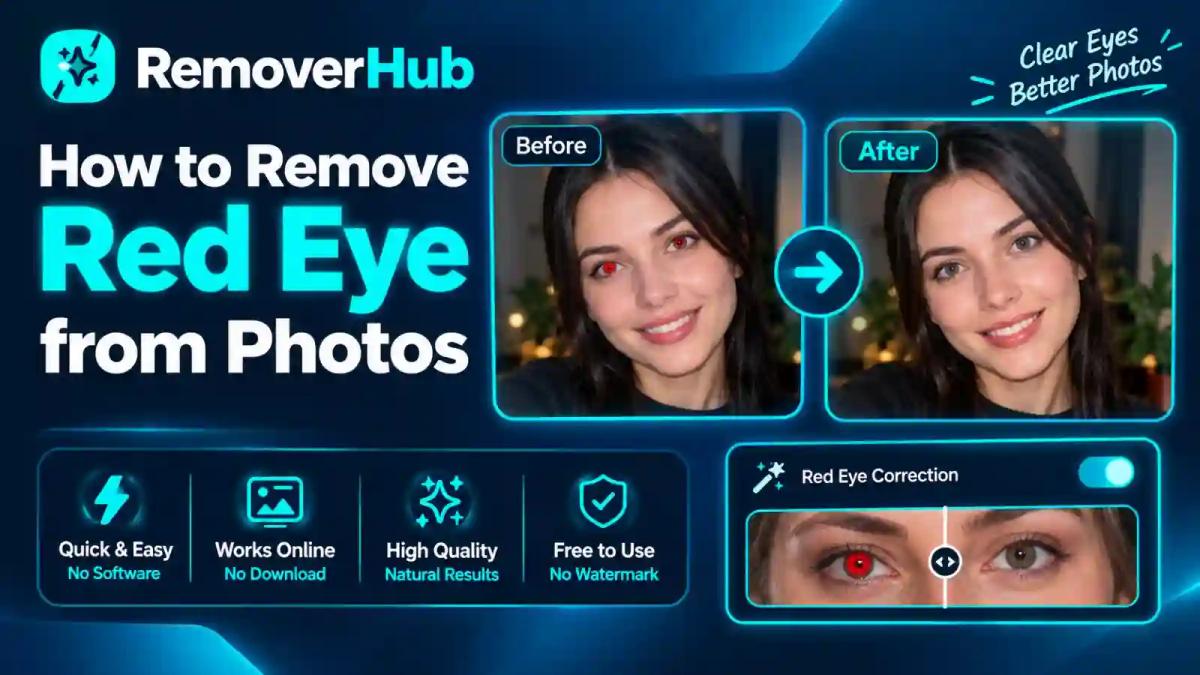
How to Remove Red Eye from Photos: Free Online Guide
You finally get a great shot of the family at dinner. Everyone is smiling and the moment feels right. Then you zoom in and every pupil glows bright red.
It's one of the oldest annoyances in photography, and it's also one of the easiest to fix. This guide shows you how to remove red eye from photos using free online tools, desktop software, and phone editors. You'll also learn why it happens, how to make the correction look natural, and how to stop it from happening again.
Last verified: October 23, 2026. Tool interfaces, supported devices, free-tier limits, and editing features change over time. Check each provider's official documentation for the latest instructions.
Quick Answer: How Do You Remove Red Eye from a Photo?
Open the photo in an editor with a red-eye tool. Zoom in on the eyes and click the red pupil, or drag a selection around it. Then adjust the pupil size and darkness until the pupil looks like a natural dark circle. Export the result as a copy so your original stays untouched.
Red eye appears when a camera flash reflects off the back of the eye in dim light. A correction tool finds the red pupil area and darkens or desaturates it. It leaves the surrounding iris, eyelashes, and skin alone.
That short answer covers most cases. The sections below cover the tricky ones: group photos, pets, scanned prints, and "why does this look fake?" problems.
What Is Red Eye in Photography?
Red eye (also called the red-eye effect or red pupil effect) is the red glow that sometimes appears in people's pupils in flash photographs. It looks like a defect in the image, but it's actually a real reflection of light from inside the eye.
The effect usually shows up when three things come together:
- The room is dim, so the subject's pupils are wide open.
- The flash sits very close to the camera lens, as it does on most compact cameras and phones.
- The subject is looking more or less straight at the camera.
Wikipedia's overview of the red-eye effect describes the same mechanism. Flash light enters the eye, bounces off the rear surface, and returns to the lens, which turns the pupil red in the picture.
Why Do Eyes Look Red in Photos?
The back of your eye (the retina) is full of blood vessels. When flash light passes through the pupil and hits that tissue, a reddish glow reflects back along the same path. If the flash is almost in line with the lens, that light goes straight into the camera.
In bright light your pupils shrink, so very little light gets in or out. In a dark room they dilate, and the reflection gets much stronger. That's why red eye is far more common at evening parties, restaurants, and indoor gatherings.
Why Does One Person Have Red Eyes and Another Doesn't?
It comes down to where each person was looking and how wide their pupils were. Someone glancing slightly away from the lens may avoid the reflection. A child whose pupils are wide open in a dark room is much more likely to show it.
Eye color has little effect on whether red eye appears. Lighting and the angle of the flash matter far more.
Why Fixing Red Eye Matters
Red eye is a small flaw, but it changes how a photo feels. Eyes are where viewers look first. A glowing red pupil pulls attention away from the person's expression and makes a warm moment look like a snapshot gone wrong.
Fixing it matters for a few practical reasons:
- Family photos last. Pictures from birthdays, weddings, and holidays get printed, framed, and shared for years.
- Profile and professional pictures. Even a faint red tint in the pupils can look careless on a profile photo.
- Old prints are often irreplaceable. Scans of older flash photos frequently have red-eye problems, and you can't retake them.
- It's quick. A good correction often takes less than a minute per eye.
Key Tools, Skills, and Benefits: What You Actually Need
You don't need professional training to fix red eye. Here is what actually matters.
The Tools
Most red-eye correction falls into four categories:
Online editors. Browser-based tools that need no installation. They're handy for a one-off fix on any device.
Built-in photo apps. Apple Photos on Mac, for example, includes a dedicated red-eye control.
Free desktop software. GIMP has a red-eye filter and costs nothing.
Professional software. Adobe Photoshop, Lightroom Classic, and Camera Raw have dedicated red-eye tools with fine controls.
The Skills
Four simple habits separate a natural-looking result from an obvious one:
- Zoom in. You can't correct what you can't see. Work at 100% or higher.
- Select only the pupil. Keep the correction off the eyelid, eyelashes, and skin.
- Preview before you commit. Toggle the edit on and off to compare.
- Save a copy. Never overwrite your only original file.
The Benefits
A clean correction brings back natural eye detail and keeps the rest of the photo as it was. You get a photo you can share or print without a distraction in the middle of someone's face. And you learn a skill that applies to many other small retouching jobs.
Step-by-Step: How to Remove Red Eye from Photos Online for Free
Online red-eye removers are the fastest option when you're away from your computer or just want to fix one picture. The details vary from tool to tool, but the workflow is almost always the same.
Step 1: Pick a Browser-Based Editor
Look for an editor that clearly says it handles red eye or has a dedicated eye-correction feature. Before you upload anything personal, check three things:
- Does it support your file type (JPG, PNG, HEIC)?
- Does it have free-tier limits on size, resolution, or number of edits?
- What does its privacy policy say about uploaded images?
Don't assume any online tool is completely free or limit-free. Confirm it on the provider's own pricing and feature pages.
Step 2: Upload Your Photo
Use the highest-quality version you have. A tiny, heavily compressed copy gives the tool much less pixel data to work with, and the result will look rougher. If your file is a screenshot or a social-media download, look for the original first.
Step 3: Let the Auto Detection Run
Many editors try to find red pupils automatically. This works best when the faces are large and the eyes face the camera. It works less well when faces are small, tilted, partly hidden, or in profile.
Step 4: Fix Anything the Tool Missed Manually
If a pupil is still red after the automatic pass, switch to manual mode. Zoom in, click the center of the red area, and adjust the size so the circle matches the pupil. Repeat for each eye.
Step 5: Check, Compare, and Export
Toggle between the original and the corrected version. Look for these problems:
- A pupil that looks flat, gray, or too black
- A dark patch that spills onto the iris
- A missing catchlight (the small bright reflection that makes eyes look alive)
Download the result as a new file and keep the original.
Quick privacy note: Check whether an online editor processes images in your browser or uploads them to a remote server, and how long it keeps them. The tool's privacy documentation should say so. For sensitive portraits, such as children's photos or ID pictures, use offline software instead.
How to Remove Red Eye in Photoshop, Lightroom, and Camera Raw
Adobe's tools give you the most control. They're paid products, but they're worth knowing about if you already have them.
Photoshop
In Photoshop, the Red Eye tool sits in the same group as the Spot Healing Brush. Press and hold that tool in the toolbar to reveal it. Then:
Zoom in on the eye.
Select the Red Eye tool.
Click the red area, or drag a box around the pupil.
Adjust Pupil Size and Darken Amount in the options bar if the first attempt looks off.
Pupil Size controls how large an area is corrected. Darken Amount controls how dark the corrected pupil becomes. If the correction spills past the pupil, lower the Pupil Size. If the pupil is still too red or too light, raise the Darken Amount a little at a time.
Lightroom Classic
Lightroom Classic includes a Red Eye Correction tool in the Develop module. According to Adobe's red-eye removal guide for Lightroom Classic, you choose Red Eye or Pet Eye, drag out a circle that covers the whole eye, and then fine-tune the pupil size and darkness with sliders. Lightroom Classic copies the tool size from the first eye to the next, which saves time.
Adobe Camera Raw
For RAW workflows, Adobe's Camera Raw red-eye documentation explains how to drag a selection around the affected eye, then adjust the Pupil Size slider (the default is 50) and the Darken slider for human eyes. For pet photos, Camera Raw also offers an Add Catchlight option.
Why This Matters for Quality
These tools work on a localized area rather than the whole image. That means the rest of the photo isn't touched. If you're working in a RAW or layered, non-destructive workflow, you can usually go back and change the correction later.
How to Remove Red Eye on a Mac with Apple Photos
You don't need to buy anything extra on a Mac. The built-in Photos app has a red-eye control.
According to Apple's instructions for removing red-eye in Photos on Mac:
Open Photos and double-click the picture.
Click Edit in the toolbar, then Adjust, then Red-Eye.
Click Auto and let Photos remove any red-eye it detects.
If red still shows, drag the Size slider until the circle matches the red area in each eye.
Click each red pupil.
Apple also notes a limitation. The red-eye tool doesn't work on animal eyes that show the flash in a different color, such as green or yellow. The steps apply specifically to Photos on Mac, and menu names can differ between macOS versions.
What About iPhone and iPad?
The Photos app on iPhone has historically offered a red-eye option for flash photos in its edit screen, but the exact controls depend on your iOS version and the photo itself. Open the picture, tap Edit, and look for a red-eye icon near the top. If you don't see one, the app may not have detected flash, or your version may not include it. In that case, use a different app or fix the photo on a computer.
How to Remove Red Eye in GIMP (Free Desktop Software)
GIMP is a free, open-source editor that works on Windows, Mac, and Linux. It's a solid choice when you want desktop-level control without paying for software.
GIMP's official Red Eye Removal documentation explains the process. You select the area around the red pupils first, then apply the filter.
Open your picture in GIMP.
Zoom in on the eyes.
Use the Ellipse Select or Free Select tool to draw around the eye, covering the iris and the red pupil.
Go to Filters → Enhance → Red Eye Removal.
Move the Threshold slider while watching the preview. A higher threshold removes more red; lower leaves more.
Click OK, then repeat for the other eye.
The documentation notes that making a manual selection can improve results. If you apply the filter to the whole image without selecting anything, GIMP may alter other red areas, such as lips, clothing, or skin tones.
Menu paths can vary between GIMP versions, so check the documentation for the version you're running.
How to Fix Red Eye in Google Photos and on Android
Android phones vary a lot in which editing tools they include. Many Android gallery apps have their own red-eye option, and Google Photos has added more touch-up tools over time.
Be careful with claims here. Google's recent photo-editing announcements describe touch-up features, but they don't necessarily describe a dedicated red-eye button. Check the current Google Photos editor on your own device to see what's offered, and confirm availability and supported devices from Google's official product pages.
A practical approach on Android:
Open the photo in your gallery app or Google Photos and tap Edit.
Look for an eye, face, or "fix" tool.
If none is offered, try a different editor app or use a browser-based tool.
If the photo is important, transfer it to a computer and use desktop software.
Online vs. Desktop vs. Mobile: A Fair Comparison
| Option | Best For | Main Limitation |
|---|---|---|
| Online red-eye remover | One-off fixes, no installation | Privacy, file limits, quality varies |
| Apple Photos (Mac) | Mac users, quick automatic fixes | Mac only; not for animal eyes |
| GIMP | Free, manual control | Steeper learning curve |
| Phone editor apps | Quick fixes on the go | Controls vary by app and device |
There isn't one best tool. Match the tool to the job.
- One photo, no installation: an online editor.
- A batch of family photos on a Mac: Apple Photos.
- A tricky shot that needs precision: Photoshop, Lightroom, or GIMP.
- A quick share from your phone: your phone's built-in editor.
How to Make Red-Eye Correction Look Natural
A bad correction is almost worse than the original problem. The pupil looks flat, gray, or cartoonishly black. These habits prevent that.
Keep the Catchlight
A catchlight is the tiny bright highlight in the eye. It makes eyes look alive. Some aggressive tools darken it along with the red. If the eye looks dead after correction, undo and reduce the strength.
Don't Over-Darken
Real pupils aren't perfectly black in most photos. A slight dark brown or very dark gray often looks more believable than pure black. If your tool has a darkness slider, stop one notch earlier than you think you need.
Match the Pupil Size to the Lighting
In a dim room, pupils are large. In brighter light, they're small. If your corrected pupil is much larger or smaller than it should be for the scene, it will look odd.
Fix Both Eyes the Same Way
If one eye is darker or bigger than the other, people notice. Apply the same settings to both, then compare.
Check at Normal Size
Zoom in to edit, then zoom out to 100% or smaller to judge. An edit that looks fine at 400% can look strange at normal size, and vice versa.
What About the Difference from Changing Eye Color?
Red-eye removal fixes an unwanted flash reflection. It doesn't change the person's natural eye color. Eye-color replacement is a different task with different tools and different goals. Don't use one when you need the other.
Common Problems and How to Fix Them
The Pupil Looks Too Dark or Flat
Lower the darkness amount. Try a slightly smaller correction area, and check that the catchlight survived. If you used a selection, feather the edges a little so the transition looks softer.
The Correction Spilled onto the Iris or Skin
Your selection or pupil-size setting is too large. Undo, shrink it, and redo. In GIMP, reselect more carefully around the iris before applying the filter.
The Tool Didn't Detect the Eyes
Auto-detection can fail when the face is small, turned away, or partly covered by hair or glasses. Switch to manual selection, and zoom in as far as you can.
One Eye Is Red and the Other Isn't
This is common. It happens when one eye is lined up with the flash and the other isn't. Fix only the red one so you don't change a natural-looking eye.
The Eye Looks Orange, Yellow, or White Instead of Red
Heavy flash glare can wash the pupil out to a pale or orange color rather than a clean red. A standard red-eye tool may not catch it. You may need to select the pupil manually and darken it with a selective-color, brush, or burn tool. Results depend on how much detail survived in the original.
Very Small or Low-Resolution Faces
If the pupils are only a few pixels wide, there's little to work with. Zoom in, use a small precise brush or the smallest correction circle, and accept that some pictures can't be made perfect. Avoid promising yourself flawless results here.
If a photo is also soft or blurry, you might try sharpening it afterward. RemoverHub's guide to sharpening images online walks through that process, and this walkthrough on fixing an out-of-focus picture covers the harder cases.
How to Fix Red Eye in Special Situations
Group Photos
Group photos often show more red eye because one flash hits many pairs of eyes at once in dim rooms. Work through the faces one at a time:
Run the automatic correction first.
Zoom in and check every face for missed eyes.
Fix leftovers manually.
Compare the final result at normal size.
For a large group, it helps to work left to right, row by row, so you don't skip anyone.
If you also need to take someone out of the frame, this guide on removing multiple people from a photo may help.
Pet Photos
Animal eyes behave differently. Instead of red, a pet's eyes often glow green, yellow, or blue. That's because many animals have a reflective layer behind the retina. Apple notes that its Mac red-eye tool doesn't work on animal eyes showing green or yellow flash colors.
For pets, look for a tool with a dedicated "pet eye" option, such as the one in Lightroom Classic and Camera Raw. Otherwise, you can darken the pupil manually with a brush set to a low opacity, and add a small catchlight if the eye looks flat.
Old Prints and Scanned Photographs
Scanned prints often have extra issues beyond red eye: fading, dust, color casts, and sometimes a printed date stamp. A good order of work:
Scan at a high resolution (the higher the scan, the more detail you'll have to correct).
Fix color fading and dust first.
Correct red eye last, once the colors look right.
Save a master copy before further edits.
If your old photo also has an orange date stamp in the corner, RemoverHub's guide on removing date stamps from old photos and its Date Stamp Remover tool are worth a look. And if scanning has left the image looking soft, this guide to enhancing image quality covers practical next steps.
Several Photos at Once
Fixing many photos one by one is slow. Apple Photos, Lightroom Classic, and some other editors let you copy a set of edits to other pictures. But red eye is a location-specific fix, because every face sits in a different place. So treat batch correction with caution. Run automatic detection across the set, then inspect each image yourself.
Don't assume any editor supports batch red-eye correction, RAW files, HEIC images, or automatic pupil detection. Test with a few photos first.
Photos Taken on a Phone
Phones usually have a small flash very close to the lens, so red eye is common in dim rooms. Many phones now reduce it automatically during processing. When it still slips through, use your phone's editor, a dedicated app, or an online tool.
Real-World Examples: Before and After
Examples help, so here are three common scenarios and what usually works.
Example 1: The Birthday Dinner
Situation: A phone photo of six people at a restaurant table. Four people have red pupils. Two have normal eyes.
What works: Run the automatic correction, then zoom in on each face. The auto tool typically catches the people facing the camera. You fix the two missed eyes manually with a small correction circle. Compare before and after at normal size.
Result to expect: Natural pupils for everyone, with the catchlights still visible. The people who didn't have red eye are left alone.
Example 2: The Scanned Wedding Print
Situation: A 30-year-old flash photo, scanned at 600 dpi. The pupils are red-orange, and the whole photo has a warm color cast.
What works: Correct the color cast first so the pupils sit on a neutral baseline. Then use a manual selection around each pupil and a low darkness setting. Add a tiny catchlight if the print lost it.
Result to expect: A believable pupil, though some old prints can't be restored to perfection.
Example 3: The Dog in the Living Room
Situation: A phone photo of a dog with glowing green eyes.
What works: A conventional red-eye tool does nothing, because there's no red to find. Use a pet-eye option if your editor has one. If not, select each pupil and darken it by hand, keeping some highlight.
Result to expect: Dark, natural-looking pupils. Check both eyes match.
How to Prevent Red Eye Before You Take the Photo
Editing fixes red eye after the fact. A few habits stop it from showing up in the first place.
Quick Prevention Checklist
- Turn on more light. Brighter rooms mean smaller pupils and weaker reflections.
- Use red-eye reduction mode if your camera has it. It fires a pre-flash so pupils contract before the main exposure. Settings vary by camera model, so check your manual rather than assuming all cameras behave the same way.
- Move the flash away from the lens. An external flash held off to the side reduces the chance of a direct reflection.
- Bounce the flash. Aim it at a white ceiling or wall so the light reaches the subject indirectly.
- Ask people to look slightly off-lens. Even a small angle change helps, though it isn't always practical.
- Skip the flash when you can. Many modern phones and cameras handle low light well enough without it.
Cambridge in Colour's camera flash tutorial is a helpful, readable explanation of flash behavior and ways to reduce its side effects.
Flash Prevention vs. Editing After the Fact
Prevention is better if you can control the setup. But it isn't always possible, and pre-flash can make people blink or look away. Editing is a reliable safety net. For most people, the best plan is both: try to avoid it, and fix it if it still happens.
Is Red-Eye Removal Safe for Private Photos?
Red-eye removal itself is harmless to your picture, as long as you work on a copy. The real question is where your file goes.
Before using an online editor, consider:
- Is the photo processed locally or uploaded? Some tools work in your browser. Others send files to a server.
- How long is it kept? Look for a clear retention policy.
- Is the photo sensitive? Children's pictures, ID photos, and private portraits deserve extra care.
If privacy is a concern, use offline software such as Apple Photos, GIMP, or Adobe's desktop apps. For any online tool, read its privacy documentation, and don't rely on a guess.
RemoverHub explains how it handles information on its Privacy page, and you can reach the team through the Contact page if you have questions.
Why Choose RemoverHub for Your Other Photo Fixes
Red eye is one flaw among many. Once you've fixed it, you may notice other things that need attention: a soft focus, an unwanted shadow, a distracting object, or a cluttered background.
Why choose RemoverHub? It's built around focused, single-purpose image tools that aim to be quick to use. The full tools library includes options for:
- Sharpening soft photos after a red-eye fix
- Reducing blur in a shaky shot
- Softening or removing harsh shadows, which are common in flash photography
- Removing unwanted objects from the background
- Removing backgrounds when you need a clean cutout
To be clear about scope: this article teaches red-eye correction using the tools described above. RemoverHub's current tool list focuses on the related fixes listed here. Check the tools page for what's currently available.
Flash photos often have shadow problems along with red eye, since the same on-camera flash creates both. If your picture has a hard shadow behind the subject, this guide on removing shadows from photos is a useful next step.
You can also explore advanced RemoverHub guides on image quality, formats, and cleanup.
How to Learn Photo Retouching: Free and Paid Resources
Red-eye correction is a good first retouching skill because the results are easy to judge. If you want to go further, here's a sensible path.
Free Ways to Learn
- Official documentation. Adobe's help pages, Apple's Photos guide, and GIMP's manual are accurate and kept up to date.
- Photography education sites. Cambridge in Colour explains the science behind exposure, flash, and color.
- Practice on your own photos. Pick five old flash pictures and correct them. Compare your first and fifth attempts.
- Practical image guides. How to upscale an image without losing quality and JPEG vs. PNG: an image format guide cover foundations that make every later edit easier.
Paid Ways to Learn
- Video courses on Photoshop, Lightroom, or general photo editing from reputable course platforms.
- Software subscriptions that include built-in tutorials and learning hubs.
- Workshops if you prefer hands-on guidance.
You don't need to pay to fix red eye well. Paid options help if you want to move into portrait retouching or professional work.
What About a Career in Photo Retouching?
If you enjoy this kind of work, it can become a profession. Photo retouchers work in wedding photography, e-commerce, portrait studios, and publishing. Demand and pay vary widely by country, specialty, and experience, so research current job listings in your own region instead of relying on a single figure.
AI-assisted editing is changing the work. Routine fixes like red eye and blemish cleanup are increasingly automated. That makes judgment more valuable: knowing when a correction looks natural, when to leave something alone, and how to match a client's taste.
For most readers, though, this is a practical life skill rather than a career. Knowing how to fix a red-eye photo lets you rescue memories without hiring anyone.
Frequently Asked Questions
Why do eyes look red in photos?
Flash light enters the eye in dim conditions and reflects off the blood-rich retina at the back. The light bounces back into the camera lens and records as a red pupil. It's most common when the flash is close to the lens and the subject's pupils are wide open.
How can I remove red eye from a photo for free?
Use a free online editor, the red-eye tool in Apple Photos on Mac, or GIMP's Red Eye Removal filter. Zoom in, select the red pupil, and adjust the correction until it looks natural. Save the result as a new file.
Can I fix red eyes without downloading software?
Yes. Browser-based editors can correct red eye without any installation. Before uploading private photos, check the tool's privacy policy to see how it handles your images.
Does Photoshop have a dedicated red-eye tool?
Yes. Photoshop includes a Red Eye tool, grouped with the Spot Healing Brush, with Pupil Size and Darken Amount controls. Lightroom Classic and Adobe Camera Raw also have red-eye correction options.
Why does red-eye correction sometimes look unnatural?
Usually the pupil was darkened too much, the correction spilled onto the iris, or the catchlight was lost. Use a lower darkness setting, keep your selection tight, and compare at normal size.
Does red-eye removal work on animal photos?
Not always. Pets often show green, yellow, or blue eye-shine rather than red. Apple states its Mac red-eye tool doesn't work on animal eyes with those colors. Use a pet-eye option, such as those in Lightroom Classic and Camera Raw, or darken the pupils manually.
Can red-eye correction damage the original photo?
Not if you save the edit as a copy. Keep your original untouched and export the corrected version under a new name.
How can I prevent red eyes when taking pictures?
Raise the room's light level, use your camera's red-eye reduction mode if available, move or bounce the flash, or avoid flash altogether. Camera options vary by model, so check your manual.
Final Takeaways and Next Steps
Red eye looks like a serious flaw, but the fix is simple once you know the process. Here's the short version:
- Red eye is a flash reflection from the retina, mostly in dim light with a close-to-lens flash.
- Zoom in, select only the pupil, and correct it gently.
- Keep the catchlight and don't over-darken.
- Work on a copy of your photo, never your only original.
- Handle pets, old prints, and group photos with a little extra care.
- Check an online editor's privacy policy before uploading private pictures.
- Prevent red eye when you can, and fix it when you can't.
Your next step: pick one flash photo with red eyes and try the correction using whichever tool is easiest for you today. Then clean up the rest of the image. Sharpen it, soften the shadows, or tidy the background.
Ready to go further? Browse the free image tools at RemoverHub.