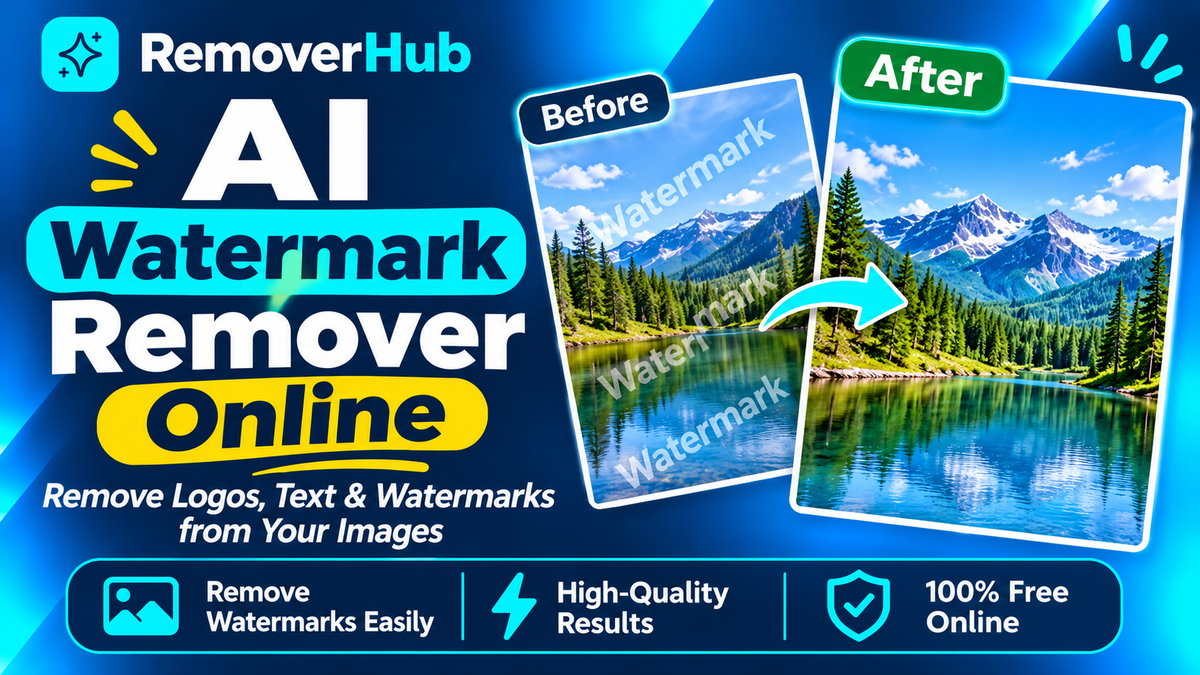
AI Watermark Remover Online
An AI watermark remover is a tool that detects a visible mark on an image, such as a logo, text overlay or date stamp, and rebuilds the pixels underneath so the picture looks clean. Upload your image, mark the area, let the AI fill it, then check the result at 100% before you download. Use it only on images you own or have the right to edit.
You exported a product photo with a draft logo still sitting in the corner. Or an AI-generated picture arrived with a label you do not want on your website. Or an old family photo carries a bright date stamp right across the sky.
Cropping solves some of these, but not when the mark sits in the middle. That is where an AI watermark remover earns its place.
This guide explains what these tools do, how the technology works, how to get clean results, and where the line sits between a normal edit and a copyright problem. You can try the removerhub watermark remover while you read.
What Is an AI Watermark Remover?
An AI watermark remover is software that uses computer vision and generative models to erase a visible overlay and reconstruct the background behind it. It does not simply blur the mark or paint over it. It predicts what the hidden area most likely looked like, based on the surrounding pixels, textures and edges.
The core technique is called image inpainting. You tell the tool which area to fix, and it fills that area with believable content.
You will see the same idea sold under other names: watermark eraser, image cleanup tool, logo remover, text remover, magic eraser. They overlap a lot. The differences are mostly in the interface and in which kind of mark the tool handles best.
The Four Things People Call a "Watermark"
This is the part most guides skip, and it matters. Four different technologies get lumped together.
Visible watermark
A logo, text or pattern placed on top of the image. You can see it. This is what an AI watermark remover is built to handle.
Invisible watermark
A hidden signal woven into the pixels, such as the kind used to label AI-generated media. You cannot see it, and an ordinary eraser does not touch it.
Copyright metadata
Information stored in the file, such as creator name and licence, using standards like EXIF, IPTC and XMP. It is data attached to the image, not part of the picture.
Content Credentials
A signed record of where an image came from and how it was edited, defined by the C2PA standard. It describes provenance and is not a visible overlay.
Our tool is designed for the first one: visible marks on your own images. Removing a visible logo does not change the other three, and we do not present it as a way to defeat provenance systems.
Why Visible Watermark Removal Matters (and When It Is Fine)
Most people searching for this are doing completely ordinary work. Common legitimate situations include:
- Cleaning your own photos after a design draft left a mark.
- Removing a date stamp from a scanned family photo.
- Taking a branded template overlay off an image you created.
- Cleaning product shots that came with a supplier logo you are licensed to remove.
- Removing a visible label from an AI-generated image you made, when the platform's terms allow it.
- Removing stray text, emoji or stickers from screenshots you own.
When You Should Not Do It
Removing a mark does not change who owns the picture. Do not use any tool to strip a photographer's or stock agency's watermark from an image you have not licensed. A watermark on a preview usually means "pay first," and removing it to avoid paying is infringement, not editing.
A simple rule works well: if you did not create it and do not hold a licence to edit it, do not remove the mark. We cover the legal side in more detail below.
How AI Watermark Removal Works
You do not need a computer science background to understand the process. Here is the practical version.
Step 1: The Tool Finds the Mark
Some tools ask you to brush over the mark. Others detect it automatically using object recognition and image segmentation, which split an image into regions such as sky, face, text and logo. Automatic detection is convenient, and manual selection is more precise when the mark is faint or oddly shaped.
Step 2: The Marked Pixels Become a Hole
The selected area is treated as missing information. Everything outside it becomes the context the AI studies: colors, gradients, edges, patterns and textures.
Step 3: The Model Fills the Hole
This is the inpainting step. Different model families approach it differently:
- Convolutional neural networks (CNNs): learn local patterns and continue them into the hole. They are fast and work well on simple backgrounds.
- GAN-based models: one network generates the fill and another judges how realistic it looks, which pushes results toward natural texture.
- Diffusion-based models: start from noise and refine the fill step by step. They handle complex scenes well and can invent convincing detail.
- Texture synthesis: copies and blends nearby texture so grass, wood grain or fabric continues naturally.
Step 4: Blending and Cleanup
The tool blends the new pixels into the original, matching brightness and color, and reduces edge artifacts so you do not see a visible patch. Good tools do this using context-aware filling, a concept familiar from Adobe's Content-Aware Fill.
Why Transparent Watermarks Are Harder
A solid logo hides pixels completely, so the AI rebuilds everything. A semi-transparent watermark does something sneakier: it blends with the image. The original detail is still partly there, mixed with the mark.
Rebuilding from a mixed signal can leave faint ghosting, especially on busy backgrounds. Large diagonal or repeating watermarks that cover the whole image are the hardest of all, because there is very little clean context left to learn from.
How to Remove a Watermark from an Image Online (Step by Step)
Here is a reliable workflow for most tools, including ours.
Confirm the image is yours or licensed for editing. This takes ten seconds and saves trouble later.
Use the best original you have. A heavily compressed copy from a messaging app has less detail to work with.
Open the tool. Go to the removerhub watermark remover or the image watermark remover and upload your JPG, PNG or WebP file.
Mark the area. Brush over the watermark. Cover it fully, with a small margin around the edges.
Run the removal. Wait a few seconds for the AI to process the area.
Zoom in to 100%. Check edges, textures and any leftover ghosting, not just the thumbnail.
Repeat for stubborn spots. Small, targeted passes often beat one giant selection.
Download. Choose PNG for further editing or a high-quality JPG for the web.
If the result looks smeared, undo and try again with a tighter selection. Fewer pixels to rebuild almost always means a cleaner fill.
How to Get Natural-Looking Results
These tips come from the kinds of problems that show up again and again.
Work in Small Sections
A long watermark across a face and a wall is two different problems. Remove it in pieces so the AI can match each region properly.
Protect Faces and Fine Detail
Do not brush over eyes, hands or text you want to keep unless you must. These are the places where AI guesses are most obvious. If a mark sits on a face, expect to retouch the result manually.
Choose the Right Background Situation
Plain backgrounds (sky, wall, studio backdrop)
Usually easy. The AI continues a smooth gradient or flat color with little visible change.
Textured backgrounds (grass, brick, fabric)
Moderate. Good tools copy and blend texture, but repeating patterns can look slightly off.
Complex scenes (crowds, foliage, busy streets)
Harder. Expect to do multiple passes and a quick manual check.
Edges and lines (building edges, horizons, fences)
Needs care. Straight lines can bend or break if the selection crosses them badly.
Fix the Image First if It Is Soft
If the picture is blurry, the fill may look sharper than its surroundings. Sharpen the whole image first with the image sharpener or follow our guide to fixing an out-of-focus picture.
Leave Sharpening for Last
Over-sharpening a patched area makes the repair stand out. Do any enhancement, resizing or upscaling in a sensible order. For enlargement, see how to upscale an image without losing quality.
What Types of Marks Can It Remove?
Different overlays need slightly different handling. Here is a quick map, with the removerhub tool that fits each one.
Text overlays and captions
Use the AI text remover. It is tuned for letters on varied backgrounds. See also removing text from images online.
Logos and brand marks
Use the logo remover for solid or semi-solid logos on your own assets.
Date stamps
Use the date stamp remover. Our guide on removing a date stamp from an old photo walks through it.
Stickers, emoji and small objects
Use the emoji remover or the AI object remover.
General watermarks
Use the watermark remover, which handles most visible overlays in one place.
Watermarks inside documents are a separate case. For PDFs, Word and Excel files, read about removing a watermark from a PDF and how to remove a watermark from any file.
AI Watermark Remover vs Manual Editing
People often ask whether they need Photoshop. Sometimes yes, often no.
AI watermark remover
Speed: seconds. Skill needed: almost none. Control: moderate. Cost: often free or low. Best for: quick cleanup, beginners, batches of simple images.
Photoshop Content-Aware Fill
Speed: a few minutes. Skill needed: some. Control: high. Cost: paid subscription. Best for: professional retouching and difficult scenes.
Clone Stamp or Healing Brush
Speed: slow. Skill needed: high. Control: maximum. Cost: needs an editor. Best for: fine, manual corrections where you want to choose every source pixel.
Cropping
Speed: instant. Skill needed: none. Control: none over content. Cost: free. Best for: marks sitting at the very edge, if you can afford to lose the area.
The best approach is often a combination. Let the AI do the heavy lifting, then fix small flaws by hand. For a closer look at the difference between AI and manual cloning, read AI object remover vs clone stamp. If you are deciding between apps and browser tools, see watermark eraser app vs browser tool.
Online Tool vs Desktop Software
An online tool needs no installation, works on any device and is quick for occasional jobs. Desktop software gives you more control and keeps files on your own machine, which matters for private work. Many people use both: an online tool for speed, desktop software for final polish.
Supported Formats and Resolution
Most AI watermark removers accept JPG/JPEG, PNG and WebP. Check the tool page for the current list, since formats and size limits can change.
Which Output Format Should You Choose?
PNG
Lossless and ideal when you will edit again or the image has sharp text or transparency. Files are larger.
JPG
Smaller files, good for photos on websites. Every save adds some compression, so export once at high quality.
WebP
Efficient for web use, often smaller than JPG at similar quality.
Our JPEG vs PNG guide explains the trade-offs in more depth.
Will It Work on High-Resolution Images?
Often yes, but it depends on the tool's limits and your device. Large images give the AI more context, which can improve results. They also take longer and may hit a size cap, so check the limits before you start.
Does Watermark Removal Reduce Image Quality?
The area you edit is rebuilt, so it will never be a bit-for-bit match to the original. A good result looks natural to the eye. A weak one shows smearing, color shifts or repeating texture.
Researchers measure this with metrics such as PSNR, SSIM, LPIPS and FID. Each captures something different:
- PSNR compares pixel differences.
- SSIM compares structure and contrast.
- LPIPS estimates how different two images look to a human.
- FID compares overall image statistics, mainly for generated images.
None of these alone proves an edit looks good. A blurry fill can score well on PSNR while looking worse to a person. Treat any claim of "zero quality loss" or "100% accuracy" with suspicion, including from tools. The honest test is simple: zoom in and look.
Real-World Examples
These are illustrative scenarios, not test results.
Example 1: A Seller's Product Photo
A small shop owner exports a product image from a design app and notices a draft logo near the corner. The background is a plain studio gradient, so one small brushed area clears it. Then they run the usual cleanup, such as making the background white and checking marketplace size rules in guides like Amazon product image requirements.
Example 2: A Scanned Family Photo
An old print has an orange date stamp over a field of grass. Because grass is a repeating texture, the AI handles it well in two small passes. The owner then follows a restoration workflow from how to restore old photos online.
Example 3: An AI-Generated Image with a Visible Label
A creator generates a picture on an AI platform and wants a clean version for their own website. They first check the platform's terms and whether it offers a clean download option. If the terms allow editing, they remove the visible label and keep a note of how the image was made. Our guide on removing watermarks from AI-generated images goes deeper, and there are platform-specific posts for Gemini and ChatGPT images.
Example 4: Regional Use
People search for this everywhere, from Pakistan, India and the UAE to the UK, USA and Canada. The jobs are usually the same: shop photos, social posts, old family prints and design drafts. The tool works the same way everywhere, but copyright rules differ by country, so the legal check below applies wherever you are.
Why Choose removerhub
If you are wondering why choose removerhub for image cleanup, it comes down to focus and connection. The site is built around single-purpose image tools: watermarks, text, logos, objects, backgrounds, blur and sharpening. They work together, so you can clean a mark, then fix the background or sharpen the image without switching sites.
You can also browse the full list in Explore Advanced removerhub tools. If you want to compare options before choosing, read our tested and ranked AI watermark removers and alternatives to Dewatermark.
Always check the tool page for current free limits, supported formats and file-size caps. Those details change, and the page is the accurate source.
Privacy and Image Security
Uploading a photo to any online tool is a trust decision. Before you upload something private, check:
- How long the tool stores your upload.
- Whether images are used to train models.
- Whether you can delete your file.
- Where the processing happens.
- What the privacy policy actually says, in plain language.
You can read how we handle data in the removerhub privacy policy and the terms of use. For ID documents, client work under NDA or sensitive family photos, a local desktop editor is the safer choice.
Copyright and Responsible Use
This section deserves your full attention, because the tool itself is neutral. What you do with it is what matters.
Removing a Mark Does Not Transfer Ownership
If you do not own an image or hold a licence to edit it, removing a watermark does not give you any rights to it. Stock agencies and photographers use visible marks on previews precisely so you will license the clean version.
What the Law Says, Simply
In the United States, 17 U.S.C. §1202 deals with removing or altering copyright management information under certain conditions, generally where it is done knowing it will induce, enable, facilitate or conceal infringement. That does not mean every watermark removal is automatically illegal, and it does not mean it is automatically fine. Context and intent matter, and laws differ by country.
For international background, see the WIPO copyright resources and the U.S. Copyright Office. If you are in Pakistan, check the Copyright Ordinance, 1962 and any later amendments, or ask a qualified lawyer, before relying on a general guide.
Safe Habits
- Edit only images you created, own or are licensed to modify.
- Keep proof of ownership or licence.
- Keep the original file.
- Respect platform terms when editing AI-generated images.
- When unsure, ask the rights holder or buy a licence.
A Note on Metadata, Provenance and Invisible Marks
Standards like C2PA Content Credentials and the IPTC Photo Metadata Standard exist to record who made an image and how it was changed. Google also documents how image licence metadata can be shown in search. Invisible watermarking systems such as SynthID work differently from visible overlays.
A visible-mark remover does not claim to remove any of these, and we do not recommend trying to bypass them. If you publish edited images, being transparent about how they were made builds trust.
Common Mistakes to Avoid
Brushing too much area. The bigger the hole, the more the AI must invent.
Judging at thumbnail size. Always check at 100%.
Using a low-quality copy. Find the original.
Skipping the second pass. One small leftover ghost can ruin a clean result.
Over-sharpening afterward. It exposes the repair.
Overwriting the original. Always keep an untouched copy.
Ignoring rights. Check ownership before you edit, not after.
Expecting magic on transparent, full-image patterns. Some marks need manual work.
Future Trends in AI Image Cleanup
Expect better handling of semi-transparent and repeating marks, tighter control over faces and text, and more tools that give you a before/after slider by default. Expect more provenance labeling too, as AI editing becomes routine.
For you, the practical takeaway stays stable: start with a legitimate image, work in small steps, zoom in, and keep your original.
Frequently Asked Questions
What is an AI watermark remover?
An AI watermark remover is a tool that detects a visible mark on an image and rebuilds the area behind it using machine learning. It is designed for visible overlays such as logos, text and date stamps on images you own or may edit.
How does an AI watermark remover work?
You select the marked area, and the AI treats it as missing information. It studies the surrounding colors, textures and edges, fills the area with predicted pixels, and blends the result into the original.
Can AI remove watermarks from images?
AI can remove many visible watermarks, especially on simple backgrounds. Complex, transparent or full-image patterns are harder and may need several passes or manual retouching.
Is there a free AI watermark remover online?
Several tools offer free use with limits on file size, daily uses or output quality. Check each tool's page for its current limits, including ours.
How can I remove a watermark without Photoshop?
Use a browser-based AI tool such as the removerhub watermark remover. Upload your image, brush over the mark, run the removal, and download the result. No software installation is needed.
Does removing a watermark reduce image quality?
The edited area is rebuilt, so it is not identical to the original. A good tool produces a natural-looking result, but you should always zoom in to check for smearing or color shifts.
Can AI remove transparent watermarks?
Often, but it is harder than removing solid logos. Semi-transparent marks blend with the image, which can leave faint ghosting on detailed backgrounds.
Can I remove a logo from my own picture?
Yes. If you created the image or hold the right to edit it, removing your own logo or a draft overlay is a normal edit.
Is removing a copyright watermark legal?
It depends on who owns the image, why you remove the mark and where you live. In the U.S., 17 U.S.C. §1202 covers removing copyright management information under certain conditions. Do not remove marks from images you have no right to edit, and ask a lawyer if you are unsure.
Does an AI watermark remover support PNG and JPG files?
Most tools support JPG, PNG and WebP. Check the tool page for the current list and size limits.
Is an online watermark remover safe to use?
It depends on the provider. Read the privacy policy for storage, deletion and training use. For highly private images, use a local desktop editor instead.
Does an AI watermark remover store uploaded images?
Policies vary by tool. Check how long files are kept and whether you can delete them before uploading anything sensitive.
What is the difference between watermark removal and object removal?
Watermark removal targets overlays added on top of an image, such as logos and text. Object removal removes things that were physically in the scene, such as a bin or a stranger. Both use inpainting, so the tools overlap. See how to remove an object from a photo.
Can I use edited images for commercial purposes?
Only if you own the image or your licence allows commercial use and editing. Removing a mark does not change the licence terms.
Conclusion:
An AI watermark remover is a handy shortcut for cleaning your own images, as long as you use it responsibly and check the result with your own eyes. The pattern is simple: confirm you have the right to edit, start from the best file, remove marks in small sections, zoom in, and keep your original.
Here is your action plan:
Pick one image you own that has a visible mark.
Try the removerhub watermark remover and compare the result at 100%.
Fix leftovers with a second pass, then sharpen or upscale only if needed.
For related jobs, explore advanced removerhub tools for text, logo, object and background cleanup.