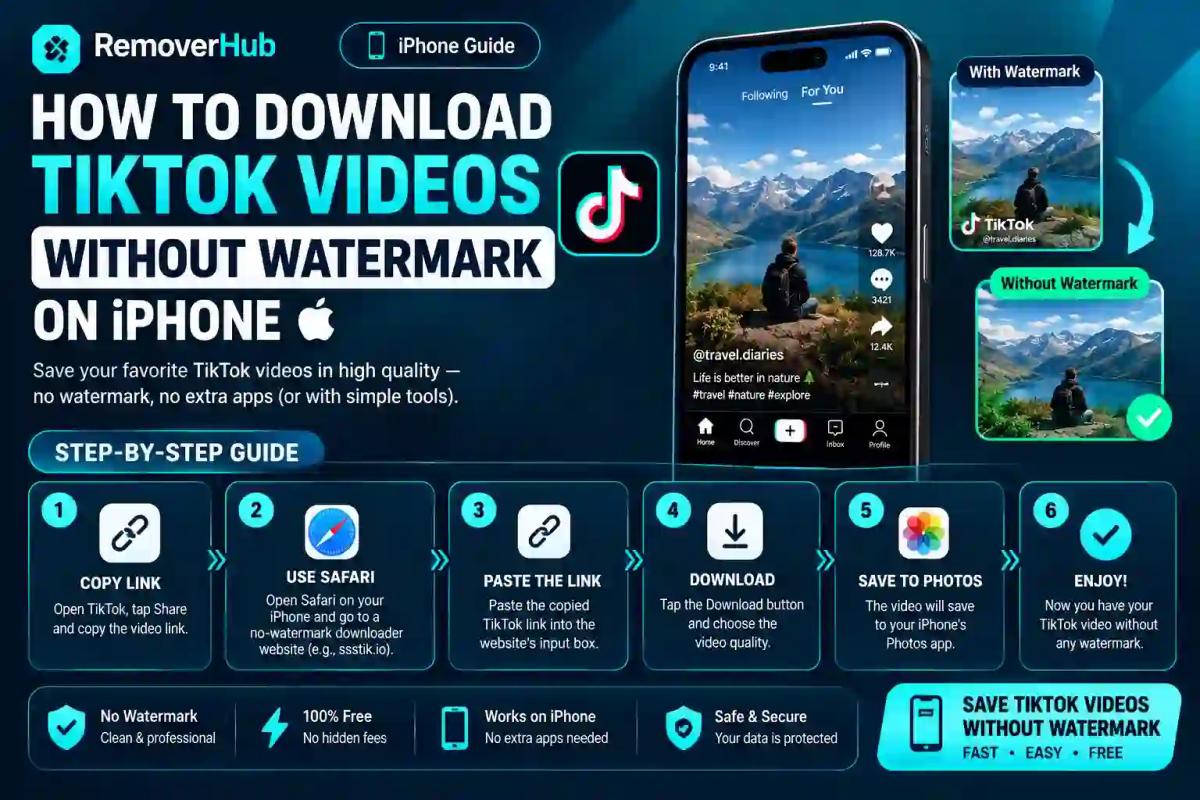
How to Download TikTok Videos Without Watermark on iPhone
That bouncing TikTok logo in the corner of every saved video is one of the most annoying parts of trying to reuse content you actually have the right to use. Whether you're saving your own videos to repost elsewhere, keeping a clean copy of something for offline viewing, or archiving a client's content for a project, the built-in "Save Video" button almost always leaves the watermark stamped right on top.
The good news is there are several genuinely reliable ways to get a clean copy on an iPhone — some built entirely into iOS, others using web-based tools. This guide walks through each method step by step, explains why some videos won't download no matter what you try, and flags exactly where the legal and safety lines sit so you're not taking unnecessary risks with your device or someone else's content.
Why TikTok Adds a Watermark in the First Place
TikTok's watermark isn't a random branding decision — it's baked into the video file the moment you tap "Save Video" inside the app. The logo and username overlay are added specifically because TikTok wants any video shared outside the app to be traceable back to its source and back to the platform itself.
There's also a permissions layer most people don't realize exists. TikTok explicitly ties download availability to whether the original creator has enabled downloads for their content. If a creator has restricted downloads in their privacy settings, you won't get a "Save Video" option at all, watermarked or not, no matter which method you try afterward.
This matters practically: if you're trying to download a video and nothing works, it's often not a bug or a limitation of your iPhone — it's simply that the creator turned that feature off.
Method 1: The Live Photo Trick (No Third-Party App Needed)
This is the most iPhone-native way to get a watermark-free TikTok video, and it doesn't involve pasting a link into any external website. Instead of using TikTok's "Save Video" option, you use the iOS Live Photo capability to capture the video without the overlay attaching to the file.
Here's how it works in practice:
Open TikTok and find the video you want to save.
Instead of tapping the standard save option, use your iPhone's screen-recording or Live Photo capture functionality while the video plays (specific steps vary slightly by iOS version and video type).
Once captured as a Live Photo, open it in your Photos app.
Convert the Live Photo into a standard video clip.
Trim the very start and end of the clip, since a short crop is usually needed to remove any residual overlay frames.
The trade-off is that this method requires a quick manual trim at the end, and the resulting video quality depends on your screen resolution rather than TikTok's original source file. But it's reliable, doesn't depend on a third-party website staying online, and doesn't require pasting a video link into an unfamiliar domain.
Method 2: Using a Web-Based TikTok Downloader (Safari)
For most people, this is the fastest and most consistent method, and it works entirely through Safari without installing any app.
Step-by-step:
Open the TikTok app or tiktok.com and locate the video you want to download.
Tap the Share icon (usually on the right side of the screen) and select Copy Link.
Open Safari and go to a reputable TikTok video downloader website.
Tap and hold the input box, choose Paste, then tap the download or search button.
Once the site processes the link, look for a download option labeled something like "Without Watermark" or "HD MP4."
Safari will show a system prompt asking whether you want to download the file — tap Download.
Once the download finishes, tap the download icon in Safari's toolbar, open the file, tap the Share icon, and select Save Video.
That last step matters more than people expect. On iPhone, downloaded files often land in your Files app first, not directly in Photos — the extra share-and-save step is what actually moves the clean video into your Camera Roll.
Method 3: Copy Link and Paste Into a Downloader App
Some tools work as dedicated apps rather than websites, but the workflow is nearly identical to the Safari method above: copy the TikTok video's link from the Share menu, open the downloader app, paste the link, and select the no-watermark or HD download option.
Whether you use a website or an app comes down to personal preference more than functionality. Websites don't require any installation or storage space, while apps sometimes offer slightly faster repeat use if you're downloading multiple videos in one sitting.
What About Downloading TikTok Slideshows?
TikTok slideshows (image-based posts with background music) work slightly differently from standard videos. Most downloader tools that support slideshow content will automatically merge the images and audio into a single MP4 file during the download process, rather than giving you separate image files. If a downloader site specifically mentions "photo slideshow" support, that's a sign it handles this format correctly — not every tool does.
Why Some TikTok Videos Won't Download At All
If you've tried multiple methods and a specific video simply won't save, the most common explanation isn't a technical glitch — it's that the creator has disabled downloads in their account privacy settings. TikTok gives creators direct control over whether their content can be saved by other users, watermarked or otherwise.
A few other reasons a download might fail:
- Region restrictions — some content isn't available for download or even viewing outside certain countries due to licensing or platform-level restrictions.
- Outdated iOS version — very old iOS versions have had compatibility issues with Safari's download handling for TikTok links.
- Temporary site downtime — third-party downloader websites come and go, and a site that worked last month may be down or blocked today.
If a video consistently won't download through any legitimate method, that's usually your answer that the creator hasn't enabled that permission — and it's worth respecting that setting rather than searching for workarounds.
Is It Legal to Download TikTok Videos Without Permission?
This is worth addressing directly rather than glossing over. Downloading a TikTok video, even without the watermark, doesn't change who owns the underlying content. The creator retains rights to their video regardless of whether you save a clean copy or a watermarked one.
Using a downloaded video for personal, offline viewing is generally low-risk. Reposting someone else's content as your own, monetizing it, or removing attribution crosses into copyright and platform-terms territory that can lead to takedowns or account issues, regardless of which app or website you used to get the file. If you plan to reuse a video for anything public-facing — a repost, a compilation, a marketing clip — get explicit permission from the creator first, or stick to your own original content.
Third-party downloader websites also aren't affiliated with TikTok in any official capacity. They operate independently, which means their reliability, ad practices, and data handling vary from site to site — treat unfamiliar downloader domains with the same caution you'd use for any third-party tool that asks you to paste a link and hands back a file.
Comparing the Methods: Which One Should You Actually Use?
| Method | Best For | Requires Third-Party Site | Watermark-Free | Extra Step Needed |
|---|---|---|---|---|
| Live Photo trick | Privacy-conscious users, no external tools | No | No | Manual trim of clip start/end |
| Web-based downloader (Safari) | Fastest, most consistent results | Yes | Yes | Save from Files app to Photos |
| Downloader app | Repeated downloads in one session | Yes (app-based) | Yes | Same copy-link workflow |
If you'd rather avoid third-party websites entirely, the Live Photo method is the more self-contained option, even though it takes a bit more manual work. If speed and simplicity matter more, a reputable web-based downloader gets you a clean file in under a minute.
What If the Watermark Still Shows Up After Downloading?
Occasionally, a downloaded file still shows a small watermark or username overlay even after using a "no watermark" option. This usually happens for one of two reasons: the source video already had a watermark baked into it before TikTok's own overlay was added (common with reposted or duetted content), or the downloader tool only removes TikTok's platform-level overlay, not one the original creator embedded manually using an editing app.
In that second case, no downloader can strip an embedded overlay without actually editing the video pixel by pixel — which is a different task from simply saving a "clean" TikTok copy. If you're dealing with a stubborn embedded watermark or logo that a standard downloader can't touch, a dedicated watermark remover tool is built specifically for that job, since it works directly on the video content rather than relying on TikTok's download permissions.
Beyond TikTok: Handling Watermarks on Other Platforms and File Types
If you're regularly dealing with watermarked content — not just from TikTok, but from stock footage, old scanned documents, or other social platforms — it's worth knowing that the same underlying problem shows up in a lot of different contexts, and the right tool depends on the file type.
For Instagram content specifically, the overlay behaves differently from TikTok's, and our guide on how to remove an Instagram watermark from a Reel walks through that platform's particular quirks. If you're working with video generated through newer AI tools, we've also covered watermark handling for Sora 2 and Veo 3 outputs, since those carry their own distinct overlay formats.
If your watermark problem isn't video at all, the fix looks different. A logo remover is built for still images, while document-based watermarks need a completely different approach — see our guides on how to remove a watermark from a PDF, remove a watermark in Word, or remove a watermark in Excel if you're dealing with office files rather than video.
For CapCut-exported clips specifically, which carry their own distinct watermark placement, our dedicated guide on removing a CapCut watermark covers that workflow directly. And if you're weighing whether a browser-based tool or a downloaded app makes more sense for your workflow, our comparison of a watermark eraser app versus a browser tool breaks down the trade-offs in more depth than we can cover here.
A Quick Real-World Example
Say you're a small business owner who filmed a product demo on TikTok, and the video performed well. You want to repost that same clip to Instagram and your website, but the only copy you have saved carries the TikTok logo and your handle stamped across the bottom third of the frame — which looks unpolished on a different platform.
Since it's your own content, downloading a clean copy through the Live Photo method or a downloader site is the straightforward first step. But if the resulting file still shows a faint watermark artifact after cropping — which happens more often than people expect with lower-resolution recaptures — running it through a proper AI watermark and background blur remover gets you a genuinely clean, reusable file rather than one with a barely-visible ghost logo still sitting in the corner.
Frequently Asked Questions
How do I download TikTok videos without a watermark on iPhone? The two most reliable methods are the native Live Photo trick, which captures the video without TikTok's overlay attaching, and web-based downloader tools accessed through Safari, where you paste the video's copied link and select a "without watermark" download option.
Why does TikTok add a watermark when I save a video? TikTok embeds the watermark to keep videos traceable back to the platform and the original creator whenever content is shared or reused outside the app, and it's added automatically through the standard "Save Video" feature.
Is there a built-in way to download TikTok videos without watermark? Yes — the Live Photo method uses only native iOS functionality, requiring a short manual trim afterward rather than any third-party app or website.
Is it legal to download TikTok videos without the creator's permission? Downloading for personal, offline viewing is generally low-risk, but reposting someone else's content publicly without permission can violate copyright and TikTok's own terms of service, regardless of which download method you used.
Why can't I download some TikTok videos at all? This almost always comes down to the creator having disabled downloads in their privacy settings — TikTok gives creators direct control over whether their videos can be saved by other users.
How do I download a TikTok slideshow without a watermark? Downloader tools that specifically support slideshow content will merge the images and background audio into one MP4 file during download; check that a tool explicitly mentions slideshow support before assuming it works the same as a standard video download.
The Bottom Line
Getting a clean, watermark-free TikTok video on iPhone doesn't require anything complicated — the native Live Photo trick works without installing anything, and a reputable web-based downloader gets the job done in under a minute when you'd rather skip the manual trimming step. The one thing worth keeping in mind regardless of method: if a video won't download no matter what you try, that's almost always the creator's own privacy setting at work, not a flaw in your approach.
If you end up with a video that still shows a stubborn overlay after downloading — whether it's a leftover TikTok logo, a CapCut watermark, or branding from another editing tool — run it through our watermark remover to get a genuinely clean file ready for wherever you're posting it next.