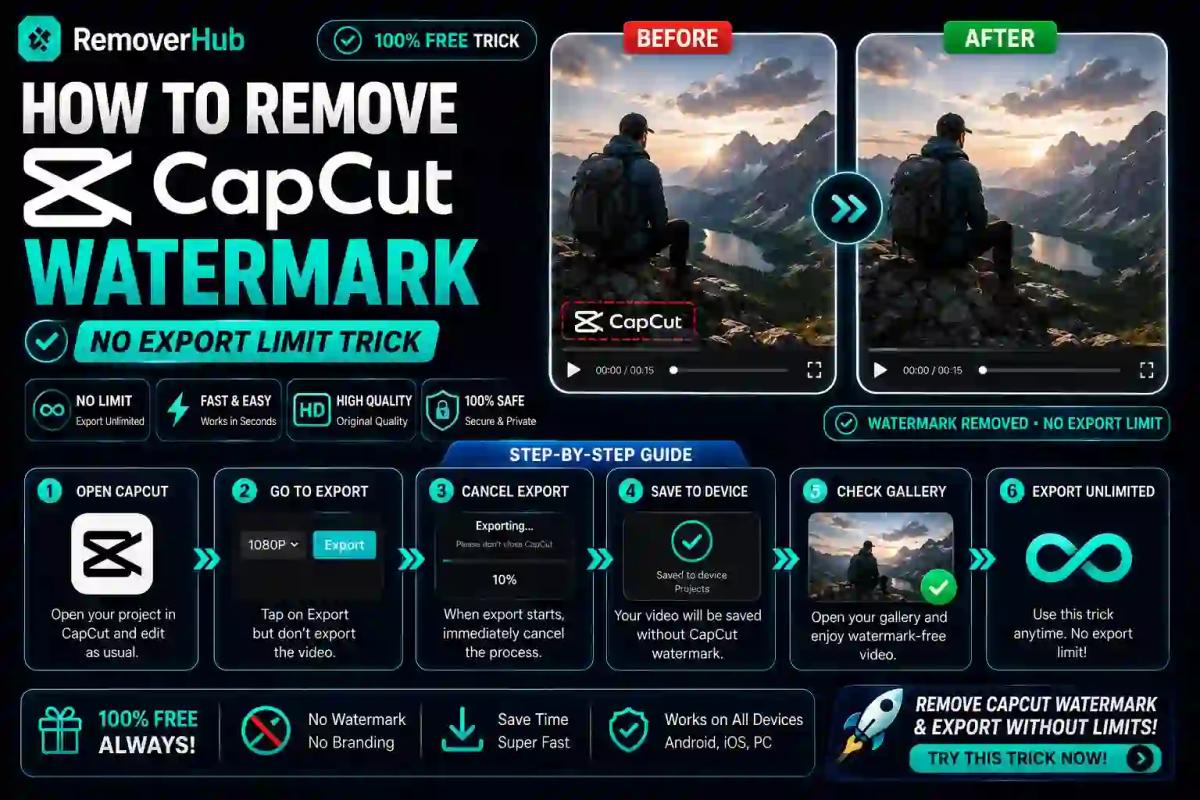
How to Remove the CapCut Watermark: 3 Easy Methods (2026)
If you've spent any time editing on CapCut, you've probably run into a watermark you didn't ask for — a little logo at the end of your clip, a template tag hovering in the corner, or a stamp baked right into the footage. Before you go hunting for a "trick" to bypass it, it helps to know something most guides skip: CapCut doesn't slap a permanent watermark on every export by default. The watermark you're seeing almost always comes from how you built the video, not from CapCut blocking you.
This guide breaks down exactly where CapCut watermarks come from, how to remove each type, what CapCut Pro actually changes, and what to do when a watermark is already baked into a finished video. No vague workarounds — just the real settings, the real limitations, and the real fixes.
Does CapCut Actually Add a Watermark to Your Videos?
Here's the short, honest answer: usually not. According to CapCut's own support documentation, the app itself does not automatically stamp a watermark across standard exports. What trips people up is that CapCut templates, certain AI effects, and some stock assets carry their own branding, and that branding gets baked into your export if you don't remove it first.
So when someone asks "why does my CapCut video have a watermark," the real question isn't "how do I remove CapCut's watermark" — it's "which element in my project is adding one." That distinction matters, because the fix is completely different depending on the source.
This is also why two people can follow nearly identical steps and get different results. One person starts from a blank timeline and never sees a watermark. Another starts from a trending template, and a CapCut logo shows up in the last two seconds of their export — not because CapCut forced it, but because the template creator built it that way.
The 3 Types of "CapCut Watermark" You'll Actually Encounter
Before fixing anything, figure out which of these three situations you're in. Each one needs a different solution.
1. The Ending Clip (Outro Watermark)
This is the most common complaint. You export your video, and the last one to two seconds show a small animated CapCut logo. This isn't embedded in your footage — it's a separate clip sitting at the end of your timeline, usually added automatically when you use a template.
2. Template Watermark or Creator Tag
Some templates display a small "made with CapCut" tag or the original creator's username somewhere on screen throughout the video, not just at the end. This is part of the template design itself, layered as text or a sticker element.
3. Embedded (Baked-In) Watermark on an Already-Exported Video
This is the trickiest one. If you've already exported the video and the watermark is now part of the pixels — not a separate clip you can select and delete — you can't just "turn it off" anymore. At this point, you either need the original project file to re-export, or you need a dedicated tool to erase the mark from the finished video.
Knowing which category you're in saves a lot of wasted time, so let's go through the fix for each.
How to Remove the CapCut Ending Watermark (Step-by-Step)
If your watermark is the small logo clip at the end of the video, this is the easiest fix:
Open your project in CapCut (desktop, mobile, or web).
Scroll to the very end of your timeline.
Look for a short separate clip after your last piece of content — this is the ending/outro clip.
Tap or click that clip to select it, then delete it just like any other clip.
Re-export the video.
If you built your project using the default editing interface instead of a pre-made template, you likely won't see this clip at all. That's the single biggest factor in whether you get a clean export: templates add branding; blank-timeline projects generally don't.
How to Remove a Template Watermark in CapCut
Template watermarks (the creator tag or "made with CapCut" text overlay) behave differently because they're often locked elements within the template's design.
Here's what actually works:
- Check if the element is selectable. Tap on the watermark area in the preview. If it highlights as a text or sticker layer, you can delete or resize it out of frame.
- Recreate the effect manually instead of using the template. If the tag is locked, the most reliable fix is copying the visual style (transitions, text animation, pacing) into a fresh project without using the template file itself.
- Use an unlocked or Pro version of the template, if the creator has released one. Some template creators lock their attribution tag specifically to give credit, and unlock it only for Pro users.
This is also a good moment to be upfront about something most articles gloss over: template attribution exists because someone designed that template and wants credit for it. If you're removing it for personal, non-commercial use, that's a low-stakes decision. If you're stripping a creator's tag off their template for client work or monetized content, it's worth reading the template's terms first.
What to Do If the Watermark Is Already Baked Into Your Video
This is where most "how to remove CapCut watermark" searches actually end up — someone already exported the file and the mark is now part of the video itself.
Your options, in order of how much quality you keep:
Re-export from the original CapCut project. If you still have the .draft project file, open it, delete the offending clip or element, and export again. This gives you a pixel-perfect result with zero quality loss.
Use an AI-based video watermark remover if the original project is gone. These tools analyze the frames around the watermark and reconstruct what should be there, rather than simply blurring or covering it.
Crop the video, only if the watermark sits in a corner and cropping won't cut off important content. This is the fastest method but often ruins your framing, especially for vertical video meant for TikTok or Reels.
For option two, a dedicated watermark remover tool tends to produce cleaner results than cropping because it works frame-by-frame instead of just chopping off part of the video. If the mark you're dealing with is more of a logo or brand element than a classic watermark, a logo remover is built specifically for that kind of overlay and generally preserves background detail better than a blunt crop.
CapCut Free vs. CapCut Pro vs. Third-Party Tools: What Actually Changes
This is the comparison most people are really looking for, so here it is straight:
| Feature | CapCut Free | CapCut Pro | Third-Party Watermark Tool |
|---|---|---|---|
| Standard export watermark | None by default | None | N/A (used after export) |
| Template outro/tag | Present on many templates | Often removable/unlocked | Can erase after export |
| Export resolution | Up to 1080p on most plans | Up to 4K on supported templates | Depends on source file quality |
| AI effects & premium assets | Limited, some marked "Pro" | Full access | N/A |
| Best for | Personal projects, casual editing | Frequent creators needing 4K/AI tools | Fixing an already-exported file |
The honest takeaway: CapCut Pro isn't really "paying to remove a watermark" — it's paying for higher resolution exports, expanded AI features, and access to premium templates and assets that happen to be the ones carrying watermarks in the first place. If you stick to free assets and a blank timeline, you rarely need Pro just to get a clean export.
The Truth About the "CapCut Export Limit"
You'll see a lot of content online promising a way to "bypass the CapCut export limit." Here's the reality: CapCut doesn't cap how many times you can export a standard video. What does have a cap is usage of certain AI tools and credits — things like AI video generation, some auto-caption features, or specific effects that consume a limited number of free uses per month.
So if you've hit a wall after your "7 free exports," you weren't blocked from exporting your video — you ran out of credits for an AI feature bundled into that export. That's an important distinction, because it means the fix usually isn't a hack; it's either waiting for your credits to reset, using a version of your edit that doesn't rely on the AI feature, or subscribing if you genuinely need that tool regularly.
It's worth saying plainly: intentionally circumventing a paid feature's usage limits can run against CapCut's Terms of Service. If your goal is simply a clean, watermark-free export of your own footage, you almost never need to touch that gray area at all — the ending-clip and template fixes above solve the vast majority of cases.
CapCut Mobile vs. Desktop: Do Watermark Rules Differ?
Functionally, no — the underlying rule is the same across CapCut mobile (iOS and Android), CapCut PC, and CapCut Web: standard exports don't carry a forced watermark, and any branding comes from the template or asset you used.
Where things differ slightly is workflow:
- Mobile tends to surface more templates prominently in the discovery feed, so mobile users run into template watermarks more often simply because they use templates more.
- Desktop gives you a more visible timeline, which makes it easier to spot and delete an ending clip before you even export.
- Web mirrors desktop functionality closely but can lag slightly on the newest AI features.
If you're consistently fighting watermarks on mobile, try building your next project from scratch on desktop once, just to confirm your own editing (not a template) isn't the source.
Removing CapCut Watermarks for Specific Platforms and Use Cases
The right approach can change slightly depending on where the video is going:
- YouTube: Resolution matters more than speed here, so re-exporting from the original project (rather than cropping) preserves quality for longer-form content.
- TikTok and Instagram Reels: These are vertical, tightly framed videos, so cropping out a corner watermark often ruins the composition. An AI removal tool is usually the safer bet for reels-style content.
- Client work: If you're delivering video to a client, always work from the original project file when possible. A visibly cropped or blurred watermark looks unprofessional in a way a clean re-export doesn't.
- Business marketing and portfolio use: Same principle — clean re-exports or a proper watermark removal tool will hold up much better under scrutiny than a hasty crop.
A Quick, Practical Workflow
If you just want the fastest path to a clean video, here's the order to try things in:
Check your timeline for a separate ending clip and delete it.
Check for selectable text/sticker watermark elements and remove or move them off-frame.
If the video is already exported and marked, find the original .draft project and re-export.
If the project file is gone, run the video through a dedicated watermark remover rather than cropping, especially for vertical content.
Compare a few options if quality matters a lot to you — our breakdown of the best AI watermark removers, tested and ranked, covers how different tools handle motion and detail reconstruction.
Is It Against CapCut's Terms of Service to Remove a Watermark?
This depends entirely on which watermark you mean. Deleting your own ending clip or avoiding a template's attribution tag by building your own version from scratch is standard editing — you're not modifying CapCut's software or bypassing anything technical.
Where it gets murkier is if you're specifically trying to strip a creator's attribution off a template you didn't build, for commercial use, against that template's stated terms — or if you're working around usage limits on paid AI features rather than simply avoiding them. For the full, current wording, CapCut's own export and watermark help documentation is the most reliable source, since app policies can shift between updates.
Frequently Asked Questions
Does CapCut always add a watermark to exports? No. Standard exports from a blank timeline typically have no watermark. Watermarks usually come from templates, certain stock assets, or AI features — not from the export process itself.
Is CapCut Pro required to remove the watermark? Not usually. Most watermarks can be removed by deleting the ending clip or avoiding the template element that added it. CapCut Pro mainly unlocks higher resolution exports and premium AI tools, not a "remove watermark" switch.
Can I remove the CapCut watermark without a subscription? Yes, in most cases. Deleting the ending clip, avoiding branded templates, or rebuilding your edit manually all work without paying for anything.
Does removing the watermark lower video quality? Deleting a clip or unlocked element doesn't reduce quality at all. Cropping does, since you're cutting into the frame. Re-exporting from the original project preserves full quality; AI removal tools generally preserve quality better than cropping but can vary by tool.
What's the difference between CapCut mobile and desktop watermark rules? The underlying rules are identical. Mobile users just encounter template watermarks more often because templates are more prominent in the mobile app's discovery feed.
How do I export a CapCut video in the best quality without a logo? Build from a blank timeline instead of a template, avoid Pro-locked assets if you're on the free plan, and double-check the very end of your timeline for a hidden outro clip before exporting.
Final Takeaway
Most "CapCut watermark" problems trace back to one of three specific sources — an ending clip, a template tag, or an already-baked-in mark — and each has a direct fix that doesn't require chasing sketchy workarounds. Start with your timeline, check what's actually adding the branding, and only reach for a third-party tool when the watermark is already permanently exported into the footage.
If you're dealing with a video where the mark is already locked in and the original project is gone, running it through a proper watermark remover will get you a cleaner result than cropping every time — and it takes about as long as re-exporting would have.