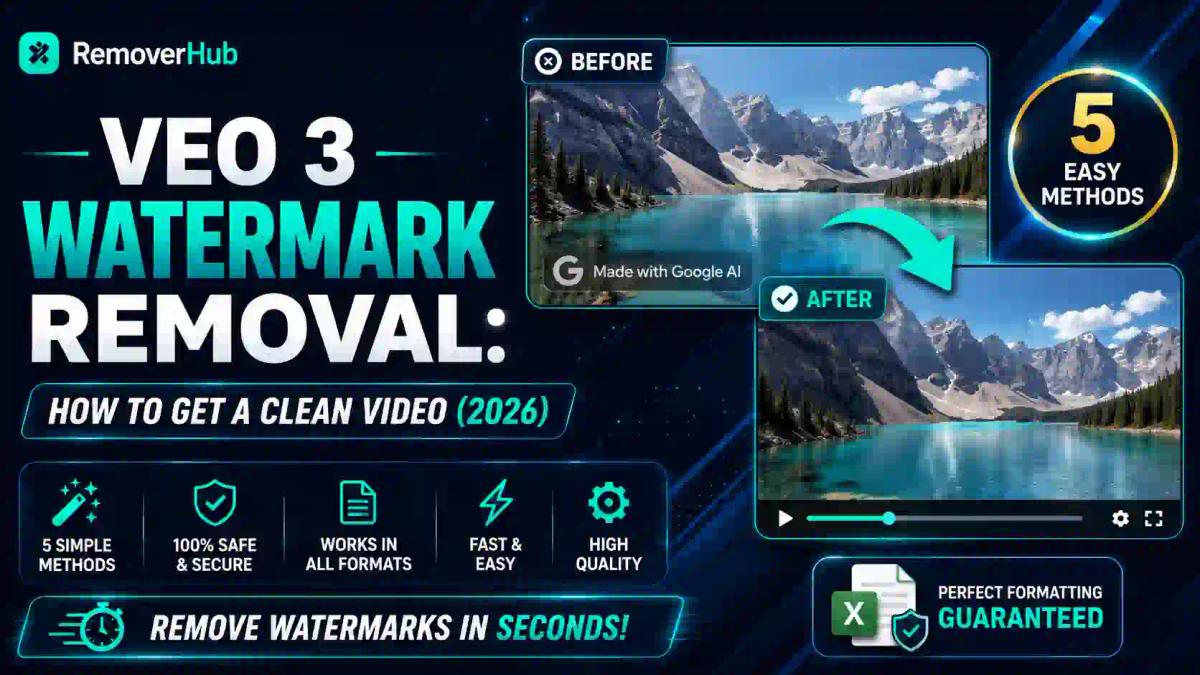
Veo 3 Watermark Removal: How to Get a Clean Video (2026)
If you've generated a clip with Google's Veo 3 and noticed a small "Made with Google AI" mark sitting in the corner, you're not alone. It's one of the most common frustrations creators run into once they move a Veo 3 video out of Google's ecosystem and into a real project — a client deliverable, a YouTube upload, or a paid ad campaign.
The good news: there are legitimate ways to get cleaner output. The less-good news: not everything people call "watermark removal" actually works, and some of it can get you into trouble. This guide breaks down exactly what Veo 3 watermarks are, which parts you can remove, which parts you genuinely can't (and shouldn't try to), and the safest ways to get a clean video for your workflow.
Veo 3 adds two separate marks to its videos — a visible "Made with Google AI" logo and an invisible SynthID signal. You can legitimately remove or avoid the visible logo by upgrading to a supported plan, generating through the API, or carefully cropping the frame for personal use. The invisible SynthID marker is designed by Google DeepMind to survive edits and isn't something you should try to strip — doing so to disguise AI content as human-made can violate platform rules and, depending on your jurisdiction, consumer-protection law.
What Is the Veo 3 Watermark, Exactly?
Most people assume "the watermark" means one thing. On Veo 3, it's actually two different systems doing two different jobs.
The visible watermark is the semi-transparent logo — usually in a bottom corner — that shows up on videos generated through free or lower-tier access. It's there so viewers can tell at a glance that a clip is AI-generated. Think of it the same way stock-photo sites overlay a translucent logo on preview images: it's a usage signal, not a security feature.
SynthID, on the other hand, is invisible. It's a digital watermarking technology built by Google DeepMind that embeds a signal directly into the pixel and audio data of the video itself, not just the visible frame. According to DeepMind's own documentation, SynthID is designed to keep working even after a video is cropped, compressed, color-graded, or converted to a different format. It doesn't change how the video looks or sounds — it exists purely so that platforms, researchers, and detection tools can later verify that a piece of content came from an AI model.
That distinction matters for everything that follows. One watermark is a cosmetic overlay you can reasonably deal with. The other is closer to a fingerprint.
Why Does Veo 3 Add a Watermark in the First Place?
This isn't Google being difficult. As AI-generated video has become nearly indistinguishable from real footage, labeling has turned into a genuine trust-and-safety issue — for elections, journalism, evidence authenticity, and plain old scams. Google, OpenAI, and most major AI labs now attach some form of provenance signal to generated media, often aligned with the C2PA content authenticity standard, an industry coalition working on exactly this problem.
In practice, the visible watermark protects Google (and you) from misuse accusations, while SynthID gives a technical backstop in case the visible mark gets cropped out. Understanding that dual purpose is the difference between removing a watermark responsibly and accidentally trying to defeat a content-authenticity system — which is a very different thing legally and ethically.
Does Veo 3 Always Add a Watermark?
No — and this is where a lot of confusion comes from. Whether your video carries the visible logo depends on how you generated it:
- Free-tier or preview access through the Gemini app typically shows the visible watermark on every export.
- Paid subscription tiers (Google's higher AI Ultra-level plans) that include Veo 3 access often remove the visible watermark, though the exact policy has shifted across 2026 as Google has rolled out Veo 3.1 and tier changes — always check your current plan's terms before assuming.
- API-generated videos through Google AI Studio or Vertex AI generally ship without the visible overlay, since developers are expected to handle disclosure themselves in their own product.
- SynthID is present on essentially all Veo output, regardless of tier, because it's baked into the generation pipeline itself rather than tied to your subscription.
If your priority is a genuinely clean export, checking your access tier before you generate is far more efficient than trying to fix it after the fact.
Methods to Deal With the Visible Veo 3 Watermark
1. Upgrade to a Plan or API Tier That Doesn't Add It
This is the cleanest option because it's supported by Google, not a workaround. If you're producing content regularly — for a brand, an agency, or a YouTube channel — the subscription or API cost usually pays for itself the moment you stop fighting watermark artifacts in post.
2. Generate Through Google AI Studio or Vertex AI
Developers and technical teams can access Veo 3 directly through the API, where outputs typically don't carry the visible logo. This route takes more setup than the consumer app, but it's the most reliable way to get watermark-free footage without touching the file after export.
3. Precision Cropping
For casual or personal use, cropping out the corner where the logo sits is the fastest fix. It's free, doesn't require software, and works in almost any basic video editor. The tradeoff is real: you lose part of your frame, and if the watermark is animated or large, cropping can leave you with an awkward aspect ratio or force you to zoom and lose resolution.
4. AI-Powered Inpainting Tools
Instead of cropping the frame, some tools use AI to reconstruct the pixels behind the logo — similar to how you'd remove an unwanted object from a photo. This preserves the full frame and usually looks cleaner than a crop, especially on moving footage where the watermark shifts position. If you're doing this for still frames or thumbnails pulled from your video, a dedicated image watermark remover or logo remover tool can handle the reconstruction without degrading the rest of the image.
5. Re-Editing in Your Existing NLE
If you're already working in Premiere, DaVinci Resolve, or CapCut, you likely don't need a separate tool at all — a mask, a blur layer, or a scale-and-crop adjustment inside your existing timeline can take care of a corner watermark in a couple of minutes. It's slower than a dedicated tool but keeps everything in one place if you're already mid-edit.
Comparison: Watermark Removal Methods for Veo 3
| Method | Quality Impact | Cost | Legitimacy |
|---|---|---|---|
| Paid plan / API access | None — native clean export | Subscription/API fee | Fully supported by Google |
| Precision cropping | Loses frame edges, may force resize | Free | Fine for personal use |
| AI inpainting tool | Minimal, if done well | Free–low cost | Gray area on redistributed content |
| Blur/mask in an editor | Visible blur patch | Free (existing software) | Fine for personal use |
Can You Remove the SynthID Watermark? (Read This Before You Try)
Short answer: not reliably, and you shouldn't try to.
SynthID isn't a logo sitting on top of your footage — it's embedded in the underlying data across frames, which is precisely why Google DeepMind built it that way. Compression, cropping, filters, and format conversion are exactly the kinds of edits SynthID was engineered to survive. Tools online that advertise "SynthID removal" are, at best, stripping surface-level metadata tags (which isn't the same as the embedded signal DeepMind describes) and, at worst, just not doing anything measurable while charging for it.
More importantly, there's a legal dimension now. In the US, the COPIED Act and similar emerging state and federal rules around AI content provenance are specifically aimed at people who strip authenticity markers to pass AI content off as human-made. Platforms like YouTube and TikTok have also started flagging accounts that attempt to defeat AI-detection signals, which can mean demonetization or reduced reach even if no law is technically broken.
The practical takeaway: if you're removing the visible logo for a legitimate creative or commercial reason — a clean client deliverable, a portfolio piece, a background element in a larger production — that's a normal editing decision. If the goal is to make AI-generated footage pass as authentic human-shot video (for news, evidence, impersonation, or deceptive marketing), that's a different category of problem entirely, and no removal tool changes that.
A Quick Word on Quality Loss
Whichever visible-watermark method you choose, quality is the tradeoff most people underestimate. Cropping can force you into a resize that softens detail, especially on 4K exports. Re-encoding through some free "remover" tools compresses video down from 4K to 720p in the process — you fix the logo problem and create a new resolution problem. If quality matters for your final output, test your chosen method on a short clip before running your whole project through it, and compare bitrate and resolution before and after.
Veo 3 vs. Other AI Video Tools: Watermark Policies Compared
It's worth knowing this isn't a Google-only issue. Most major AI video generators handle watermarking similarly, though the specifics differ:
- OpenAI's Sora applies its own visible watermark and provenance metadata on free and standard outputs — we cover the specifics in our Sora 2 watermark guide.
- Runway and Kling AI apply comparable visible branding on lower-tier plans, with cleaner exports gated behind paid access, similar to Veo's structure.
- Across the board, invisible provenance signals (SynthID for Google, C2PA-based metadata for others) are becoming standard practice, not a Veo-specific quirk.
If you're regularly comparing tools, our broader roundup on the best AI watermark removers, tested and ranked walks through how different tools perform on quality retention across formats.
Step-by-Step: Getting a Clean Veo 3 Export the Legitimate Way
Check your current access tier. Log into Google AI Studio or your Gemini app subscription settings and confirm whether your plan already excludes the visible watermark.
Regenerate through a watermark-free tier if available, rather than editing after the fact — it saves a full editing pass and avoids quality loss entirely.
If you're stuck on a lower tier, crop conservatively. Only remove as much frame as needed to clear the logo, and check the result at your target export resolution.
For frame-preserving removal, use an AI reconstruction tool rather than a blunt crop — this keeps your original composition intact.
Export at your target resolution last, after any watermark handling, so compression artifacts from resizing don't stack with re-encoding.
Keep disclosure in mind for public content. Many platforms now require or reward creators who label AI-generated content, even after watermark handling — it protects you from takedown or demonetization risk down the line.
Frequently Asked Questions
What is the Veo 3 watermark called? The visible overlay is typically labeled "Made with Google AI." The invisible layer is called SynthID, developed by Google DeepMind.
Why does Veo 3 add a watermark to videos? To label AI-generated content for viewers and to give platforms and researchers a reliable way to verify a video's origin, in line with industry content-authenticity standards like C2PA.
Can I remove the watermark from Veo 3 videos? The visible logo can be avoided through a supported plan/API tier or handled through cropping or AI inpainting for personal use. The invisible SynthID signal is designed to survive standard edits and isn't reliably removable.
Is it legal to remove the Veo 3 watermark? Removing the visible logo from your own content for personal or creative use generally isn't a legal issue. Removing provenance signals specifically to disguise AI content as authentic human-made footage can run afoul of laws like the COPIED Act and platform policies.
Does Veo 3 Ultra or a paid plan remove the watermark automatically? Higher-tier subscriptions and API access typically produce clean exports without the visible logo, though exact policies have shifted across 2026 model updates — check your current plan details before generating.
Does removing the watermark reduce video quality? It can, especially with cropping (loses frame area) or free tools that re-encode and compress your footage. Testing on a short clip first is the safest way to catch quality loss before it affects a full project.
How can I tell if a video was made with Veo 3? The visible logo is the obvious tell when present. Beyond that, SynthID detection tools — including ones built into Google's own products — can verify AI origin even when the visible mark has been cropped or edited out.
The Bottom Line
Handling the Veo 3 watermark comes down to knowing which part you're actually dealing with. The visible logo is a fair game for cropping, masking, or avoiding through a better-tier export — it's a normal part of preparing AI-generated footage for real use. SynthID is a different animal entirely: it's built to persist, and treating it as something to "defeat" rather than work alongside is where creators run into trouble with platforms and, increasingly, the law.
If your workflow regularly involves cleaning up AI-generated footage, logos, or overlays — not just from Veo, but across formats — removerhub's watermark remover is built to handle visible marks without degrading your source quality, and it's worth comparing against manual cropping the next time you're on a deadline.