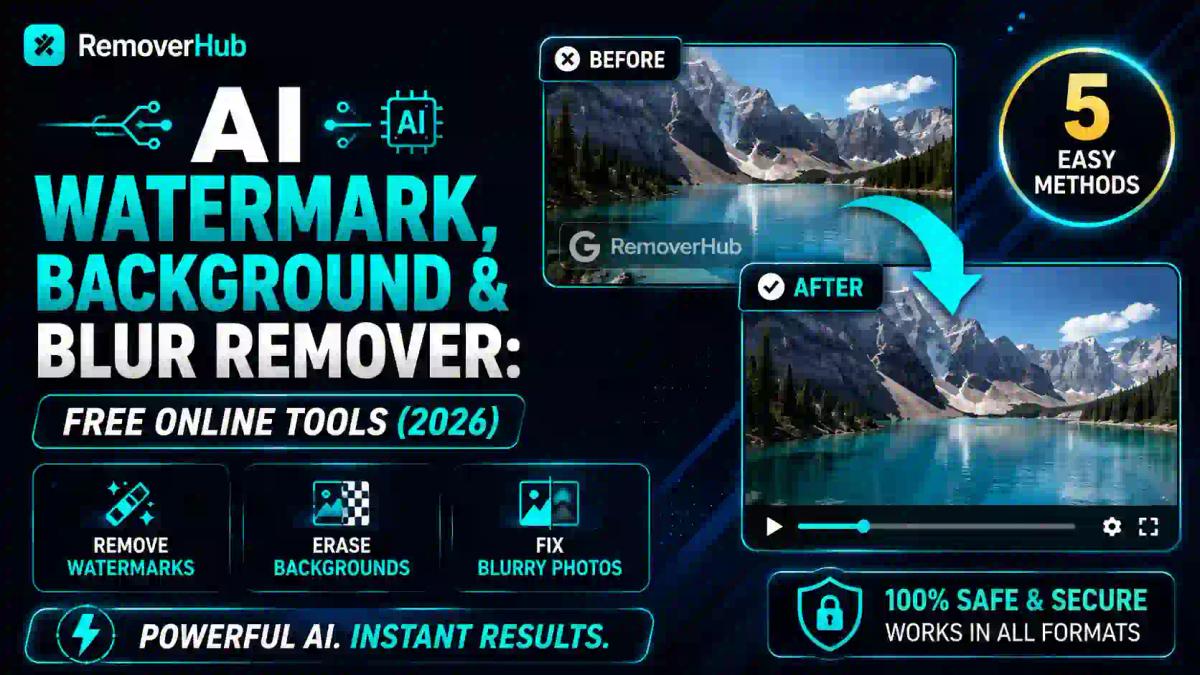
AI Watermark, Background & Blur Remover: Free Online Tools (2026)
You can remove a watermark, erase a background, or fix a blurry photo without installing anything or touching Photoshop. AI-powered browser tools now handle all three in seconds — upload your image, let the AI detect the watermark, background, or blur pattern, and download a clean result. The catch: these tools should only be used on your own photos or properly licensed images, not to strip protection off content you don't own.
If you've ever tried to reuse a product photo, a screenshot, or a personal picture and found a watermark, a messy background, or unwanted blur standing in the way, you know how much time gets wasted hunting for the "right" software. A few years ago, that meant learning Photoshop's clone stamp tool or paying for a subscription just to fix one image. That's no longer necessary. AI has gotten good enough at recognizing patterns — logos, backgrounds, blur — that it can now clean up a photo in the time it takes to upload it.
This guide walks through how these tools actually work, what each one is best for, and how to use them the right way — including the legal line you shouldn't cross when it comes to watermark removal.
What Are AI Watermark, Background & Blur Removal Tools?
These are browser-based tools that use computer vision and machine learning to identify a specific part of an image — a watermark, a background, or a blurred region — and either remove it or reconstruct what should be there instead. Unlike traditional editing, you're not manually selecting pixels with a lasso tool. The AI does the detection work for you.
Three distinct problems, three distinct tools:
- Watermark removal detects a logo, text overlay, or timestamp and reconstructs the pixels underneath it using image inpainting — essentially, the AI predicts what the image would look like without that mark.
- Background removal separates your subject from its surroundings and either deletes the background entirely (leaving transparency) or replaces it, using edge detection and object recognition.
- Blur correction works in the opposite direction of the other two — it sharpens detail that's technically still there but poorly resolved, rather than removing something that shouldn't be there.
Each of these relies on a different type of AI model under the hood, which is why a tool built for one rarely does a great job at the others. That's the actual reason an "all in one place" toolkit matters more than it sounds — you're not compromising on quality by using a jack-of-all-trades app; you're just accessing three purpose-built tools from one place instead of three different websites.
Why It's Worth Using AI Instead of Manual Editing
Manual background removal in Photoshop, done properly, can take anywhere from five to twenty minutes per image depending on how complex the edges are — hair, fur, and semi-transparent objects like glass are notoriously difficult to mask by hand. AI models trained specifically on object boundaries can do the same job in under ten seconds, often with comparable accuracy for straightforward subjects like people, products, or vehicles.
The practical benefits stack up fast:
- No software to install — everything runs in the browser.
- No learning curve — there's no tool palette to memorize.
- Consistent results at scale — useful if you're processing dozens of product photos for an online store.
- Free tiers cover most everyday needs, with paid plans reserved for high-volume or commercial use.
That said, AI isn't flawless. Fine details like flyaway hair, semi-transparent fabric, or a watermark placed directly over a highly detailed area of a photo can still trip up even good models. Knowing when a tool is likely to struggle saves you a frustrating back-and-forth.
How to Remove a Watermark from a Photo for Free
Watermark removal works through a process called inpainting: the AI identifies the watermarked region, then generates plausible pixel data to fill that space based on the surrounding image. It's the same underlying technique used in more advanced generative editing tools, just applied narrowly to a specific overlay.
Here's the general workflow:
Upload your photo to a watermark remover tool.
Either let the AI auto-detect the watermark, or manually brush over the area if it's partially transparent or blends into the image.
Let the tool process the reconstruction — this usually takes a few seconds for a single watermark.
Download the result and compare it against the original before using it anywhere.
For logos specifically — as opposed to text-based watermarks — a dedicated logo remover tends to perform better, since logo shapes and typical placements are trained into the model differently than generic watermark text. If you're dealing with a timestamp or date burned into an old photo, a date stamp remover is built specifically for that narrow, high-contrast use case rather than general watermark patterns.
A Quick Word on Video Watermarks
If your watermark problem is on a video rather than a still image — a downloaded clip, a screen recording, or footage with a logo burned into the corner — that's a different processing pipeline entirely, since it has to track the same region across every frame. Our breakdown of removing watermarks from photos and videos covers what changes when you move from a single image to a full clip.
Is It Legal to Remove Watermarks from Images?
This is the question worth answering honestly, not glossing over.
Watermarks exist primarily to protect ownership and prevent unauthorized use of an image — most commonly on stock photography from services like Shutterstock, Getty Images, or Adobe Stock. Removing a watermark from an image you don't own or haven't licensed, in order to use it as if it were unwatermarked, is copyright infringement in most jurisdictions, regardless of the tool used to do it. The tool itself isn't illegal — how you apply it is what matters.
Where these tools are genuinely useful and legitimate:
- Removing a watermark from your own photography — for instance, an old personal photo you watermarked yourself, or a preview export from your own editing software.
- Cleaning up a properly licensed stock image where your license permits modification and you're simply removing a preview watermark after purchase.
- Removing timestamp or date stamps from your own photos, which is a formatting fix rather than a copyright issue.
- Removing your own logo from marketing material during a rebrand.
Where it crosses a legal line:
- Stripping a Getty, Shutterstock, or Adobe Stock watermark from a preview image to use it without paying for a license.
- Removing a creator's watermark from social content (art, photography, video) to repost it as your own.
The U.S. Copyright Office's overview of fair use is a useful starting reference if you're unsure whether a specific use case crosses that line — the short version is that ownership and licensing status of the underlying image is what determines legality, not the mechanism used to edit it.
How AI Background Removal Actually Works
Background removal relies on a process called semantic segmentation — the AI model classifies every pixel in the image as either "subject" or "background" based on training across millions of labeled photos. This is different from watermark inpainting because nothing is being reconstructed; the background is simply being identified and cut away.
The output is typically a PNG with a transparent alpha channel, which means the "empty" background isn't white — it's genuinely transparent, so you can drop the subject onto any new background without a visible edge.
Practical steps:
Upload your photo to an AI background remover.
The tool auto-detects the subject and removes everything else within a few seconds.
Zoom in on edges — hair, fingers, and thin objects are the most common spots where AI still makes small mistakes.
Export as a transparent PNG, or add a solid or custom background if you need one.
If you're processing images for an online store, a general background remover isn't always the best fit — product photography has specific needs like clean shadows and consistent white backgrounds for marketplace compliance. A background remover built specifically for product photos is trained on that narrower use case and tends to produce more consistent, marketplace-ready results than a general-purpose tool. Our guide on free product photo editing tools goes deeper into building a full workflow around this, not just background removal in isolation.
When You Need HD Quality Without Pixelation
Standard background removal can introduce slight pixelation or softness around edges, especially on lower-resolution source images. If you're preparing images for print, a large display, or anything where zoom level matters, an HD background remover processes at a higher output resolution specifically to avoid that. We've written a full comparison on removing backgrounds in HD quality without pixelation if that's your specific concern.
Green Screen Is a Different (Easier) Problem
If your source footage or photo was shot against an actual green or blue screen, you're in a much easier position than someone removing a background from a natural photo — the AI has a clean, uniform color to key against rather than having to guess where a subject ends. A dedicated green screen remover will typically produce cleaner edges, faster, than a general background remover applied to the same footage. If you're working in video specifically, removing green screen from video for free covers the frame-by-frame considerations that don't apply to a single still image.
Fixing Blurry Photos with AI
Blur correction is fundamentally different from the other two tools, and it's worth understanding why, because it sets your expectations correctly.
Watermark removal and background removal are both about identifying and removing something. Blur correction is about recovering detail that's already partially present but poorly resolved — the AI is essentially making an educated guess about what sharp edges should look like based on the blurred data it has. This works well for mild to moderate blur (motion blur, slight focus issues, low-resolution upscales) but has real limits on severely blurred or extremely low-resolution source images. No AI tool can fully "invent" detail that was never captured in the first place.
How to use it:
Upload your image to an AI blur remover.
Let the tool process the sharpening pass — this typically takes a few seconds longer than background or watermark tools, since it's doing more computational work per pixel.
Compare the result at 100% zoom, not just the thumbnail preview, since blur correction artifacts are easiest to spot up close.
If your specific need is general sharpening rather than correcting a blur mistake — for instance, an old photo scan that's naturally soft — an image sharpener is a lighter-touch tool built for that purpose. Our guide on sharpening a blurry image online for free walks through which tool fits which specific blur problem, since "blurry" covers several different underlying causes with different fixes.
Watermark vs. Background Remover vs. Blur Tool: What's the Difference?
It's worth being clear-eyed about which tool solves which problem, since a lot of people reach for the wrong one first.
| Tool | What It Does | Best For | Typical Output |
|---|---|---|---|
| Watermark Remover | Detects and reconstructs pixels under a logo, text, or timestamp | Cleaning your own photos or licensed images with a leftover mark | Same format as original (JPG/PNG) |
| Background Remover | Separates subject from surroundings, deletes or replaces background | Product photos, profile pictures, graphic design assets | Transparent PNG |
| Blur Remover / Sharpener | Recovers detail from soft or motion-blurred images | Old photos, low-res scans, slightly out-of-focus shots | Same format, sharpened |
They're not interchangeable, and running an image through the wrong tool won't fix the actual problem — a blurry photo with a watermark on it needs both tools, applied separately, not one tool doing double duty.
Free vs. Paid: What Actually Changes
Most AI background, watermark, and blur tools offer a genuinely usable free tier, but it's worth knowing where the paid upgrade actually matters:
- Resolution caps. Free tiers often cap output resolution, which matters if you're printing or displaying large.
- Batch processing. Editing 50 product photos one at a time versus uploading them as a batch is a real time difference for e-commerce sellers.
- Watermark-free exports. Some free tools add their own small watermark to the output — check this before committing to a workflow.
- Priority processing speed. Paid tiers usually process faster during high-traffic periods.
For occasional personal use — cleaning up a handful of photos, fixing one blurry family picture, removing a background from a profile photo — free tiers cover the need completely. Photoshop's own transparent-image workflow, by comparison, requires either a subscription or a steep manual learning curve; our comparison of Photoshop vs. AI transparent image tools breaks down that trade-off in more detail if you're deciding between the two.
Common Mistakes to Avoid
A few patterns come up repeatedly with new users of these tools:
- Uploading heavily compressed images. The more compressed or low-resolution your source photo, the less accurate the AI's edge detection and reconstruction will be. Start with the highest-quality version you have.
- Skipping the zoom-in check. Thumbnail previews hide small edge errors around hair, fingers, and fine detail. Always zoom to full size before finalizing.
- Using a general tool for a specialized job. A generic background remover on a product photo, or a general watermark tool on a moving video watermark, will underperform compared to a tool built for that specific case.
- Not checking image licensing before editing. This is the one that actually carries legal risk — always confirm you own or have rights to modify an image before running it through a watermark remover.
Frequently Asked Questions
How do I remove a watermark from a photo for free? Upload the photo to a free AI watermark remover, let it auto-detect the watermarked area (or manually mark it), and download the reconstructed image. The process typically takes just a few seconds for a single, clearly defined watermark.
Is it legal to remove watermarks from images? It depends entirely on whether you own or have licensed rights to the image. Removing a watermark from your own photo is fine. Removing a stock photography watermark (Shutterstock, Getty, Adobe Stock) without paying for the license is copyright infringement.
What is the best free AI background remover? For general photos of people or objects, a standard AI background remover works well. For e-commerce product photography specifically, a tool trained on product photos tends to produce cleaner, more consistent results for marketplace listings.
Can AI tools blur a photo background automatically, or only sharpen it? Most blur tools are built for sharpening (recovering detail from an already-blurred image), which is the opposite operation from adding blur. Background blur — the portrait-mode effect — is typically a separate feature or tool from blur correction.
Do free watermark removers reduce image quality? A well-built AI watermark remover shouldn't noticeably degrade quality outside the reconstructed area. The region where the watermark was removed may show minor softness compared to the rest of the image, especially on complex backgrounds.
Do free AI tools store or save my uploaded photos? This varies by provider, so it's worth checking the specific tool's privacy policy before uploading anything sensitive. Reputable tools process images temporarily and delete them after a short retention window rather than storing them indefinitely.
Can I use these tools on mobile without downloading an app? Yes — since these are browser-based tools, they work directly from a mobile browser without needing a dedicated app, as long as you can upload a photo from your phone's gallery.
Key Takeaway
Watermark removal, background removal, and blur correction solve three genuinely different problems, and the biggest time-saver isn't finding one magic tool — it's knowing which specific tool to reach for and using a quality source image to start with. For everyday needs, free AI tiers now handle what used to require real Photoshop skill, in a fraction of the time.
The one rule worth keeping in mind regardless of which tool you use: these are built for cleaning up your own images or properly licensed content, not for stripping protection off photos you don't have rights to. Stay inside that line, and these tools genuinely replace hours of manual editing work with a ten-second upload.
Ready to try it on your own photo? Start with the full tools library to pick the right remover for your specific image.