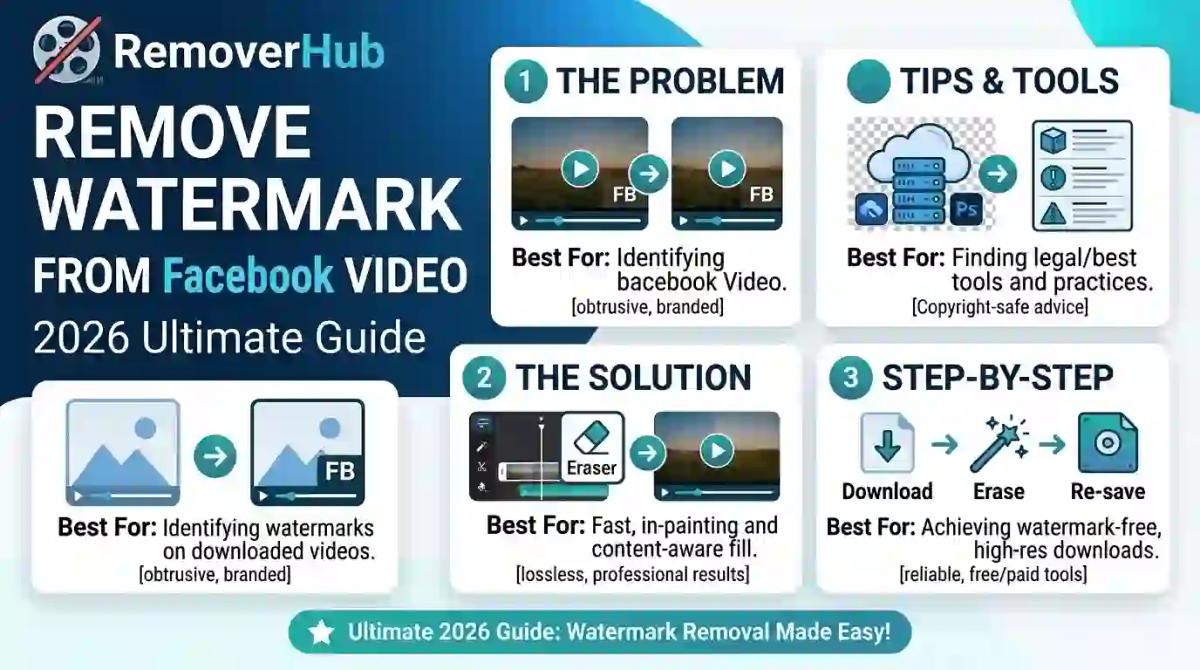
Remove Watermark From Facebook Video
If you've ever downloaded a Facebook video or Reel only to find a logo stamped in the corner, you already know how annoying it is. The good news is you don't need Adobe Premiere, a paid subscription, or a sketchy mobile app to fix it. This guide walks through every legitimate, browser-based method to clean up a Facebook video watermark — while also being upfront about when watermark removal crosses into copyright territory.
Whether you're a creator trying to repost your own content across platforms, a small business polishing a promotional clip, or someone who just wants a clean copy of a video they made, this article covers the practical "how" and the important "should I" in one place.
What Is a Facebook Video Watermark, and Why Does It Appear?
A watermark is a visible logo, username, or text overlay placed on top of a video to signal ownership or origin. On Facebook, this usually shows up in one of two ways:
- A small Facebook or Meta logo automatically added when a video or Reel is downloaded through certain tools
- A creator's own logo, username, or branding intentionally added before uploading
Facebook's Help Center has stated that its video and Reels systems have evolved over time — for instance, the older "Videos" tab was renamed to "Reels" in 2025, and download and sharing behavior can differ depending on whether a clip is public, private, or monetized (Meta Help Center: https://www.facebook.com/help). That's worth keeping in mind, because a "watermark removal trick" that worked last year might behave differently today.
The watermark itself is typically a simple graphic overlay, not something baked destructively into every pixel. That's exactly why browser-based tools can clean it up without needing professional software.
The One Rule to Understand Before You Start
Here's the distinction that most quick tutorials skip, and it matters more than any technical step in this guide.
Removing a watermark from your own video, or one you have explicit permission to edit, is a straightforward editing task. Removing a watermark or creator attribution from someone else's copyrighted video — just to reupload it without credit — is a different situation entirely.
Meta's Help Center is direct about this: users should only post content they created themselves or have permission to use, and modifying content, giving credit, or adding a disclaimer does not automatically eliminate copyright infringement. Keep that in mind as you read the methods below; they're written for cleaning up your own or authorized content, not for stripping attribution off someone else's work.
Method 1: Use a Browser-Based AI Watermark Remover (Fastest, No App)
This is the simplest route for most people, and it's the one we'd recommend starting with. An AI-powered watermark remover analyzes the pixels around the logo or overlay and reconstructs what should be there, instead of just smudging or blurring it.
Steps:
Save the Facebook video file to your device (from your own uploads, camera roll, or an authorized source).
Open a browser-based tool such as RemoverHub's Watermark Remover — no installation, no signup required for most core features.
Upload the video or image frame containing the watermark.
Let the AI detect and mark the watermark area (most tools auto-detect logos and text overlays).
Export the cleaned file in its original resolution.
This approach works especially well for static, corner-positioned logos — which is the most common Facebook watermark placement. If the watermark is text-based rather than a logo, RemoverHub's AI Text Remover is built specifically for overlay text, captions, and timestamp-style stamps, and it pairs well with the watermark tool when a clip has both a logo and text burned in.
For image-based watermarks specifically — like a still frame or thumbnail pulled from a video — the dedicated Image Watermark Remover tends to give cleaner edge results than a general-purpose tool, since it's tuned for flat overlays on photos rather than moving footage.
Why this beats a downloaded app: browser tools process the file and typically clear it from their servers shortly after, there's no app permissions to grant, and you're not locked into a single device. If you want a broader comparison of browser tools versus installed software before committing to one method, RemoverHub's Watermark Eraser App vs Browser Tool breaks down the trade-offs in more detail.
Method 2: Crop the Video to Cut Out a Corner Watermark
If the watermark sits in a fixed corner and doesn't move across frames, cropping is the fastest zero-AI option. Most online video editors — including free browser-based ones — let you crop by percentage or pixel dimensions.
When cropping works well:
- The watermark is small and positioned in a corner
- You don't mind a slightly smaller frame or a minor aspect ratio change
- The video will be reposted somewhere that doesn't require the exact original dimensions (Stories, Reels, Shorts)
When cropping falls short:
- The watermark is centered or large
- You need to preserve the exact original aspect ratio for a specific platform
- The overlay moves or changes position throughout the clip
Cropping is a blunt tool, but it's genuinely useful for quick fixes and it introduces zero quality loss to the remaining frame — unlike blurring, which we'll cover next.
Method 3: Blur or Mask a Moving Watermark
Some Facebook watermarks — particularly ones added by third-party download tools — move slightly or shift position to make cropping harder. In these cases, masking or blurring the watermark area frame-by-frame is more reliable than cropping.
Professional tools like Adobe After Effects handle this with masking, motion tracking, and Content-Aware Fill, which analyzes surrounding frames to intelligently reconstruct the background instead of leaving a smudge (Adobe: https://helpx.adobe.com/after-effects/using/content-aware-fill.html). That's a heavier workflow than most casual users need, but it explains the technique that AI-based browser tools automate for you.
The practical takeaway: an AI object or watermark remover essentially replicates this content-aware masking process automatically, tracking the watermark's position across frames and reconstructing the area beneath it — no manual keyframing required. RemoverHub's guide on removing a logo from video without blurring goes deeper into why AI reconstruction produces cleaner results than a simple blur filter, which just smears the pixels rather than rebuilding them.
Method 4: Get the Original Source File Instead of the Downloaded Copy
This one is easy to overlook. If the watermark was added by a download tool rather than by Facebook or the original creator, the cleanest fix isn't removal at all — it's re-downloading from a different, watermark-free source.
- If it's your own video, check whether you still have the original file you uploaded, before Facebook's compression or a third-party downloader touched it.
- If you used a Facebook video downloader, try a different one; not all of them inject a branding overlay.
- Ask the original creator (if it's not your content) whether they can share the source file directly.
Skipping the removal step entirely also avoids any quality loss from re-encoding, which brings us to a common concern.
Facebook Reels vs Facebook Videos: Does the Method Change?
Not meaningfully. Reels and standard Facebook videos use the same underlying video formats (commonly MP4 with H.264 encoding), so any method described above applies to both. The main practical difference is aspect ratio — Reels are vertical (9:16), so cropping needs to preserve that ratio rather than trimming from the sides the way you might with a landscape video.
If you're specifically pulling a Reel and want a no-watermark copy from the start, it's worth comparing this workflow against platform-specific guides like RemoverHub's pieces on TikTok watermark removal or Instagram Reel watermark removal — the underlying AI removal technique is identical across platforms, only the source app differs.
Mobile vs Desktop: Quick Workflow for Both
On mobile (Safari or Chrome browser, no app):
Save the video to your Photos/Gallery app.
Open your mobile browser and go to the watermark remover tool.
Upload directly from your camera roll.
Download the cleaned result back to your device.
On desktop:
Download the file to your computer.
Open the browser tool in Chrome, Firefox, or Edge.
Drag and drop the file into the upload area.
Export and save the cleaned version locally.
Both workflows take under two minutes for a short clip. Desktop tends to handle longer or higher-resolution videos more smoothly, simply because of processing power and a more stable connection, but mobile works fine for typical 15–60 second Reels.
How to Keep Video Quality After Removing a Watermark
Quality loss is the number one complaint people have with watermark removal, and it's usually caused by one of three things:
Re-encoding at a lower bitrate. Always check the export settings of whatever tool you use and select the highest available quality option.
Aggressive blurring instead of reconstruction. A basic blur filter destroys detail in that area permanently; an AI-based tool reconstructs it instead, which preserves far more visual fidelity.
Repeated compression. Every time a video is re-uploaded, downloaded, and re-uploaded again, compression artifacts stack up. Try to work from the least-compressed version of the file available.
If crisp detail matters — product demo videos, portfolio clips, or anything you'll reuse across platforms — pair your watermark removal with a sharpening pass. RemoverHub's Image Sharpener tool can help recover some clarity on individual frames if repeated compression has left the footage looking soft.
Is It Legal to Remove a Facebook Video Watermark?
This depends entirely on ownership and permission — there's no blanket yes or no answer, and any article claiming otherwise is oversimplifying a fact-specific legal question.
Generally fine:
- Removing a watermark from a video you filmed and own
- Removing a download-tool watermark (not the creator's own branding) from your own content
- Editing content you have explicit written permission to modify
Legally risky:
- Removing another creator's logo or username from their video and reposting it as your own
- Assuming that giving credit "cancels out" the need for permission
- Reusing copyrighted footage under the assumption that minor edits make it exempt from copyright
The U.S. Copyright Office notes that fair use is a fact-specific inquiry — there's no fixed percentage change or edit that automatically makes a use "fair" (U.S. Copyright Office: https://www.copyright.gov/fair-use/). Similarly, the World Intellectual Property Organization explains that digital watermarks exist specifically to embed copyright and ownership information into a work, distinguishing between visible and invisible watermarking methods (WIPO: https://www.wipo.int/copyright/en/). If a video is shared under a Creative Commons license, the specific license terms — including attribution requirements — still apply even after editing (Creative Commons: https://creativecommons.org/share-your-work/cclicenses/).
The safest framing: use these methods on your own or authorized content, not as a way to strip attribution from someone else's work.
AI Watermark Remover vs Cropping vs Blurring: Quick Comparison
Method
Best for
Quality impact
Effort level
AI watermark remover
Logos, text overlays, moving watermarks
Minimal — reconstructs pixels
Low
Cropping
Small, fixed corner watermarks
None to slight frame loss
Low
Manual blur/mask
Complex or moving overlays, no AI tool available
Noticeable in blurred area
High
Re-sourcing original file
Any watermark added by a download tool
None — it's the clean original
Low (if available)
For most everyday cases, starting with an AI tool and falling back to cropping for simple corner logos covers 90% of situations without needing any manual masking work.
A Quick Note on AI-Generated Watermarks
If some of your source footage was created or enhanced with AI image or video generators, you may be dealing with a different kind of overlay — like the visible tags some AI platforms stamp onto generated visuals. The removal principle is the same (AI reconstruction beats blurring), but the source and legal considerations differ slightly. RemoverHub's guide on removing watermarks from AI-generated content covers that scenario specifically if it applies to your footage.
Frequently Asked Questions
Can I remove a watermark from a Facebook video for free?
Yes. Browser-based tools like RemoverHub's Watermark Remover offer free core functionality with no app installation required.
Does removing a watermark reduce video quality?
It can, if you use a basic blur or a low export setting. AI reconstruction tools and high-bitrate exports minimize this significantly compared to manual blurring.
Can I remove a watermark from a Facebook Reel on my phone?
Yes — any mobile browser (Safari or Chrome) can access browser-based tools directly, no app download needed.
Is it legal to remove a watermark from someone else's Facebook video?
Only with permission. Removing attribution from content you don't own or have rights to use can raise copyright concerns, regardless of whether you credit the original creator.
Why does my downloaded Facebook video already have a watermark on it?
Most third-party download tools automatically stamp their own branding onto the video during the download process — it's rarely something Facebook itself adds to the original upload.
Can AI remove a watermark that moves across the video frame?
Yes. AI-based tools track the watermark's position across frames and reconstruct the underlying area, which handles moving overlays far better than a static crop or a fixed blur box.
Final Takeaway
Cleaning up a Facebook video watermark doesn't require installing anything or paying for software — a browser-based AI tool handles most cases in under a minute, cropping covers simple corner logos, and going back to the original source file is often the cleanest fix of all when it's available. The one thing worth carrying forward from this guide isn't a tool or a trick, though — it's the reminder that watermark removal is an editing task for your own content, not a shortcut around giving credit for someone else's.
If you're working with a batch of clips or want to compare tool accuracy before committing, RemoverHub's Best AI Watermark Removers, Tested and Ranked is a good next stop — it benchmarks several tools side by side so you're not guessing which one handles moving overlays or high-resolution footage best.