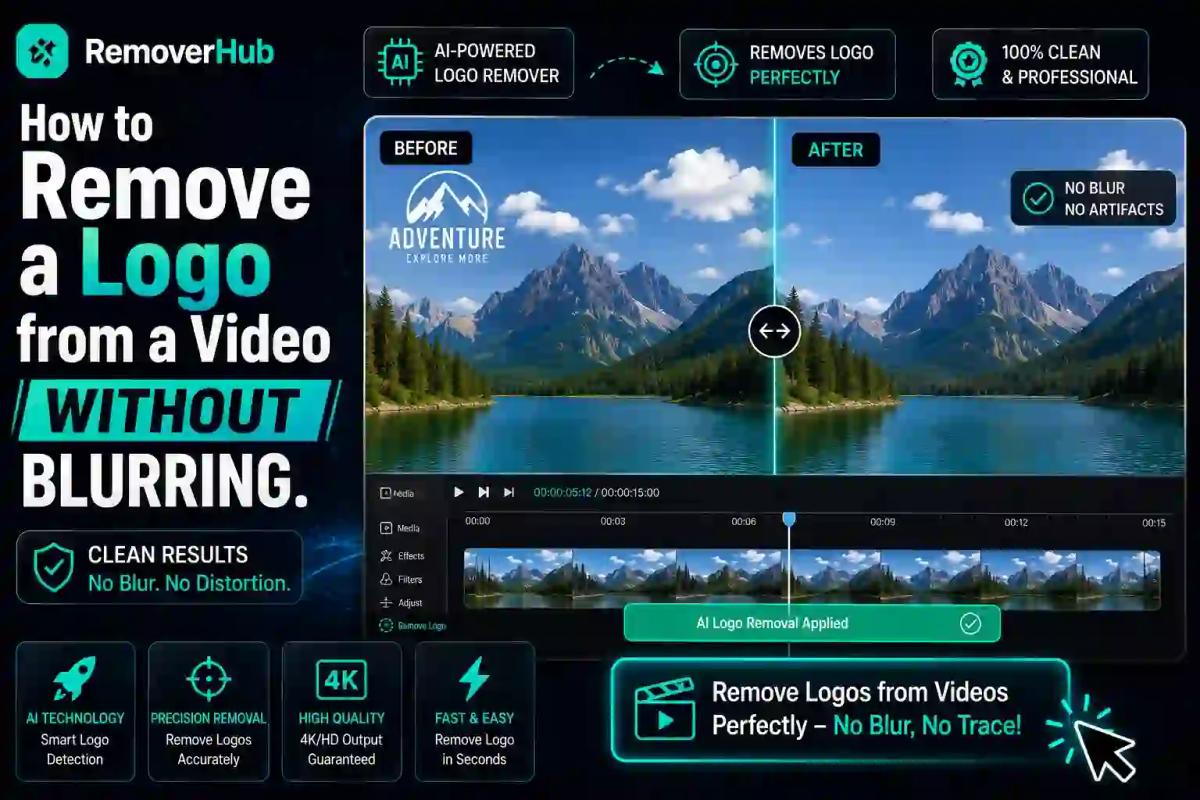
How to Remove a Logo from a Video Without Blurring (2026)
If you've ever tried removing a logo or watermark from a video, you've probably run into the same frustrating result: a smudgy, blurred patch that's almost more distracting than the logo itself. Old-school editing tricks like blurring or pixelating a corner might hide a logo, but they leave behind an obvious, unprofessional mark that instantly signals "this was edited."
Here's the good news — modern AI tools have completely changed this. To remove a logo from a video without blurring, you use an AI-powered video inpainting tool that analyzes the surrounding frames and reconstructs the covered area with matching detail, rather than simply smudging it out. The result looks like the logo was never there in the first place. Let's break down exactly how this works, and how you can do it yourself in minutes.
Why Blurring a Logo Doesn't Actually Work
Blurring might feel like the obvious fix, but it creates more problems than it solves:
- It draws attention instead of hiding it — A sharp, clear video with one blurry patch is more noticeable than the logo ever was.
- It looks unprofessional — For business, marketing, or content reuse, a blurred patch signals low-effort editing.
- It doesn't actually remove anything — The logo is still technically visible underneath the blur, which can be an issue for both aesthetics and compliance.
- It often needs manual tracking — If the logo moves or the camera shifts, blurring the same static area throughout the clip becomes a losing battle.
This is exactly why "remove logo from video without blurring" has become such a common search — people want a clean fix, not a cover-up.
What Is Video Inpainting? (The Technology Behind Clean Logo Removal)
Video inpainting is the AI technique responsible for genuinely clean logo removal. Instead of covering the logo, inpainting analyzes the pixels surrounding it — across multiple frames — and intelligently reconstructs what should be there instead. If the logo sits on a wall, the AI rebuilds the wall's texture and color. If it's over moving water or fabric, it reconstructs the motion pattern too.
This is fundamentally different from a simple pixelation or blur filter, which only distorts existing pixels rather than replacing them with accurate new information. Inpainting is the same underlying concept used in advanced photo editing (often called "content-aware fill"), applied frame-by-frame across video.
How to Remove a Logo from a Video Without Blurring (Step-by-Step)
Here's the process using an AI-powered logo remover tool — no professional editing software required.
Step — Action
1 — Upload your video to an AI logo remover tool
2 — Select or draw a box around the logo/watermark area
3 — Let the AI analyze surrounding frames and reconstruct the background
4 — Preview the result across the full video
5 — Download the cleaned, HD-quality video
Breaking Down Each Step
1. Upload Your Video Most tools accept standard formats like MP4, MOV, and AVI, so you can upload footage directly from your phone, camera, or downloaded source without converting anything first.
2. Mark the Logo Area Rather than manually editing every frame, you simply select the region where the logo appears — a corner watermark, a moving brand logo, or even a semi-transparent overlay.
3. Let AI Reconstruct the Footage This is where the real work happens. The AI tracks the marked area across every frame, even if the logo moves or the camera angle shifts slightly, and rebuilds that region using surrounding visual data.
4. Preview Before Exporting Always review the full clip, not just a frame or two. Complex backgrounds (like moving crowds or intricate patterns) can occasionally need a second pass for a perfectly seamless result.
5. Export in HD Download your finished video without compression artifacts, keeping the original resolution and quality intact — this step matters just as much as the removal itself.
For a deeper walkthrough with practical examples, our related guide on removing watermarks from photos and videos covers additional troubleshooting tips for trickier footage.
Static vs. Moving Logos: Why It Matters
Not all logos behave the same way in a video, and the removal approach needs to account for that.
Static watermarks sit in a fixed position (usually a corner) throughout the entire video. These are the easiest to remove cleanly, since the AI only needs to track one consistent region.
Moving or animated logos — common in stock footage, sports broadcasts, or dynamic branding — shift position, size, or rotation across frames. This requires the AI to track the logo's movement frame-by-frame, which is exactly where older tools (relying on simple frame-locked blurring) tend to fail. Modern inpainting tools handle this by re-analyzing the logo's position continuously rather than assuming it stays still.
If you're dealing with a moving logo, it's worth testing a short clip first to confirm the tool tracks it accurately before processing a longer video.
AI Removal vs. Manual Editing: A Quick Comparison
Method — Speed — Skill Needed — Quality Result
AI Logo Remover — Minutes — None — Clean, seamless, no blur
Manual Frame Editing (Premiere/Photoshop) — Hours — High — Very clean, but time-intensive
Blur/Pixelate Filter — Seconds — None — Visible, distracting patch
For most everyday needs — social content, reuploads, presentations — AI-powered removal now delivers results close to what a professional editor could achieve manually, without the time investment.
Common Situations Where This Comes Up
YouTube Reuploads and Content Curation
Creators compiling clips or reacting to footage often need to remove a source watermark cleanly, so the final video doesn't look copied or cluttered.
Social Media Content
Repurposing stock or downloaded clips for Instagram, TikTok, or other platforms often requires removing pre-existing logos to keep the content on-brand.
Stock Footage Editing
Preview watermarks on stock footage need to be removed after a proper license is purchased — a completely standard part of the video production process.
Presentations and Internal Use
Corporate teams often need to clean up footage — removing an old company logo, a previous vendor's branding, or an outdated watermark — before reusing it internally.
Downloaded or Archived Clips
Old footage with embedded timestamps, channel bugs, or outdated logos can be modernized and cleaned up for reuse.
Is It Legal to Remove a Logo or Watermark from a Video?
This is an important and common question, and the honest answer depends on context.
- Your own content — If it's footage you created or fully own the rights to, removing your own watermark or an outdated logo is entirely your call.
- Licensed stock footage — Once you've purchased or licensed footage, removing the preview watermark is standard practice and expected as part of normal use.
- Copyrighted third-party content — Removing someone else's logo or watermark from content you don't own or haven't licensed can raise copyright and trademark concerns, particularly for commercial use.
- Fair use and personal projects — Personal, non-commercial edits generally carry lower risk, but laws vary by country and use case.
As a general rule: if you don't own the footage or hold a license permitting edits, it's worth checking the content's usage terms before removing any branding. When in doubt, platforms like the U.S. Copyright Office offer clear guidance on fair use and content rights.
Does Removing a Logo Reduce Video Quality?
Not inherently — but it can, depending on the tool and export settings. Quality loss typically comes from:
- Exporting at a lower resolution than the original file
- Using a tool that compresses video heavily during processing
- Starting with already low-resolution or highly compressed footage
To avoid this, always start with your highest-quality source file and use a tool built for HD output. Removerhub's AI object remover is designed specifically to preserve resolution and detail during the reconstruction process, so your final video looks just as sharp as the original.
Free vs. Paid Logo Remover Tools
Most casual users — reuploaders, students, social content creators — can get everything they need from a free tool. Paid options typically add value through:
- Longer video length processing limits
- Faster rendering speeds
- Batch processing for multiple clips
- Higher export resolutions (4K support)
If you're handling a single short clip, a free logo remover tool is usually sufficient. For ongoing, high-volume editing work, a paid plan can save significant time.
Tips for the Cleanest Logo Removal Results
- Use the highest-resolution source video available — more detail gives the AI more accurate reference material.
- Mark the logo area generously — a slightly larger selection often produces cleaner reconstruction than a tightly cropped one.
- Preview the full clip, not just a frame — moving backgrounds can behave differently across the timeline.
- Process moving logos in shorter segments first — this helps confirm tracking accuracy before committing to a full-length video.
- Always export in the original resolution — avoid unnecessary compression during download.
Why Choose removerhub for Logo Removal
Removerhub's logo remover tool is built specifically to avoid the blur-and-pixelate problem altogether, using AI inpainting to reconstruct backgrounds cleanly rather than just covering them up. There's no software to install, no watermark added to your export, and no steep learning curve.
For related editing needs, removerhub also offers the AI text remover for on-screen captions or timestamps, and the AI blur remover for sharpening footage that's already lost clarity — making it a complete toolkit for cleaning up video content.
Frequently Asked Questions
How can I remove a logo from a video without blurring it? Use an AI-powered video inpainting tool that analyzes surrounding frames and reconstructs the covered area with matching detail, rather than blurring or pixelating it. This produces a clean, seamless result instead of a visible smudge.
Is it legal to remove a logo or watermark from a video? It depends on ownership and licensing. Removing your own watermark or a properly licensed stock footage watermark is standard practice, but removing branding from copyrighted content you don't own or haven't licensed can raise legal concerns.
What's the best free tool to remove a logo from a video? AI-based logo removers that use inpainting technology, rather than basic blur filters, generally produce the cleanest free results, since they reconstruct the background instead of just distorting it.
Does removing a logo reduce video quality? Not inherently. Quality loss usually comes from low-resolution source files or heavy compression during processing, not from the removal technique itself. Using an HD-focused tool preserves detail.
Can I remove a moving or animated logo from a video? Yes. Modern AI tools track the logo's position across frames, even if it moves, resizes, or shifts with the camera, rebuilding the background continuously rather than assuming a fixed location.
How long does it take to remove a logo from a video? For most short clips, AI tools complete the process in just a few minutes, depending on video length and resolution — significantly faster than manual frame-by-frame editing.
Final Thoughts
Blurring a logo out of a video was never really a solution — it just traded one visible flaw for another. With AI-powered inpainting, you can now remove logos, watermarks, and unwanted overlays cleanly, without leaving behind any trace that the video was edited at all. Whether you're cleaning up stock footage, repurposing content, or removing outdated branding, the right tool makes this a two-minute task instead of an hours-long editing project.
Ready to try it yourself? Book a seat at Advance Free Tools offered by removerhub and see how clean, blur-free logo removal really looks using the logo remover tool.