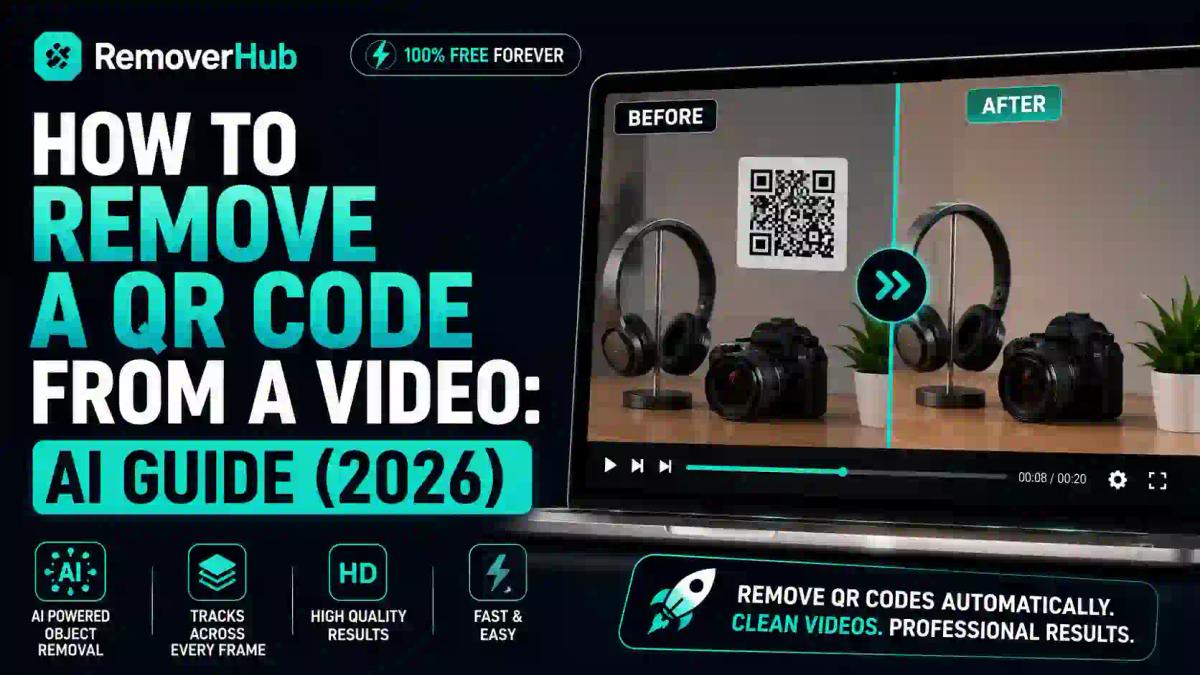
How to Remove a QR Code From a Video: AI Guide (2026)
A stray QR code sticker in the corner of a product demo, a screen-recorded tutorial with a payment QR code visible, or an old promotional video with an outdated scan code — all of these are common reasons people search for how to remove a QR code overlay from a video frame. The short answer: modern AI video inpainting tools can track the QR code across every frame and reconstruct what's behind it automatically, without the manual rotoscoping that used to make this a multi-hour editing job.
This guide walks through exactly how that process works, which tools handle it well, and the technical details that separate a clean removal from a smeared, glitchy patch. If you've ever tried to blur out a QR code manually in a video editor and ended up with an ugly gray blob following your subject around the frame, this is the better way to do it.
What Does "Removing a QR Code Overlay From a Video" Actually Mean?
A QR code overlay is any square scannable code that's been physically placed in a video's frame — printed on a sign, displayed on a screen being recorded, stuck to a product, or digitally added during editing. Removing it means two very different things depending on your goal:
Blurring or covering it simply obscures the code so it can't be scanned, but leaves a visible patch, box, or blur effect where it used to be.
True removal (inpainting) analyzes the pixels surrounding the QR code across every frame and reconstructs what would logically be there instead — the wall behind it, the packaging design underneath it, or the background scenery — so the final video looks like the QR code was never there at all.
Most people searching for this actually want the second option. A visible blur box draws more attention than the QR code did in the first place; a clean removal looks intentional and professional.
Why QR Code Removal Is Trickier Than Removing a Static Watermark
At first glance, a QR code overlay seems similar to a watermark — it's a fixed graphic sitting on top of footage. But there are a few technical differences that make QR code removal its own specific challenge:
QR codes are usually placed on physical objects, not overlaid digitally. A watermark is often a flat digital layer added during export, sitting at the same screen position in every frame. A QR code sticker on a product, however, moves and rotates with the object as the camera pans or the product is handled — meaning the removal tool has to track a moving, perspective-shifting square rather than a static rectangle.
The area behind a QR code is often textured or complex. Watermarks frequently sit over simple backgrounds like sky, floor, or plain fabric. QR codes are commonly placed on packaging with printed designs, patterns, or text — which means the AI reconstructing the space underneath has to generate believable detail, not just a flat color fill.
Reflectivity and lighting change frame to frame. If the QR code is on a glossy surface or moving under variable lighting, the reconstructed area needs to match shifting highlights and shadows convincingly across the whole clip, not just in a single frame.
This is exactly why simple blur tools fall short here — blurring doesn't require any of this reconstruction, but it also leaves an obvious, distracting patch on screen.
Step-by-Step: How to Remove a QR Code Overlay From a Video Frame
Here's the practical workflow for getting a clean result, from upload to final export.
Step 1: Identify Every Frame Where the QR Code Appears
Before running any tool, scrub through your footage and note the timestamp range where the QR code is visible. If it only appears briefly, some tools let you isolate that clip section, which speeds up processing significantly compared to running the whole video through frame-by-frame analysis.
Step 2: Choose a Tool With Frame Tracking, Not Just Frame-by-Frame Editing
This is the single most important decision in the whole process. A tool that requires you to manually mask the QR code in every individual frame is functionally the same as old-school rotoscoping — technically possible, but painfully slow for anything longer than a few seconds of footage.
What you actually want is object tracking combined with generative inpainting: you mark the QR code once, in one frame, and the algorithm follows its position, size, and rotation automatically across the rest of the clip. The AI object remover is built around exactly this kind of frame tracking, so a QR code that shifts position as the camera or product moves gets followed and removed consistently, rather than needing a fresh mask drawn every few seconds.
Step 3: Mark the QR Code Boundary Accurately
Draw your selection box or mask slightly larger than the QR code itself — a couple of pixels of margin helps the tool fully capture the edges, since QR codes often have a thin white "quiet zone" border that needs to be included in the removal area too. Too tight a selection can leave a faint outline ghosting around the removed area.
Step 4: Let the Tool Track and Inpaint Across Frames
Once your initial mask is set, the tracking algorithm follows the QR code's position through the video, adjusting for movement, rotation, and perspective changes. The inpainting engine then analyzes the surrounding pixels in each frame — texture, lighting, color gradients — and generates a believable reconstruction of what should be there instead.
This is where generative fill technology matters. Older content-aware fill methods (the kind found in basic photo editors) work reasonably well on static images but struggle with video because each frame needs to stay visually consistent with the one before and after it. Modern neural network inpainting models are trained specifically to maintain that frame-to-frame consistency, which is why results look far smoother than they did even a few years ago.
Step 5: Review Frame-by-Frame for Ghosting or Flicker
Even with strong tracking, it's worth scrubbing through the processed clip slowly, especially around:
- The moment the QR code first enters the frame
- Any point where the camera angle shifts sharply
- Sections where the product or subject moves quickly
Flickering or a faint "ghost" outline where the code used to be usually means the tracking lost the object briefly during a fast movement. Most tools let you manually adjust the mask at that specific frame to fix it, rather than reprocessing the entire clip.
Step 6: Export at the Original Resolution and Frame Rate
This step trips up more people than it should. If your source video is 1080p at 30fps, export it at the same resolution and frame rate — downscaling during export can introduce compression artifacts that make the inpainted area more visible than it needs to be. Preserving resolution matters even more around a recently reconstructed area, since that section has less "real" pixel data to begin with.
Comparison: Tools for Removing QR Code Overlays From Video
| Tool | Frame Tracking | Inpainting Quality | Cost | Best For |
|---|---|---|---|---|
| AI Object Remover (browser-based) | Automatic, follows movement | Strong on textured backgrounds | Free tier + paid limits | Sellers, creators, quick turnaround |
| Adobe After Effects (manual rotoscope) | Manual per-frame masking | High if done by a skilled editor | Paid (Creative Cloud) | Professional video editors |
| CapCut object removal | Semi-automatic tracking | Moderate, better on simple backgrounds | Free with watermark on some exports | Casual social media edits |
| DaVinci Resolve (tracker + paint) | Built-in motion tracker | High, but steep learning curve | Free version available | Editors comfortable with color/VFX tools |
| Mobile video editing apps | Limited or none | Basic, often just blur | Free/freemium | Quick blur cover-ups, not true removal |
CapCut and similar mobile-first editors are genuinely useful for quick social content, but their object removal tools are typically optimized for removing people or simple background clutter, not for reconstructing detailed, textured surfaces the way a QR code removal often requires. If the QR code sits on a plain wall or solid-color background, CapCut can handle it reasonably well. If it's on patterned packaging or a busy surface, a dedicated AI object remover with stronger inpainting will produce a noticeably cleaner result.
Blurring vs. True Removal: Which Should You Actually Use?
This comes down to what you're trying to achieve.
Blur the QR code if you need something fast, the QR code appears only briefly, or the footage is for internal/rough-cut use rather than a polished final product. Blurring takes seconds and doesn't require tracking accuracy.
Fully remove the QR code if the footage is going to be published, used in marketing, or needs to look professional. A blur patch draws the eye — viewers notice a blurred square far more than they'd notice a QR code that was never distracting to begin with. This matters especially for ecommerce product videos, where a visible blur can look like something is being deliberately hidden, which isn't the impression most brands want to give.
If you're deciding between these two approaches for other overlay types too — like logos or text stamps — this comparison of AI object removal versus manual clone stamp editing breaks down the trade-offs between automated and manual approaches in more depth.
Does Removing a QR Code Overlay Reduce Video Quality?
It can, if the tool or workflow isn't handling resolution correctly, but it doesn't have to. The main quality risks are:
Re-compression from repeated exports. Every time a video is exported and re-imported, some quality is lost to compression. Try to do QR code removal as one of your final edits, not an early step you'll re-export multiple times afterward.
Under-resolved inpainting on high-resolution footage. Some tools process video at a lower internal resolution than the source file, then upscale the result — which can leave the reconstructed area looking slightly softer than the rest of the frame. Check whether your chosen tool preserves native resolution during processing, not just at export.
Frame rate mismatches. Exporting at a different frame rate than your source can cause subtle motion stutter, particularly noticeable in the area where the QR code was removed since that's the region viewers are most likely to be studying closely if they know to look for it.
If you're working with older or lower-resolution footage where quality loss is a bigger concern, it's worth reading through this guide on removing backgrounds and objects without pixelation — much of the same logic around preserving detail during AI reconstruction applies to video inpainting as well.
Is It Legal to Remove a QR Code From Someone Else's Video?
This depends entirely on ownership and context, and it's worth being careful here. If it's your own footage — your product video, your screen recording, your marketing content — removing a QR code you added or that appeared incidentally is entirely your call.
If the footage belongs to someone else, editing and republishing it (even just to remove an overlay) can raise copyright questions, since altering and redistributing another creator's work without permission may fall outside fair use depending on the purpose, amount used, and effect on the original creator. The U.S. Copyright Office's guidance on fair use lays out the four factors courts weigh in these situations, and it's a useful reference if you're ever unsure whether editing someone else's video crosses a line.
QR codes themselves aren't protected by copyright as a technology — the format was invented by Denso Wave in 1994 and has been openly licensed for public use since its creation — but that doesn't extend to the video content the code appears in, which typically belongs to whoever filmed or owns it.
Common Mistakes When Removing QR Code Overlays From Video
Removing the code but leaving audio or visual cues that reference it. If a voiceover says "scan the code on screen," removing the visual without adjusting the audio or on-screen text leaves a confusing gap. Always review the full context, not just the visual layer.
Processing the whole video when only a few seconds need editing. Isolating just the clip range where the QR code appears, rather than running an entire 10-minute video through the tool, saves processing time and reduces the risk of quality loss on sections that didn't need editing at all.
Skipping a final full-speed playback check. Reviewing frame-by-frame is useful for catching ghosting, but some flicker issues are only visible at real playback speed, where the eye picks up on subtle inconsistencies that a paused frame comparison misses.
Using a generic blur effect instead of tracked inpainting. A static blur box applied to a moving frame either lags behind the QR code's actual position or has to be manually keyframed — both of which look noticeably worse than a tool built specifically for tracked object removal.
Screen Recordings: A Special Case
If your QR code appears in a screen recording — say, a tutorial video where a payment QR code or sign-in code flashes on screen — the removal process is slightly easier in one respect: screen-recorded QR codes are usually flat, well-lit, and don't shift in perspective the way a physically filmed code does. That said, they often appear and disappear quickly as the recorded app or website updates, so accurately marking the exact frame range where the code is visible becomes more important than the tracking itself.
Frequently Asked Questions
Can I remove a QR code from a video for free? Yes. Several AI-based object removal tools offer a free tier capable of tracking and removing a QR code overlay across a short clip, though longer videos or higher-resolution exports may require a paid plan.
What's the best tool to remove a QR code overlay from a video? Look for a tool with automatic object tracking combined with generative inpainting, rather than one that only offers frame-by-frame manual masking or basic blur effects.
Does removing a QR code from a video reduce quality? Not if handled correctly. Export at your source video's original resolution and frame rate, and avoid repeated re-exports, which is where most quality loss actually happens.
Can AI remove a QR code from every frame automatically? Yes, modern object tracking follows the code's position, size, and rotation across frames after you mark it once, rather than requiring you to select it manually in every frame.
Is it legal to remove a QR code from someone else's video? It depends on copyright ownership and context. Editing your own footage is straightforward; editing and republishing someone else's video may raise fair use questions worth reviewing before publishing.
How long does it take to remove a QR code overlay from a video? For a short clip (under a minute), AI tracking and inpainting typically takes a few minutes of processing time, compared to potentially hours of manual rotoscoping in a traditional video editor.
Can I remove a QR code without blurring the background behind it? Yes — that's the core difference between blurring and true inpainting. Inpainting reconstructs the actual background detail instead of obscuring it, so nothing looks blurred or covered in the final result.
What's the difference between blurring and removing a QR code overlay? Blurring hides the code behind a visible obscured patch. Removal reconstructs the background so the code appears to have never been there, which looks significantly cleaner for published or professional content.
Can I remove a QR code from a video on my phone? Some mobile apps offer basic object removal, but tracking accuracy and inpainting quality are generally stronger on browser-based AI tools designed specifically for this kind of frame-by-frame reconstruction.
Does removing a QR code overlay leave a visible patch or glitch? It can, if the tracking loses the object during fast movement or if the tool processes at a lower internal resolution than your source video. Reviewing the clip at full playback speed after processing catches most of these issues before export.
Final Takeaway
Removing a QR code overlay from a video frame comes down to one core distinction: tracked, AI-driven inpainting versus a manually keyframed blur. The former looks professional and holds up under close viewing; the latter is faster but leaves an obvious visual gap that often draws more attention than the original QR code did.
Start by isolating the exact clip range where the code appears, use a tool built for object tracking rather than single-frame editing, and always review the result at full playback speed before exporting. From there, the full tools library at RemoverHub covers the related cleanup work too — logo removal, watermark stripping, and background reconstruction — so your finished video is ready to publish without a single visible trace of the original overlay.