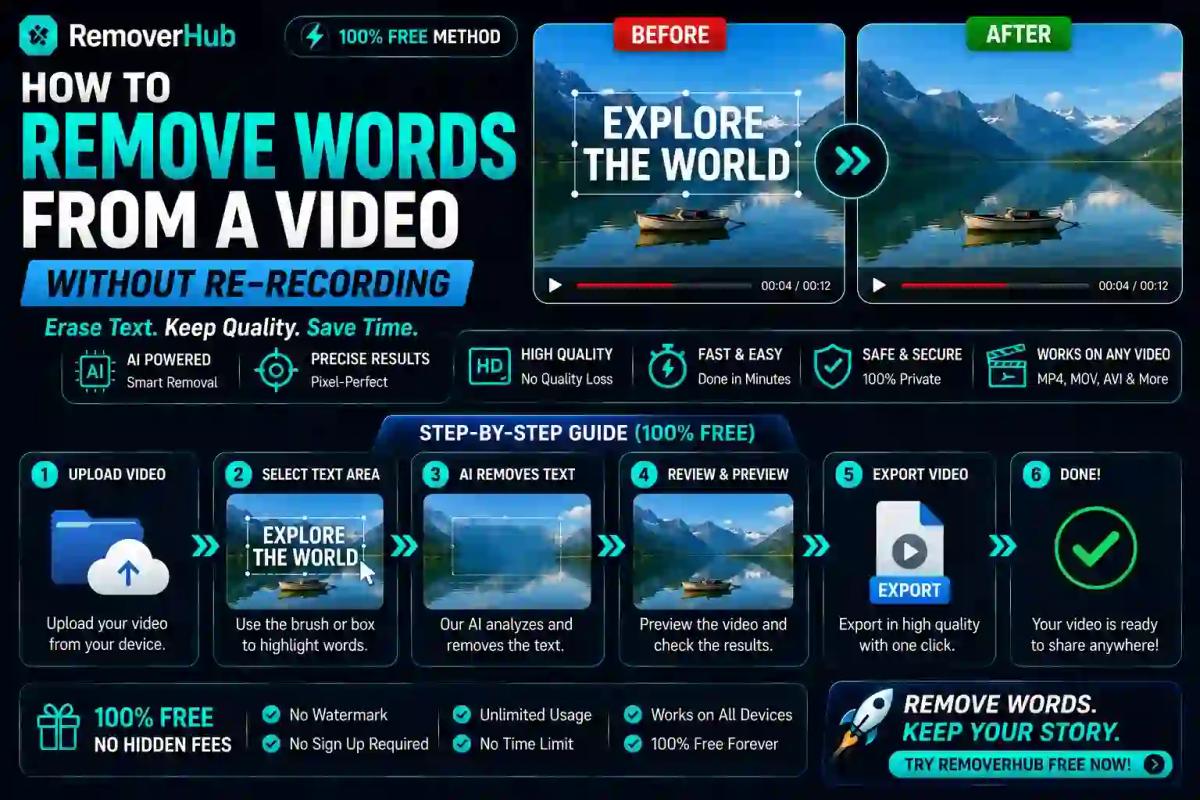
How to Remove Words From a Video Without Re-Recording
The fastest way to remove words from a video without re-recording is transcript-based editing: your video gets automatically transcribed into text, and deleting a word or sentence from that text deletes the matching audio and video segment. No timeline scrubbing, no manual scrubbing back and forth trying to find exactly where a mistake starts and ends — you just edit the words like you're editing a document.
The part most guides skip is what happens after you delete that word: you're left with a gap, and closing that gap cleanly — without an obvious jump cut — is where the real skill in this workflow lives. Here's the complete picture, including the honest trade-offs of each method.
What Transcript-Based Editing Actually Is
Traditional video editing means scrubbing along a timeline, zooming in on waveforms, and manually marking exact in and out points for every cut — a genuinely slow process when you're removing a handful of words scattered across a 20-minute recording.
Transcript-based editing flips that process around. The tool runs your video through speech recognition, generates a full text transcript, and links every word in that transcript to its exact timestamp in the video. From there, you interact with your video the way you'd edit a Word document: select a word or phrase in the text, hit delete, and the tool automatically removes that corresponding stretch of audio and video.
This approach has become the standard method for word-level editing precisely because it removes the tedious part — hunting for exact cut points — while leaving the actual creative decision (what to cut) entirely in your hands.
Step-by-Step: Removing Words From a Video
Here's the practical workflow from start to finish.
Upload your video to a transcript-based editing tool. The tool processes your audio track and generates a text transcript, typically within a few minutes depending on video length.
Review the transcript for accuracy. Automatic speech recognition is generally reliable but not perfect, especially with accents, technical vocabulary, or background noise — skim through before making edits to catch any transcription errors that might affect which words actually get cut.
Select the word, phrase, or sentence you want removed. Click and drag to highlight it in the text, exactly as you would in a word processor.
Delete it. The tool removes both the audio and video for that selected segment automatically, and the transcript updates to reflect the edit.
Preview the result immediately after each cut. Play back the section around your edit before moving on to the next one, so you catch any awkward transitions while you're still in that part of the video rather than discovering problems during a final full review.
Address the resulting gap using one of the smoothing techniques below, since a raw cut — even a technically clean one — often creates a visible or audible discontinuity.
Export the finished video once you've worked through all your planned edits and smoothed any noticeable transitions.
The Jump Cut Problem (And How to Fix It)
This is the part most tutorials gloss over, and it's genuinely the difference between a polished edit and one that looks obviously chopped up.
When you delete a word or phrase from a talking-head video, you're removing a chunk of both audio and video simultaneously. The footage on either side of that gap gets stitched together directly — but the speaker's head position, hand gesture, or blink pattern rarely matches perfectly at that exact splice point. The result is a jump cut: a small, visually jarring pop where the person's position noticeably shifts between one frame and the next.
Common ways to smooth this over:
- Cutaway shots. Insert a brief different camera angle, a screen-share, a graphic, or a B-roll clip over the cut point — this is the standard technique in interview and talking-head content, since it completely hides the jump by giving the viewer something else to look at during the transition.
- Zoom or reframe. A subtle zoom-in (or zoom-out) exactly at the cut point creates a deliberate-feeling transition rather than an accidental-looking pop, and is a common technique in YouTube-style talking-head editing specifically because it's fast to apply repeatedly.
- Crossfade or dissolve. A short crossfade blends the two clips together rather than hard-cutting between them — this works reasonably well for audio-only content or slower-paced videos, though it can look slightly soft or dreamy if overused in fast-paced content.
- J-cuts and L-cuts. These offset the audio and video cut points slightly from each other — letting the new audio start a beat before the video changes, or vice versa — which is a more advanced technique but produces genuinely the most natural-feeling transitions when done well.
- Leave it as a straight cut, deliberately. For fast-paced content like short-form social clips, quick jump cuts have actually become a recognizable stylistic choice rather than something to hide — plenty of successful creators lean into visible cuts rather than smoothing every single one.
Which approach fits depends entirely on your content style — a corporate training video generally wants invisible, professional-feeling cuts (cutaways or crossfades), while a fast-paced social media clip can often get away with, or even benefit from, visible jump cuts.
Removing Filler Words Automatically
This deserves its own section because it's a genuinely distinct, extremely common use case with its own dedicated tooling — removing "um," "uh," "like," and long pauses is different from removing a specific mistake or sentence.
Most transcript-based editing tools include an automatic filler word detection feature that scans your entire transcript, flags every instance of common filler words and awkward pauses, and lets you remove them all in a single batch action rather than hunting them down individually. This is particularly valuable for podcast editing and long-form talking-head content, where filler words accumulate constantly across a recording but individually are too minor to be worth manual timeline hunting.
A practical note worth knowing: removing every single filler word can occasionally make speech sound unnaturally clipped or rushed, since natural speech includes small pauses and verbal tics that our brains actually process as normal rhythm. Most tools let you review flagged filler words before batch-deleting them, and it's worth spot-checking a few sections after a bulk filler-word removal to make sure the pacing still sounds natural rather than robotic.
Comparing Your Options: Which Method Actually Fits Your Situation
| Method | Effort Level | Leaves a Jump Cut? | Best For |
|---|---|---|---|
| Transcript-based editing | Low — edit like a text document | Yes, unless smoothed | Talking-head videos, podcasts, webinars, course content |
| Manual timeline cutting | High — requires scrubbing and precise in/out points | Yes, unless smoothed | Precise control over exact frame-level cuts, complex multi-track projects |
| AI voice cloning re-dub | Medium — requires generating replacement audio | No, if done well | Fixing a specific misspoken word while preserving perfect lip movement (advanced, situational use) |
| Reshooting the segment | Highest — requires re-setting up and re-recording | No | When the error is significant enough that a patch job would be more obvious than a clean reshoot |
For the vast majority of everyday word-removal needs — cutting a mistake, trimming a rambling tangent, removing filler words — transcript-based editing paired with a simple cutaway or zoom to smooth the cut is genuinely the best balance of speed and quality. Manual timeline editing remains relevant for more complex, multi-layered projects where you need frame-precise control beyond what word-level editing offers. AI voice cloning re-dubbing is a more specialized, situational tool — genuinely useful for fixing one specific misspoken word in an otherwise perfect take, but overkill for routine editing.
Does Removing Spoken Words Affect Lip Sync?
Yes, this is a real and unavoidable consideration for talking-head video specifically. When you cut out a portion of speech, the video footage of the speaker's mouth moving gets cut along with it — so the visual jump you see at the cut point is partly a jump cut in body position and partly a break in the natural flow of lip movement.
This is precisely why cutaways and reframing techniques matter so much for talking-head content specifically: they don't just hide a position jump, they also hide the lip-sync discontinuity that a straight, unsmoothed cut would otherwise expose clearly. For audio-only content like podcasts (without a visible speaker on camera), this concern disappears entirely, which is part of why podcast editing tends to tolerate more aggressive, unsmoothed word-level cutting than video content does.
Removing Words From Video for Specific Use Cases
For YouTube videos, transcript-based editing paired with strategic cutaways (b-roll, screen shares, graphics) is the standard professional approach — YouTube audiences are accustomed to reasonably tight, well-paced editing, and visible unsmoothed jump cuts can read as unpolished for long-form content specifically.
For podcasts recorded on video, the audio-editing side is often more forgiving than the video side — many podcast editors remove filler words and dead air fairly aggressively on the audio track, then handle the video track separately with either cutaways to a static logo or graphic during heavy edit points, or simply accept some jump cuts as part of the format's casual feel.
For corporate training and webinar content, cleaner, less visible edits generally matter more, since this content tends to be re-watched and referenced more formally — investing extra time in cutaways and smoother transitions pays off more here than it would for a quick social clip.
For social media clips, speed usually matters more than polish, and audiences are genuinely accustomed to fast, visible cuts as part of the format's energy — this is the one context where skipping the smoothing step entirely is often the right creative call, not a shortcut you're settling for.
For course creator content, where the same video may get watched repeatedly by paying students, it's worth the extra pass to smooth cuts properly, since repeated exposure to a jarring jump cut becomes more noticeable and more distracting over multiple viewings than it would in a one-time watch.
Fixing a Curse Word or Sensitive Term Specifically
Removing a single problematic word — a curse word, a brand name you're not cleared to mention, an outdated term — follows the same transcript-editing process as any other word removal, but the smoothing consideration is slightly different since you're often cutting a very short segment embedded mid-sentence rather than a full phrase.
For a single-word removal like this, a quick options is muting just the audio for that word while leaving the video intact (if the word isn't critical to lip-sync accuracy for the viewer), or applying a very short crossfade rather than a hard cut, since a hard cut on a single word mid-sentence tends to be more jarring than the same technique applied to a full removed sentence. If the visual mouth movement for that word is genuinely distracting once the audio is gone, a brief cutaway or zoom at exactly that point resolves it cleanly.
Common Mistakes When Removing Words From Video
A few recurring issues account for most of the rough, unpolished results people run into with this workflow:
- Skipping the transcript review step. Automatic transcription errors mean the tool might select slightly different audio than you intended when you click a word, especially around homophones or fast speech — always preview immediately after cutting rather than trusting the selection blindly.
- Removing too many words in a row without checking pacing. A string of aggressive individual cuts can leave speech sounding unnaturally choppy even when each individual cut is technically clean — periodically listen to a full sentence or paragraph, not just the immediate cut point.
- Ignoring the visual side entirely. It's easy to focus purely on the audio result and forget to check how the video looks at each cut point — always preview with video, not just audio waveforms.
- Over-smoothing every single cut with heavy effects. Not every cut needs an elaborate transition; reserve cutaways and zooms for the cuts that genuinely need them, since stacking transition effects on every minor edit can start to feel busier and more distracting than the jump cuts they were meant to fix.
- Forgetting that removed video segments can leave residual background noise or room tone gaps. If your recording has consistent background hum or room ambiance, a hard audio cut can create a brief, noticeable silence or level jump — a short audio crossfade resolves this even when the video cut itself looks fine.
Frequently Asked Questions
How do I remove a word from a video without re-recording? Use a transcript-based editing tool that converts your video's speech into text — deleting the word from the transcript automatically removes the matching audio and video segment, no manual timeline scrubbing required.
Can AI remove filler words from a video automatically? Yes, most transcript-based editing tools include automatic filler word detection that flags "um," "uh," and similar words throughout your entire recording, letting you review and remove them in a single batch action rather than hunting them individually.
Does removing words from a video leave a visible jump cut? Yes, by default — removing any word or phrase creates a jump cut where the footage on either side of the gap doesn't perfectly align, though this can be smoothed with a cutaway, zoom, or crossfade at the cut point.
What is transcript-based video editing? It's an editing method where your video is automatically transcribed into text linked to exact timestamps, letting you edit spoken content by deleting words directly from the transcript rather than manually finding cut points on a timeline.
Is there a free tool to remove words from a video? Yes, several transcript-based editing tools offer free tiers suitable for basic word removal, though longer videos or advanced smoothing features sometimes require a paid plan depending on the specific tool.
How do I fix a mistake in a video without reshooting? Transcript-based editing lets you delete the specific mistake from the text transcript, and pairing that cut with a brief cutaway, zoom, or crossfade generally hides the edit convincingly enough that reshooting isn't necessary.
Can I edit a video like a text document? Yes — this is exactly what transcript-based editing enables, since every word in the generated transcript is linked to its corresponding video timestamp, so text edits directly translate into video edits.
Does removing spoken words affect lip sync? Yes, for talking-head video specifically — cutting audio also cuts the corresponding footage of the speaker's mouth moving, which is why cutaways and reframing are commonly used to hide the resulting lip-sync discontinuity at the cut point.
The Bottom Line
Removing words from a video without re-recording comes down to two connected skills: using transcript-based editing to make the actual cutting fast and precise, then smoothing the resulting gap so it doesn't read as an obvious jump cut. Get comfortable with both, and fixing a misspoken sentence or trimming filler words becomes a five-minute task instead of a full reshoot.
If your edited video also needs a clean, distraction-free frame around the cuts you've made — removing a stray logo, watermark, or unwanted object that's now more visible after trimming — our AI Object Remover and Logo Remover handle that cleanup directly in your browser, and our Green Screen Remover is worth a look if you're building cutaway shots that need a clean background swap to hide a cut point.